How to Configure Google SSO Login in Kula
Last updated: September 17, 2026
Enabling Google Single Sign-On (SSO) allows your users to log in to Kula seamlessly and securely using their Google Workspace credentials. This setup simplifies onboarding and improves access management across your organization.
Who can do this: Super Admin
Where to find it: Settings → Privacy, Compliance & Security → Security
Steps to Configure Google SSO in Kula
🛠 Pre-requisites:
– You must be a Super Admin in both Kula and Google Workspace
– Your organization must be on Google Workspace (formerly G Suite)
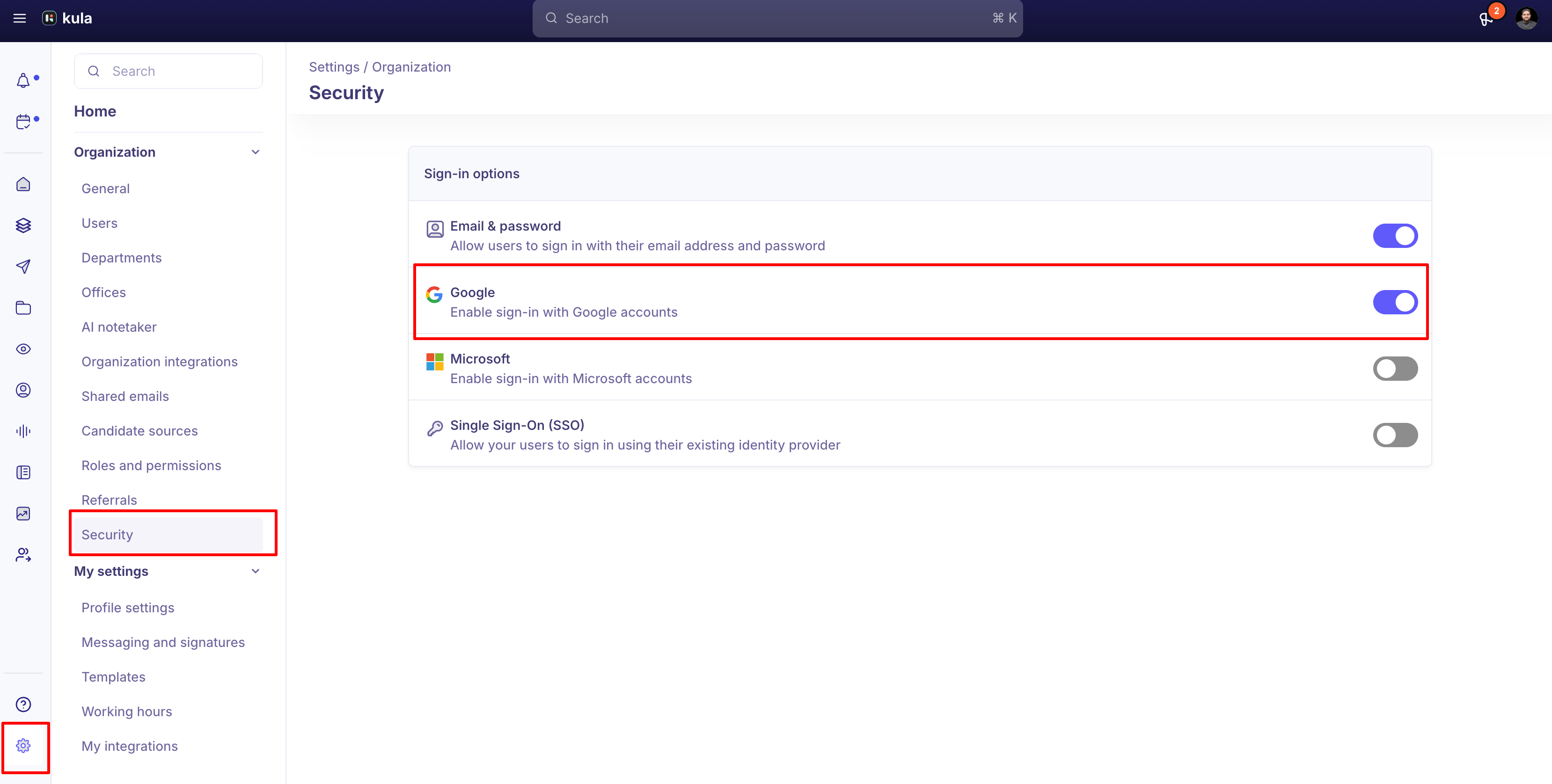
1. Go to Security settings
Go to Settings → Privacy, Compliance & Security → Security
2. Turn on Google sign-in
Under Sign-in options, turn on Google (Enable sign-in with Google accounts)
Google Workspace Auto Provisioning
Kula now supports automatic provisioning and deprovisioning of users via Google Workspace. This ensures your team stays in sync—no more manual invites!
🔄 How to Enable Auto-Provisioning
Go to Settings → Organization → Organization integrations
Hover over the Workspace card and click Edit
Turn on Auto user provisioning
⚙ What Happens When Provisioning is Enabled?
All active Workspace users are automatically added to Kula as active users
(even if previously under Pending or Imported — users you deactivated in Kula stay deactivated)A one-time full sync is triggered immediately
Re-enabling the toggle will run a fresh sync
🔁 Ongoing Sync – Every 10 Minutes
Kula will automatically:
✅ Provision newly added Google Workspace users
🗑 Deprovision users removed from Workspace
✏ Update user names and emails if changed in Google
Good to know
Google sign-in and auto-provisioning are set up in different places. Google sign-in is on the Security page. Auto user provisioning is on the Google Workspace (Workspace) card under Organization integrations.
Provisioning doesn't reactivate people you deactivated in Kula. It adds and updates active Workspace users, and brings in Pending and Imported users, but deactivated users stay deactivated.
Kula checks Google Workspace every 10 minutes. New users are added, removed users are deprovisioned, and name or email changes are applied.
Turning provisioning on runs a full sync straight away. Turning it off and on again runs a fresh one.
At least one sign-in option must stay on. Kula won't let you turn off the last one.
FAQ
Where do I turn on Google sign-in?
Go to Settings → Privacy, Compliance & Security → Security and turn on Google under Sign-in options.
We turned on provisioning, but someone we deactivated is still deactivated. Is that right?
Yes. Provisioning doesn't reactivate users you deactivated in Kula. Reactivate them yourself from the Users page if they should have access.
How quickly does a new starter appear in Kula?
Within about 10 minutes of being added to Google Workspace, once provisioning is on.
Someone left the company. Do I need to remove them from Kula?
Not if provisioning is on. When they're removed from Google Workspace, Kula deprovisions them at the next check.
Can people still sign in with a password?
Yes, if Email & password is still turned on under Sign-in options.
Need Help?
If you face issues with Google login or provisioning setup, contact Kula Support via in-app chat or email us at support@kula.ai