Creating a new job
Last updated: April 10, 2026
The Jobs page allows you to create and manage job postings, including configuring the job description, AI scoring, hiring team, interview plan, and job postings.
This article explains how to create a job and configure each section within Kula.
Prerequisites
You must have one of the following permissions:
Super Admin
Admin
Recruiter
Step 1: Configure Job Information
Click Jobs in the left navigation.
Click Create Job.
Enter the Job Title.
Enable Confidential if the job should be hidden from general visibility.
In Job Information, select:
Department
Office
Work Type
Workplace
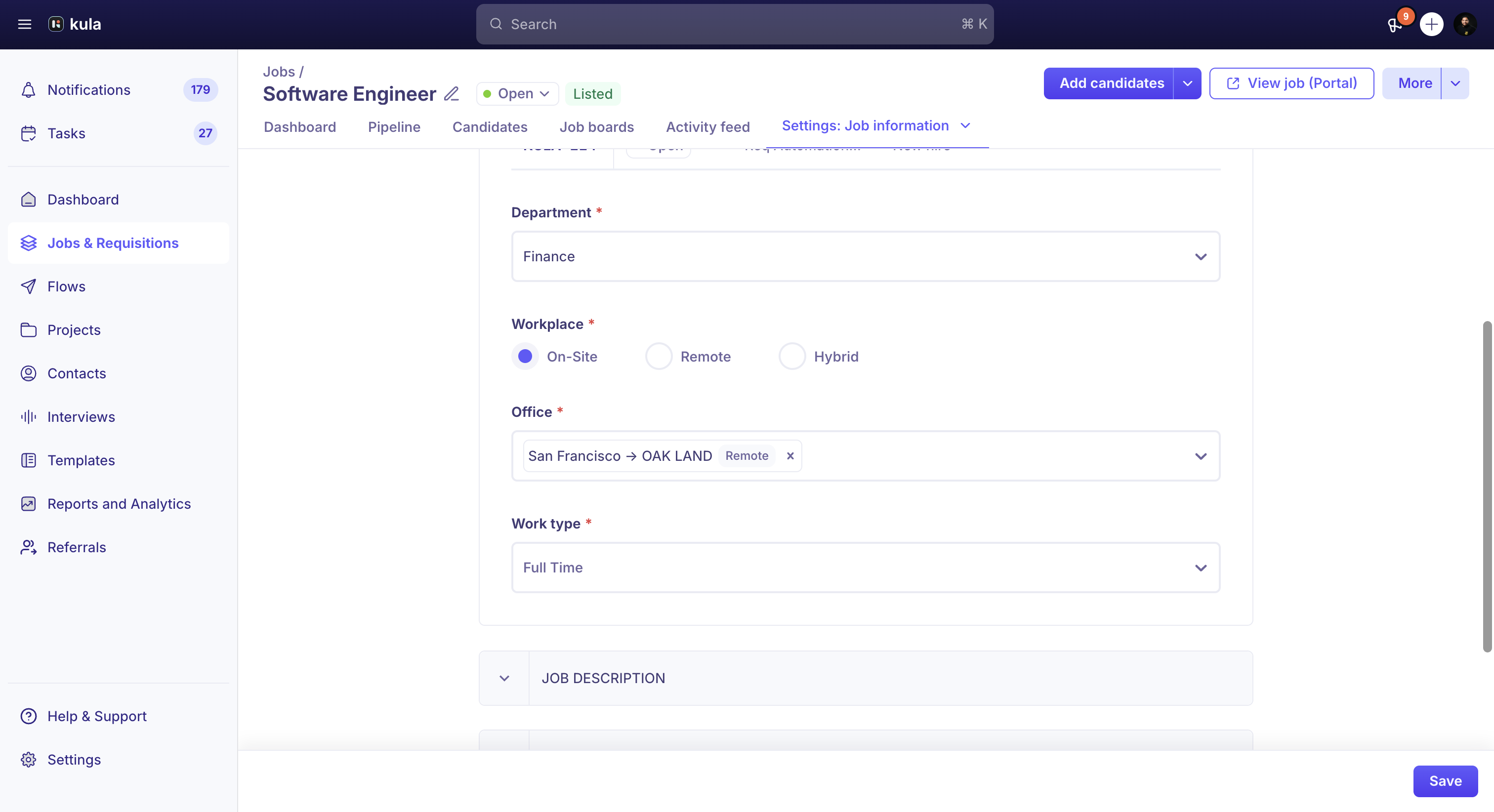
Add the Job Description:
Type the description manually, or
Paste content from another source, or
Use Ask AI to generate a job description with a one-line prompt, or
Copy the description from another job
Configure AI Scoring:
Define attributes that matter for this role
Use these attributes to filter and rank candidates automatically
Step 2: Configure the Hiring Team
In the Hiring Team section, define who has access to the job and their permission level.
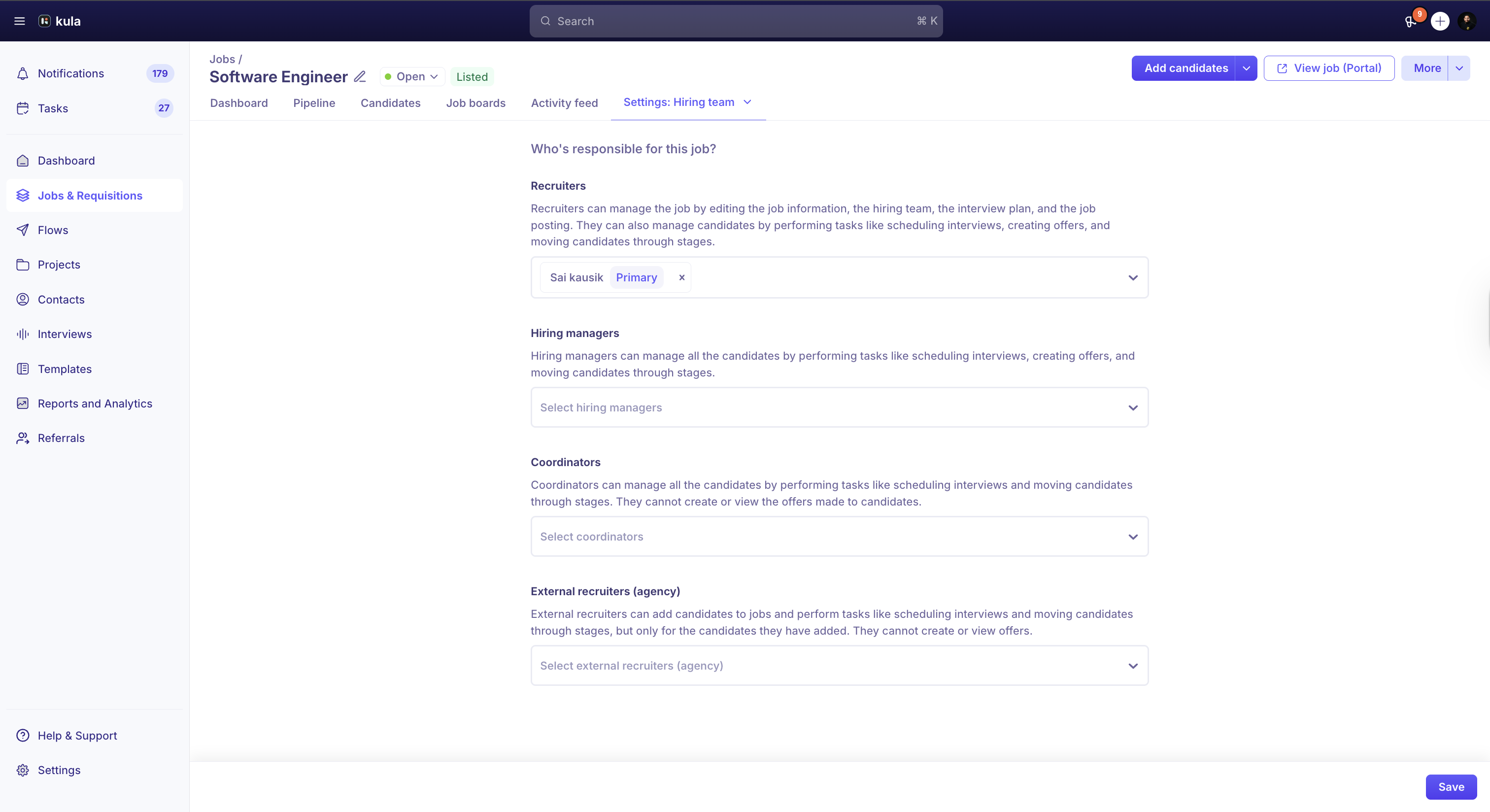
Recruiter
Recruiters can:
Edit job information
Update the hiring team
Modify the interview plan
Manage job posting settings
Schedule interviews
Create offers
Move candidates between stages
Hiring Manager
Hiring Managers can:
Schedule interviews
Create offers
Move candidates between stages
Manage candidates throughout the hiring process
Coordinator
Coordinators can:
Schedule interviews
Move candidates between stages
Coordinators cannot create or view offers.
External Recruiter (Agency)
External recruiters can:
Add candidates to the job
Schedule interviews for candidates they added
Move their candidates between stages
They cannot create or view offers.
They can only manage candidates they submit.
Step 3: Configure the Interview Plan
In the Interview Plan section, define the hiring workflow for the job.
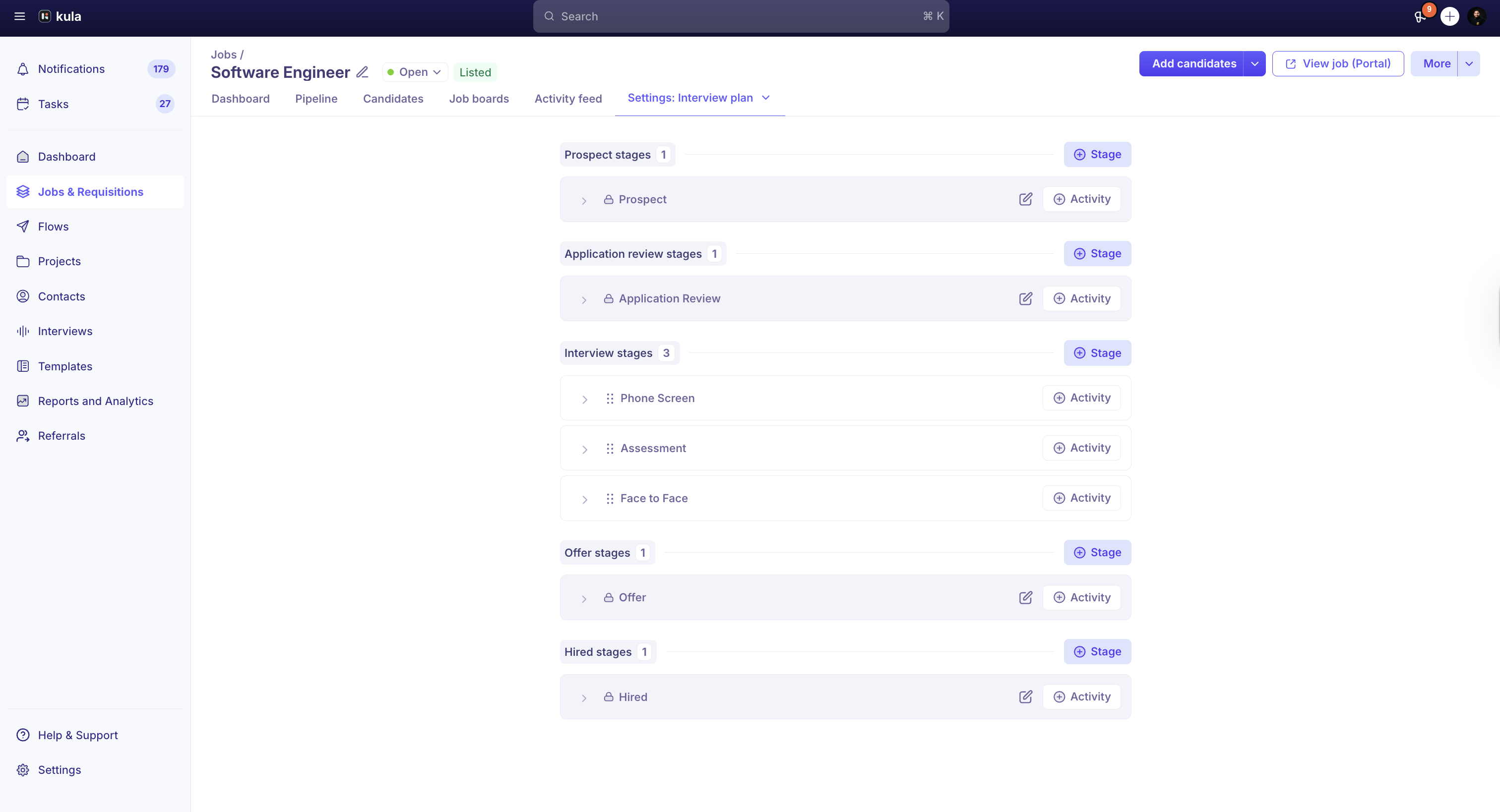
It is recommended to create Interview Plan templates in Global Settings. Templates can auto-apply based on Department, Office, and Work Type.
How to set up an Interview plan in global settings
Within the job, you can configure the following milestones:
Prospect
Application
Interview
Offer
Hired
Within each milestone, you can create stages.
Within each stage, you can add activities such as:
Add Email
Add Interview
Add Assessment
Add Review
Add Survey
Configure Target Time in Stage
You can set a target time in stage to track turnaround time.
Click the stage.
Edit the stage name if needed.
Enter the Target Time in Stage.
To remove a stage, use the delete option next to the activity button.
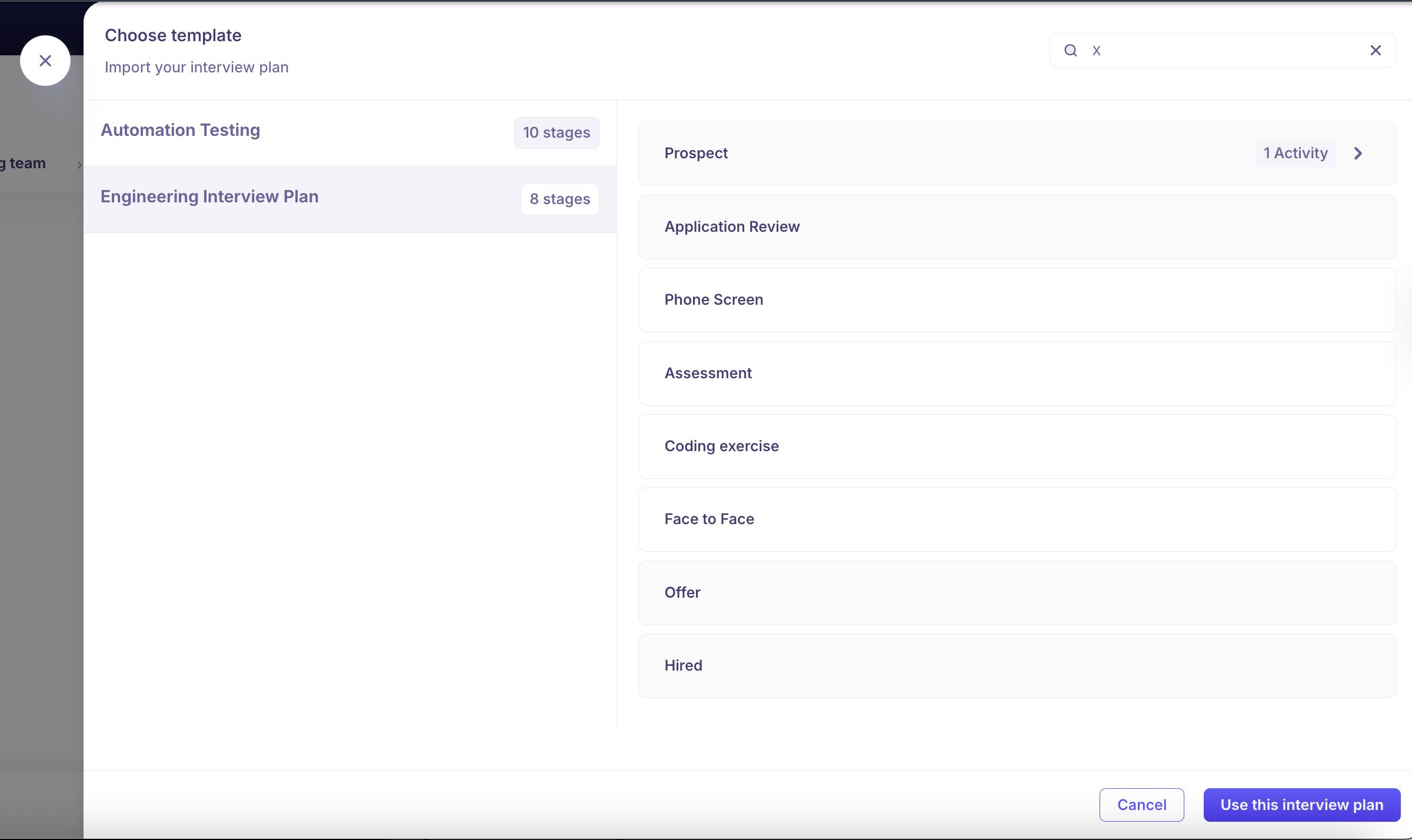
Note: You can also choose a template and configure the interview plan. As shown in the screenshot.
Step 4: Configure Job Posting
In the Job Posting section, control how the job appears to candidates.
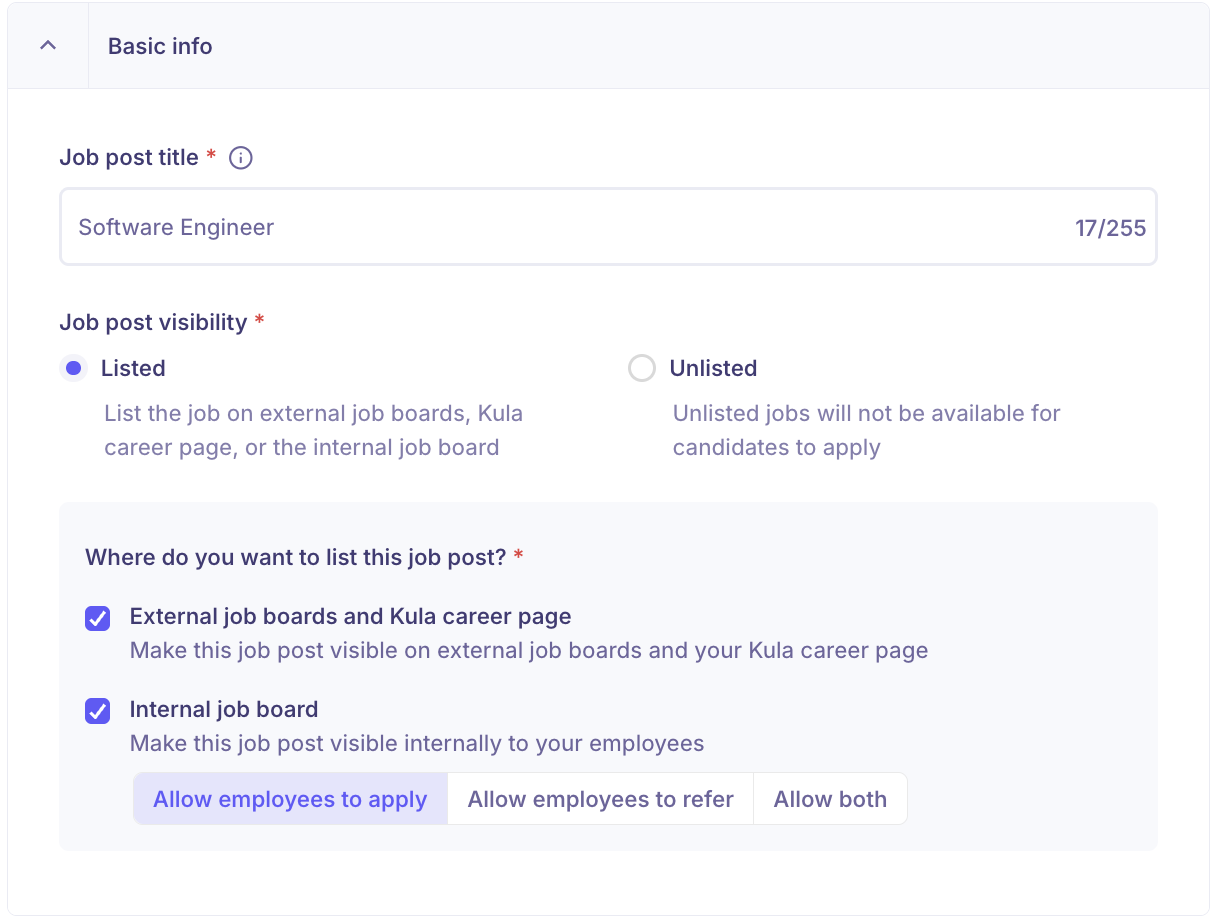
Set Job Post Title
Enter the Job Post Title.
This title appears on your career page and external job boards.
Control Listing Visibility
Choose whether the job is:
Listed
Unlisted
If the job is listed, you can choose whether it is open to:
External candidates
Internal candidates
Both
This option appears only when the job is listed.
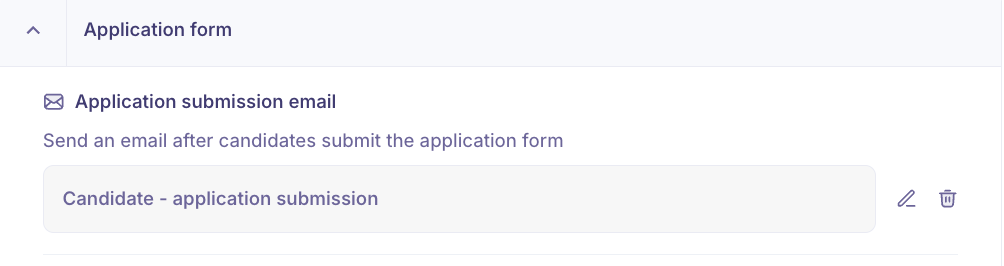
Configure Application Settings
Select Confirmation Email Template
Choose the email template that confirms application submission.
This email should acknowledge receipt and share next steps.
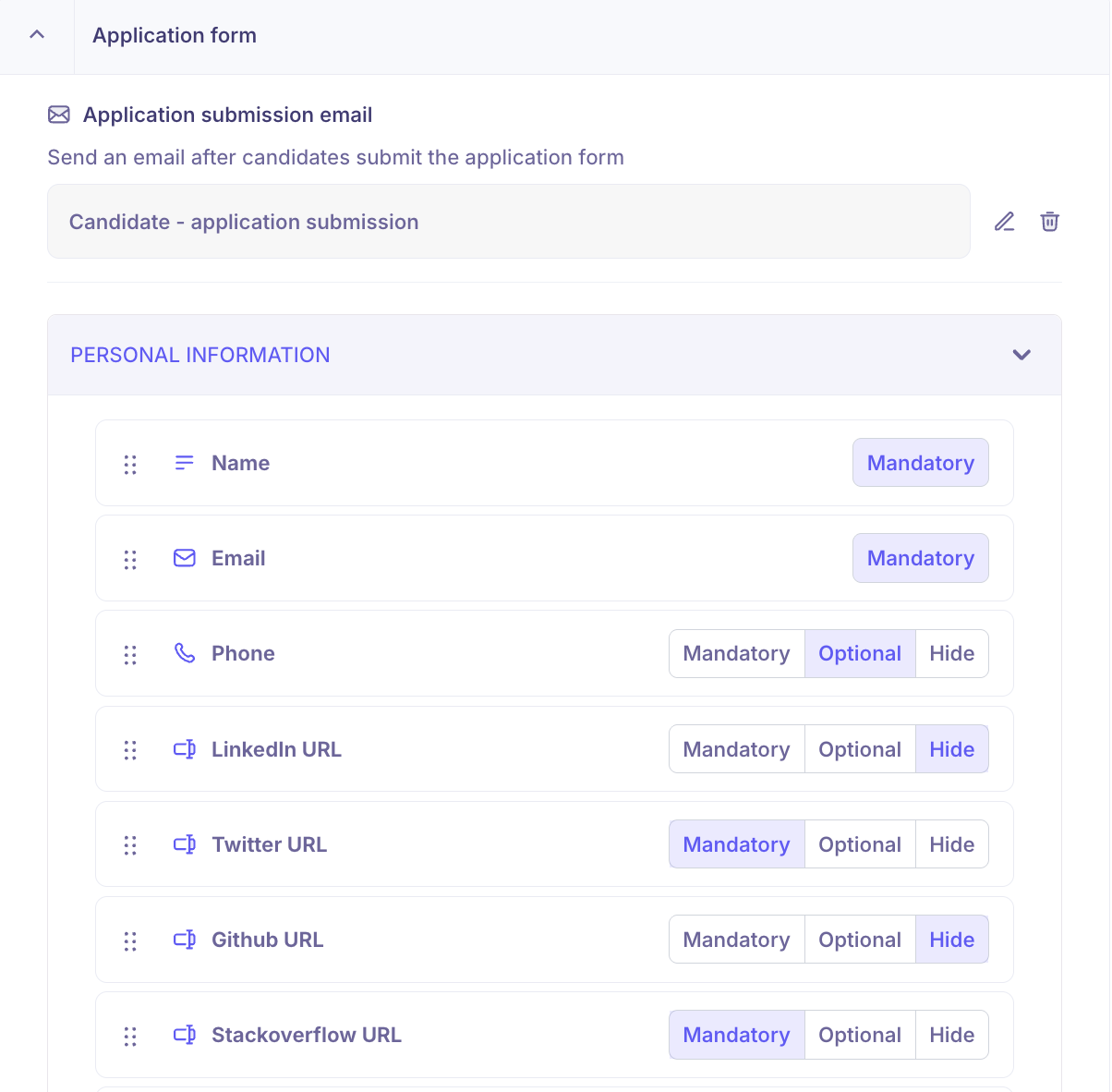
Select Application Form
Choose the application form that candidates complete.
Ensure the form collects all required information for evaluation.
It is recommended to create Application form templates in Global Settings. Templates can auto-apply based on Department, Office, and Work Type.
How to set up an Application form in global settings
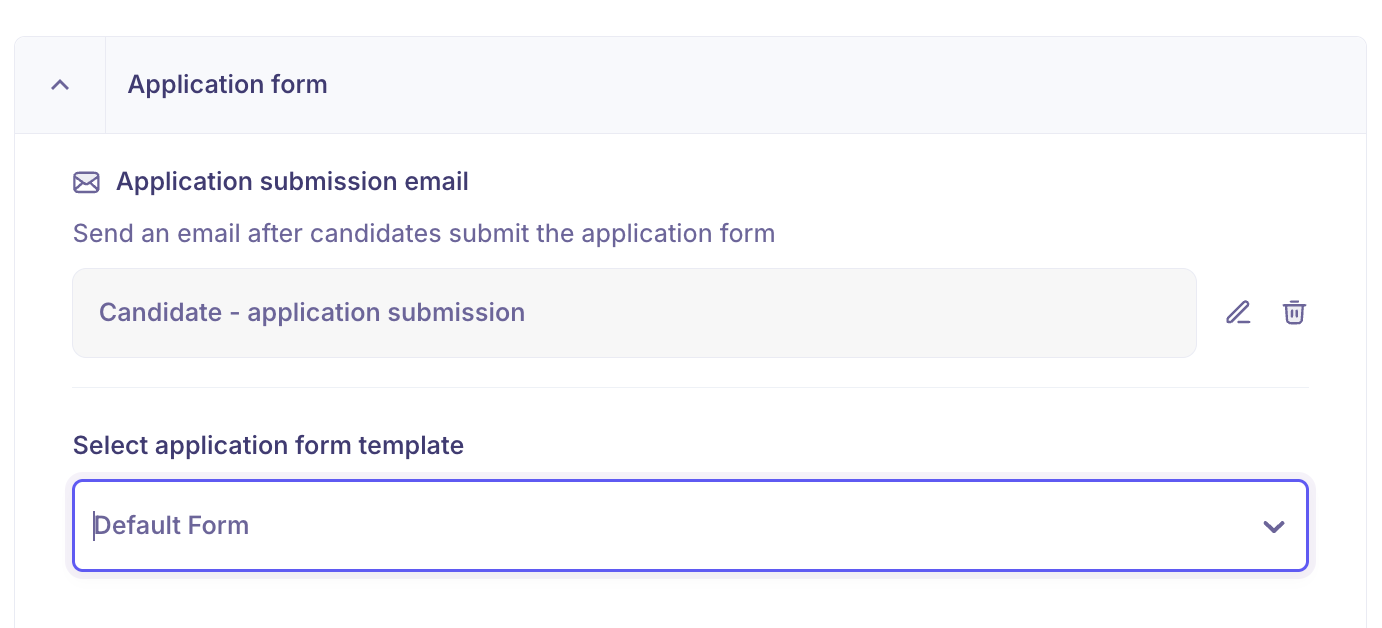
Note: You can also choose an application form template and configure the application form on the fly. As shown in the screenshot above.
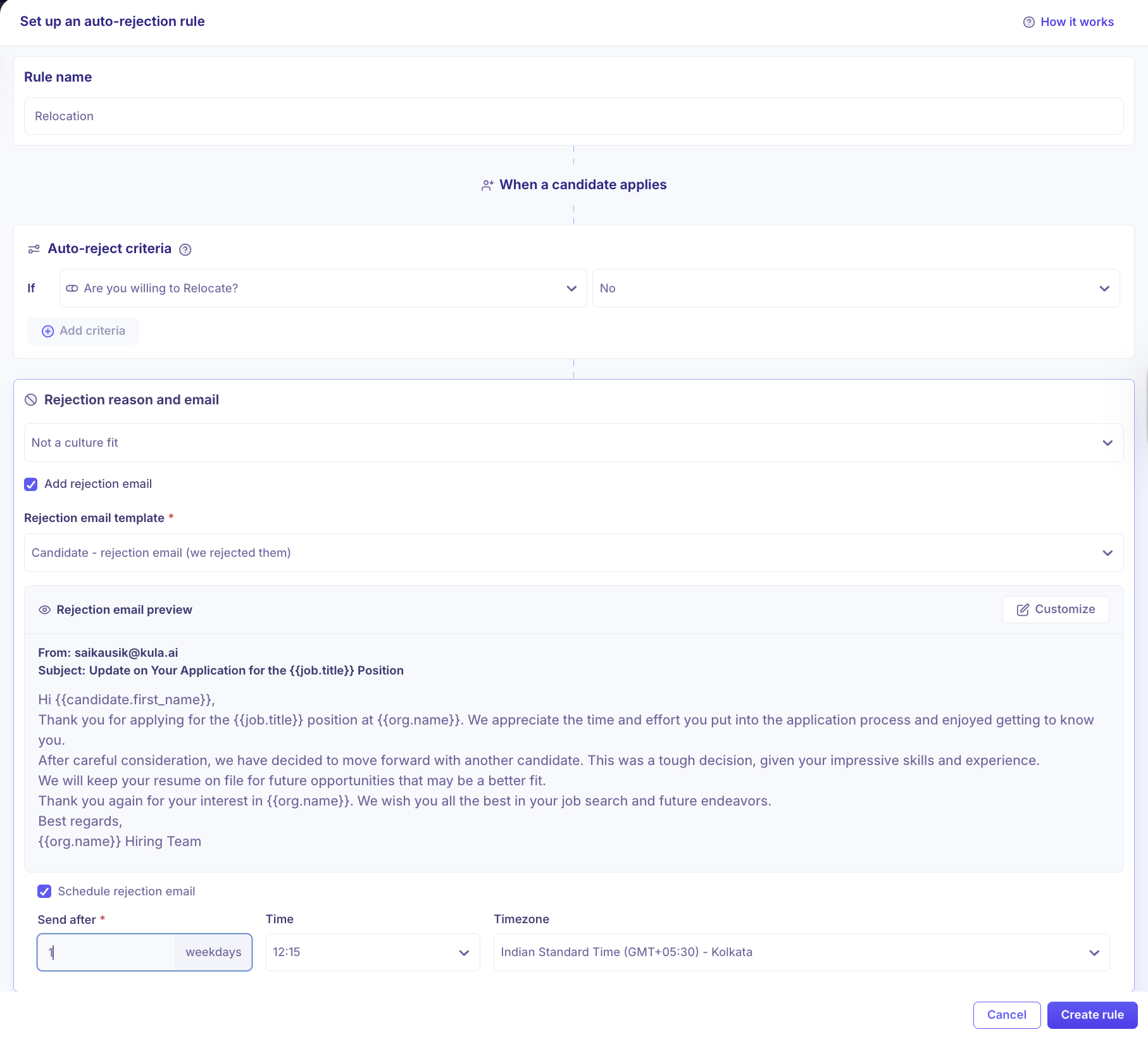
Configure Auto-Rejection Rules
Set up auto-rejection rules using knockout questions.
Candidates can be automatically rejected based on responses to specific application form fields.
Note: Auto Rejection is supported only in these fields - Yes/No, Number, Date, Single Choice, Multi Choice
EEOC Questions
EEOC (Equal Employment Opportunity Commission) questions are enabled by default.
These questions collect demographic data for compliance and diversity tracking.
Step 5: Save or Launch the Job
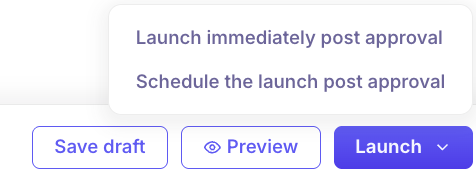
Click Save to keep the job as a draft.
Click Launch Job to publish the job.
If job approval is enabled, the job is published only after approval. You choose either to launch immediately or schedule the launch.
Your job is now created and ready to manage.