Connect Slack to Kula
Last updated: August 16, 2026
Connecting Slack lets your team receive Kula notifications in Slack and act on them without opening Kula. One Slack workspace connects to one Kula account.
Who can do this: Super Admin, Admin
Where to find it: Settings → Organization → Organization integrations → Workspaces
Connect Slack
Go to Settings → Organization → Organization integrations.
Find the Slack card under Workspaces.
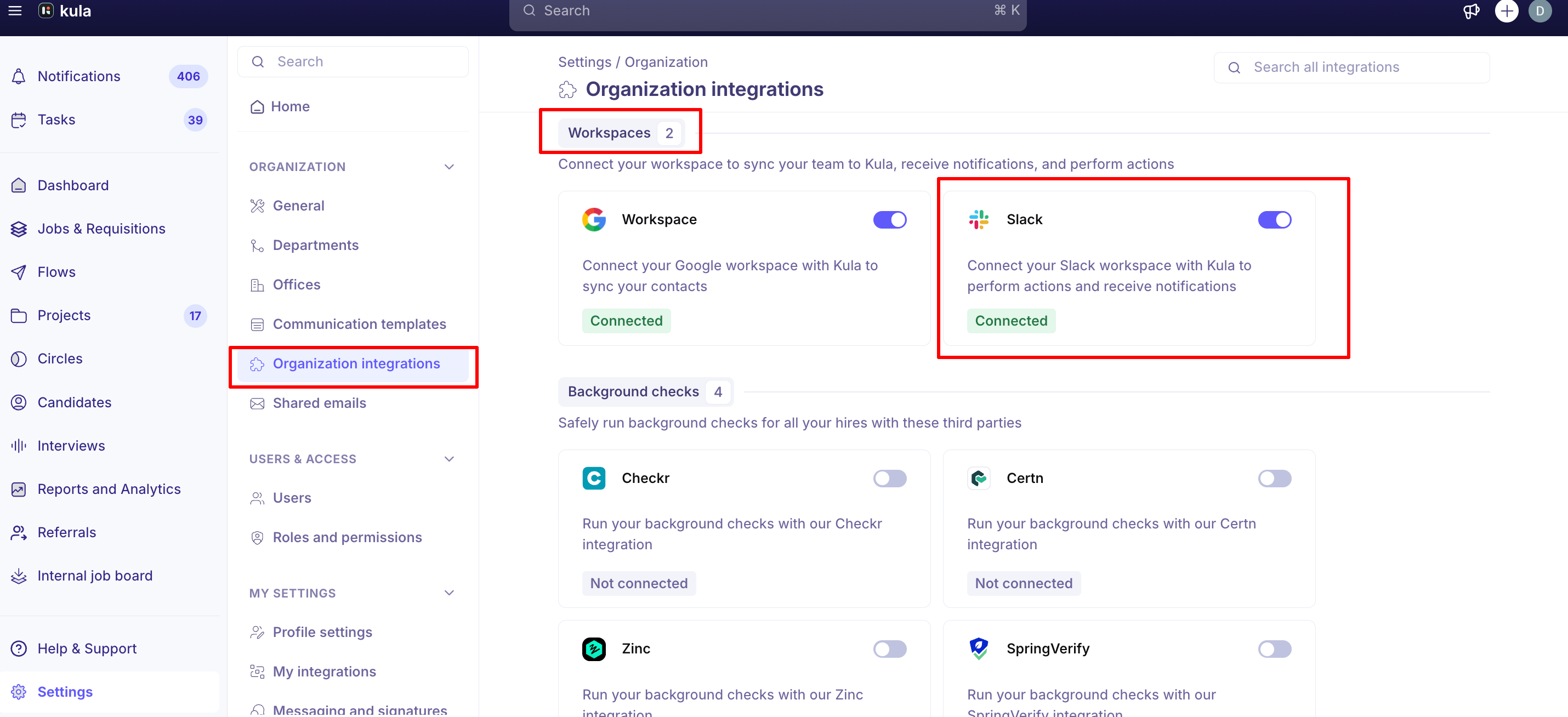
Turn the toggle on.
Sign in to Slack and click Allow on the permissions screen.
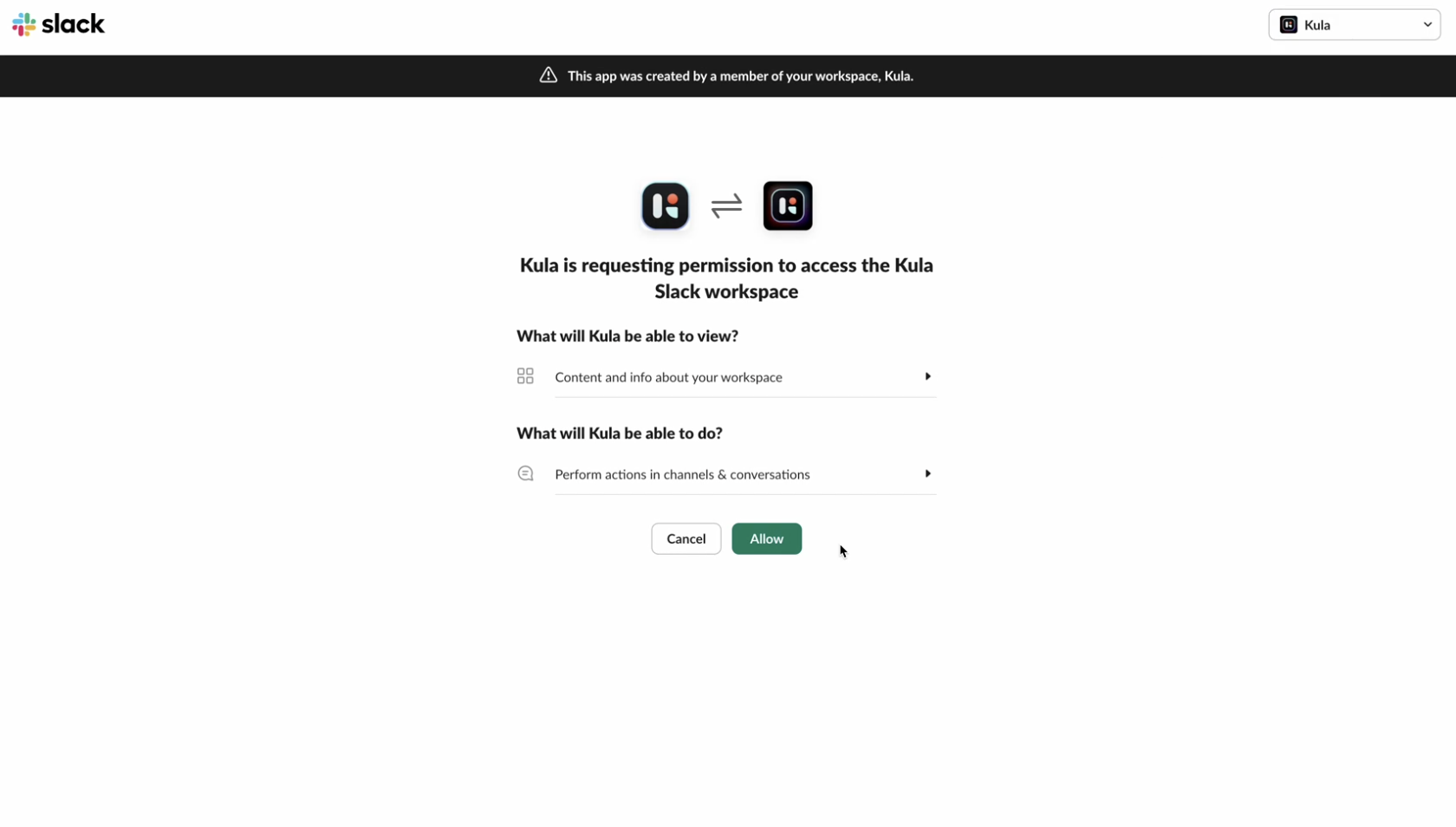
The card shows Connected once Slack returns you to Kula.
What Kula asks Slack for
Kula requests a deliberately narrow set of permissions.
Permission | What Kula uses it for |
|---|---|
| Send notification messages |
| Send those messages with the Kula name and icon |
| Match Slack accounts to Kula users by email |
| Identify the connected workspace |
Fix an invalid Slack connection
If the Slack token is revoked or the app is removed from your workspace, the card shows Invalid and Kula stops sending notifications.
Hover over the Slack card.
Click Re-authenticate.
Approve the permissions again in Slack.
What You Can Do with the Integration
Once connected, here’s what the Slack-Kula integration enables:
Receive notifications for candidate stage changes
Get reminders about upcoming interviews
View and respond to candidate feedback requests
Share candidate details directly in Slack
Keep the entire hiring team in the loop in real-time
Good to know
Kula matches Slack accounts to Kula users by email address. Someone whose Slack email differs from their Kula email will not receive Slack notifications until the two match.
Disconnecting Slack stops all Kula notifications and actions in Slack immediately.
Kula also uses this connection to alert admins when other integrations break — Zoom and mailbox disconnection alerts are delivered over Slack as well as email.
FAQ
We reconnected Slack and now we're getting an error — what went wrong? Re-authenticating creates a fresh token, and errors right after usually mean the approval did not complete or the Kula app was removed from the workspace mid-flow. Re-run Re-authenticate from the card and approve every requested permission. If it persists, contact support with the error text.
One person on the team never gets Kula notifications in Slack. Why? Kula matches people by email, so a colleague whose Slack email is different from their Kula email will not be matched. Line the two addresses up and the notifications start arriving. For more, see [Editing or deactivating a user]
Need help? If you have questions or need assistance, reach out to us at or use the in-app chat.