Editing or deactivating a user
Last updated: September 26, 2026
Change someone's details or role from Settings → Users & Access → Users, or deactivate them when they leave. Deactivating stops them logging in and frees their seat, but keeps everything they created in Kula.
Who can do this: Super Admin, Admin — and anyone on a custom role with the Manage users permission.
Where to find it: Settings → Users & Access → Users
Edit someone's details
You can edit a person on any tab — Active, Pending, Deactivated or Imported.
Go to Settings → Users & Access → Users.
Find the person and open the row menu, then click Edit user.
Change what you need on the Details tab — name, time zone, job title, reporting manager, department, office, ATS contact or interviewer pool.
Click Update.
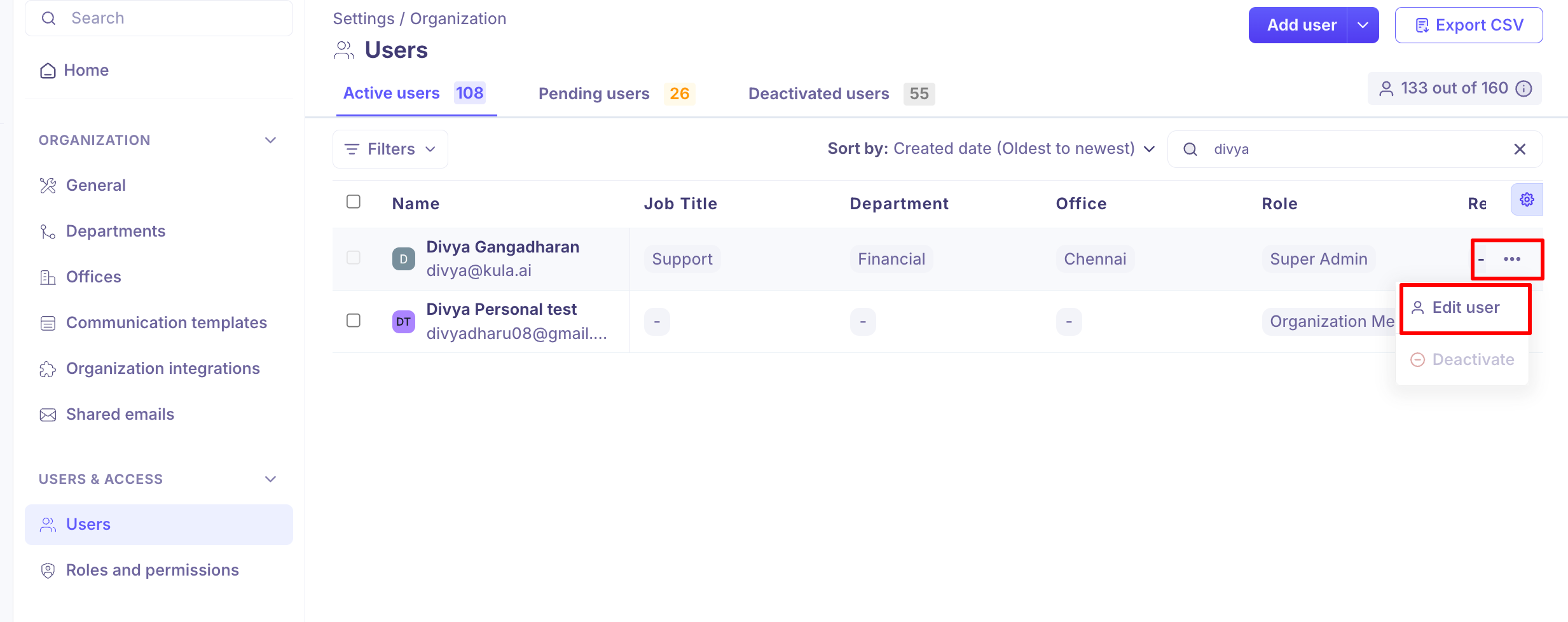
The email address cannot be changed. It is the only field locked after the person is added.
Change someone's role
The role controls what a person can see and do across Kula. You can change it for one person or for several at once.
For one person
Open the row menu and click Edit user.
Go to the Roles and permissions tab.
Pick the new Role. The permissions it carries appear underneath, so you can check them before saving.
Click Update.
For several people
Open the Active users tab.
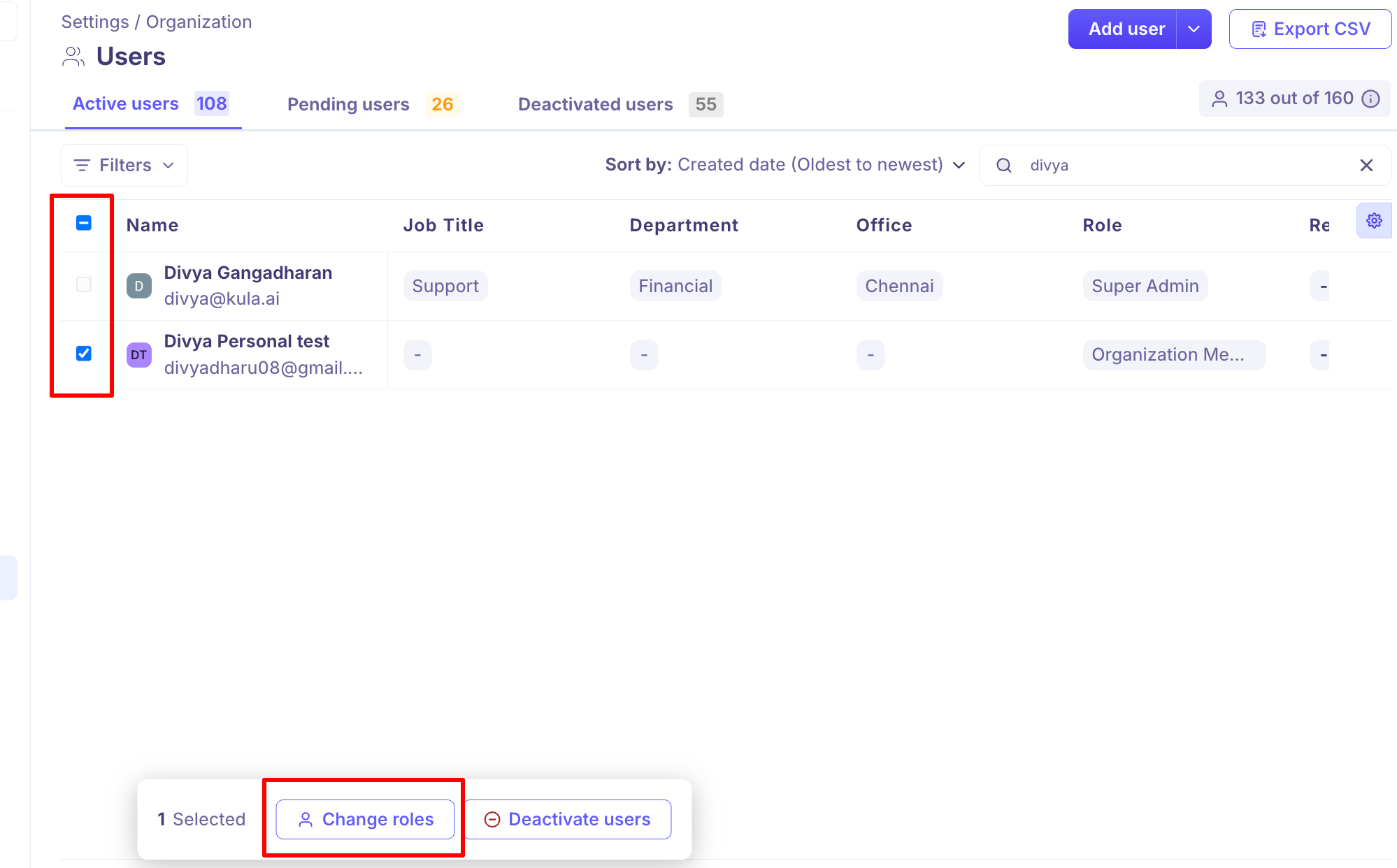
Tick the checkbox next to each person.
Click Change roles in the bulk actions bar, pick the role, and click Change Role.
Deactivate someone
Deactivating is how you remove someone's access when they leave. There is no delete.
Open the Active users tab and find the person.
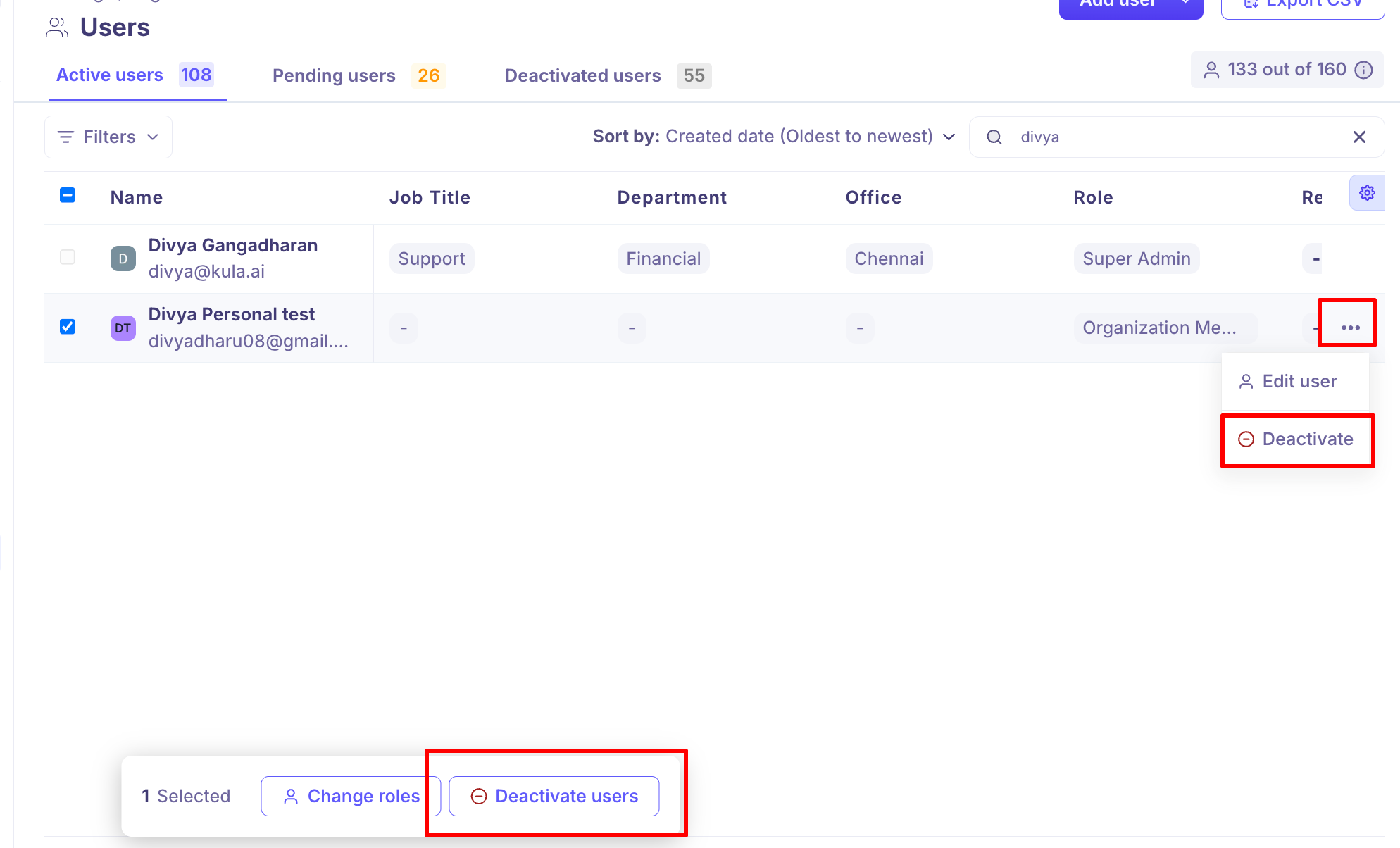
Open the row menu and click Deactivate.
Type
DEACTIVATEin the confirmation box.Click Confirm.
To deactivate several people, tick their checkboxes and use Deactivate users in the bulk actions bar.
If the person never accepted their invitation, use Revoke invitation on the Pending users tab instead. For more on invitations, see Inviting team members
What happens when you deactivate someone
What | What happens |
|---|---|
Logging in | They can no longer log in to Kula. |
Their seat | Freed straight away, so you can invite someone else. |
Their work | Notes, scorecards, offers, emails and activity all stay in Kula. |
Hiring teams, flows and projects | They stay listed as a member. Deactivating does not remove them. |
A pending invitation | Cancelled. The invitation link stops working. |
Where they appear | They move to the Deactivated users tab. |
Reactivate someone
Open the Deactivated users tab.
Find the person and open the row menu.
Click Activate user, then Confirm.
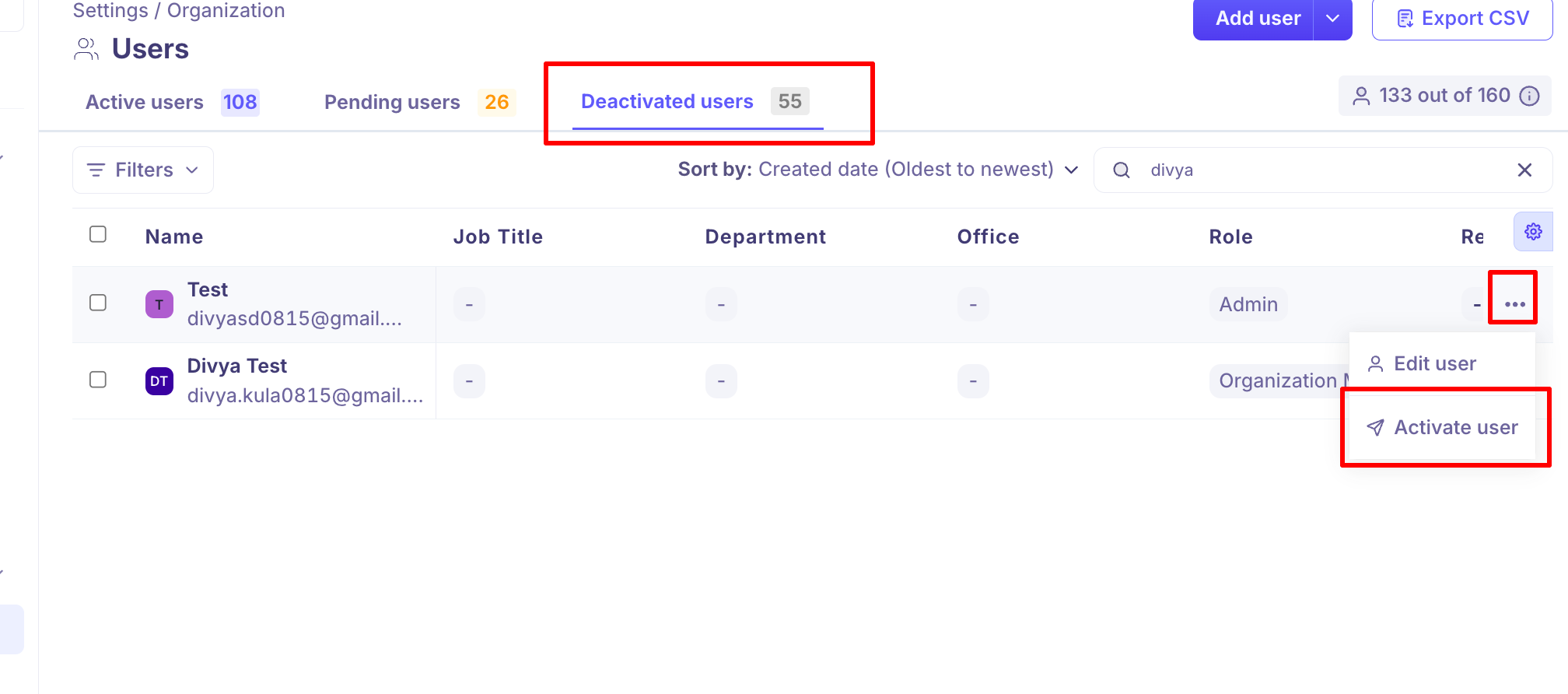
They keep the role and details they had before. If they had never accepted their invitation, the option reads Resend invitation instead — Kula sends a fresh invitation rather than restoring the account, and they go back to Pending users.
Reactivating uses a seat. If you have none free, the checkboxes on this tab stop letting you select more people than you have seats for.
Good to know
You cannot delete a user. Deactivating is the only way to remove access. This is deliberate — it keeps the person's notes, scorecards and interview history attached to your candidates.
You cannot change a user's email address. If someone's address changes, contact support at support@kula.ai, or deactivate them and add them again under the new address.
You cannot deactivate yourself, or change your own role. The Deactivate option is disabled on your own row. Ask another Super Admin or Admin.
Only a Super Admin can change another Super Admin's role. An Admin trying to do it sees an error.
A deactivated person can still appear in the To field when you send a message from a job they were on a hiring team for. Remove them from the hiring team as well if you need them off that job entirely.
A deactivated person can still show as the owner of a shared email. Reassign the shared email under Settings → Organization → Shared emails before deactivating them.
Google Workspace sync will not undo a deactivation. If your organisation syncs users from Google Workspace, someone you deactivate in Kula stays deactivated even though they are still in your directory.
FAQ
Can I force a password reset for someone, or do they have to use "Forgot password"? You cannot reset another person's password from Settings. Ask them to enter their email address on the login page and click Forgot your password? — the reset link goes to their inbox. If your organisation uses Google sign-in only, there is no password to reset and they should use Sign in with Google. For more, see Signing in to Kula
A user's email address has changed. How do I update it? The email field is locked after a user is created, so this cannot be done from Settings. Contact support at support@kula.ai to have it changed, or deactivate the person and add them again with the new address. For more, see Inviting team members.
We want to free up a seat without losing that person's data. Is that possible? Yes — that is exactly what deactivating does. The seat is released straight away and everything they created stays in Kula. For more, see What happens when you deactivate someone.
We deactivated some users and they came back as active on their own. Older accounts saw this when the Google Workspace sync reactivated people who were still in the directory. If you still see it, contact support. For more, see Connect Google Workspace to Kula.
Need help? If you have questions or need assistance, reach out to us at support@kula.ai or use the in-app chat.