Connect Google Workspace to Kula
Last updated: September 18, 2026
Connecting Google Workspace lets you pull your directory into Kula so you can invite colleagues in bulk instead of typing addresses one at a time. You can also switch on automatic provisioning so Kula keeps up with joiners and leavers on its own.
Who can do this: Super Admin, Admin
Where to find it: Settings → Organization → Organization integrations → Workspaces
How to Connect Google Workspace with Kula
Go to Settings → Organization → Organization integrations.
Find the Workspace card under Workspaces.
Turn the toggle on.
Sign in with your Google Workspace admin account and approve directory access.
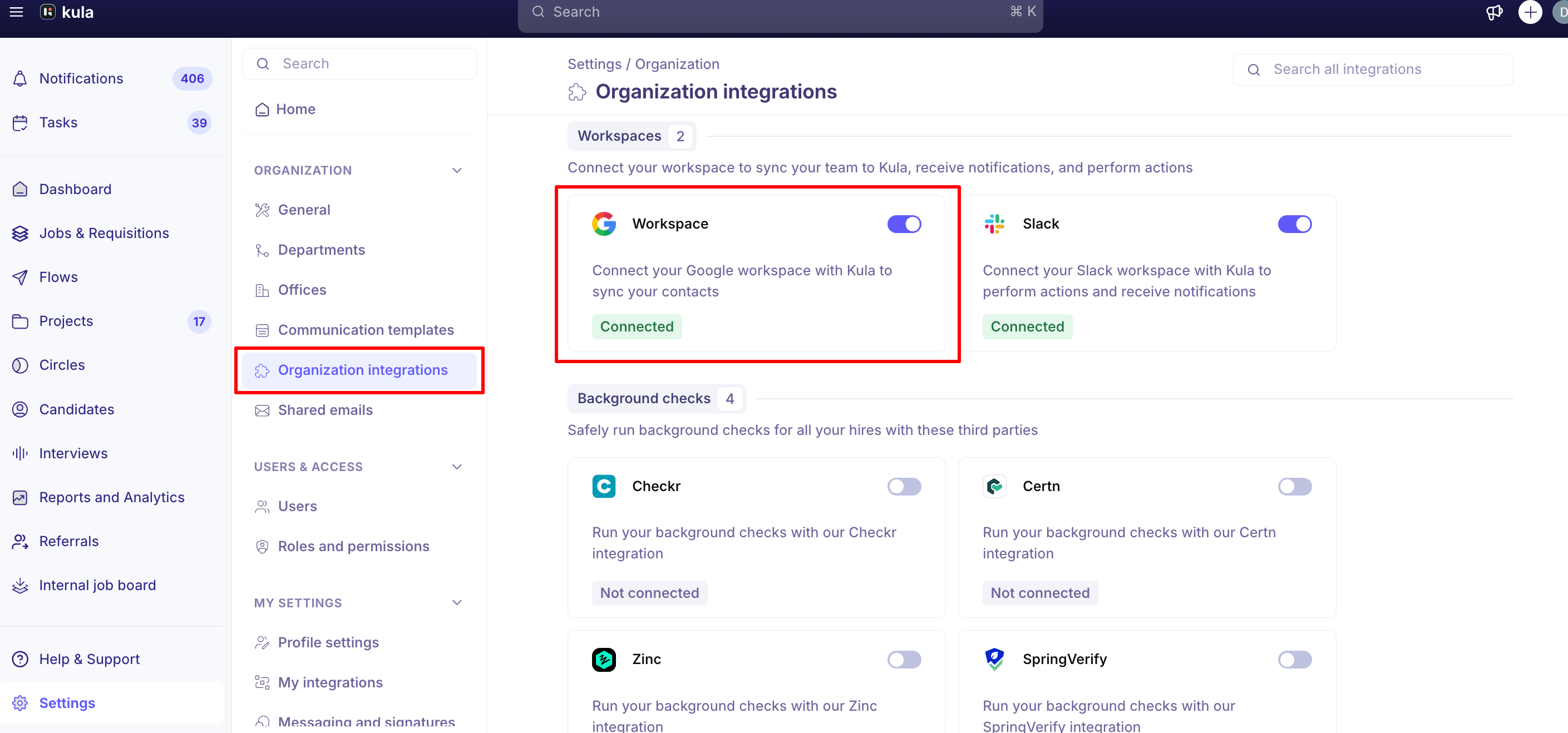
Kula requests read-only access to your Workspace directory. It does not get access to mail or files.
Invite people from your directory
Once connected, you can fetch your Workspace users and invite them in bulk. Each person carries a status tag so you can see who is already in Kula.
Tag | What it means |
|---|---|
Pending | Invited, but has not accepted yet. Cannot be invited again. |
Activated | Already a Kula user. Cannot be invited again. |
Deactivated | Removed or inactive in Kula. Cannot be invited again. |
Only people with no tag are selectable. For the full flow, see Add users to Kula.
Turn on automatic user provisioning
Provisioning keeps your Kula user list in step with Workspace without anyone inviting anybody.
Hover over the Workspace card and click Edit.
Turn on Provisioning.
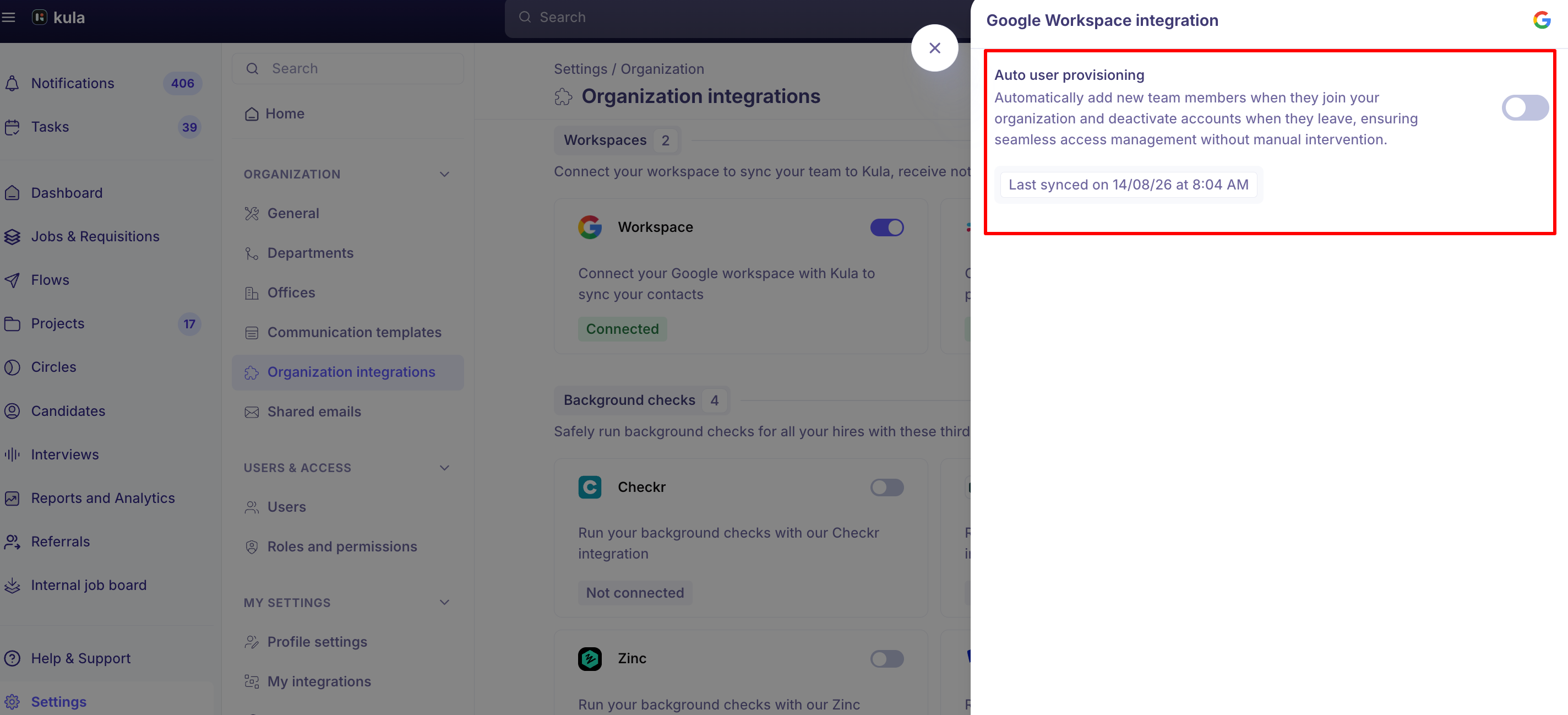
Once it is on:
Every active Workspace user is added to Kula as an active user — including people currently listed in Kula as Pending or Imported. People you deactivated in Kula stay deactivated.
A one-time full sync runs each time you enable it. Re-enabling triggers a fresh sync.
Kula checks Workspace every 10 minutes after that. New users are provisioned, removed users are deprovisioned, and name or email changes are applied automatically.
Good to know
Provisioning is off by default. Connecting Google Workspace on its own does not add anyone to Kula.
Enabling provisioning does not reactivate users you deactivated in Kula, even if they are still active in Workspace. To bring someone back, reactivate them yourself from the Users page.
If your invite limit would be exceeded, extra selections are disabled and a tooltip explains why — contact support through the in-app chat to raise it.
Disconnecting Google Workspace removes access to your Workspace contacts in Kula and stops new ones being added.
FAQ
Do I have to re-invite people every time someone joins the company? No — turn on Provisioning in the Workspace card's Edit panel and Kula checks Google Workspace every 10 minutes, adding joiners and removing leavers on its own. For more, see Add users to Kula.
Someone shows as Pending in Kula even though they have already signed in — why can't I invite them again? A Pending tag means the invite was sent but not accepted, and Kula blocks a second invite to avoid duplicates. Check whether they signed in with a different email address than the one invited. For more, see Editing or deactivating a user.
Need help? If you have questions or need assistance, reach out to us at support@kula.ai or use the in-app chat.