Invite your team and plan their roles
Last updated: September 24, 2026
Add the people who will use Kula, decide what each one should be able to do, and — for a larger team — bring everyone in from a spreadsheet. This article covers all three: inviting people, planning roles, and a bulk import.
Who can do this: Super Admin, Admin
Where to find it: Settings → Users
Two ways to add people
Invite one at a time — good for a handful of users. You set their role as you invite them.
Import a team from a spreadsheet — good for onboarding a whole department. You send the file to your implementation manager, who imports it.
Invite someone
Go to Settings → Users.
Select Add User.

Enter the person's email address.
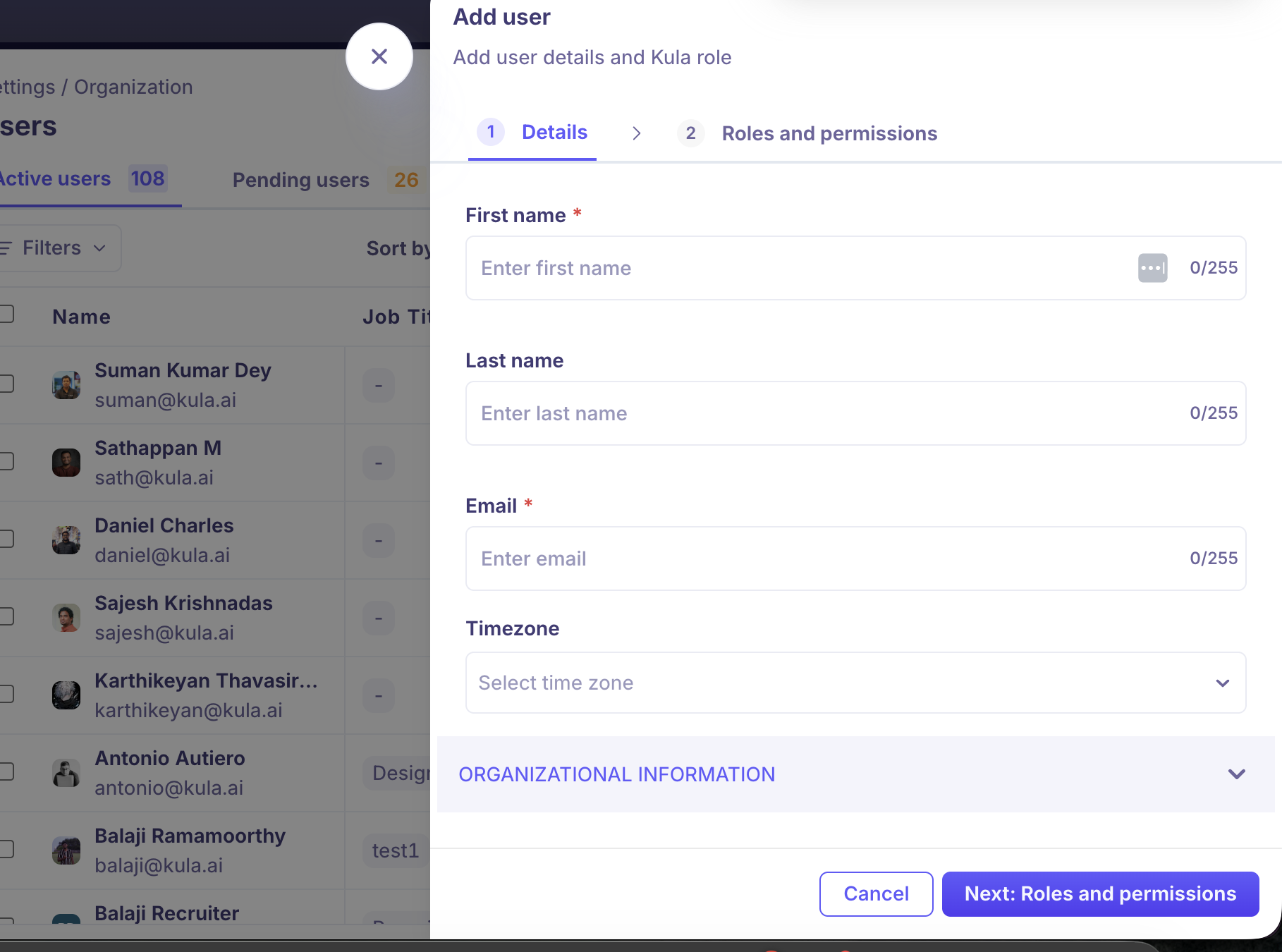
Choose their role.
Send the invite.
The person receives an email invitation to join. Account access and role are set together, so you don't invite someone first and assign a role later. You can change a role at any time from the same Users page.
Add a whole team from a spreadsheet
For a large group, Kula can import your users from a spreadsheet instead of inviting them one by one.
What to put in the file. One row per person, with these columns:
Column | What it holds |
|---|---|
Full name | The person's name as it should appear in Kula. |
Work email | The email their invite and login use. |
Role | The org role to give them — see the planning guide below. |
Office / location | Their office, used in filters and reports. |
Department | Their department, used in filters and reports. |
Reporting manager | The person they report to, used for structure and routing. |
How to share it with us. Fill in the file, then send it to your implementation manager — by email or in your Kula channel. The team runs the import and confirms once your users are in. This import is run by Kula, not a self-serve upload, so there's no file-upload screen to look for.
In the same message, tell us:
Whether to send invitation emails. We can add everyone silently, and people sign in at your Kula URL when you're ready. That's the cleaner option if you're on SSO, or if you want your own announcement to land first.</mark>
If you do want invites, the date to send them. Most teams want invites to arrive with their launch announcement, not days before it.</mark>
We run the import and confirm once your users are in.
First, understand the two levels of role
This is the part that makes role planning make sense. A person has a role in two separate places:
Org role — set when you invite them. This is their baseline across the whole account: which areas they can open, and whether they can see settings, every job, or reports.
Job role — set on each individual job's hiring team. This is what they can actually do on that job.
The two are independent, and the job role is where most of the "can they schedule / make offers" question is answered:
Job-team placement | What they can do on that job |
|---|---|
Recruiter | Edit the job, schedule interviews, create offers, move candidates. |
Hiring manager | Schedule interviews, create offers, move candidates. |
Coordinator | Schedule interviews and move candidates — cannot create offers. |
Interviewer | Join their interviews and submit their own scorecard. |
Because the two are independent, someone whose org role is Hiring Manager can be added as the Recruiter on a specific job and run it fully, without changing their org role. So you rarely need to raise someone's org role just to give them more on one job — place them on the job instead.
Hiring Manager means different things in every company
The title "Hiring Manager" is not consistent across organizations. In one company, they may schedule interviews and send offers. In another, they may only review candidates. Sometimes, a person called a hiring manager is actually just an interviewer.
Don't assign the Kula Hiring Manager role based on the job title.
Instead, assign the role based on what the person actually needs to do.
📋 Scenario 1: They only review candidates
They:
Review shortlisted candidates shared by the recruiter
Leave feedback
Complete interview scorecards
Do not schedule interviews or send offers
Recommended setup
Organization Role: Hiring Manager
Job Assignment: Add them as the Hiring Manager on the job
✅ This is the most common setup for managers who only review and approve candidates.
📅 Scenario 2: They also schedule interviews or send offers
They:
Work alongside the recruiter (or manage hiring themselves)
Schedule interviews
Send offers (if required)
Recommended setup
Organization Role: Hiring Manager
Job Assignment:
Add them as a Recruiter or Hiring Manager on the hiring team to allow scheduling and sending offers.
If they should only schedule interviews (and not send offers), add them as a Coordinator instead.
🎤 Scenario 3: They're actually an interviewer
They:
Participate in interviews
Review candidates
Submit scorecards
Don't manage the hiring process
Recommended setup
Organization Role: Organization Member
Job Assignment: Add them as an Interviewer for the relevant interview stages
✅ They can complete their own scorecards and only see the interviews they're involved in.
❌ Don't assign the Hiring Manager role—it provides more access than they need.
📊 Scenario 4: They're a department head or site lead who wants to see hiring across their area
They:
Want to see every job and requisition in their department or office, without being added to each one
Don't actively recruit or interview candidates
Recommended setup
Organization Role: Department head / Site lead
Departments and offices: Pick the ones they cover when you invite them
Job Assignment: None needed — they get Hiring Manager access to every job and requisition in those departments and offices automatically, including new ones
✅ They see their area's pipeline without Admin access to settings, users or every other job. ❌ Don't give them Admin just so they can see hiring. Admin opens up settings and every job in the account.
Reports are the exception. Of the default roles, only Super Admin and Admin can see reports. If this person needs reports and dashboards themselves, give them Admin — or a custom role with the View all default reports permission.
Plan the other roles
For everyone who isn't a hiring manager, pick the org role that matches what they do across the account. Start low and add access where it's needed.
If the person… | Give them | Why |
|---|---|---|
Owns the account — integrations, security, settings | Super Admin | Full control of everything, including settings, users, and reports. |
Runs the TA function day to day, or needs reports and dashboards | Admin | Reports are limited to Admin and Super Admin. Admins also manage users, jobs, and settings. |
TA Team - Owns requisitions, sources, screens, schedules, and makes offers | Recruiter | Full hiring control on the jobs they're on. |
Heads a department or site and needs to see all of its hiring | Department head / Site lead | Hiring Manager access to every job and requisition in the departments and offices you pick |
Interviewers - Interviews candidates and leaves scorecards, but doesn't run hiring | Organization Member | Interviewing is a function of this role. |
Is an outside agency or vendor recruiter working a subset of roles | External Collaborator | Limited, scoped access to specific jobs and candidates only. |
Good to know
Confidential jobs are left out of a Department head / Site lead's access. Even if a confidential job sits in their department, they won't see it unless you add them to its hiring team.
Picking a department includes its sub-departments. You don't need to pick each one.
Every role except External Collaborator uses a seat, and so do invites that haven't been accepted yet. If you run out of seats, the remaining invites won't go through. Check your seats before a large import.
Invitation links expire after two weeks. If someone misses theirs, select them on the Users page and choose Resend invitation. For a bulk import, don't ask us to send invites much earlier than your launch.
On a trial account you can only invite people on your own email domain.
Changing someone's role doesn't change where they sit on a job. Their place on each job's hiring team stays as it is.
FAQ
Our VP wants to see every open role in their department. Do they need to be Admin? No. Give them the Department head / Site lead role and pick their department. They get Hiring Manager access to every job and requisition in it. They only need Admin if they also want to see reports.
Can anyone other than Super Admin and Admin see reports? Not by default. Reports come with Super Admin and Admin; anyone else needs a custom role with the View all default reports permission.
Can I upload our user spreadsheet myself? Not yet. Email the file to support@kula.ai or share it through in-app chat, and we'll import it for you.
Can you add our team without sending them invitation emails? Yes. Tell us when you send the file. We'll add everyone silently, and they sign in at your Kula URL when you're ready.
Someone never got their invitation, or it has expired. What do I do? Go to Settings → Users, select the person, and choose Resend invitation. Links expire after two weeks.
A department head can't see one of the jobs in their department. Why? Check whether the job is confidential. Confidential jobs are left out of a Department head / Site lead's access — add them to that job's hiring team if they should see it. Also check that the job's department and office match the ones picked for them.
Need help? If you have questions or need assistance, reach out to us at support@kula.ai or use the in-app chat.