How to Integrate Criteria Corp Assessment with Kula
Last updated: March 12, 2026
Kula integrates with Criteria Corp to simplify pre-hire assessments and bring objective talent signals directly into your hiring workflow. With this integration, you can send role-based tests, view candidate results and insights, and manage assessments — all from within Kula.
⚡ Key Highlights
Configure CriteriaCorp Assessments as part of the interview plan or send them ad-hoc
Choose from specific templates and send assessments.
Edit or cancel assessments anytime.
Get real-time status updates on assessments.
Once completed, interviewers can fill the scorecard and view the report
⚙ Step 1: Connection Setup
Requirements: You must be a Kula Admin and have an active CriteriaCorp account with pre-configured assessment packages.
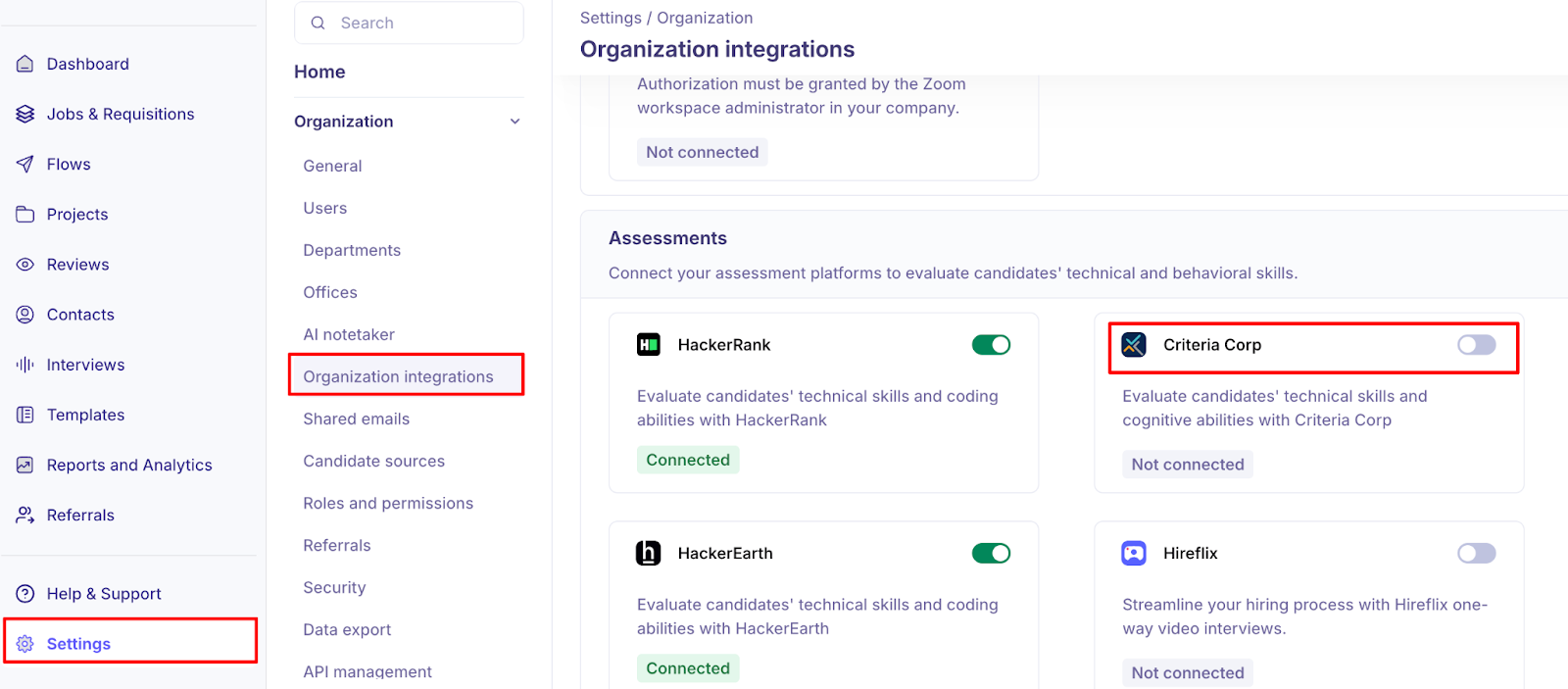
Navigate to Settings > Integrations > Assessments.
Locate CriteriaCorp and click Enable Integration.
Enter your CriteriaCorp API Key.
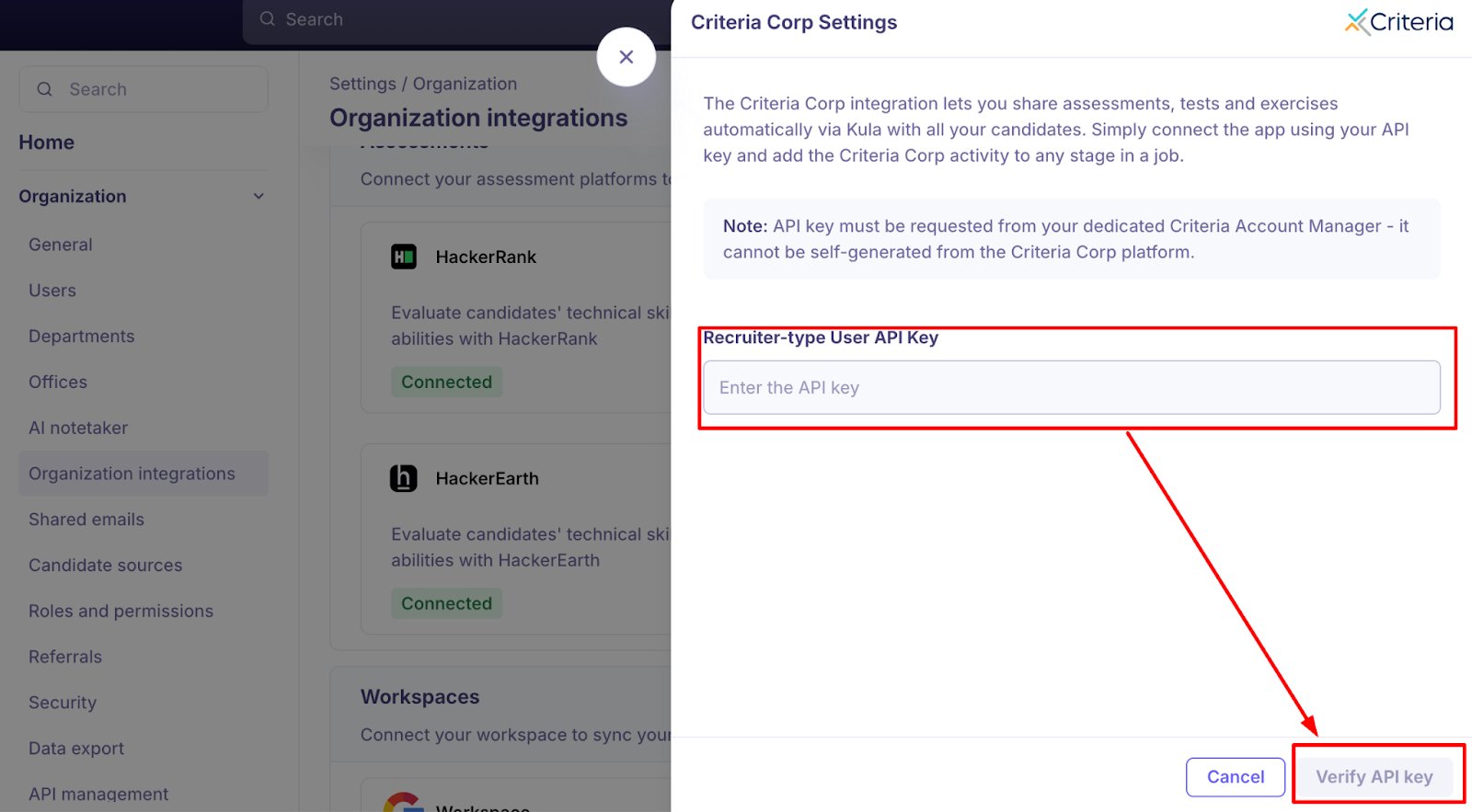
Once the status shows as Active/Connected, you are ready to go! If it fails, simply click Reauthorize to retry.
Note: API key must be requested from your dedicated Criteria Account Manager.
🛠 Step 2 - Using Criteria Corp in Kula
Option 1: The Interview Plan
Best for high-volume roles where every candidate must hit the same technical bar.
Edit Plan: Navigate to the Settings → Interview Plan → select the specific plan where you want to include the assessment.
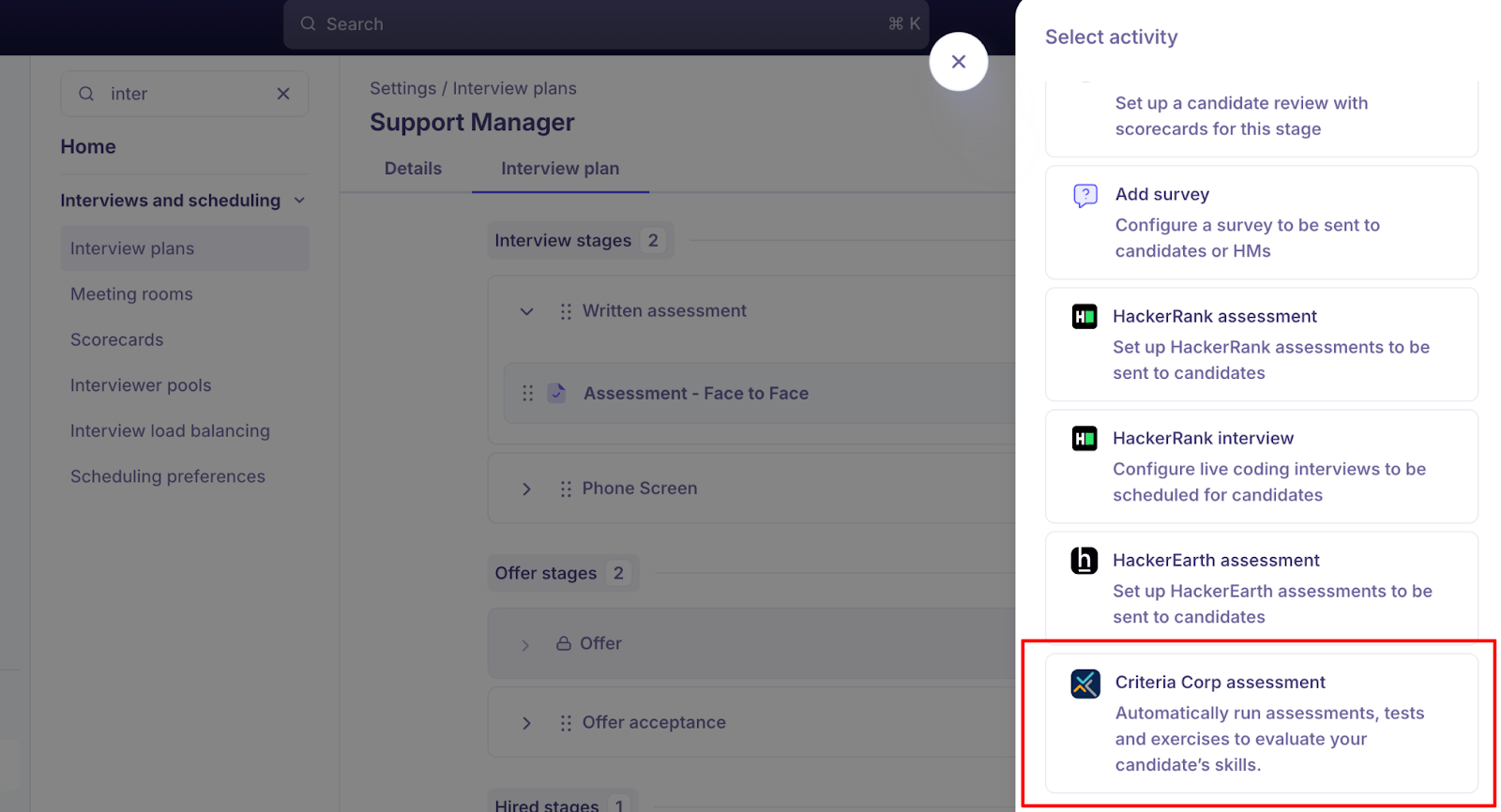
Add Activity: Under your desired hiring stage (e.g., "Technical Screen"), click Add Activity.
Select Type: Choose Criteria Corp assessment as the activity type.
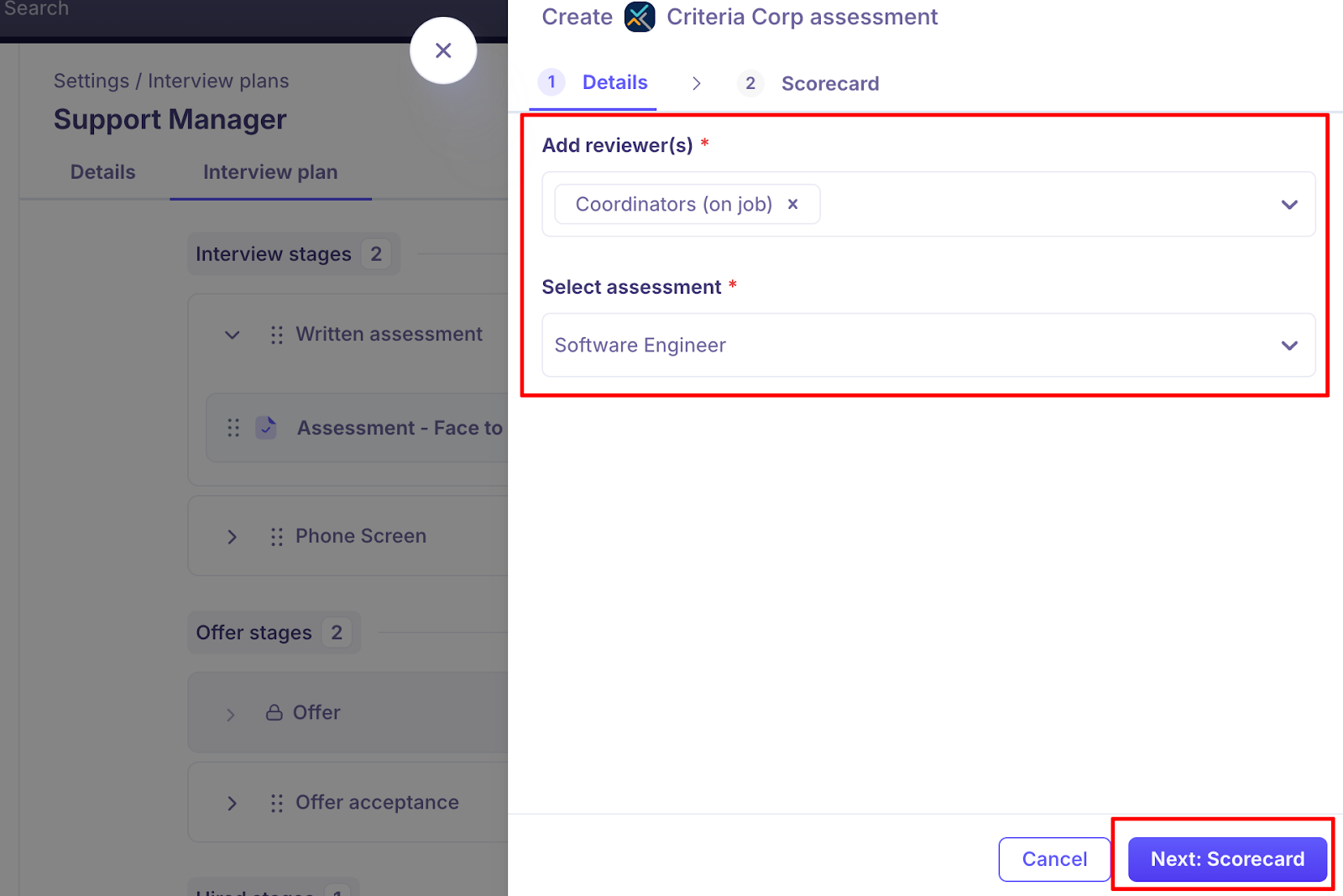
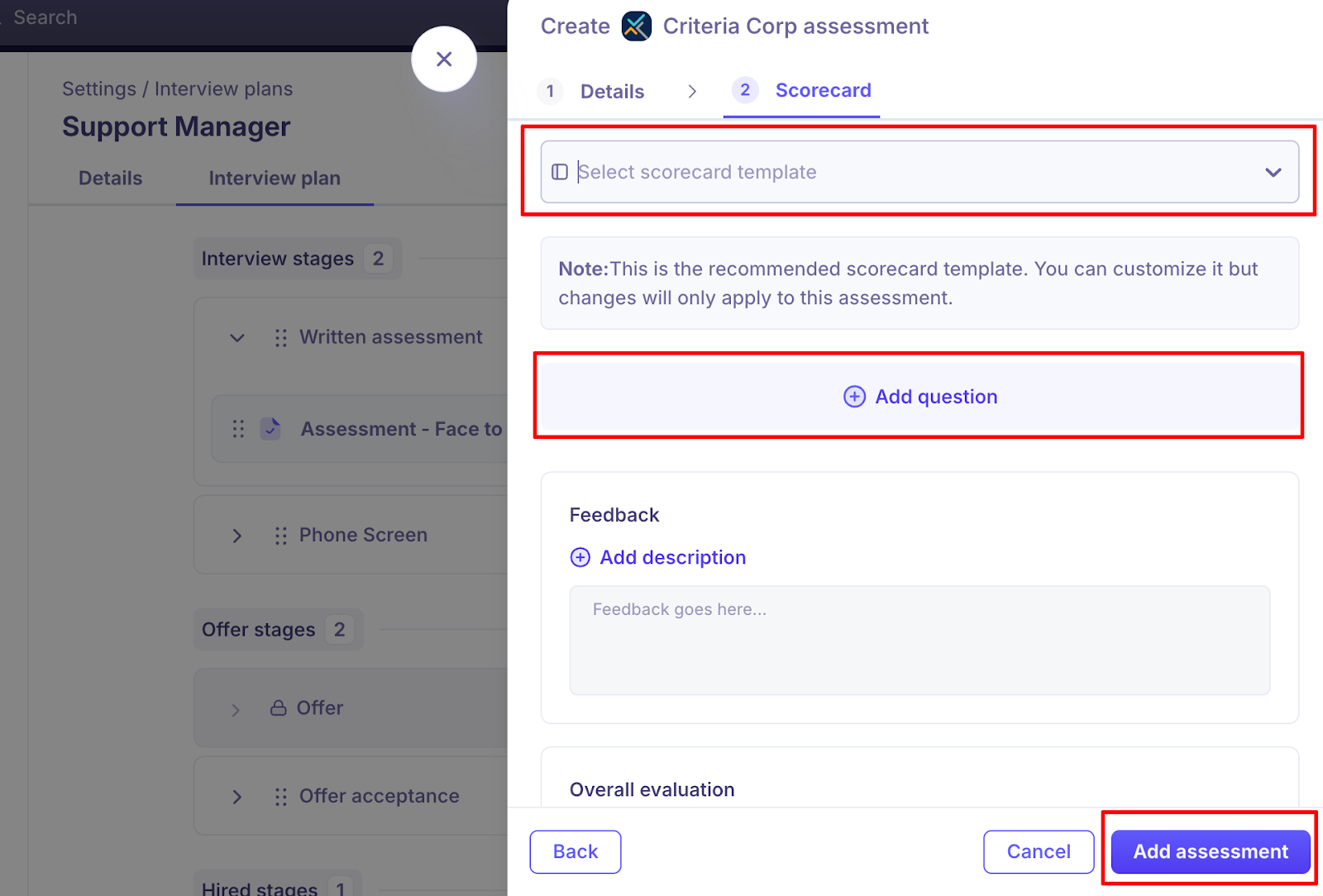
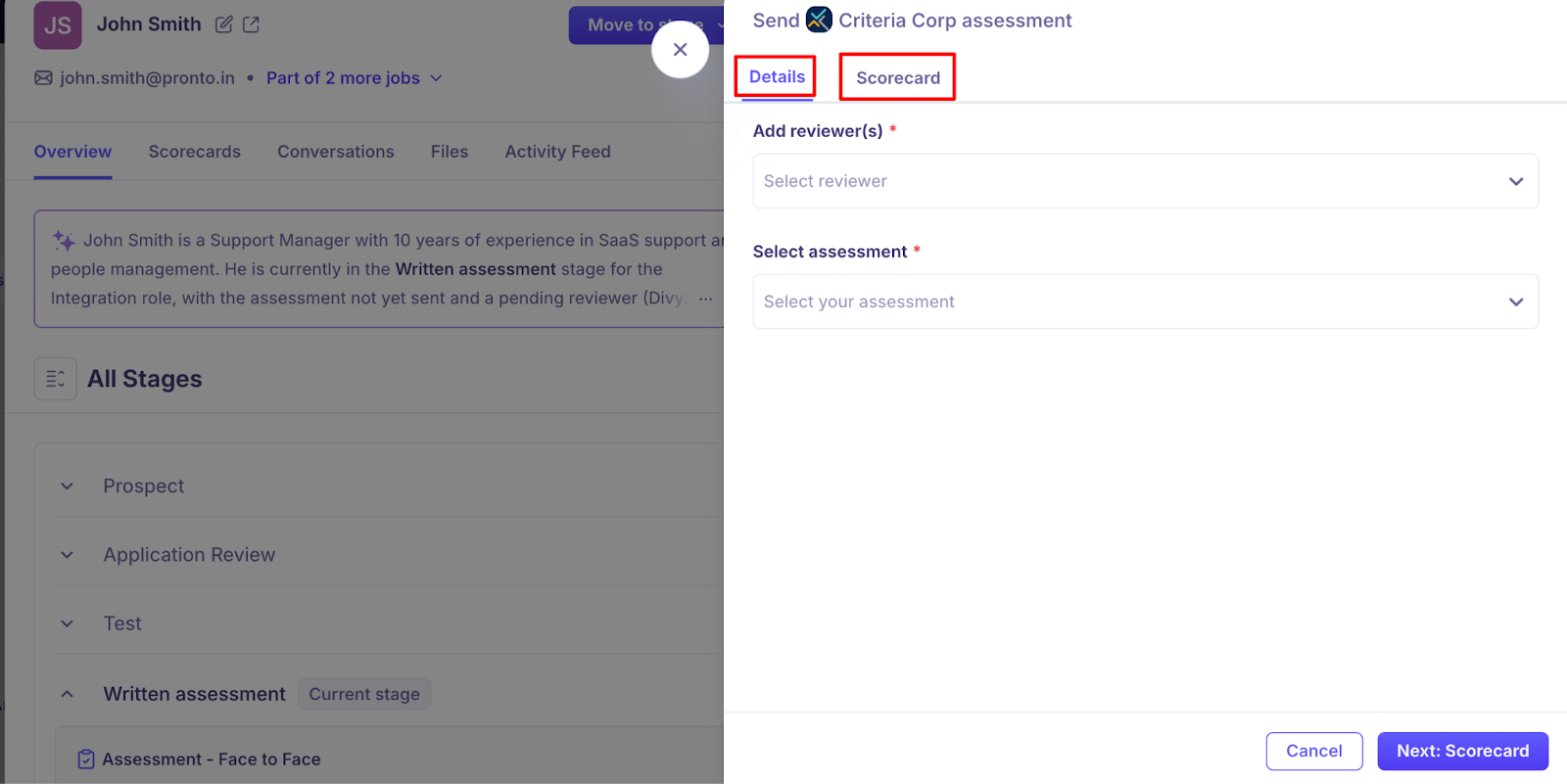
Create Assessment: Select the Reviewers, Assessment for this job and the scorecard template/questions for the interviewers to fill the feedback → Click “Add Assessment”
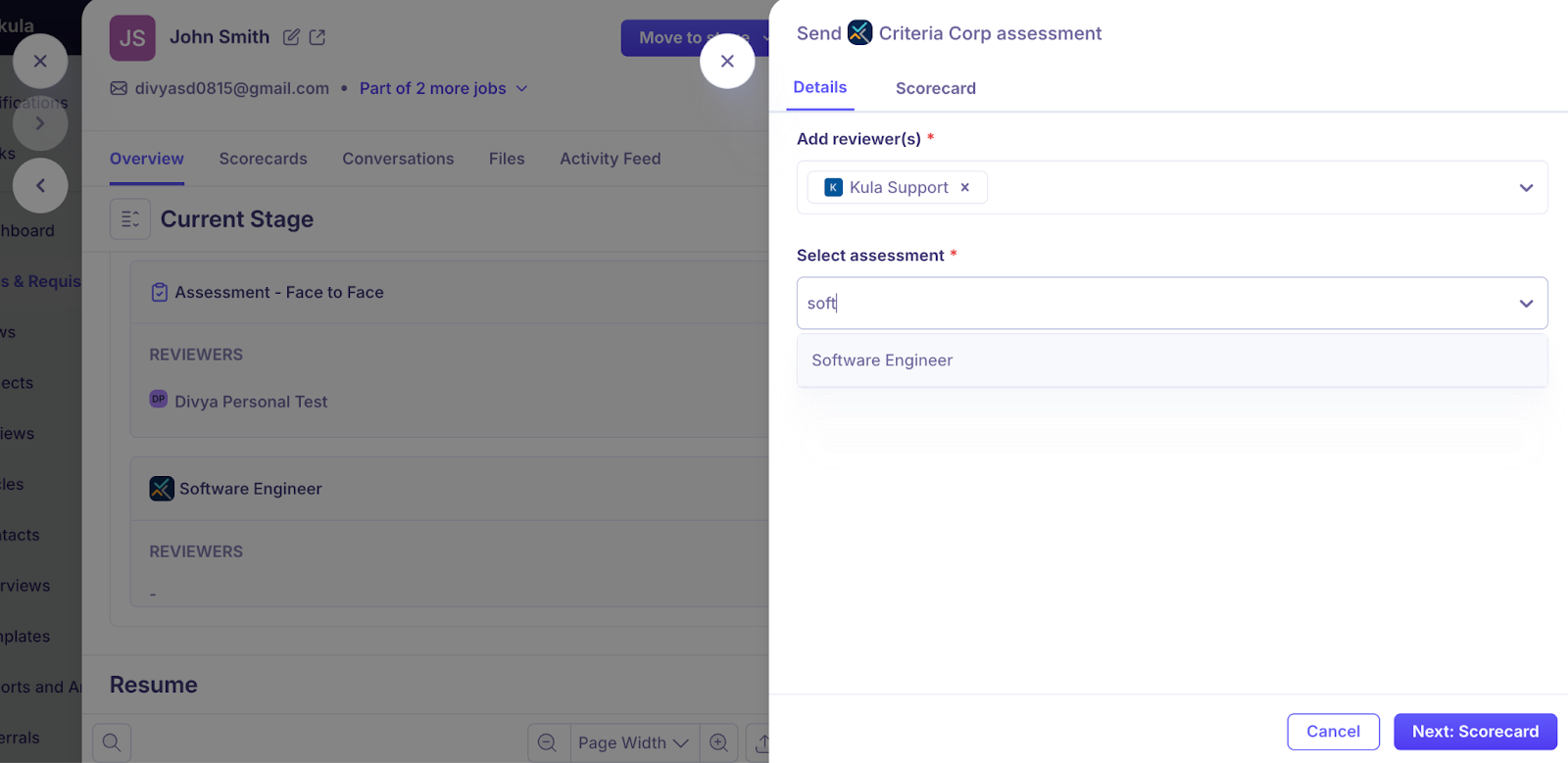
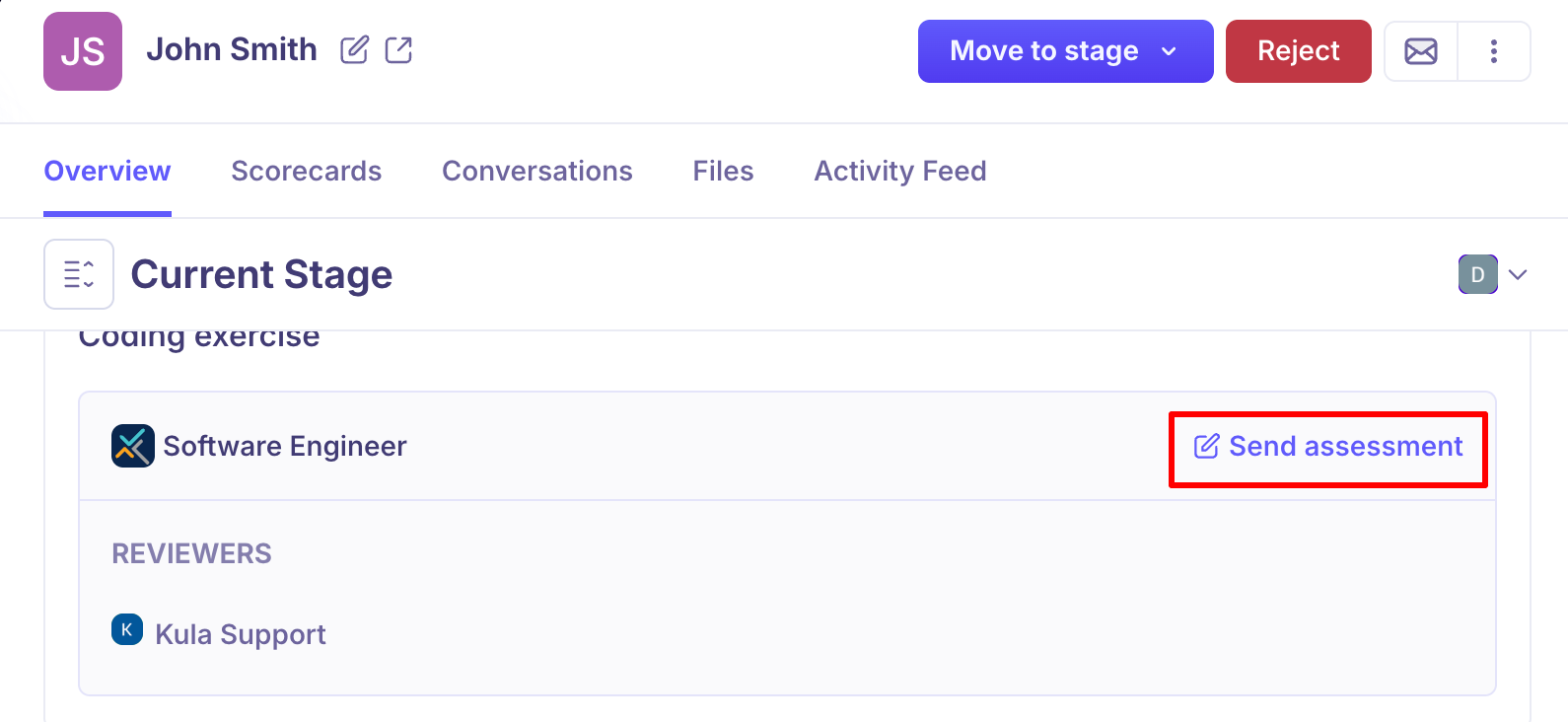
Send Assessment: When a candidate is moved to this stage, the CriteriaCorp activity is automatically created. Recruiters can click Send Assessment to proceed. Before sending, they can review and update the reviewers, assessment, and scorecard if needed, and then send the assessment.
Option 2: Ad-Hoc Assessment (The "Fast-Track")
Ideal for "one-off" tests or when you want to evaluate a candidate outside of the standard process.
Open Profile: Navigate to the Jobs > Candidates > select the Candidate Application page.
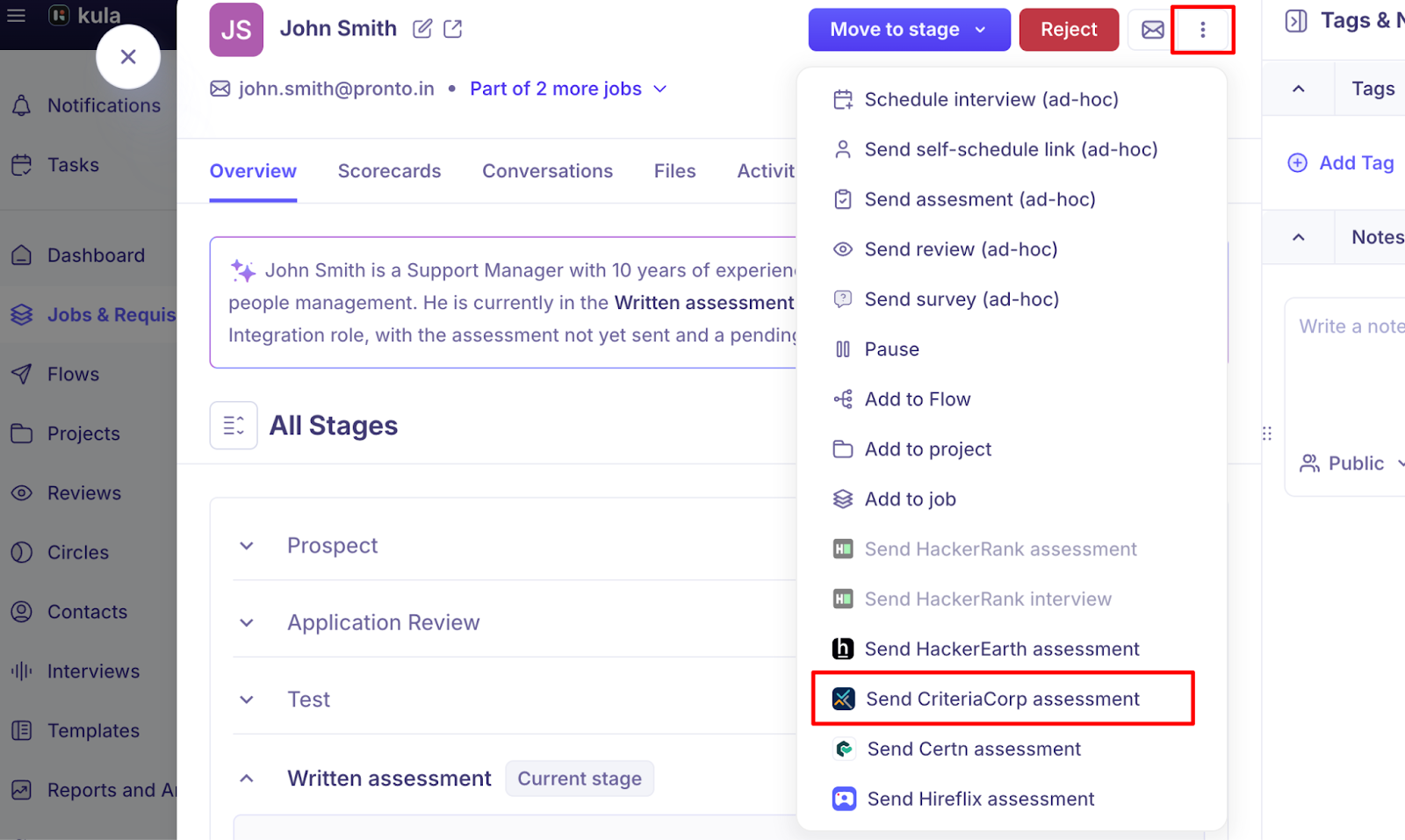
Access Menu: Click the "three dots” dropdown menu in the top right.
Trigger Test: Select "Send Criteria Assessment" from the dropdown.
Auto-Placement: The assessment modal will open immediately, and Select the reviewers, Assessment from a dropdown of assessments synced directly from your CriteriaCorp account and the scorecard.
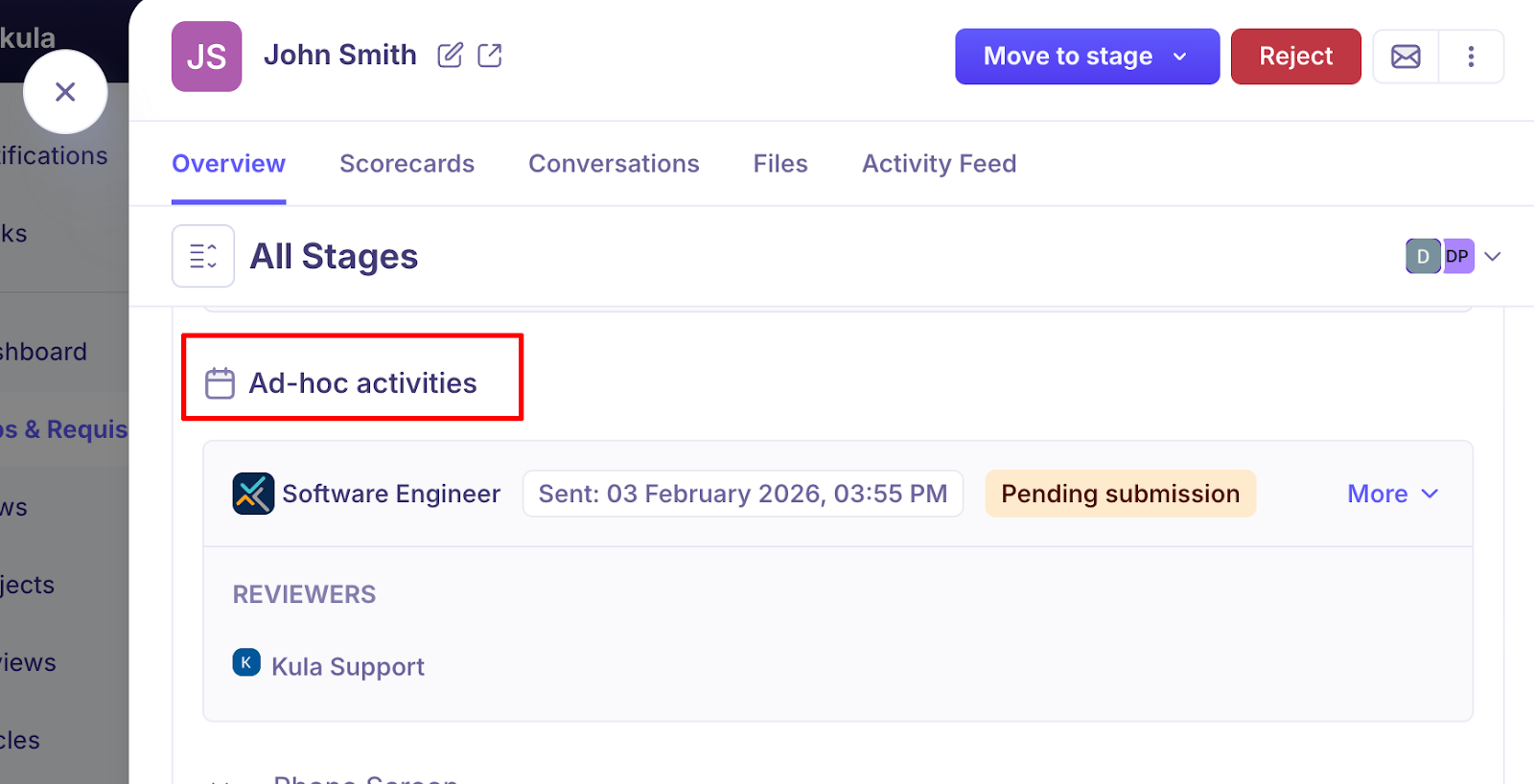
Once sent, the activity will be logged under the candidate's Adhoc Activities section.
📊 Step 3 - Monitoring Results and view Report
Kula updates the candidate timeline automatically with these statuses:
Pending submission: Invite sent.
Submitted: Test completed by the candidate.
To view Report:
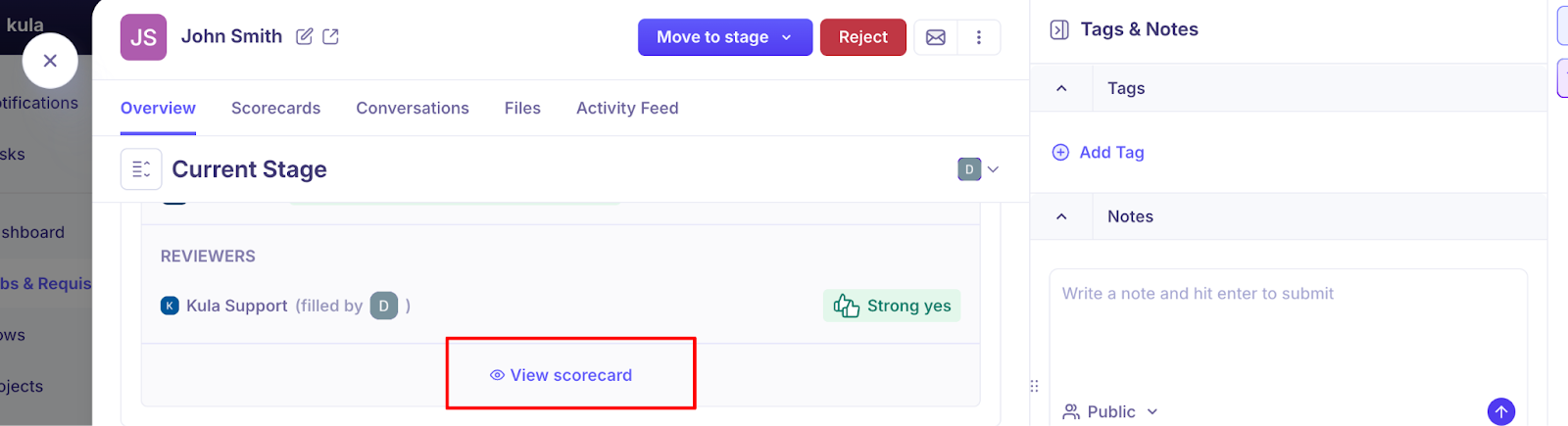
Click View Scorecard → View full assessment and report to see the complete report.
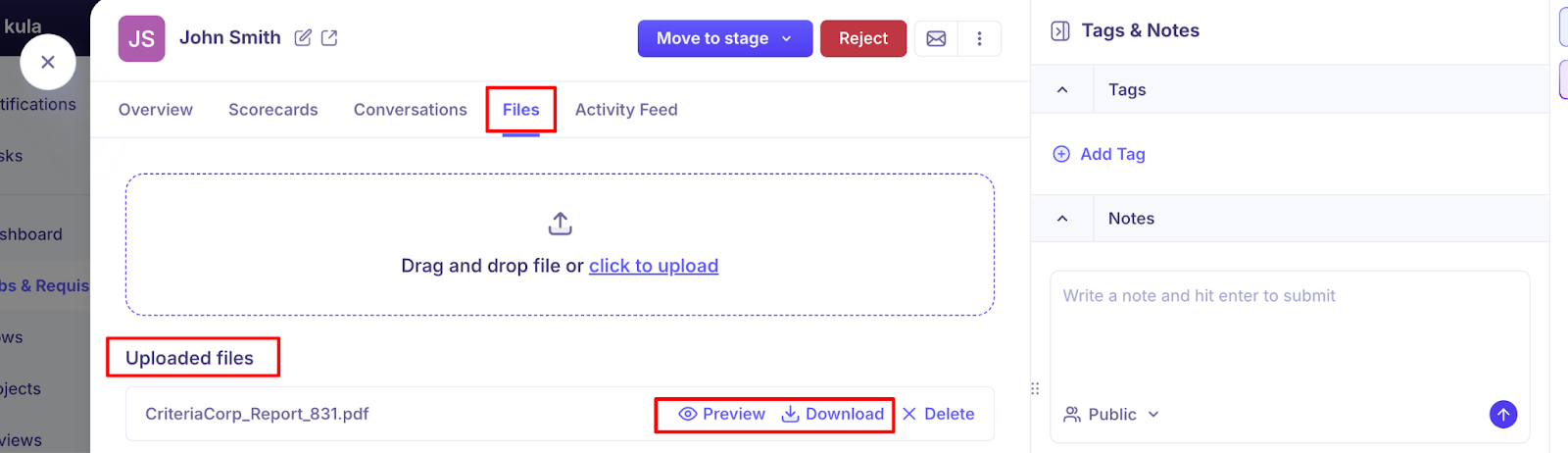
Navigate to Files → Additionally, you can view the report in PDF form under the Files section of the application.
Note: Once an assessment is sent it cannot be changed. To send a different assessment, cancel this one and send again.
Need Help?
If you have questions or need assistance with setup, feel free to reach out to us at support@kula.ai or use the in-app chat for assistance.