Creating a flow
Last updated: September 24, 2026
A flow reaches out to candidates automatically, in several steps across email and LinkedIn, on a schedule you set. Build it once, then add candidates to start their outreach.
Who can do this: Any Kula user with access to Flows — typically Recruiters, Hiring Managers, Admins, and Super Admins.
Where to find it: Flows in the side navigation bar.
Build a flow
Click Flows in the left navigation, then New Flow.
Click Start from scratch and name the flow. You can also start from a blueprint.
Add a step. For each one:
- Choose the channel: Mail, InMail or Connection request.
- Set Send after: how long after the previous step it goes out.
- Choose the sender. A familiar name, such as the hiring manager, often gets more replies.
- Write the subject and message. Use tokens to personalise it (see Personalisation tokens), or let AI draft it (see Writing flow messages with AI).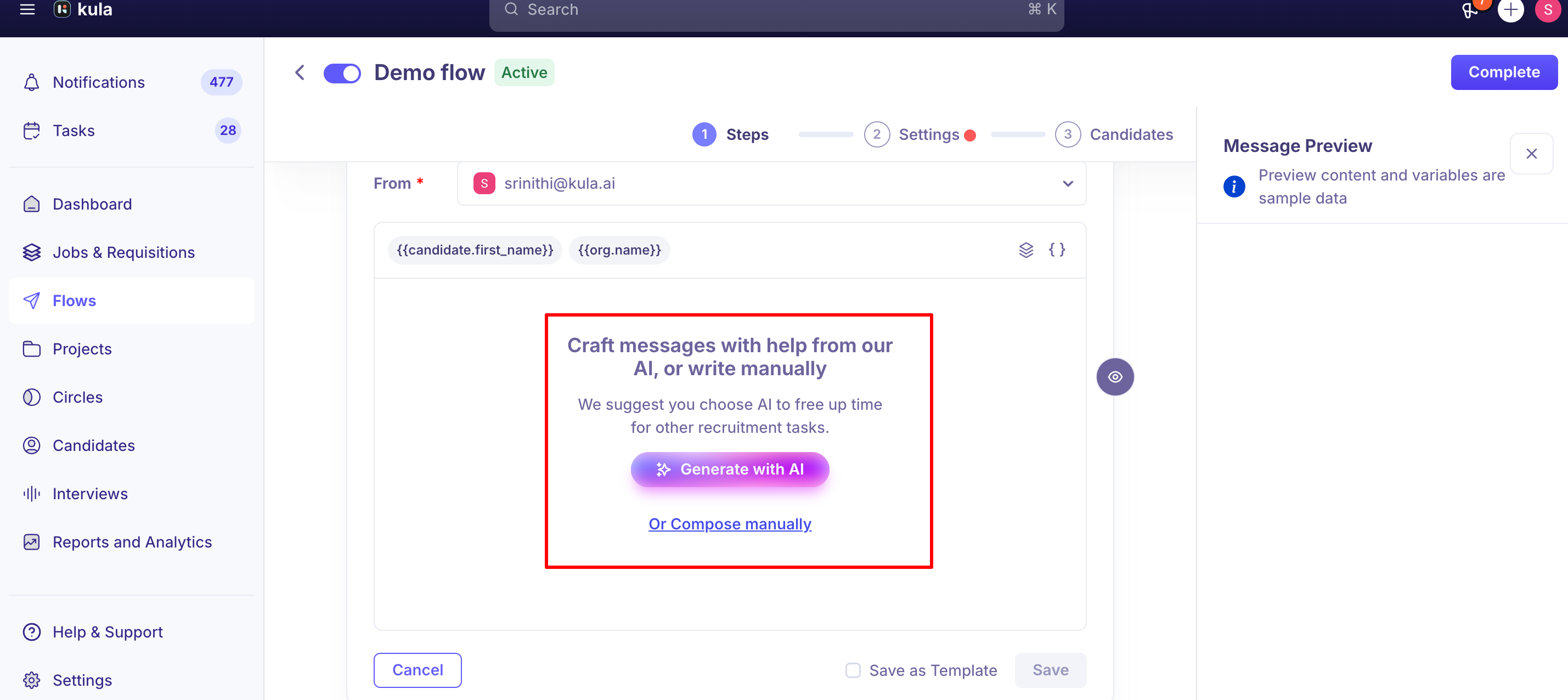
- Check the message preview on the right.Add the other steps the same way.
Click Launch.
A flow can have as many email steps as you like, but at most 2 InMails and 1 connection request. A common pattern is two InMails, then a connection request, then an email as a fallback.
How each channel sends
Channel | How it sends |
|---|---|
Automatically from Kula when due. Each email is its own thread; replies show on the candidate's Conversations tab | |
InMail / Connection request | Through the Kula Everywhere extension. Each becomes a task that runs from a pinned extension tab. If the tab isn't open when it's due, the task is missed until you run it |
For LinkedIn steps:
Keep one pinned extension tab open. Several tabs compete and can block each other.
Missed a task? Open the extension tab and click Run task.
Already contacted someone yourself? Skip their task, and they move to the next step. You can skip tasks in bulk.
Kula paces how many InMail tasks appear each day so you don't use up your LinkedIn allowance too fast. Ask support if you need a higher daily limit.
When a candidate has no email
If a candidate reaches an email step without a valid address, the flow does what you choose: pause so you can add the email (recommended), skip email steps and go on to LinkedIn, skip to the next step, or stop.
Add candidates
Creating a flow doesn't add anyone. See Adding, pausing and stopping candidates in a flow.
A few mechanics worth knowing:
Only one pinned extension tab should be open at a time. Multiple open tabs compete with each other and can end up blocking all execution rather than speeding it up.
Overdue tasks can be run manually. If a LinkedIn task was missed, open the extension tab and click Run task to send it immediately.
Tasks can be skipped. If you've already reached out to a candidate manually (outside the flow), you can skip their pending task — Kula automatically moves them to the next step in the flow. Tasks can be selected in bulk and skipped together.
InMail sending can be set to manual or automatic for a given flow — worth checking this setting if InMails you expected to go out automatically haven't.
InMail-specific limits
Flow can have up to 2 InMail steps and 1 Connection Request step. Email steps are unlimited. A common structure is two InMails, then a Connection Request, then an email as a fallback — Kula automatically skips the email step for candidates without a valid address.
Kula also applies its own daily task limit (a pacing control, not extra credits) to how many InMail tasks surface in the sidebar each day, so you don't burn through your LinkedIn limits too quickly. This can be increased if needed.
InMail replies land in your LinkedIn Recruiter inbox first. If your Gmail or Outlook is connected to Kula, Kula also picks up the reply automatically and adds it to the candidate's timeline with an in-app notification — but Connection Request replies aren't tracked by Kula at all.
Good to know
A reply stops the flow for that candidate. Kula stops sending further steps when they reply to an email or InMail. Mark them Interested or Not interested yourself.
One active flow per candidate. If they're active in another flow, they stay inactive in the new one until the first is stopped or finished.
Connection request replies aren't tracked. Email and InMail replies are. InMail replies arrive in LinkedIn Recruiter first, and Kula picks them up if your Gmail or Outlook is connected.
Steps can go out quickly. Send after can be set to about a minute, even though the suggested default is longer.
FAQ
Can a candidate be in more than one flow at the same time? No — a candidate can be active in one flow at a time. If you add them to a second flow while the first is still running, they stay inactive in the second one.
What happens after a candidate replies to a flow step? Kula automatically stops sending further steps to that candidate. You'll still need to manually mark them Interested or Not Interested based on their reply — that classification isn't automatic.
Do all the emails in a flow show up as one conversation thread? No — each email step is sent as its own separate email/thread. Any reply from the candidate is tracked and viewable under their Conversation tab.
How soon can the first step in my flow go out? You can typically schedule it for as little as about a minute after a candidate is added, even if the interface suggests a longer default like 10 minutes.
Does Kula track replies to LinkedIn connection requests the same way as emails? No — replies are tracked for email and InMail steps, but not connection requests.
Need help?
If you have questions or need assistance, reach out to us at support@kula.ai or use the in-app chat.