How to Invite Users via Google Workspace Integration
Last updated: April 7, 2025
Kula has introduced an exciting new feature to streamline the user management process: Google Workspace Integration! This update allows you to easily invite users from your connected Google Workspace, simplifying bulk invitations and user management.
Enable Google Workspace Integration:
Go to Settings → Organization Integrations
Navigate to your Kula account's Settings menu, then click Organization Integrations.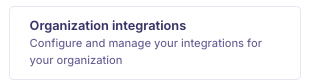
Enable Google Workspace Integration
Ensure that Google Workspace is enabled under your Integrations settings.
Invite Users via Google Workspace
Go to Settings → Users
In your Kula account, navigate to Settings, then select Users.Click Add Users
Click on the Add Users button to start the invitation process.Select Google Workspace Option
From the dropdown menu, select the Add via Google Workspace option.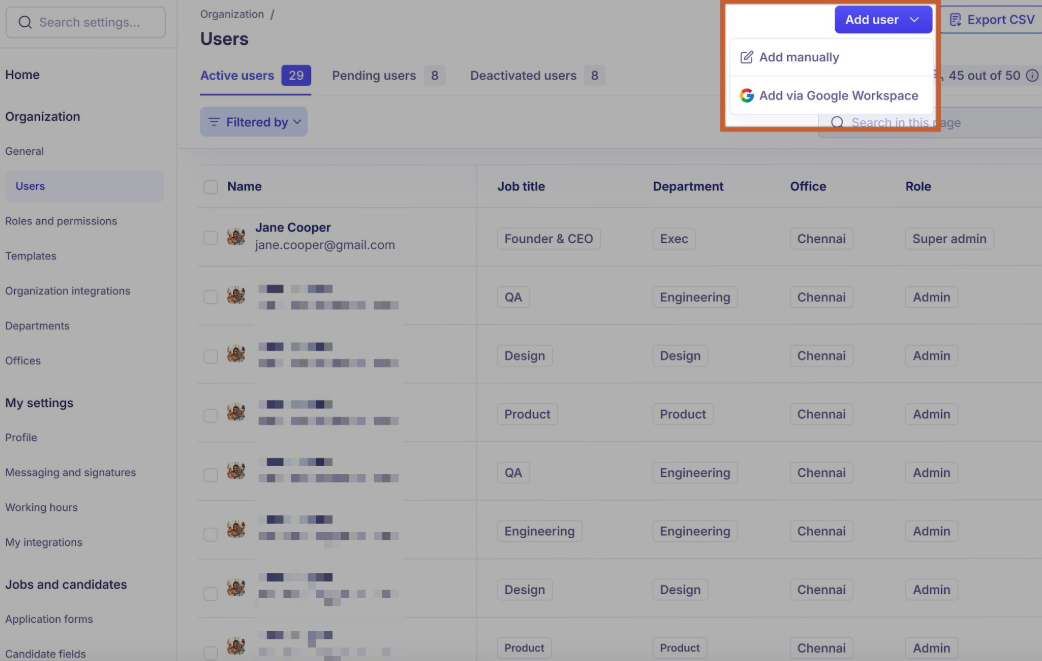
Choose Users to Invite
Browse the list of users synced from your Google Workspace. You can either select users individually or in bulk.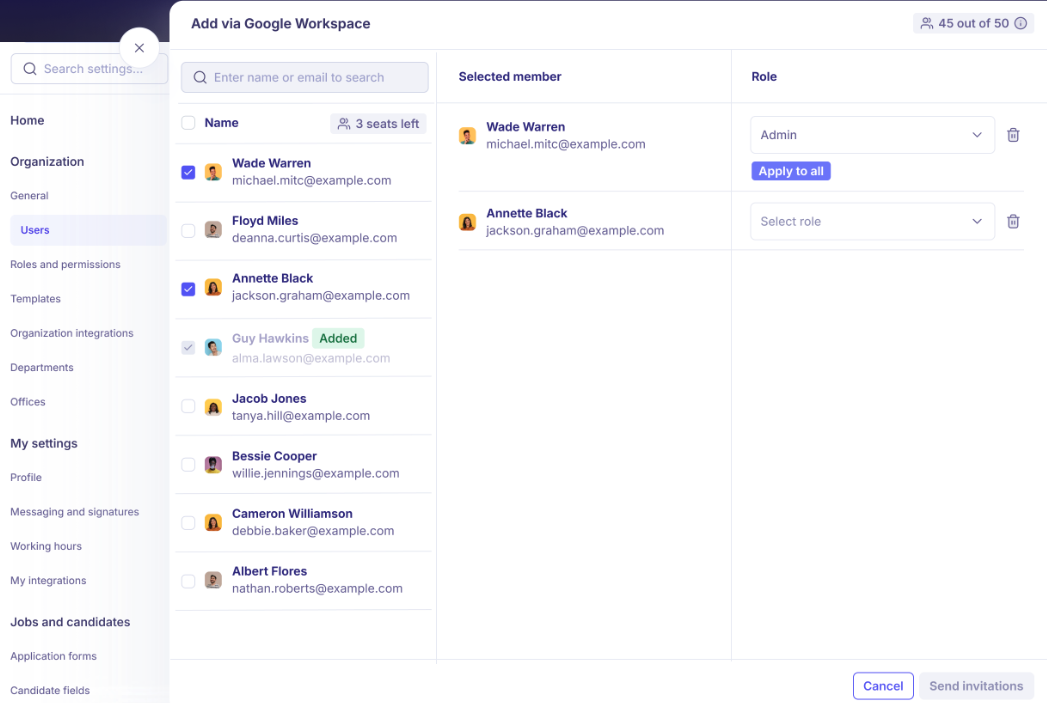
Send Invitations
Once you’ve selected your users, click Invite. Each invited user will receive an email from confirm@kula.ai with instructions to join your Kula platform.
Understanding User Status Tags
Pending: The user has been invited but hasn’t accepted the invitation yet.
Activated: The user has accepted the invitation.
Deactivated: The user was removed or is inactive.
Invite Limit Enforcement
If you try to invite more users than your plan allows, additional selections will be disabled, and you’ll see a tooltip explaining the issue.
If you exceed your invite limit, you’ll be prompted to contact Kula support through the in-app chat.