View assessment results on the profile
Last updated: July 22, 2026
Once a candidate submits an assessment — whether it's a Kula assessment or one run through a connected tool like HackerRank — their submission, score, and any report land in one place on their profile. This article covers where to find it and what you can (and can't yet) do without leaving Kula.
Who can do this: Recruiter or Hiring Manager on the job's hiring team, any Admin or Super Admin, or anyone specifically added as a reviewer on that assessment — see Scorecard visibility and permissions for the full access rules.
Where to find it: Candidate's profile → Assessments tab
Find the results
Open the candidate's profile and go to the Assessments tab. Every assessment sent to them — Kula's own or a third-party one — is listed there, along with its status: Pending until the candidate submits, then completed with whatever score or verdict came back.
This holds even if the candidate has since moved to a later stage — a completed assessment doesn't disappear once they're past the stage it was attached to.
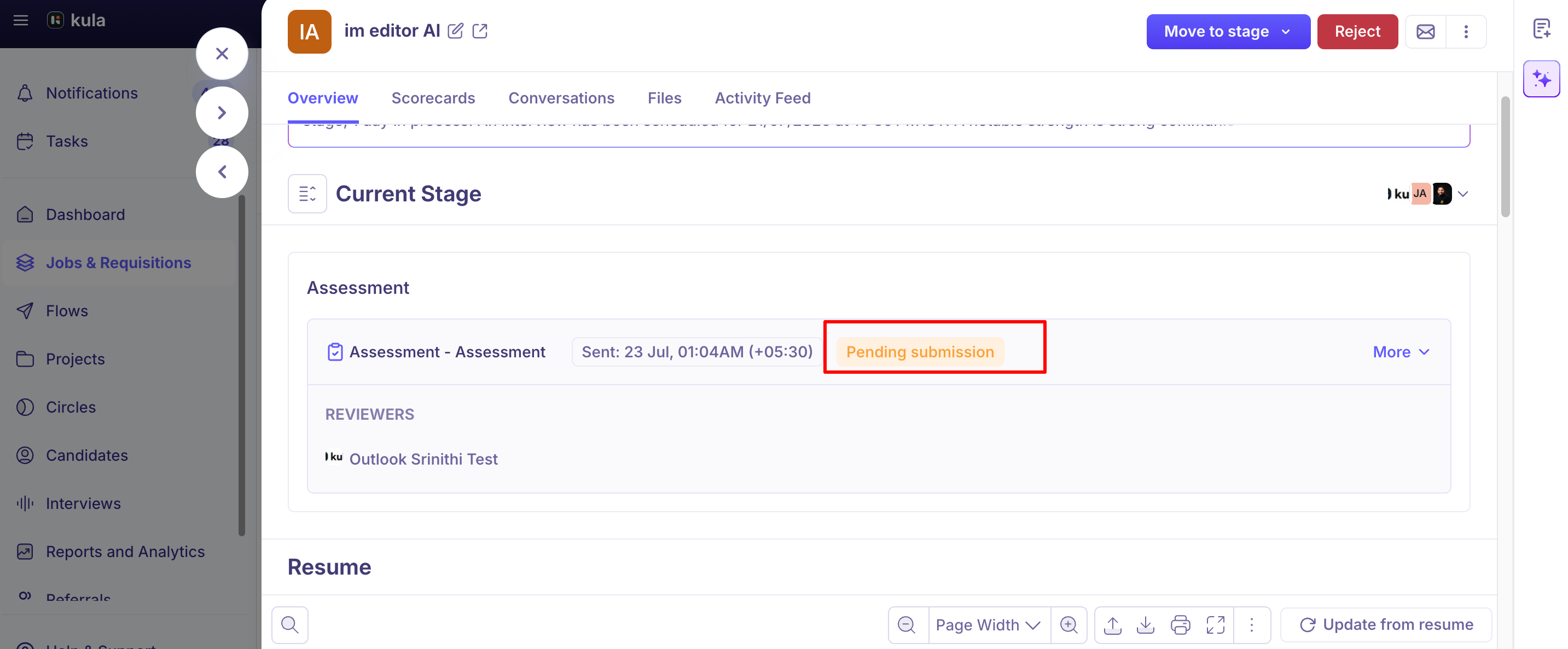
Previewing what the candidate submitted
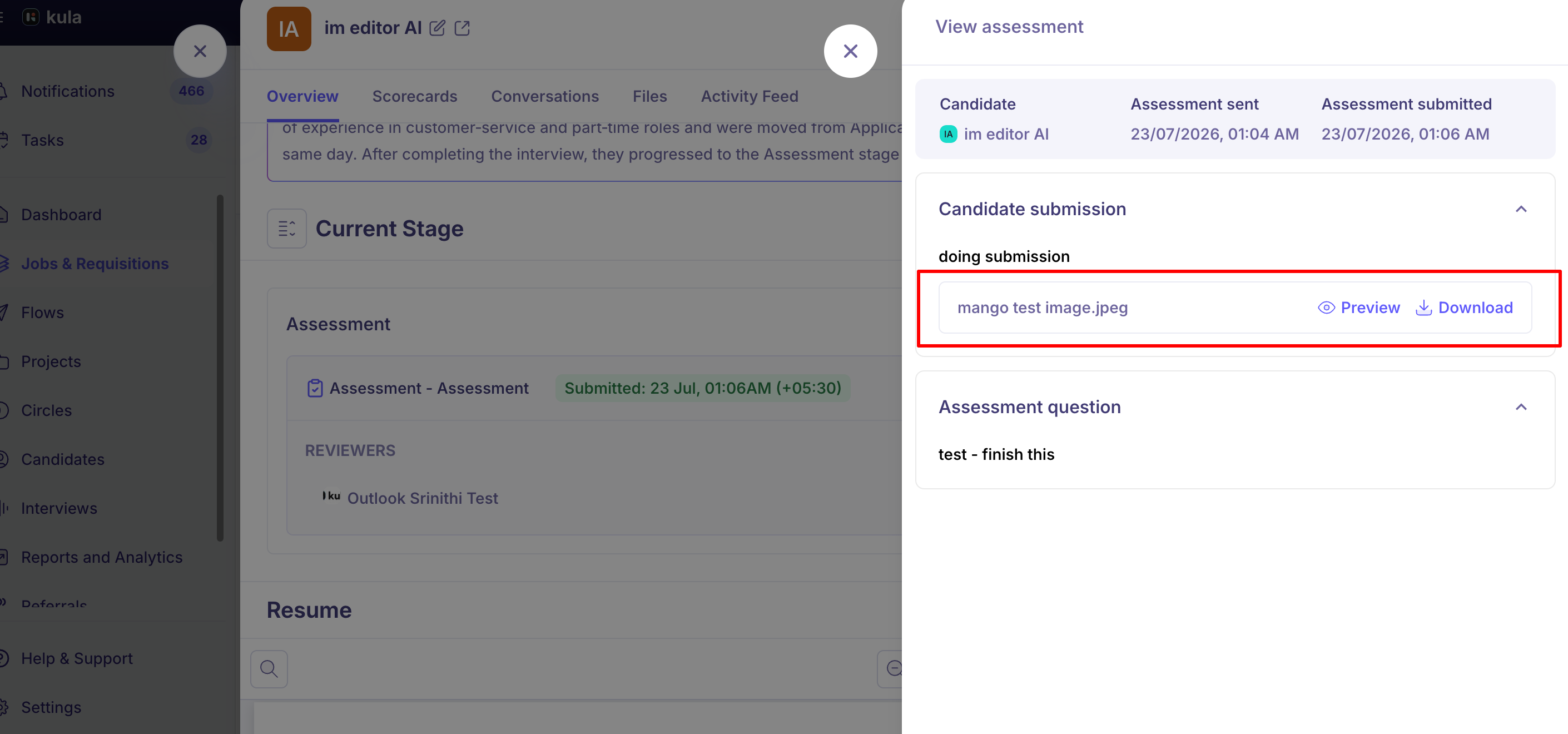
If the candidate uploaded a DOCX file or an image, you can preview it right there, side by side with the scorecard — no download required. Other file types, and video assessments specifically, still require downloading or opening in the provider to view.
If it's a third-party assessment
For assessments sent through a connected tool (HackerRank, HackerEarth, Criteria Corp, CodeInterview), the score and pass/fail or completion status show directly on the candidate's profile once they submit. The detailed report itself opens via a link out to that tool rather than previewing inline in Kula.
A short video on how to view the assessment:
Good to know
There's no "download all" option for assessment attachments yet. If a candidate submitted several files, you'll download them one at a time.
Video assessment submissions don't have an in-platform preview yet — you'll need to open them in the provider (e.g. HireFlix) rather than viewing inline in Kula.
A completed assessment stays visible on the profile even after the candidate moves to a later stage.
FAQ
Can I preview a candidate's uploaded assessment file without downloading it first? Yes, for DOCX files and images — they preview inline, next to the scorecard. Other file types and video submissions still need to be downloaded or opened in the provider. For more, see Send a skills assessment to a candidate (link to be added).
Can I download every file a candidate submitted in one go, instead of one at a time? Not currently — there's no bulk "download all" option, so you'll download attachments individually. For more, see Send a skills assessment to a candidate (link to be added).
A candidate moved past the assessment stage — can I still find their submission? Yes. A completed assessment stays on the candidate's profile regardless of what stage they're in now. For more, see Send a skills assessment to a candidate (link to be added).
Where do I find the full report for a HackerRank or HackerEarth assessment, not just the score? The score and pass/fail status show on the candidate's profile directly, but the detailed report opens through a link out to that tool rather than inline in Kula. For more, see Integrate third-party assessment tools (link to be added).
Who besides the hiring team can see an assessment's results? Anyone specifically added as a reviewer on that assessment can see it, in addition to the job's Recruiter, Hiring Manager, Admins, and Super Admins — visibility follows the same rules as scorecards generally. For more, see Scorecard visibility and permissions (link to be added).
Need help?
If you have questions or need assistance, reach out to us at support@kula.ai or use the in-app chat.