How to Integrate Zinc with Kula
Last updated: February 13, 2026
The Zinc integration with Kula allows users to automate background verification checks seamlessly. Recruiters can initiate checks directly from a candidate's profile within a job and monitor the entire verification lifecycle directly through Kula and without switching platforms.
⚡ Key Highlights
Start background assessments directly from a candidate’s profile within a job stage.
Keep all your background check data and reports in one place
View and open the final Zinc verification report directly from the Kula.
⚙Step 1 - Integration Setup
Requirements: You must be a Kula Admin and have an active Zinc account with Background check packages set up in Zinc
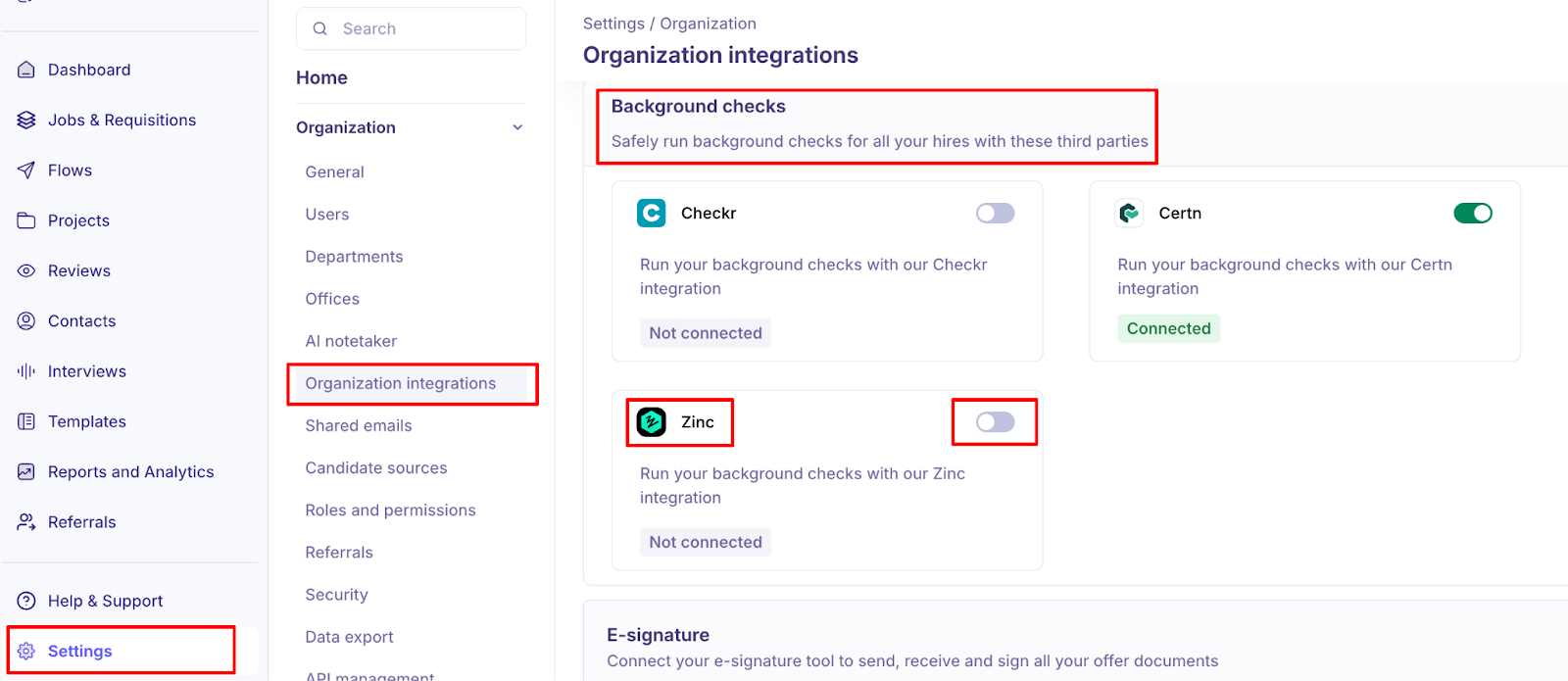
Go to Settings > Integrations > Background checks section
Find Zinc in the list and click Enable Integration.
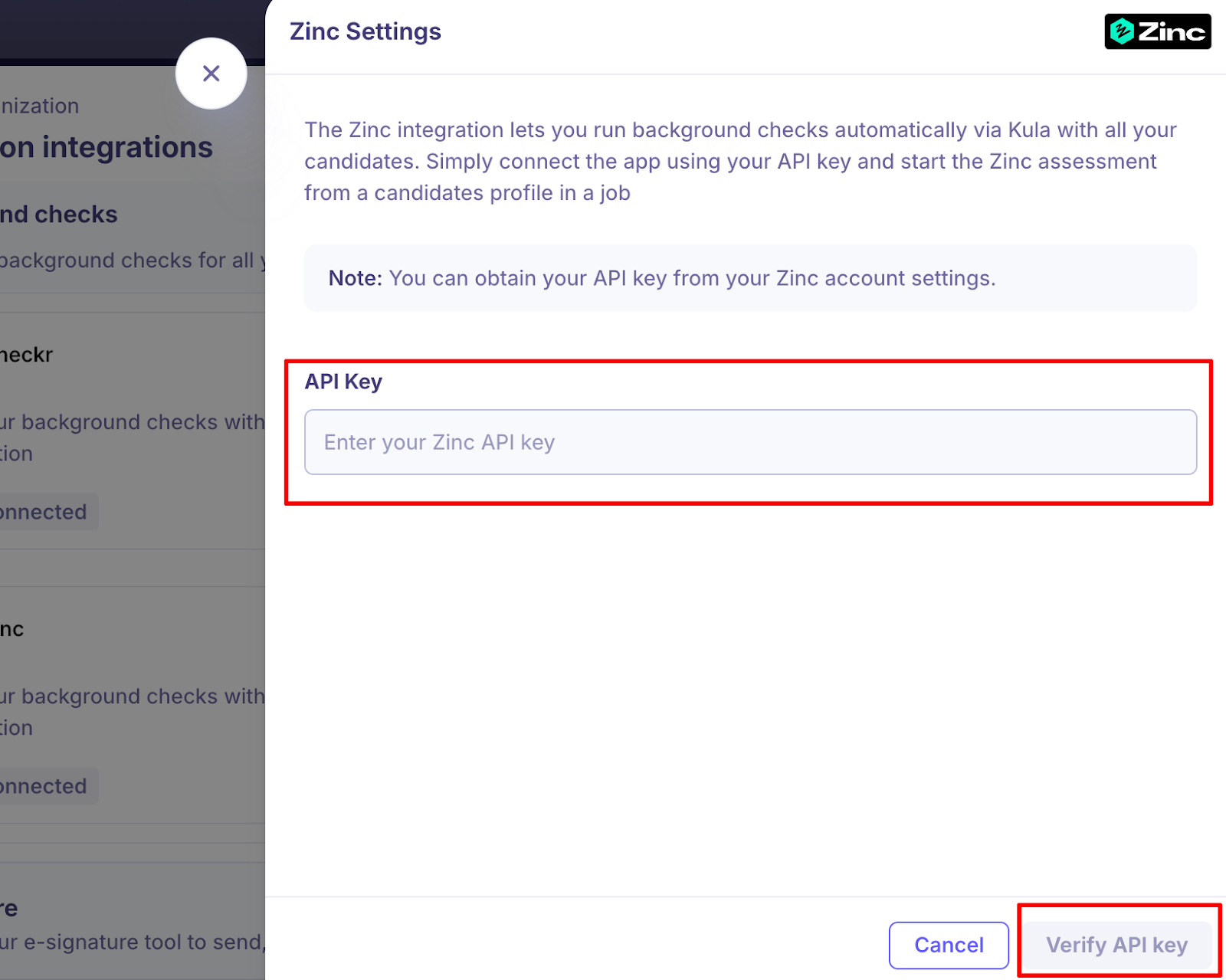
Enter your Zinc API Key → Click “Verify API Key”.
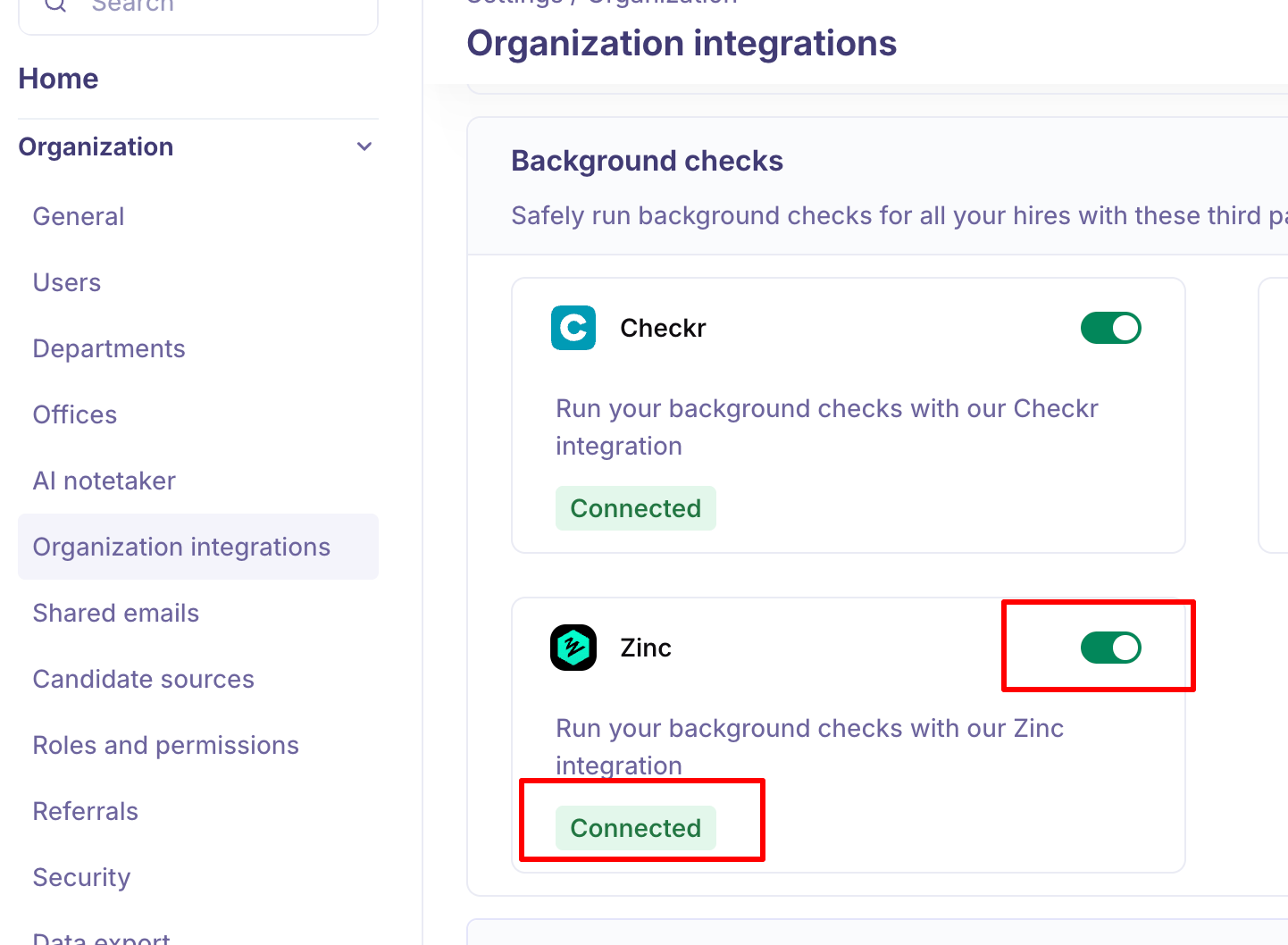
Once validated, the status will show as Active/Connected. If it fails, simply click Reauthorize to retry.
🛠 Step 2 - Using Zinc in Kula
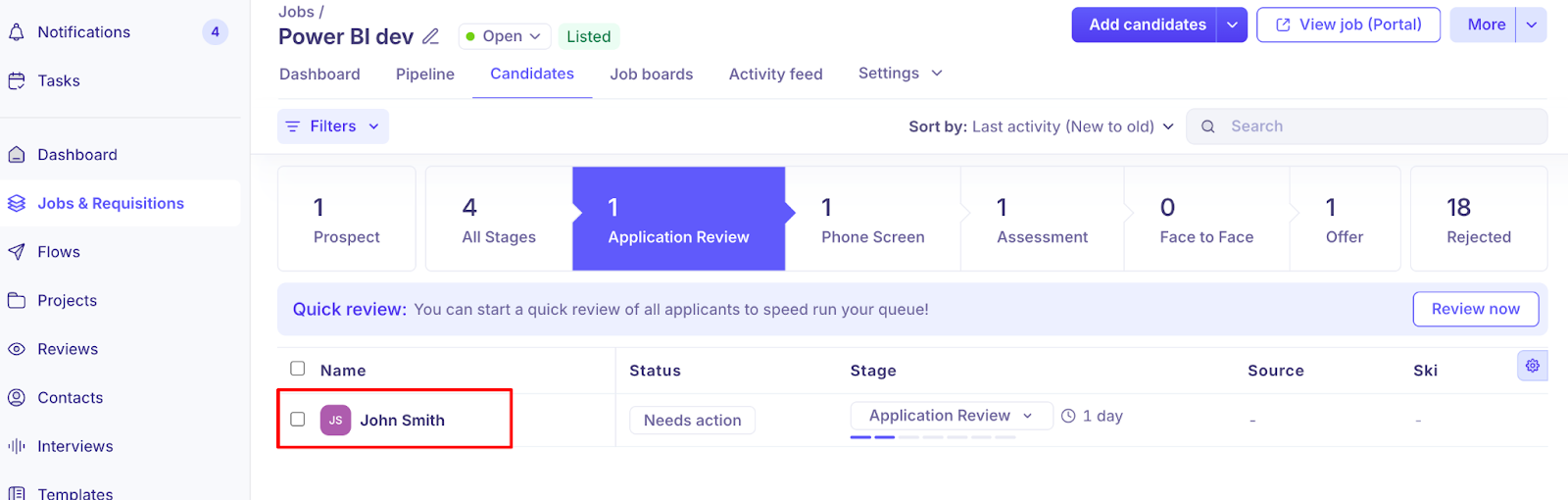
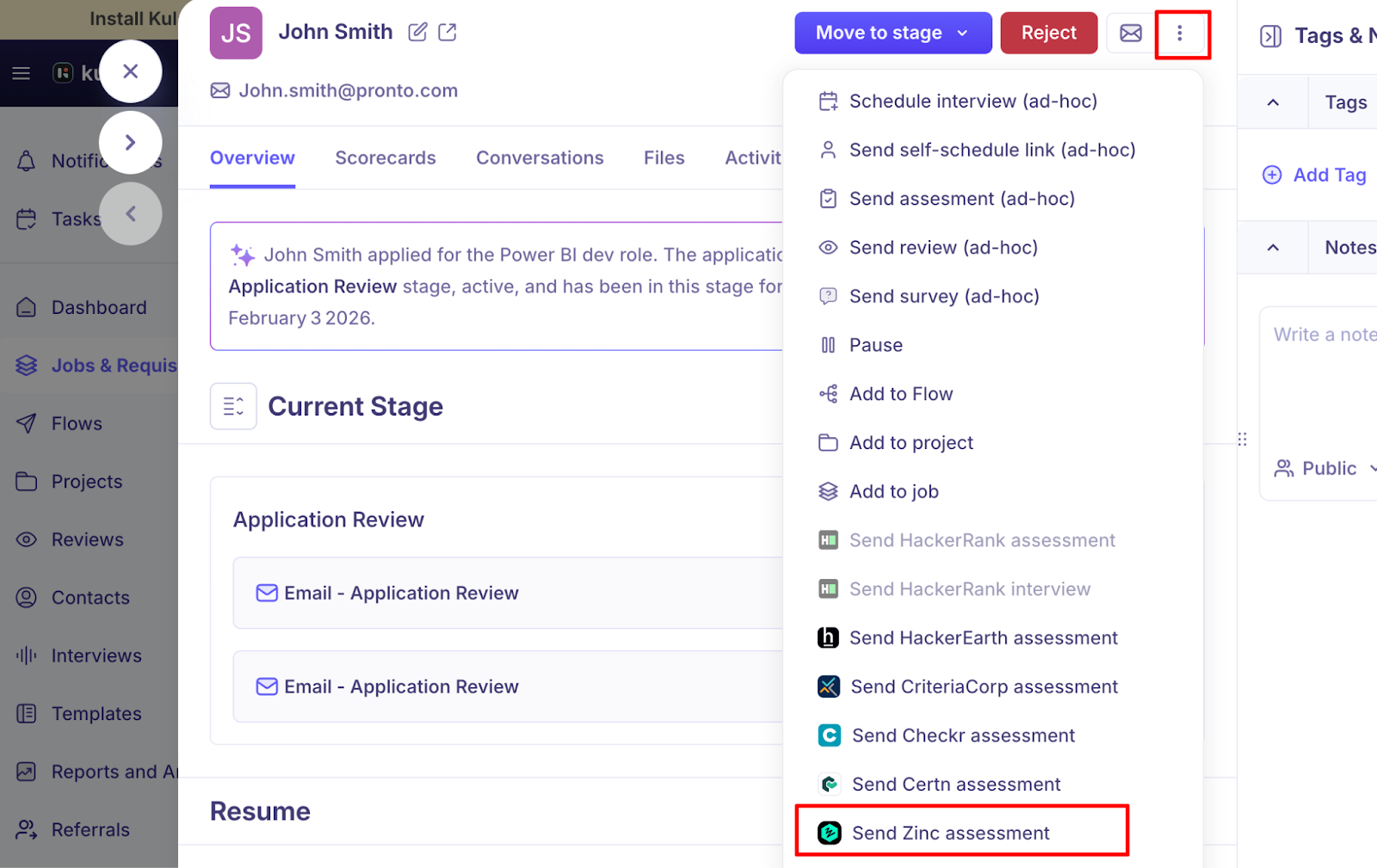
Open Profile: Navigate to the Jobs > Candidates > select the Candidate.
Access Menu: Click the "three dots” dropdown menu in the top right.
Trigger Test: Select "Send Zinc Assessment" from the dropdown.
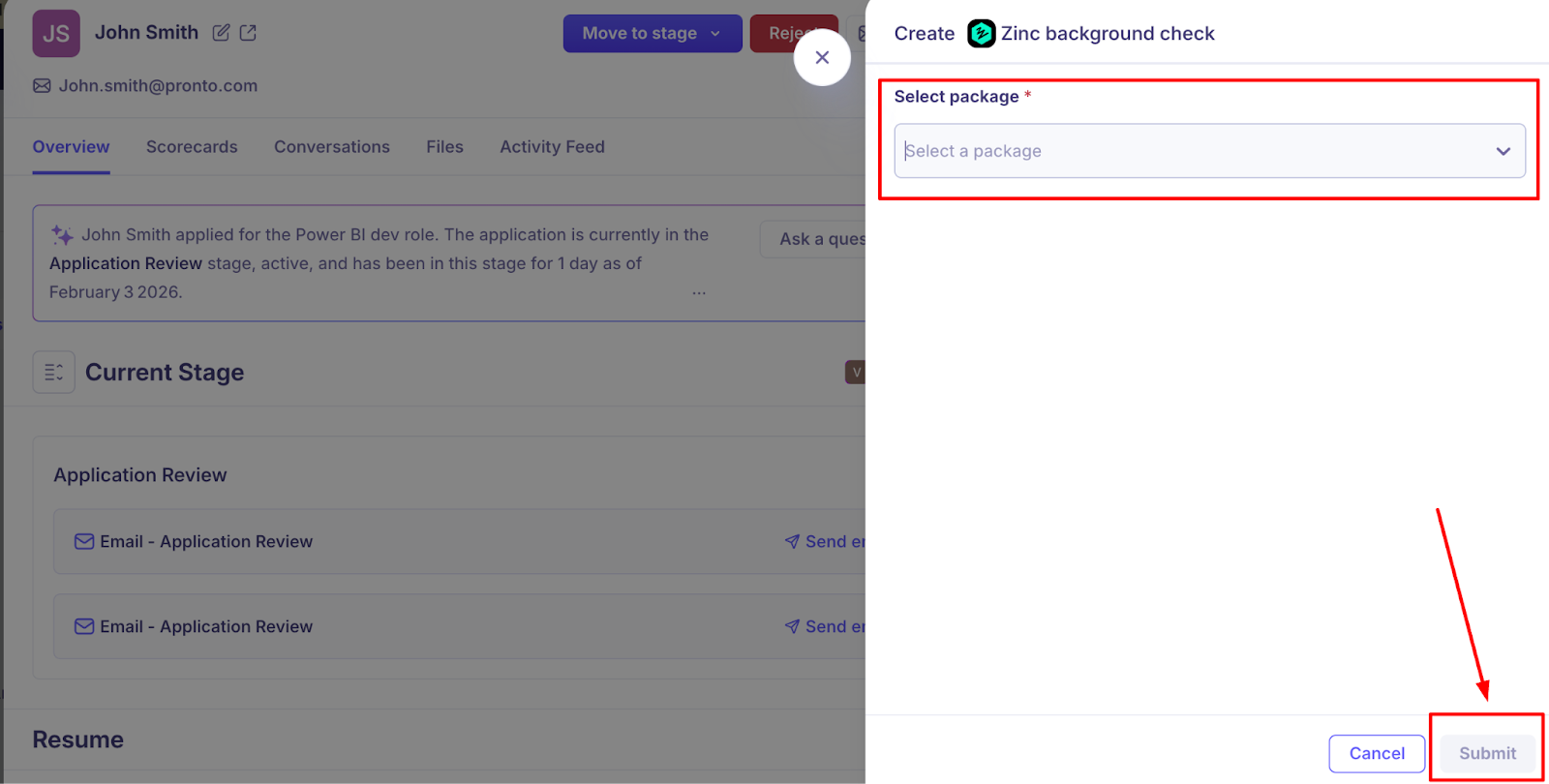
Create Zinc background check: Select your package from a dropdown of packages synced directly from your Zinc account → Click “Submit” → You will see a message - “Zinc background check sent successfully”.
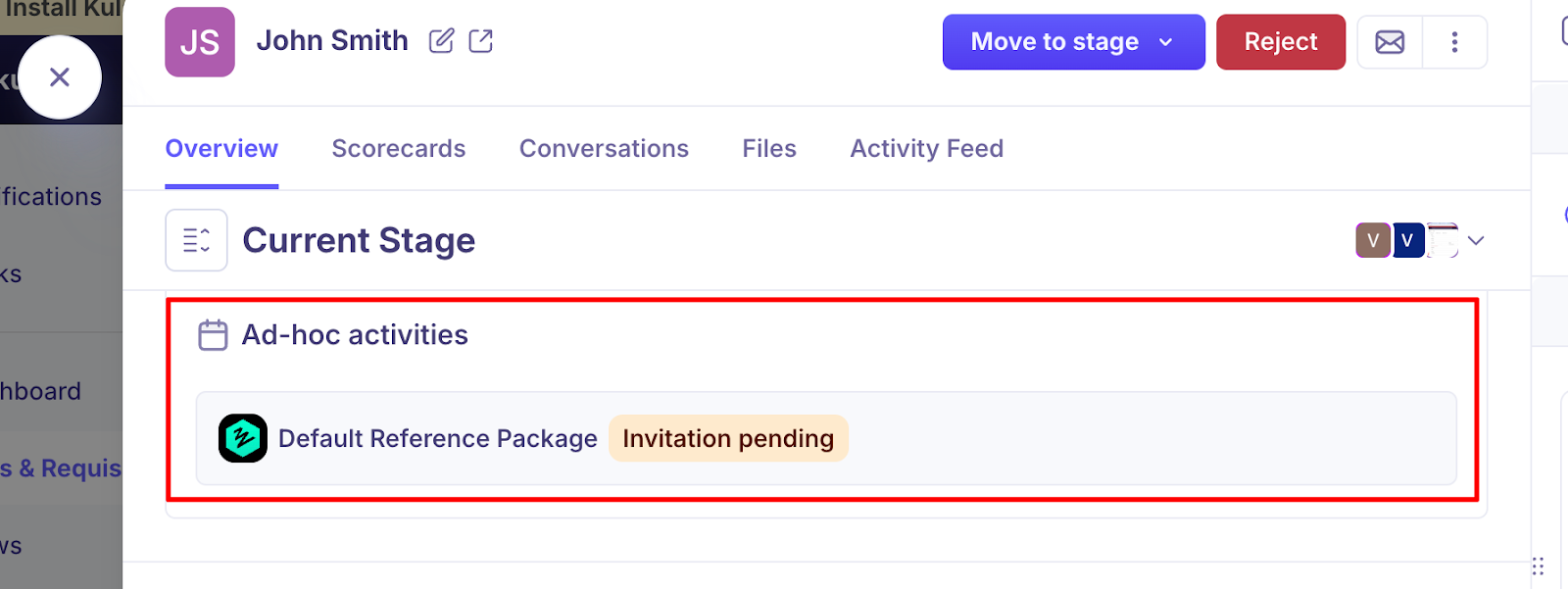
Once sent, the activity will be logged under the candidate's “Ad-hoc activities” with “Invitation Pending” status.
Note:
Candidate Emails: The name shown to candidates in Zinc Background check emails is always the API Key Owner. It will not show the name of the specific person who initiated the check from Kula.
Internal Kula Activity: For internal tracking, Kula will correctly display the name of the specific user who initiated the check within your activity feed of the candidates.
📊Step 3 - Monitoring Results and view Report
Kula captures detailed status updates from Zinc to keep your team informed at every stage. These statuses are visible on the candidate page and recorded in the activity feed.
Candidate started: The candidate has begun the background check process.
Candidate completed: The candidate has submitted all required information.
Pending review: The review is pending with the reveiwer
Eligible: The assessment is complete and the candidate has met the criteria.
Invitation deleted: The specific request has been canceled or removed.
To view Report:
You can see “View report” in the “Overview section” → “Adhoc activities”.
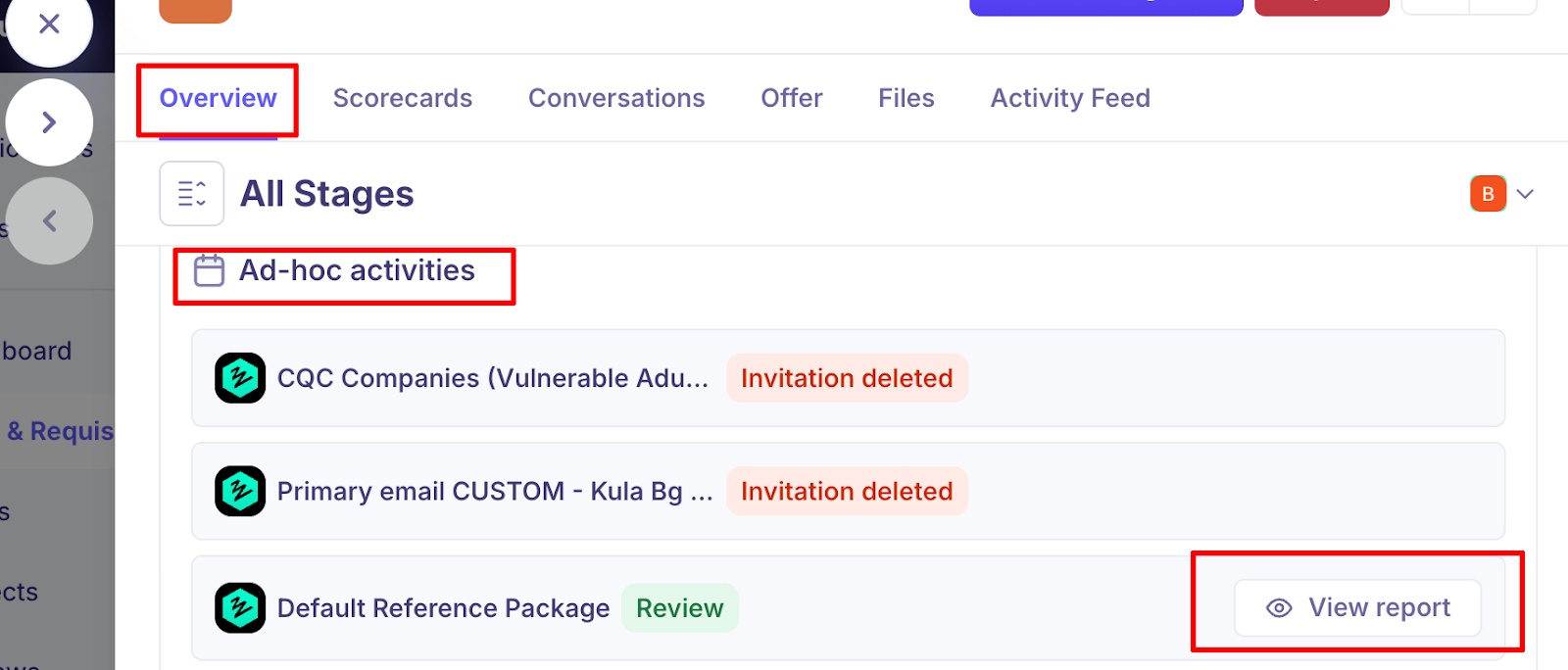
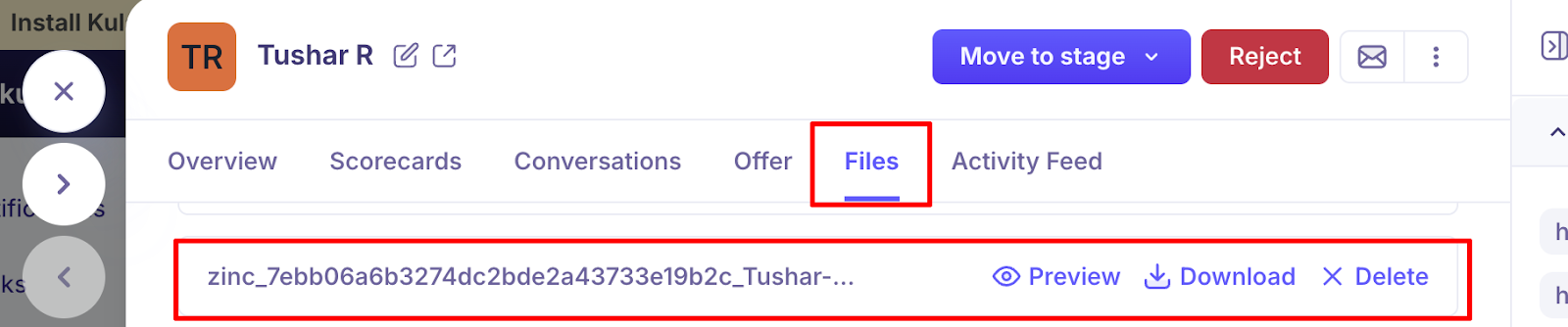
Navigate to Files → Additionally, you can view the report in PDF form under the Files section of the application.
Need Help?
If you have questions or need assistance with setup, feel free to reach out to us at support@kula.ai or use the in-app chat for assistance.