Managing Tasks in Kula
Last updated: March 17, 2026
The Tasks page in Kula gives you a centralised view of everything that has been assigned to you across your hiring activity. From scorecards and approvals to outreach tasks in your Flows, Tasks helps you stay on top of what needs to be done without navigating to individual jobs or candidates.
To access Tasks, click Tasks in the left-hand navigation panel.
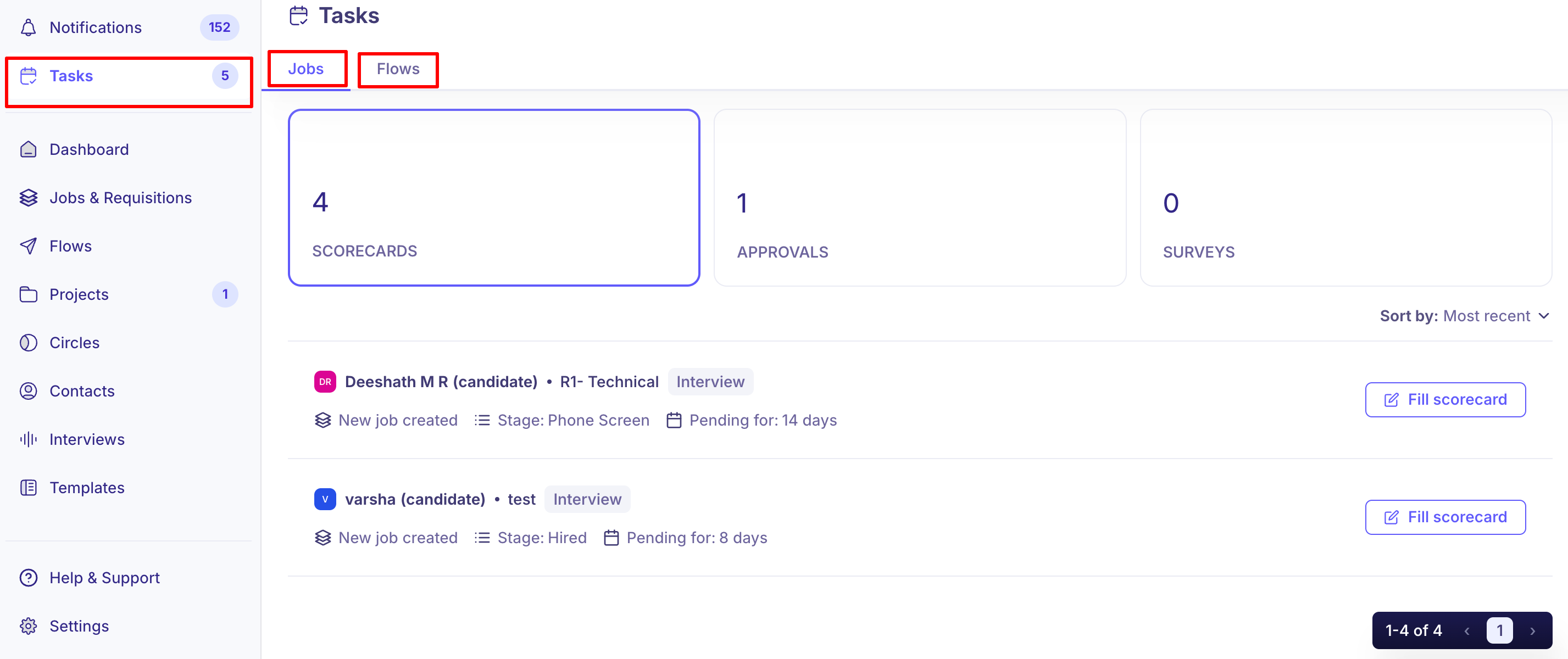
The number badge next to Tasks shows the total count of pending tasks assigned to you.
The Tasks page is divided into two tabs:
Jobs — tasks related to job-based hiring activity (scorecards, approvals, and surveys)
Flows — tasks related to outreach sequences - Flows you are running
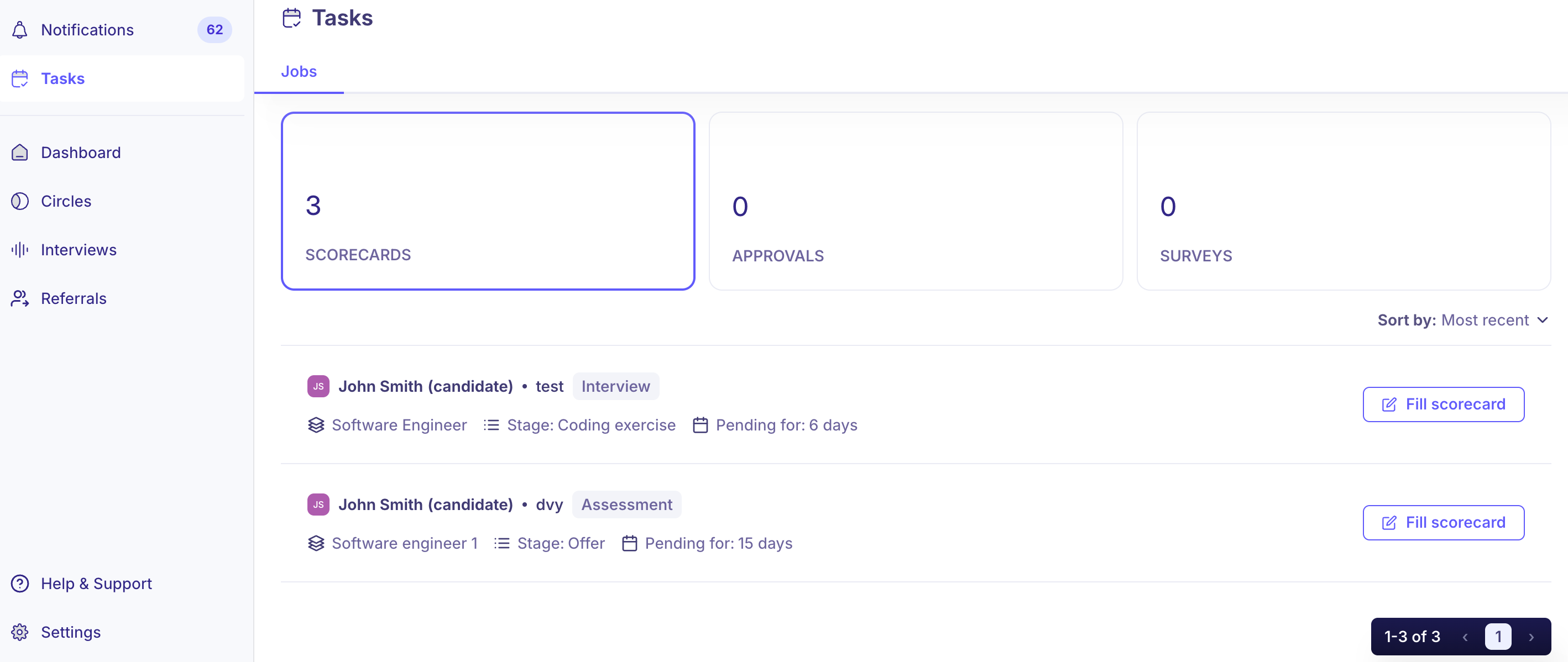
Note: What you see in each tab depends on your role. Super Admins have full visibility. Recruiters see only the jobs they are assigned to. Interviewers see only the scorecards assigned to them.
This article covers:
1. Jobs Tab
2. Flows Tab
Jobs Tab
The Jobs tab shows all tasks assigned to you that are related to job-based hiring. At the top of the page, three counter cards give you an at-a-glance summary of your pending workload. Clicking on a counter card filters the list below to show only tasks of that type.
Counter | What it shows |
Below the counter cards, the task list shows each item sorted by Most recent by default. You can change the sort order using the Sort by dropdown. Tasks are paginated and show the total count at the bottom right.
Scorecards: Each scorecard task entry shows:
Candidate name and the interview name (e.g., R1- Technical, test)
Task type badge — Interview or Assessment
Job name the candidate applied to
Current stage in the pipeline (e.g., Stage: Phone Screen, Stage: Hired)
Pending for — how long the scorecard has been waiting (e.g., Pending for: 14 days)
Click Fill scorecard to open and complete the evaluation for that candidate.
Approvals: Each approval task entry shows:
Job name and the approval type badge (e.g., Job)
Requestor name — the person who raised the approval request
Pending for — how long the approval has been waiting (e.g., Pending for: 2 months)
Click Review to open the approval and take action.
Surveys: Each survey task entry shows the survey name, the associated job or candidate, and how long it has been pending.
Click the action button to open and complete the survey.
Flows Tab
The Flows tab shows all outreach tasks across the sequences (Flows) you are running. This is where you manage day-to-day outreach activity — emails, InMails, and LinkedIn Invites — that are due or in progress.
At the top of the page, five counter cards categorise your outreach tasks by status. Clicking a counter card filters the task list below.
Counter | What it shows |
Outreach Limits
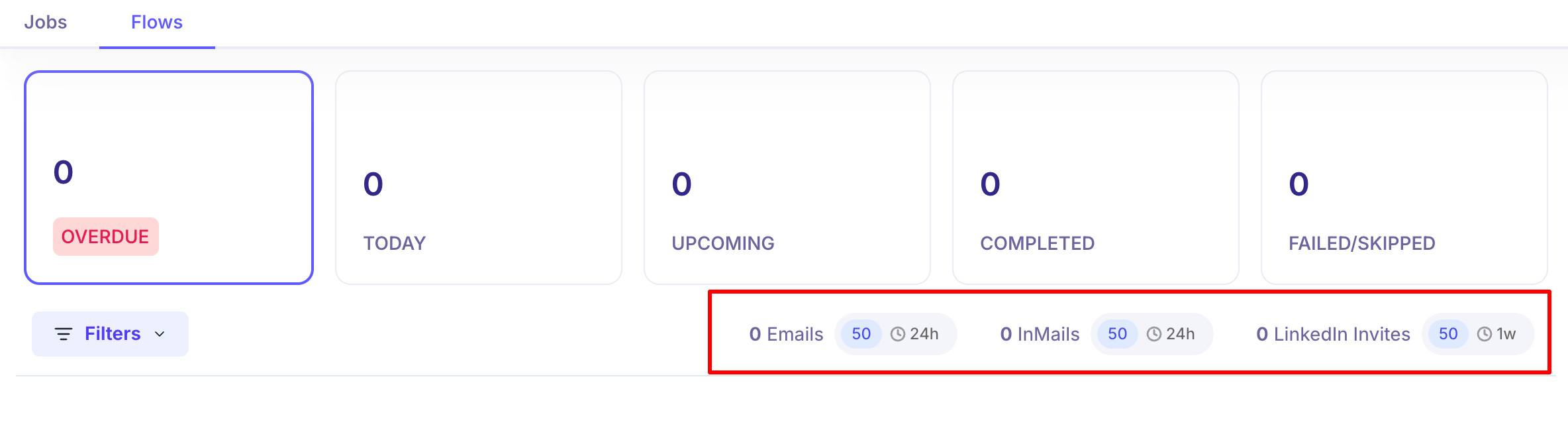
Below the filter bar, Kula displays your remaining outreach limits for the current period. These limits reset on a rolling basis and are shown as:
Emails — limit of 50 per 24 hours. Shows the number of emails sent and the limit available in the next 24 hours.
InMails — limit of 50 per 24 hours. Shows the number of InMails sent and the limit available in the next 24 hours.
LinkedIn Invites — limit of 50 per 1 week. Shows the number of connection requests sent and the limit available in the next week.
Note: Hover over the limit badge to see the tooltip 'Limit available in the next 24 hours' (or 1 week for LinkedIn Invites).
Filters
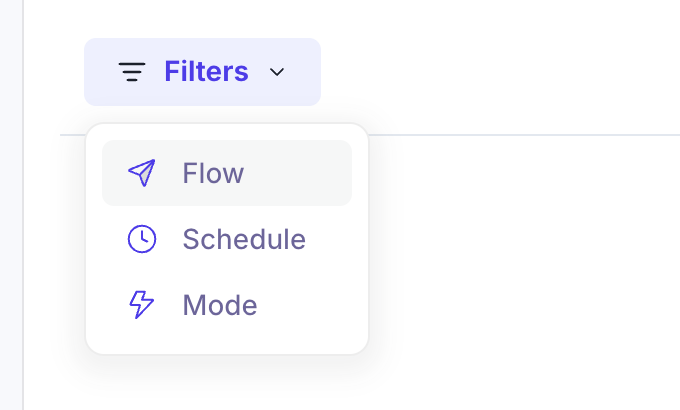
Use the Filters dropdown to narrow down the task list. Three filter options are available:
1. Flow — filter tasks by a specific Flow sequence
2. Schedule — filter by the scheduled send time
3. Mode — filter by the outreach mode (e.g., All, Auto, Manual)
Role differences:
Permissions
Super Admins have full visibility of all tasks across all jobs and Flows in the organisation.
Recruiters are scoped to jobs and Flows they are assigned to.
Interviewers can only access scorecard tasks assigned to them.
If you believe you are missing access to a task, please contact your Super Admin.
Need Help?
If you have questions or need assistance, feel free to reach out at support@kula.ai or use the in-app chat for help.