Understanding Your Kula Home Screen
Last updated: July 30, 2026
The Dashboard is your personalised home screen in Kula. It gives you a real-time snapshot of everything that needs your attention — pending candidate activities, upcoming interviews, open tasks, and applications awaiting review.
To access the Dashboard, click Dashboard in the left-hand navigation panel.
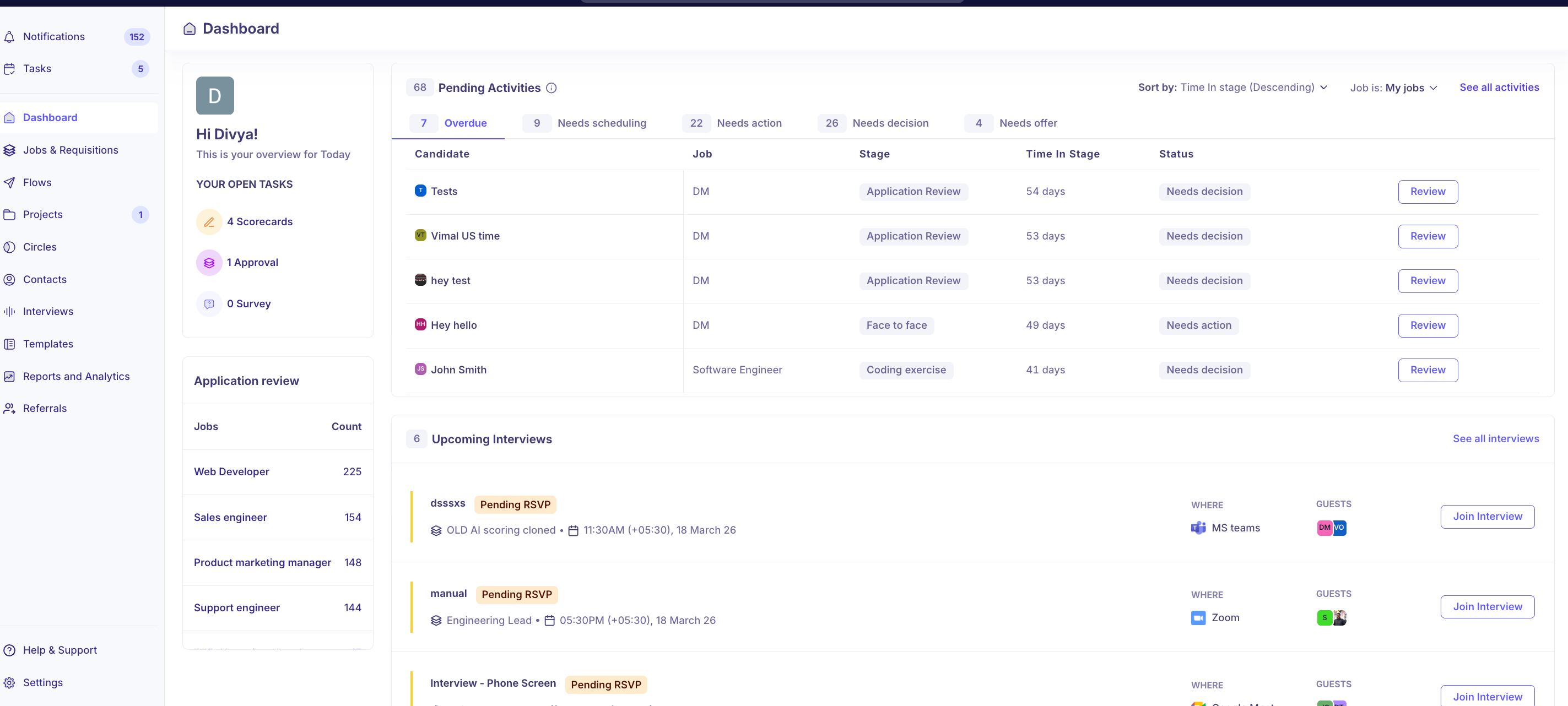
The Dashboard is made up of five sections:
Overview card — your profile summary and open task counts
Pending Activities — candidates awaiting action across your jobs
Upcoming Interviews — interviews you are scheduled to participate in
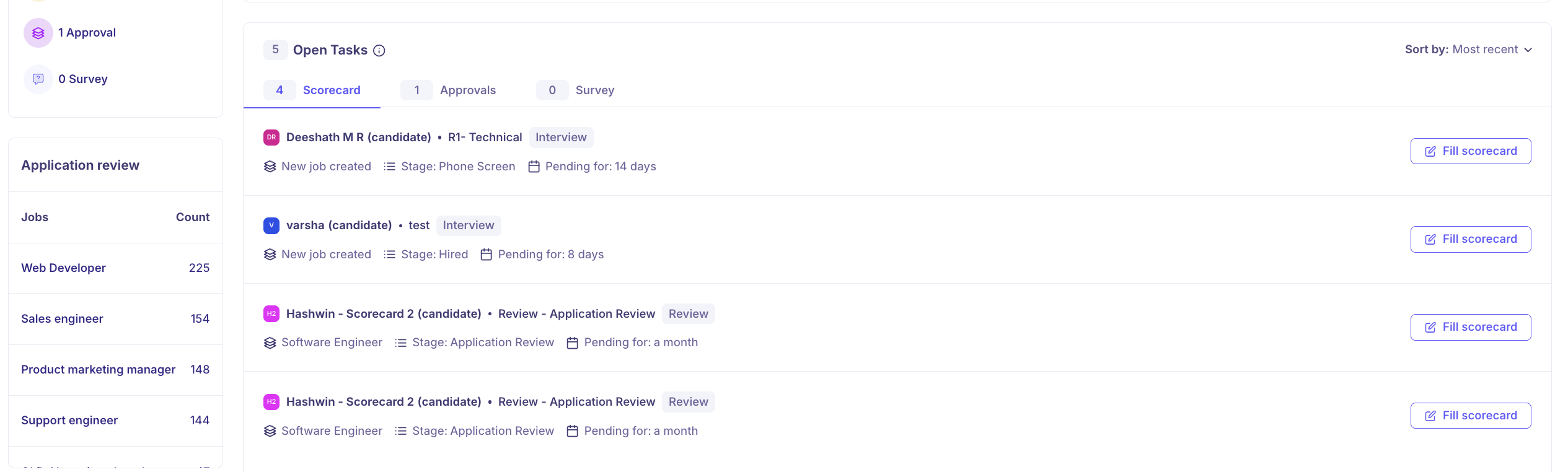
Open Tasks — scorecards, approvals, and surveys assigned to you
Application Review — candidates in the Application Review stage, grouped by job
Note: What you see in each section depends on your role. Super Admins have full visibility across all jobs. Recruiters see only the jobs they are assigned to. Interviewers (org members) see only their own interviews and scorecards.
This article covers:
1. Overview Card
2. Pending Activities
3. Upcoming Interviews
4. Open Tasks
5. Application Review
6. Candidate Activity Status Reference
Overview Card
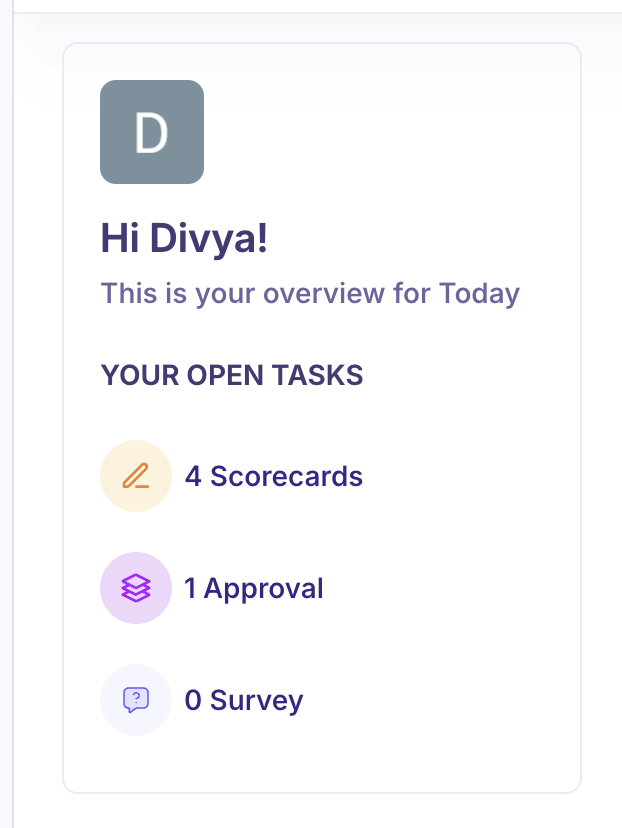
The Overview card appears on the left side of the Dashboard. It shows your profile avatar, a personalised greeting, and a summary of your open tasks under the heading Your Open Tasks.
The task summary is broken into three counters:
Scorecards — Interview scorecards that have been assigned to you and are pending your input.
Approvals — Job approvals that require your review, typically triggered when a requisition needs sign-off.
Surveys — Surveys assigned to you. If none are pending, this will show 0.
Pending Activities
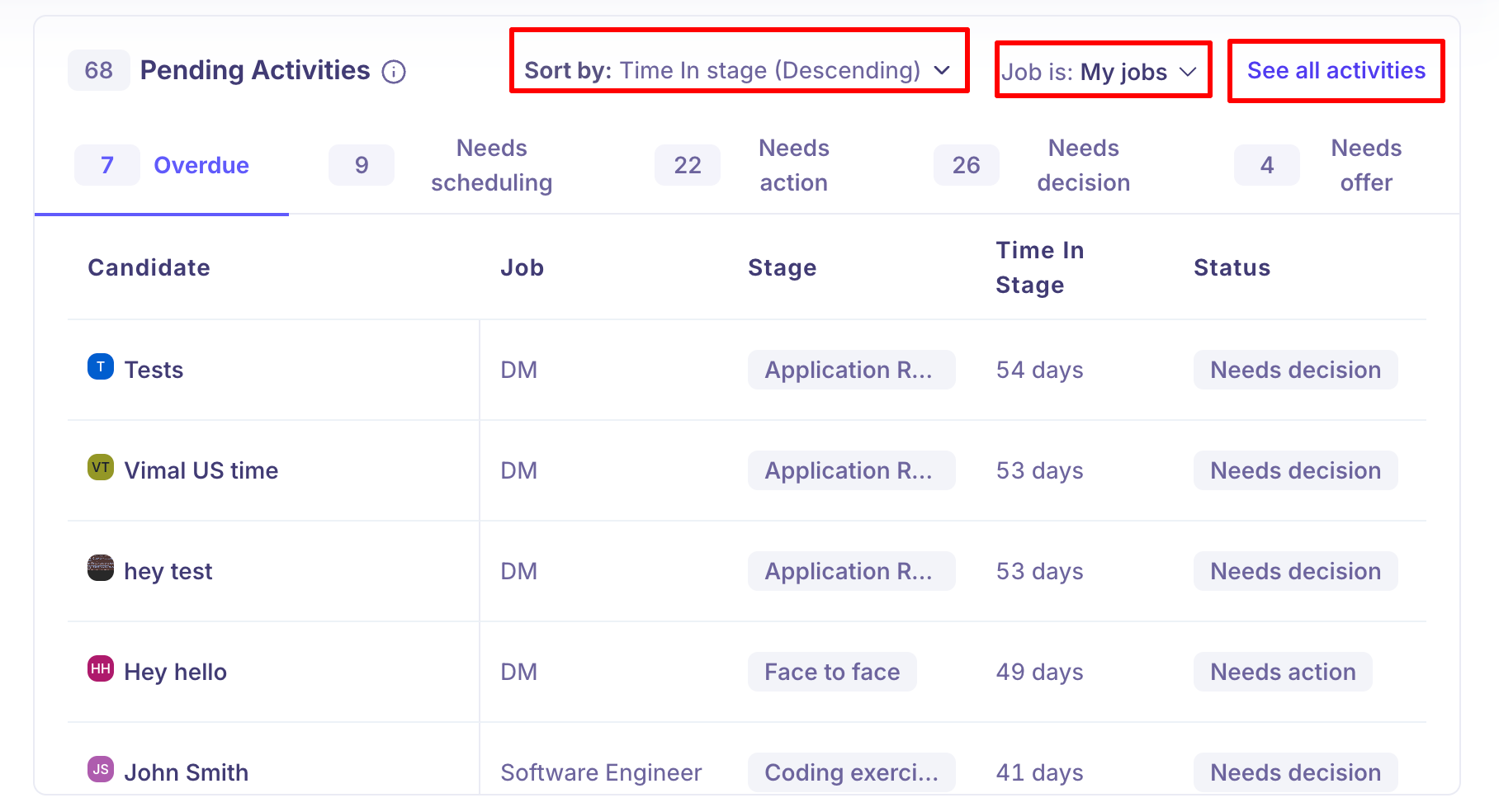
Pending Activities shows all candidates across your accessible jobs who are waiting on an action. The total count is displayed at the top of this section.
Each row shows the candidate name, job, current stage, time in stage, and a Review button. Clicking Review redirects you to that candidate's profile page.
Use the Sort by dropdown to order candidates by Time in Stage (Descending or Ascending). Use the Job is filter to switch between My jobs, All jobs, or Specific jobs.
Role differences: This is tailored to your role. Here is what each role can see:
Role | What they see |
Super Admin | Sees pending activities across all jobs in the organisation. The 'Job is' filter defaults to My jobs but can be changed to All jobs or Specific jobs. |
Recruiter | Sees only candidates from jobs they are assigned to. Clicking Review opens that candidate's profile. |
Interviewer | This section is not shown on the Interviewer Dashboard. |
Upcoming Interviews
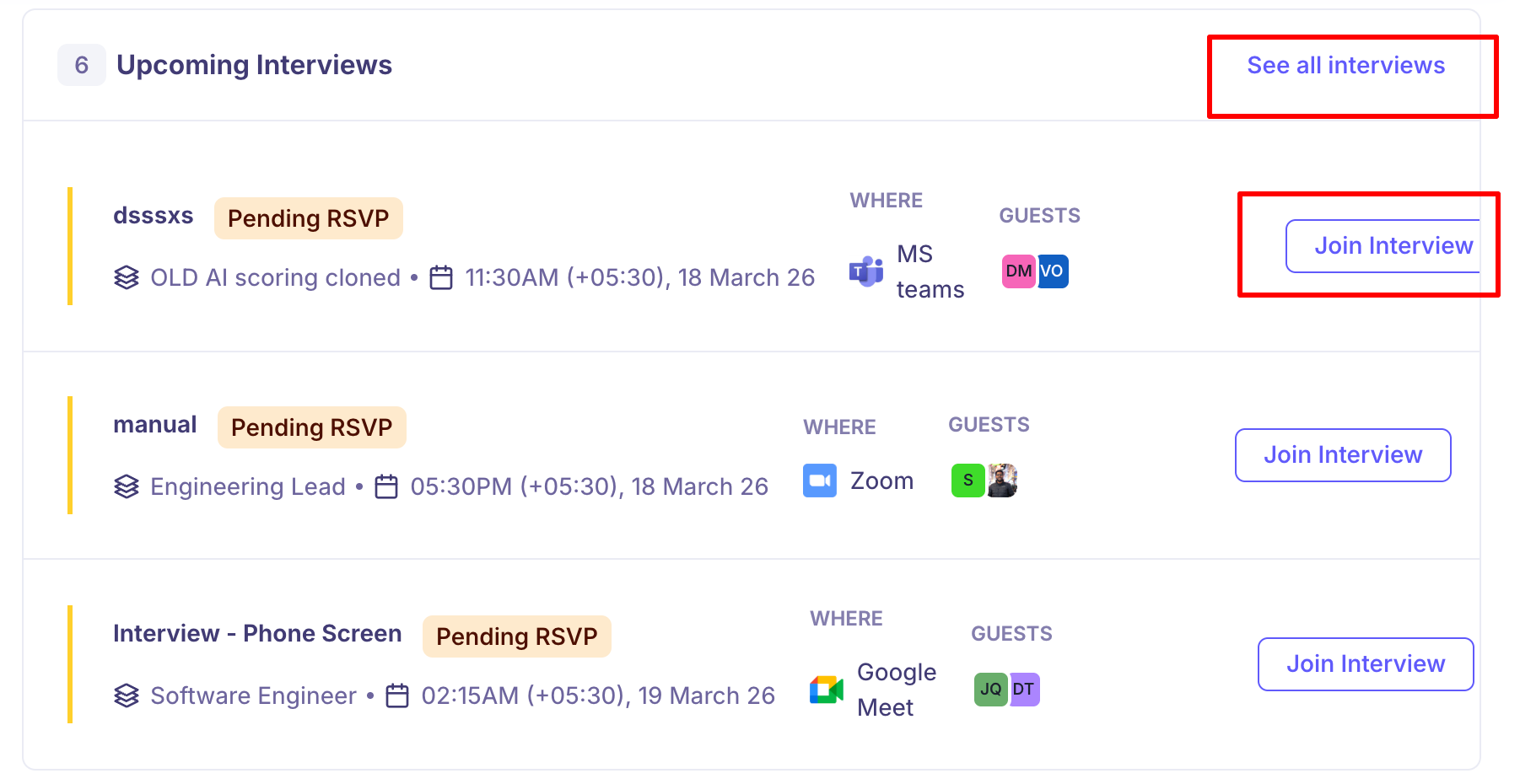
The Upcoming Interviews section shows all interviews scheduled in the near future where you are listed as a interviewer. Each interview card displays:
Candidate name and interview name
Job and flow name
Date, time, and timezone
Platform — MS Teams, Zoom, or Google Meet
Guests — avatars of other participants
RSVP status — Pending RSVP appears if you have not yet responded to the calendar invite
Click Join Interview to enter the call directly from the Dashboard. Click See all interviews to open the full Interviews section.
Open Tasks
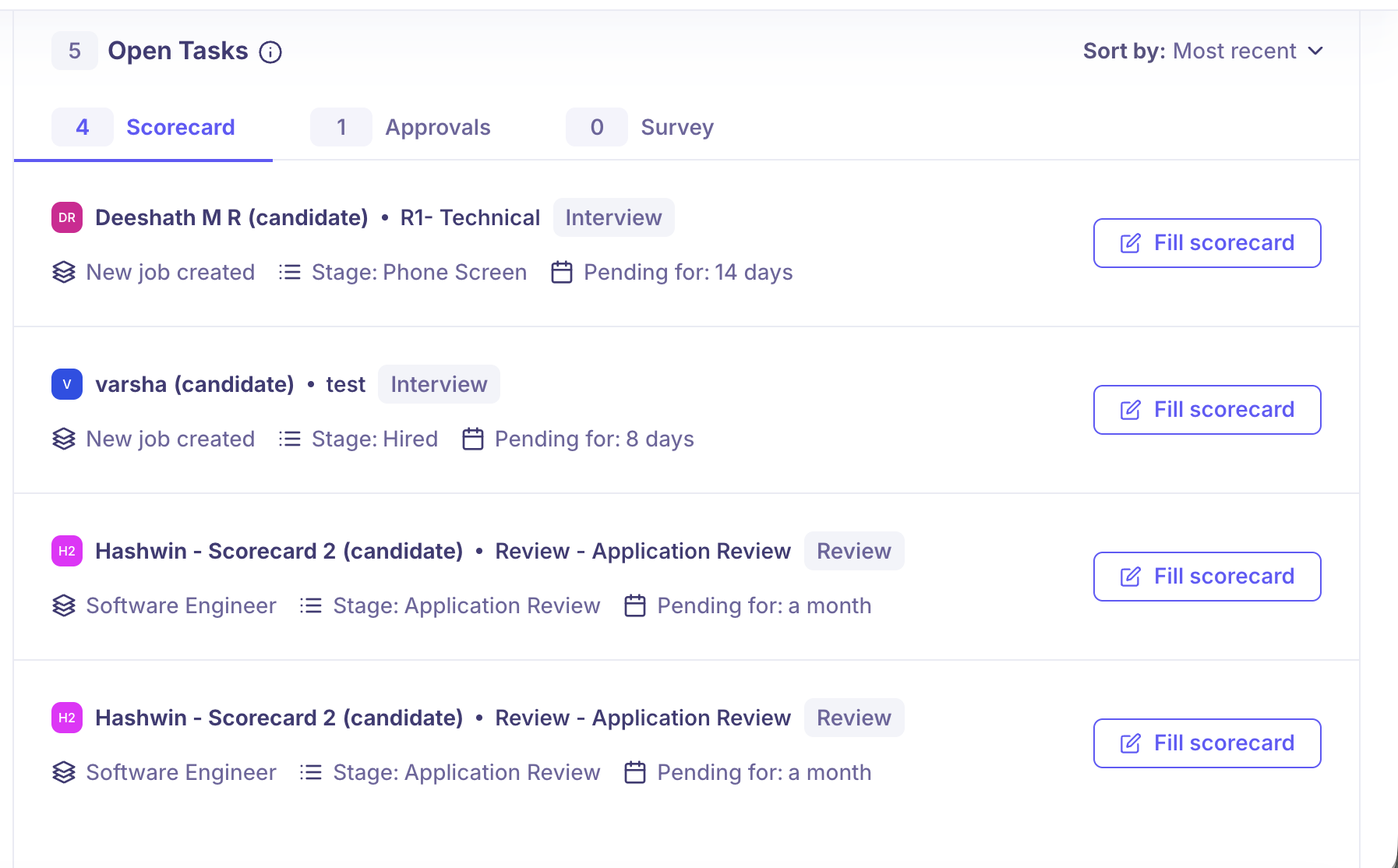
The Open Tasks panel appears on the right side of the Dashboard and shows the full list of tasks currently assigned to you. It is sorted by Most recent by default and is divided into three tabs.
Scorecard: Lists all interview scorecards assigned to you that are pending completion. Each entry shows the candidate name, interview type, job name, current stage, how long the scorecard has been pending, and a Fill scorecard button.
Approvals: Lists all job approvals waiting for your action. Each entry shows the job name, the name of the person who raised the request (Requestor), how long it has been pending, and a Review button.
Survey: Lists any surveys assigned to you. If no surveys are pending, this tab will show 0 and display an empty state message.
Application Review
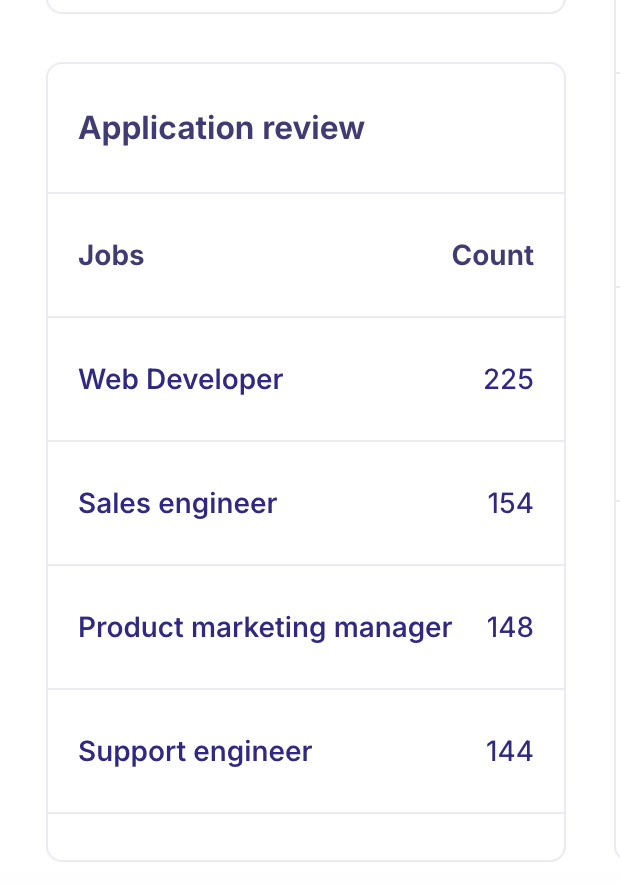
The Application Review widget appears on the left side of the Dashboard, below the Overview card. It lists your accessible jobs along with the number of candidates currently in the Application Review stage for each.
Clicking on a job name redirects you to that job's Application Review pipeline.
In the Application Review pipeline, you can:
View the candidate's resume and filled application form
Add notes and tags to the candidate profile
Click Move to next step {Y} to advance the candidate
Click Reject {N} to remove the candidate from consideration
Toggle Skip viewed candidates to focus only on unreviewed profiles
Role differences:
Role | What they see |
Super Admin | Sees all active jobs in the organisation and the candidate count for each. |
Recruiter | Sees only jobs they are assigned to and the candidates associated with those jobs. |
Interviewer | This section is not shown on the Interviewer Dashboard. |
Candidate Activity Status Reference
The following statuses appear across the Dashboard — in Pending Activities.
Status | What it means |
Needs scheduling | Shown when the candidate needs a meeting to be scheduled. Takes priority over all other activities |
Needs action | Shown when a candidate needs an assignment, email, or review to be sent to them |
Meeting scheduled | Shown when a candidate has all interviews scheduled |
Email scheduled | Shown when a candidate has a scheduled email |
Assessment sent | Shown when a candidate has been sent an assessment |
Awaiting feedback | Shown when a candidate is waiting for feedback — for interviews, reviews, or assignments |
Needs offer | Shown when a candidate needs an offer |
Needs offer approval | Shown when a candidate's offer needs an approval |
Waiting on offer acceptance | Shown when the candidate's offer is waiting for their acceptance |
Offer accepted | Shown when the candidate accepts the offer |
Hired | Shown when the candidate is moved to the Hired stage |
Rejected | Shown when the candidate is moved to the Rejected stage |
Needs decision | Shown when all activities are done and the candidate is waiting for a decision |
Best Practices
Check your Dashboard at the start of each day to stay on top of pending activities and overdue candidates.
Use the Sort by Time in Stage (Descending) view to prioritise candidates who have been waiting the longest.
If you see a high Overdue count, use the Job is filter to identify which specific jobs need attention.
Interviewers should check the Scorecard tab immediately after completing an interview to submit feedback while it is fresh.
Use the Skip viewed candidates toggle in Application Review to work through large applicant pools efficiently.
Permissions
Super Admins have full visibility across all jobs and sections of the Dashboard.
Recruiters are scoped to their assigned jobs.
Interviewers can only access Upcoming Interviews and Open Tasks (Scorecards only).
If you believe you are missing access, please contact your Super Admin.
Frequently Asked Questions
Why am I not seeing certain candidates in my Pending Activities?
Pending Activities is scoped to jobs you are assigned to as a Recruiter. If a candidate is associated with a job you are not part of, they will not appear in your Dashboard. Super Admins can see all candidates organisation-wide.
Why does my Dashboard look different from my colleague's?
The Dashboard is role-based. Super Admins see all jobs and candidates, Recruiters see only their assigned jobs, and Interviewers see only their own interviews and scorecards.
What does 'Pending RSVP' mean on an interview card?
It means you have been invited to an interview but have not yet responded to the calendar invite. You can still join the interview using the Join Interview button.
Can I filter Pending Activities to a specific job?
Yes. Use the Job is dropdown in the Pending Activities section to switch between My jobs, All jobs, or Specific jobs to narrow your view.
What happens when I click on a job in the Application Review widget?You will be redirected to that job's Application Review pipeline, where you can review each candidate's resume and application form, and take action to move them to the next step or reject them.
Can I sort Pending Activities?
Yes. Use the Sort by dropdown to order candidates by Time in Stage in Descending or Ascending order.
Need Help?
If you have questions or need assistance, feel free to reach out at support@kula.ai or use the in-app chat for help.