Enabling Interview Load Balancing
Last updated: February 24, 2025
Administrators can configure the maximum number of interview hours per week for users, helping to manage the time spent on interviews and distribute the workload evenly. This setting is used to recommend the best available interviewer when scheduling interviews.
Enable Interview Load Balancing
Click the Settings icon at the bottom of the left-side menu.
Under the Interviews & Scheduling section, click Interview Load Balancing.
A prompt will appear to enable interview load balancing to manage interview time and distribute the load among interviewers.
Toggle the switch to enable this functionality.

In the Interviewer Availability section, the default setting is 3 hours per week.
Configure the hours/week field to match your organization's needs.

Note: This is a global setting and applies to all users in your Kula system.
To override the global setting and apply department-specific values, use the Custom Department Availability section.
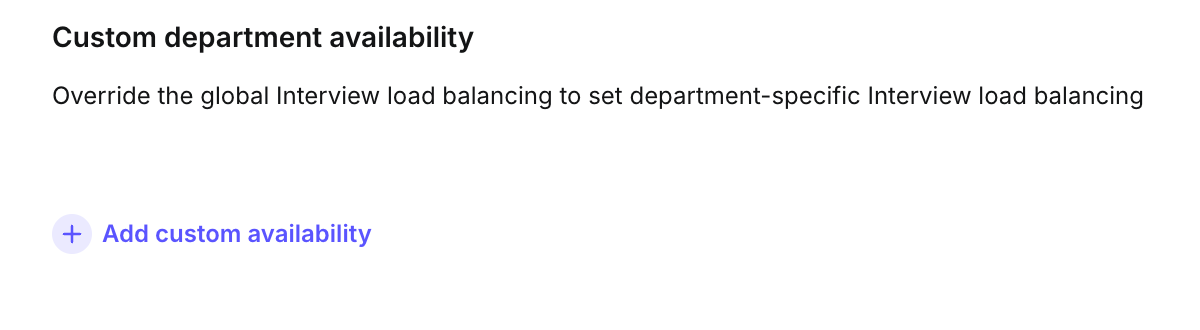
Click the Add Custom Availability button to display the list of departments.
Select a department and configure the hours/week field.

Click Save in the bottom right corner to apply the configurations.
NOTE: To delete a specific custom availability, click the Delete icon that appears when hovering over the department section.