How to Integrate HackerRank Assessment with Kula
Last updated: March 12, 2026
Kula integrates with HackerRank to streamline your technical assessment and interview workflows. With this integration, you can send coding assessments and HackerRank interviews to candidates, view their scores, and manage the entire workflow — all from within Kula.
⚡ Key Highlights
Configure HackerRank Assessments as part of the interview plan or send them ad-hoc
Send HackerRank Interviews directly from Kula — ad-hoc or as part of the interview plan
Choose from specific templates or set up interviews by assigning an interviewer
Edit or cancel interviews anytime before they start
Real-time status updates for both assessments and interviews
Completed scorecards are visible directly in HackerRank
Note: A HackerRank work account is required. Scorecards remain fully managed in HackerRank.
Step 1: Connection Setup
Requirements: You must be a Kula Admin and have an active HackerRank work account.
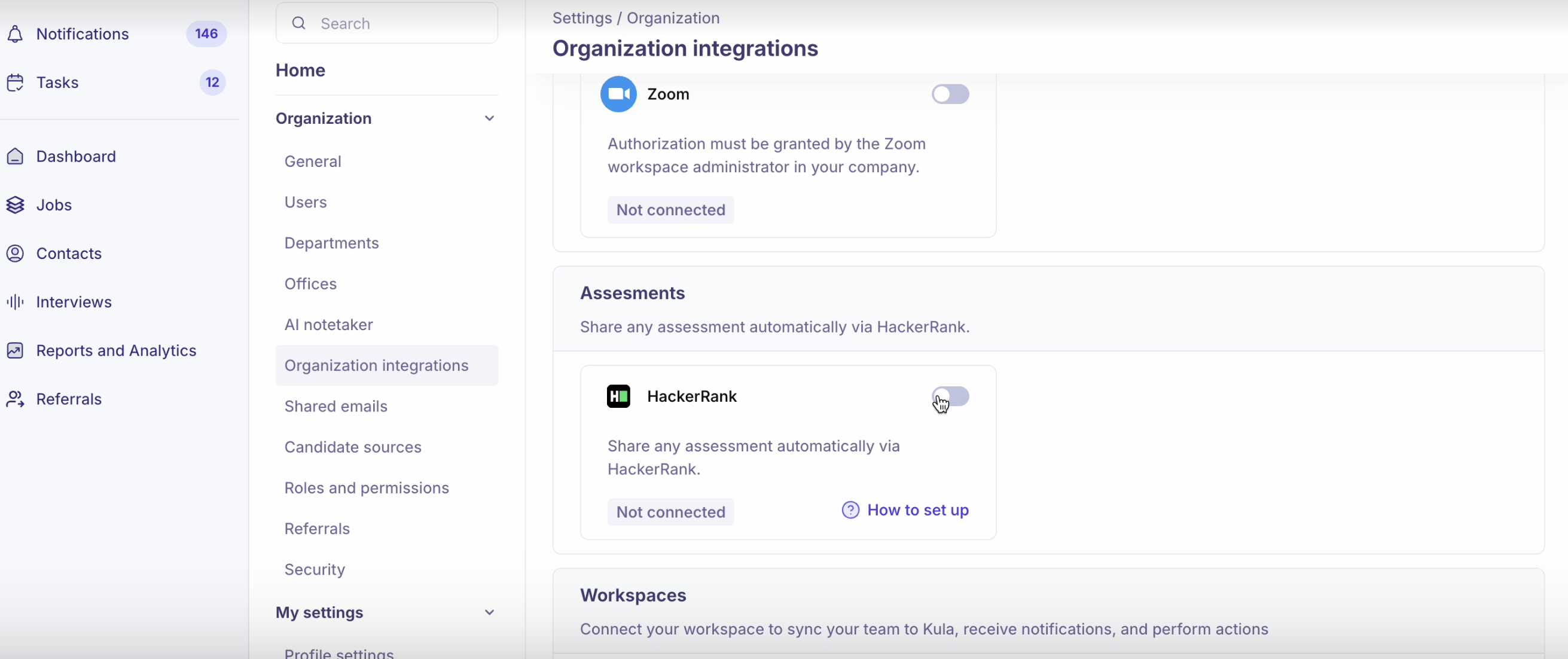
Navigate to Settings > Integrations > Assessments.
Locate HackerRank and click Enable Integration.
In the pop-up window, enter your HackerRank API Key and click Connect HackerRank.
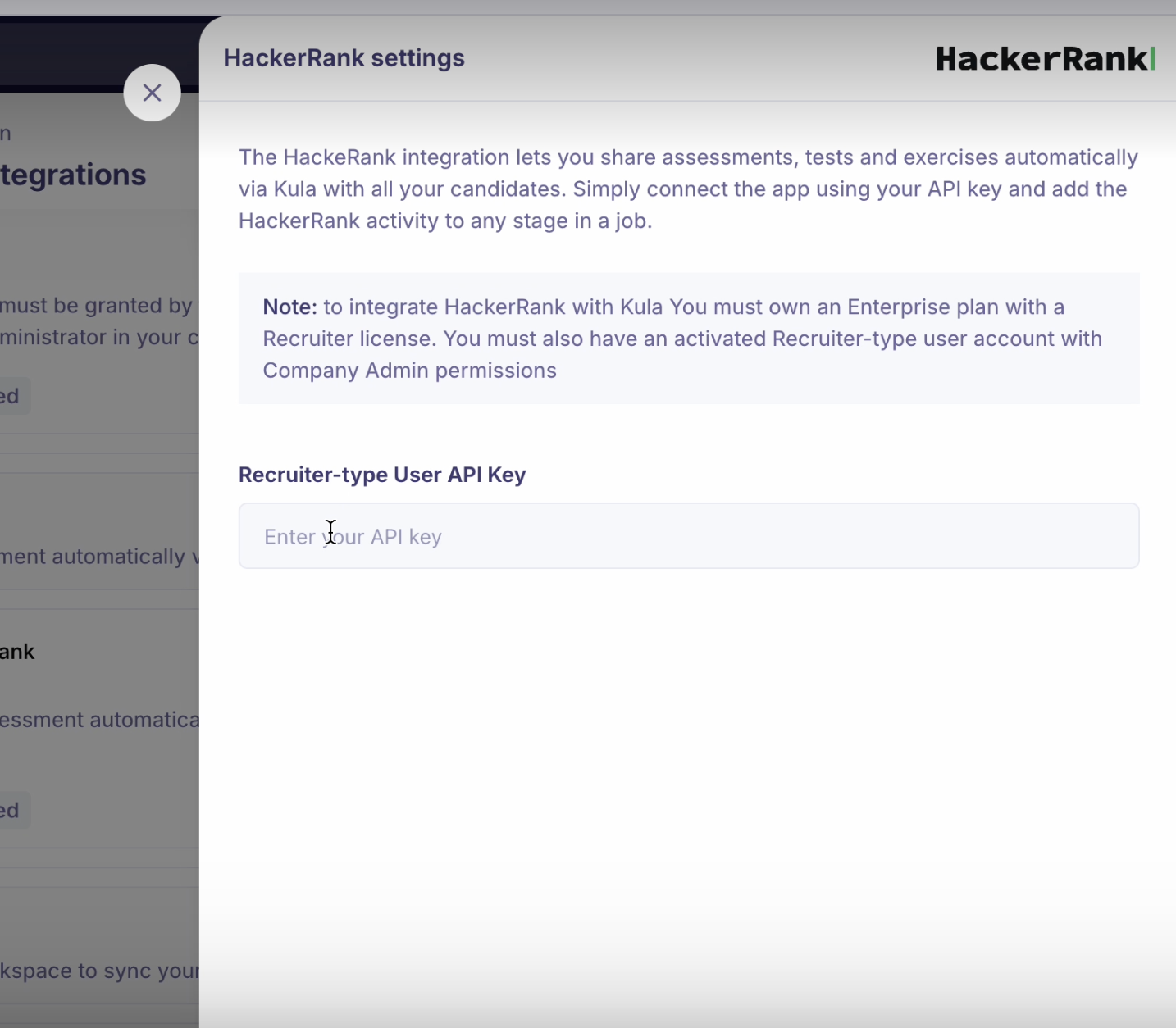
Once the status shows as Active / Connected, you're ready to go! If it fails, click Reauthorize to retry.
Note: The API key can be found in your HackerRank account settings.
Step 2: Using HackerRank in Kula
Sending Assessments Via Interview Plan — best for high-volume roles where every candidate must clear the same technical bar.
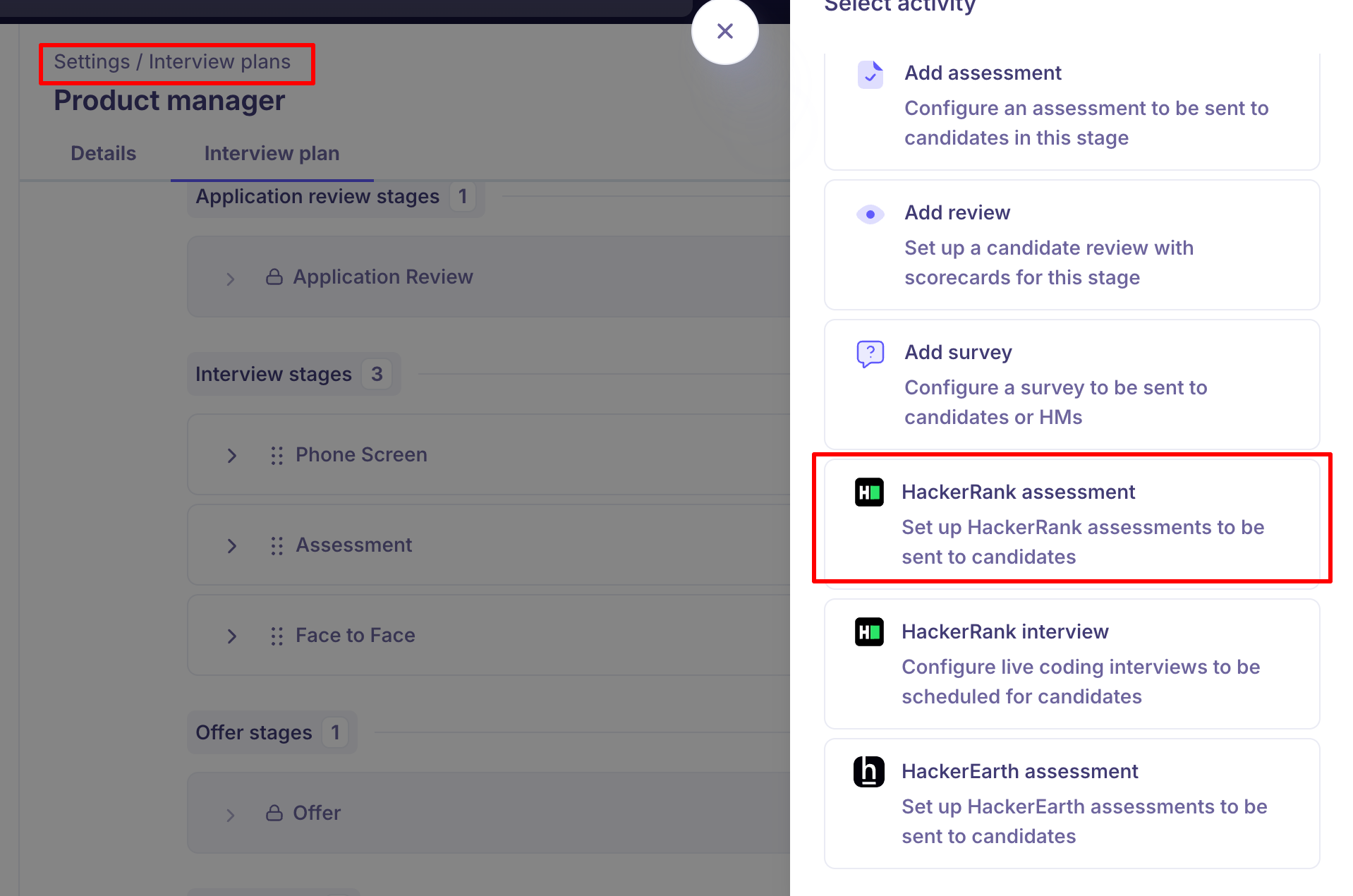
Navigate to Settings > Interview Plan and select the plan you want to update.
Under your desired hiring stage (e.g., "Technical Screen"), click Add Activity.
Select HackerRank Assessment, choose a pre-configured test template, Select the Reviewers, and the scorecard template/questions for the interviewers to fill the feedback → Click “Add Assessment”
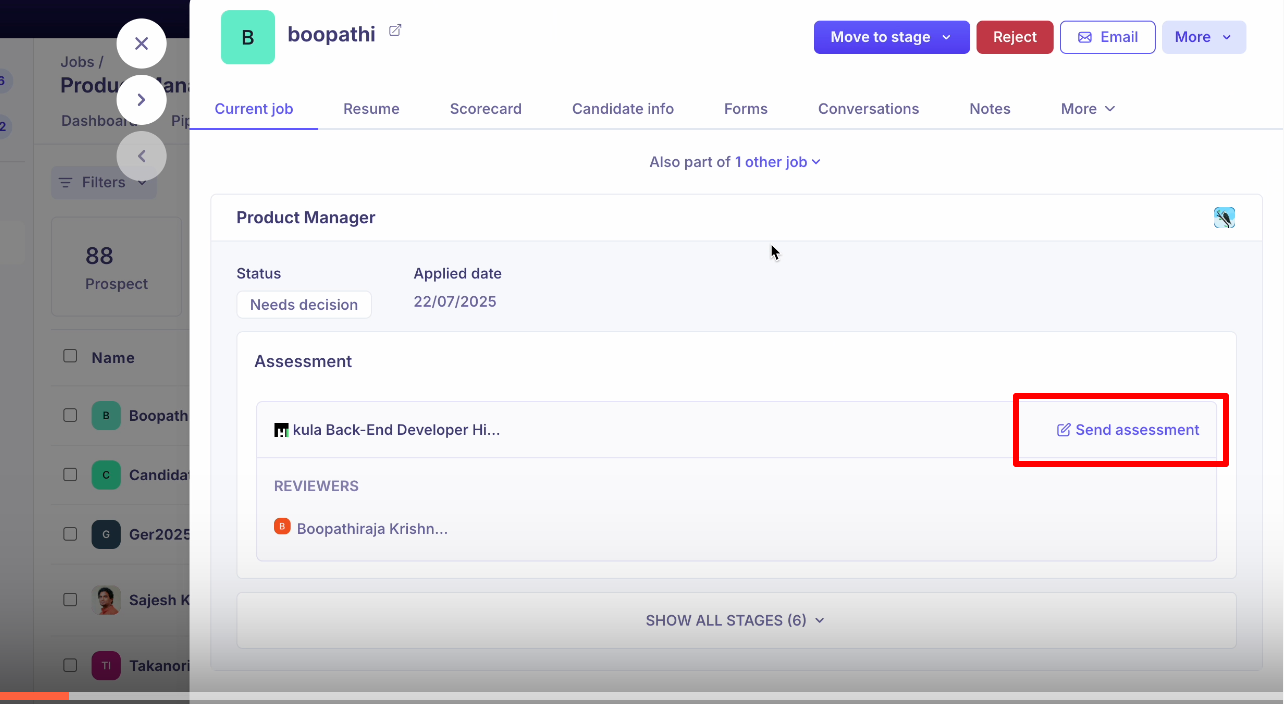
d. Send Assessment: When a candidate is moved to this stage, the HackerRank activity is automatically created. Recruiters can click Send Assessment to proceed. Before sending, they can review and update the reviewers, assessment, and scorecard if needed, and then send the assessment.
Ad-hoc (from Candidate Profile)
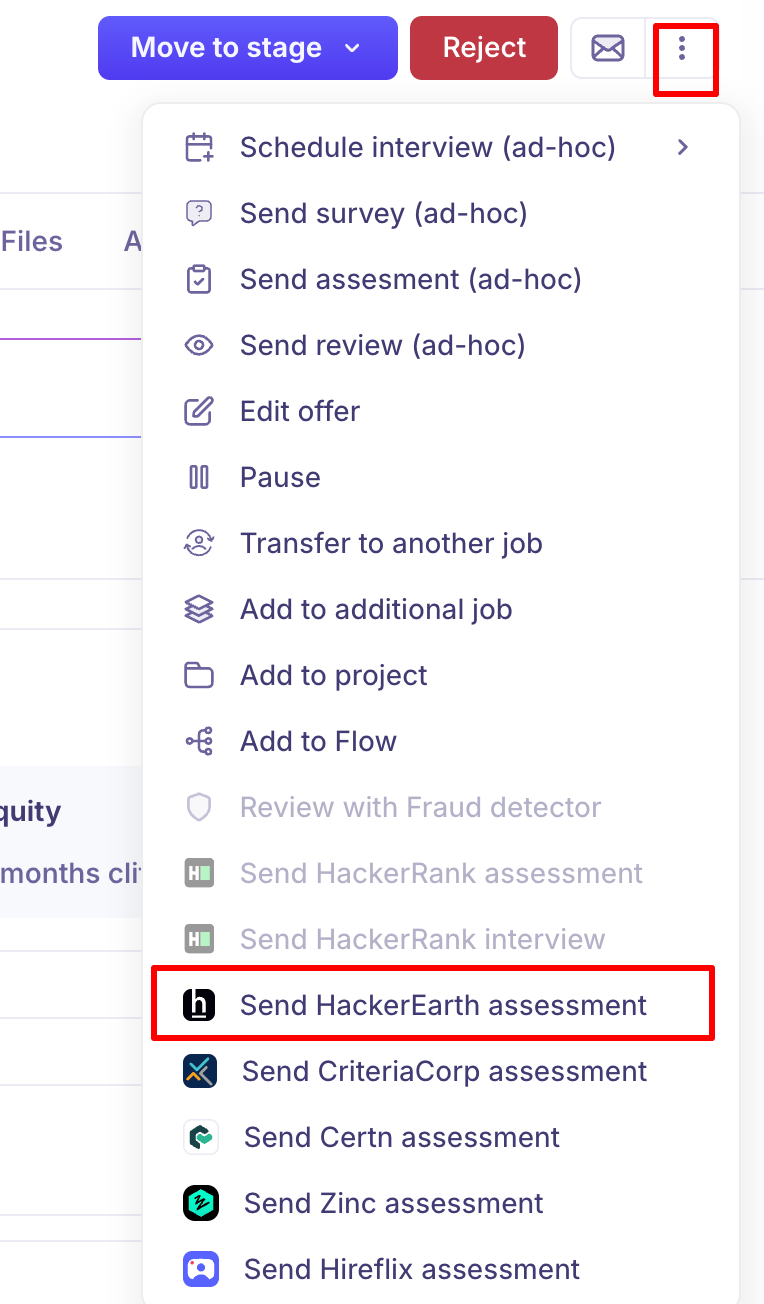
Navigate to Jobs > Candidates > Assessments.
Click Send Assessment and choose HackerRank.
Select a pre-configured HackerRank test and send it to the candidate.
Using HackerRank as a Location in a Normal Interview
Recruiters can also set HackerRank as the location when scheduling a regular interview — both ad-hoc and via Activity Email. This is useful when you want to conduct a standard interview but host it within the HackerRank environment.
Go to the candidate's profile and click Schedule Interview on the relevant interview activity.
In the interview setup panel (Step 1: Details), fill in the Interview name, select the Interview type (e.g., One-on-one), and pick an Interviewer.
Set the Duration and select a date/time slot directly on the calendar.
Scroll down to the Location field. Click the dropdown — you'll see options including Zoom, Google Meet, HackerRank, Phone Interview, and Onsite / Physical.
Select HackerRank as the location. A Select template dropdown will appear — choose the relevant HackerRank interview template.
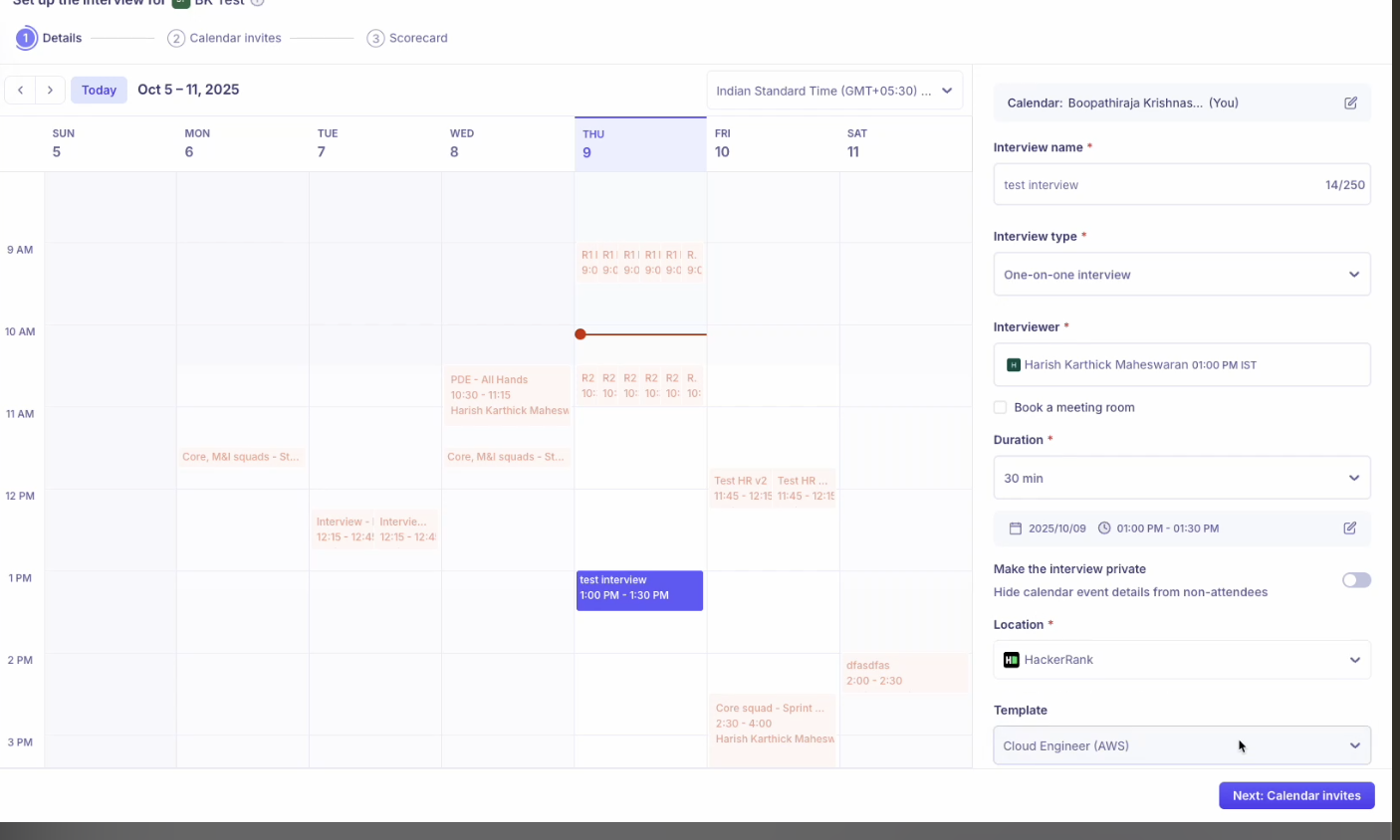
Click Next: Calendar invites to proceed to Step 2, where you can configure the candidate and interviewer calendar invite emails.
Click Next: Scorecard, review, and confirm. The interview will be created and the HackerRank link will be included in the invite.
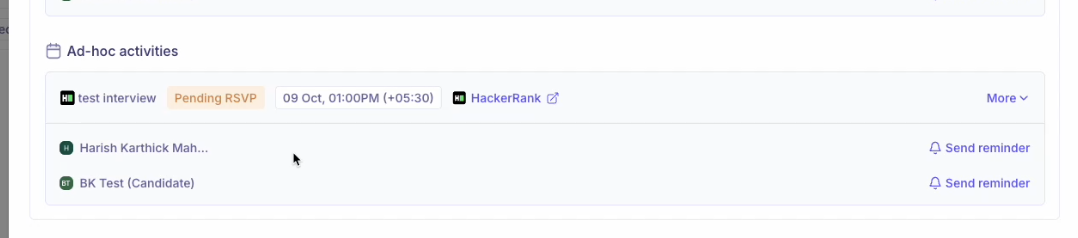
Note: Once scheduled, the interview will appear on the candidate profile with a HackerRank badge and a direct link. The status will update in real-time as the interview progresses.
Assessment Status in Kula
The following statuses will be shown in the candidate’s profile:
Sent – Assessment sent but not yet started.
In Progress – Candidate has started the test.
Completed – Test submitted; score and summary available.
Expired – Test link expired without completion.
You can click View Report to see the detailed scorecard from HackerRank directly.
📎 Need Help?
If you encounter any issues while connecting HackerRank or sending assessments, feel free to reach out to us at support@kula.ai or use the in-app chat for assistance.