Requesting Candidate Availability
Last updated: April 7, 2026
The Request availability feature in Kula lets recruiters collect candidate availability directly from the interview card — without leaving the platform. Once the candidate shares their free times, the recruiter can overlay interviewer calendars and book the interview in one click.
This is a third scheduling option alongside Schedule manually and Send self-schedule link. It is most useful when the recruiter doesn't yet know the candidate's availability and wants to collect it before booking.
How it works
The end-to-end flow has four stages:
Request availability — The recruiter selects a date range and sends the request from the interview card.
Candidate shares times — The candidate receives a branded, mobile-friendly page to share their free slots. No login required. They can type availability in plain English and Kula's AI fills the slots automatically.
Availability received — The interview card status updates instantly and the recruiter is notified.
Schedule interview — The recruiter overlays the interviewer's calendar against candidate availability and books in one click.
Step-by-step guide
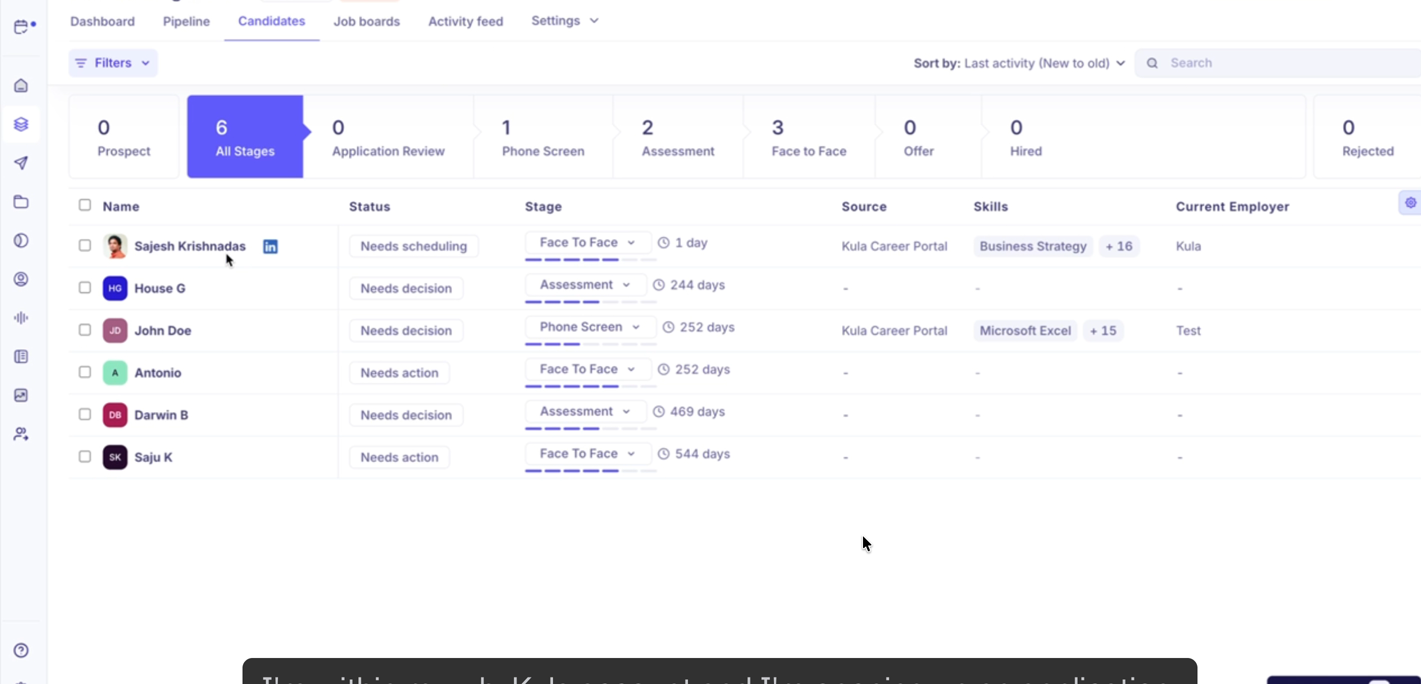
Open the candidate profile: Navigate to Pipeline → Candidates and click on the candidate you want to schedule. This opens their profile with the current stage and interview card.
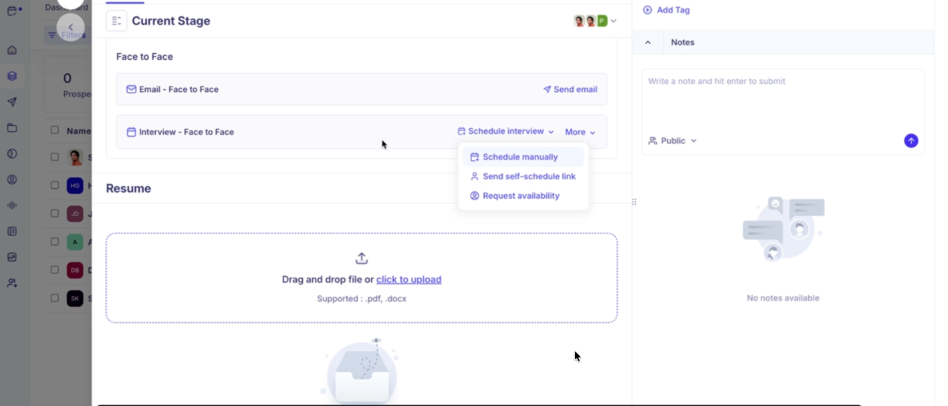
Click "Schedule interview" on the interview card: On the candidate profile, find the interview card under Current Stage. Click the Schedule interview button. A dropdown appears with three options:
Schedule manually — Pick a time slot from the interviewer's calendar and book directly.
Send self-schedule link — Share a link with the candidate to self-book from pre-configured slots.
Request availability — Ask the candidate to share their free times before you schedule.
Select Request availability.
Configure the availability request: A side panel opens on the right. Fill in the following:
Duration — Select the interview duration (e.g., 30 min). This tells the candidate the slot length they need to share.
Date range — Select the window within which you want the candidate to share availability (e.g., April 2 – April 15, skipping weekends). You can also click Add another date range to specify multiple windows.
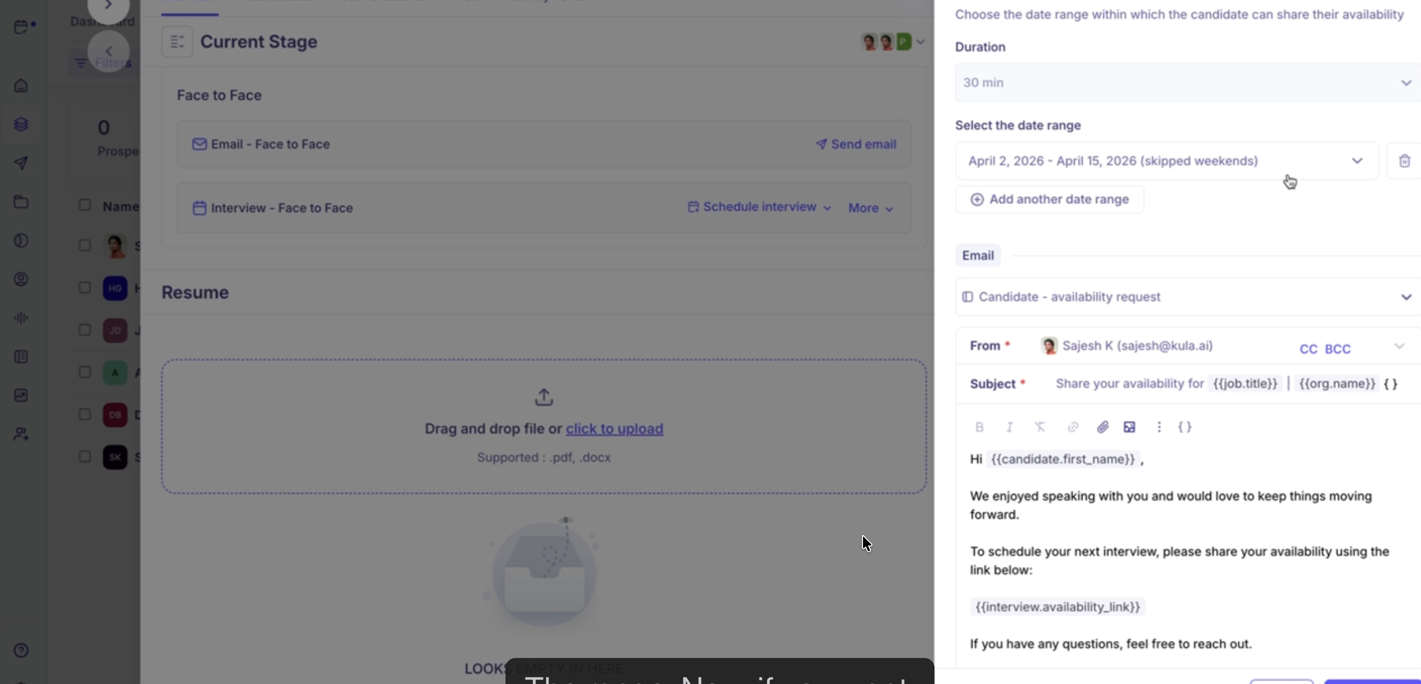
Customize and send the email: The Email section below shows a pre-filled template (Candidate – availability request). You can:
Edit the From sender, add CC or BCC recipients.
Customize the Subject line — it auto-populates with merge tags for job title and org name.
Edit the body copy. The template includes a personalized greeting and a
{{interview.availability_link}}which is the candidate's unique availability page.Click Send when done.
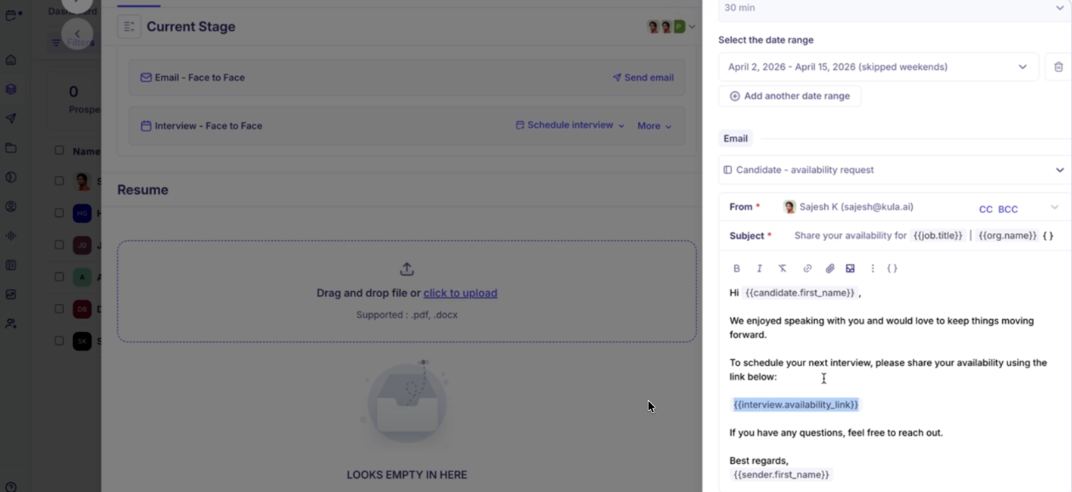
Do not remove the
{{interview.availability_link}}from the email body. This is the link the candidate uses to share their availability.
Track the request status on the interview card: After sending, the interview card updates immediately to show the "Availability request sent" status tag. A green toast notification at the bottom of the screen confirms the request was dispatched.
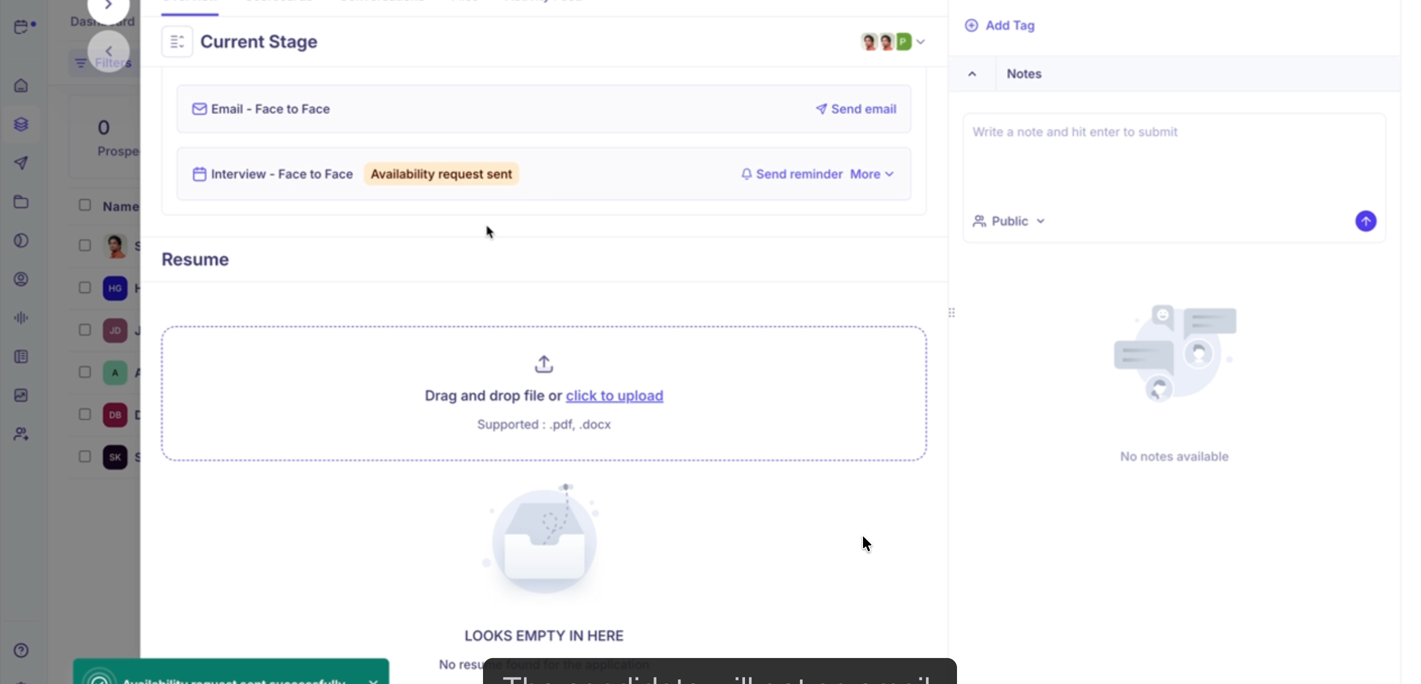
You can click Send reminder at any time to nudge the candidate if they haven't responded yet.
Candidate shares their availability: The candidate receives the branded email with a link to their personal availability page. The page shows:
The recruiter's name and interview details (name, duration, timezone selector).
A calendar view with the date range you specified. Individual days can be toggled on/off and time ranges adjusted.
A Contact recruiter option for the candidate to reach out directly.
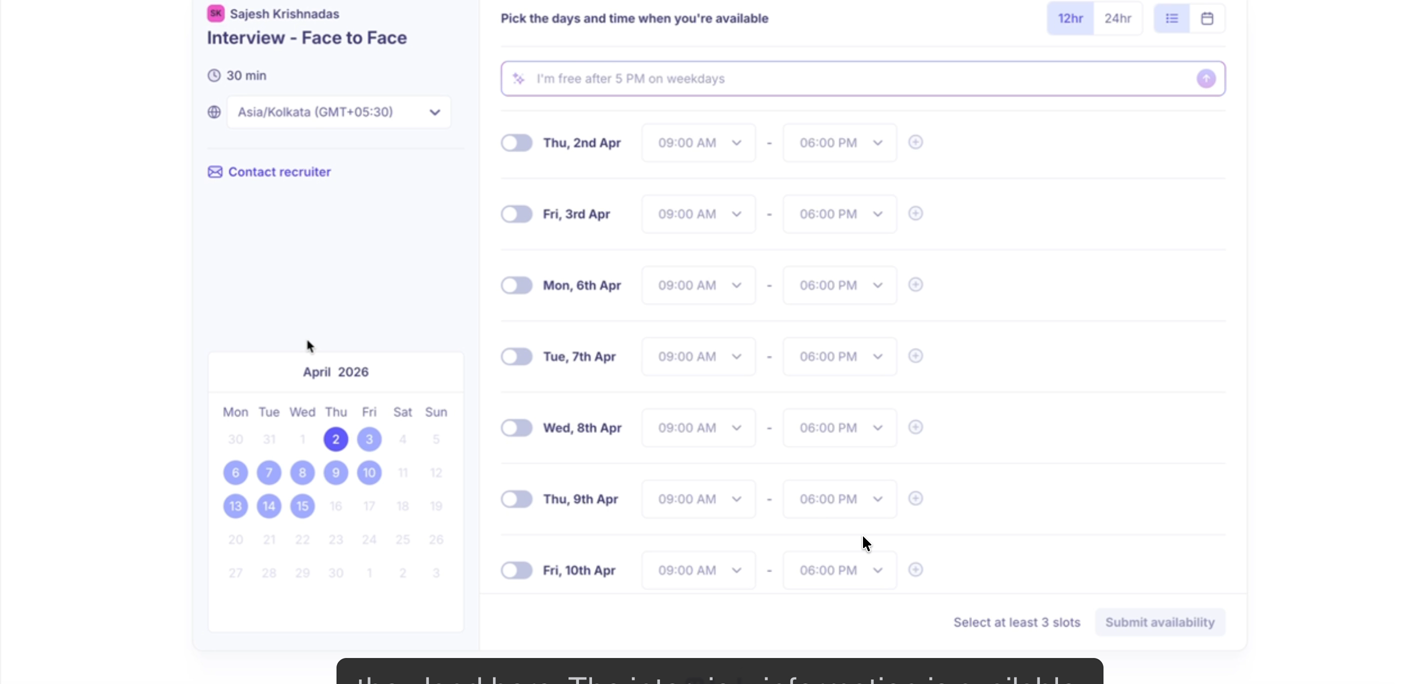
The page also includes an AI-powered text input at the top. Candidates can describe their availability in natural language, for example:"I'm free after 5 PM on weekdays", "I am available from 8 to 10am next Monday and 6 to 8pm on Tuesday"
Kula's AI interprets the input and automatically fills in the correct time slots on the calendar.
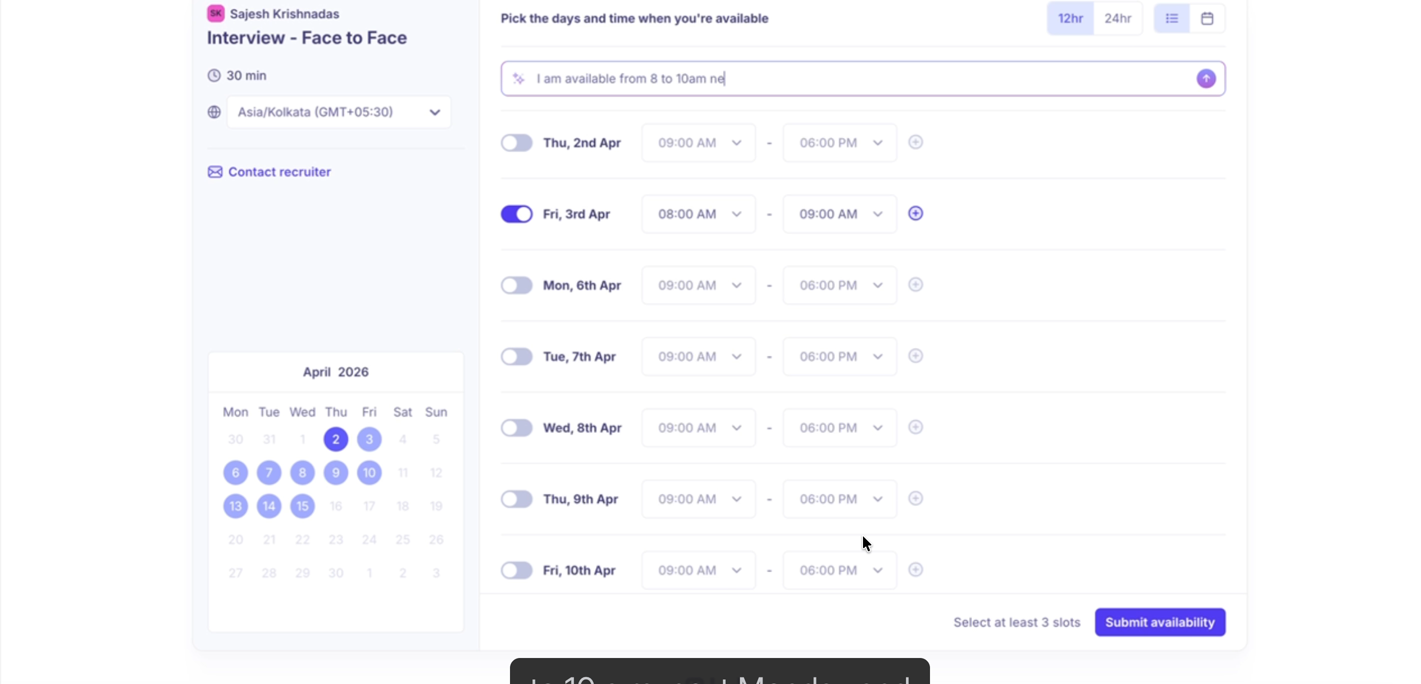
The candidate reviews and adjusts the slots, then clicks Submit availability. The form requires at least 3 slots before submission is allowed.
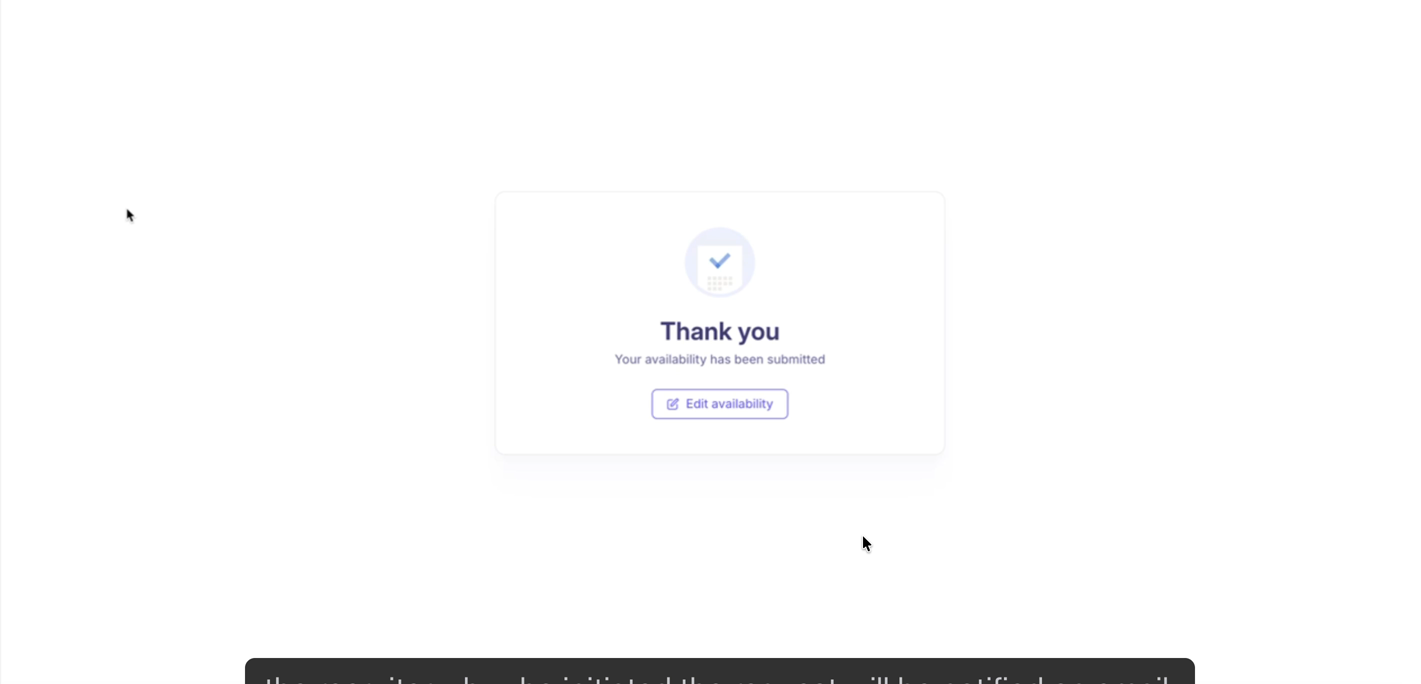
Once submitted, the candidate sees a confirmation screen and can edit their availability later if needed.
Receive the availability notification:
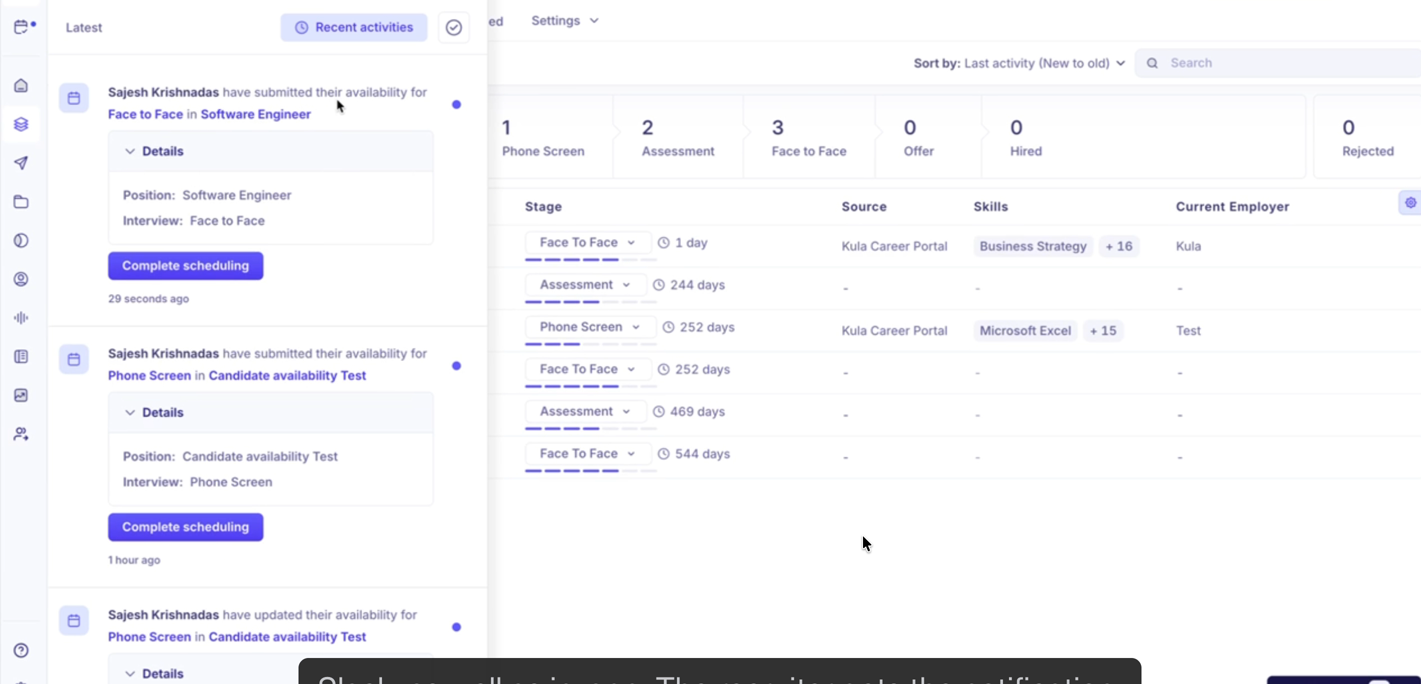
As soon as the candidate submits, Kula sends a real-time notification to the recruiter.
This appears in the Recent Activities feed on the Dashboard, showing that the candidate has shared their times.
A Complete scheduling button provides a direct shortcut to the scheduling flow.
Overlay calendars and book the interview:
Click Schedule interview (or Complete scheduling from the notification) on the interview card. The scheduling view opens, showing:
The candidate's available slots overlaid on the calendar in green.
The interviewer's existing calendar events shown in red/pink, loading automatically once you add an interviewer in the right-hand panel.
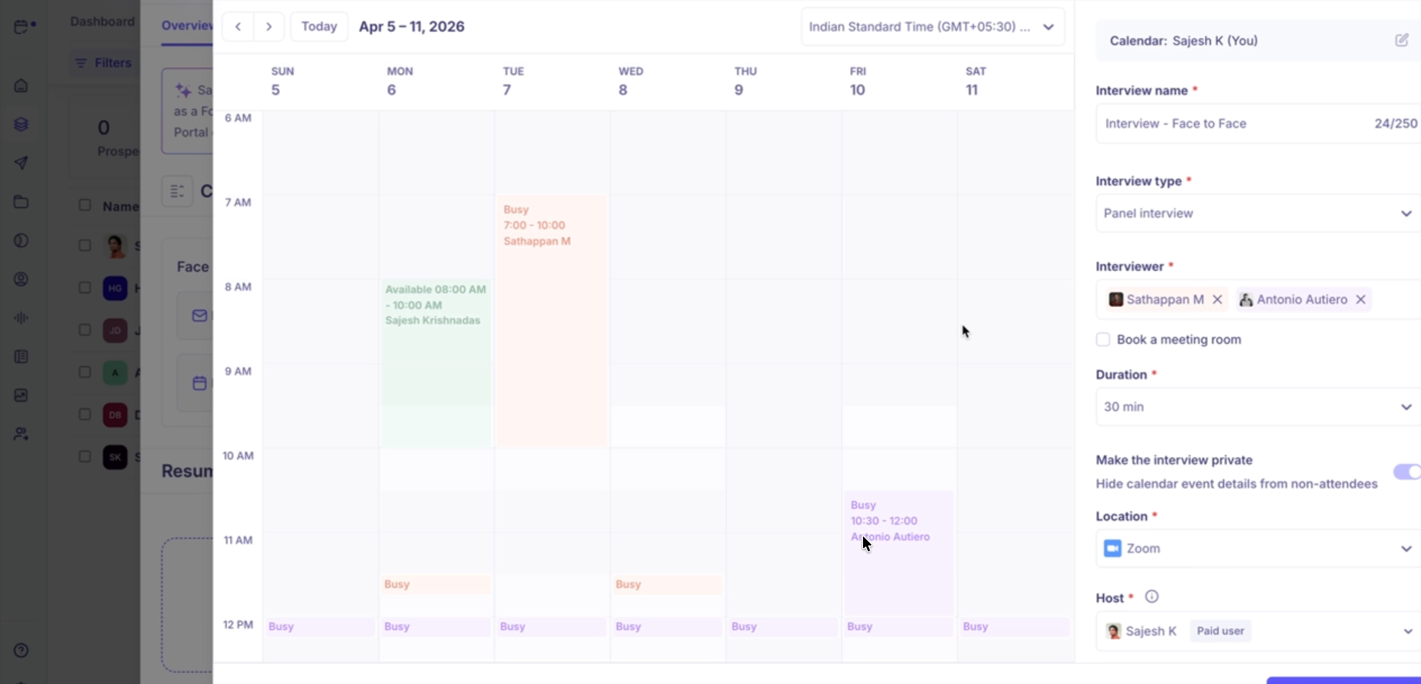
Add the interviewer(s) on the right-hand panel. Their calendars load alongside the candidate's availability — making it easy to spot mutual free windows
Fill in the remaining details — location, host, AI Notetaker preference — and click Schedule.
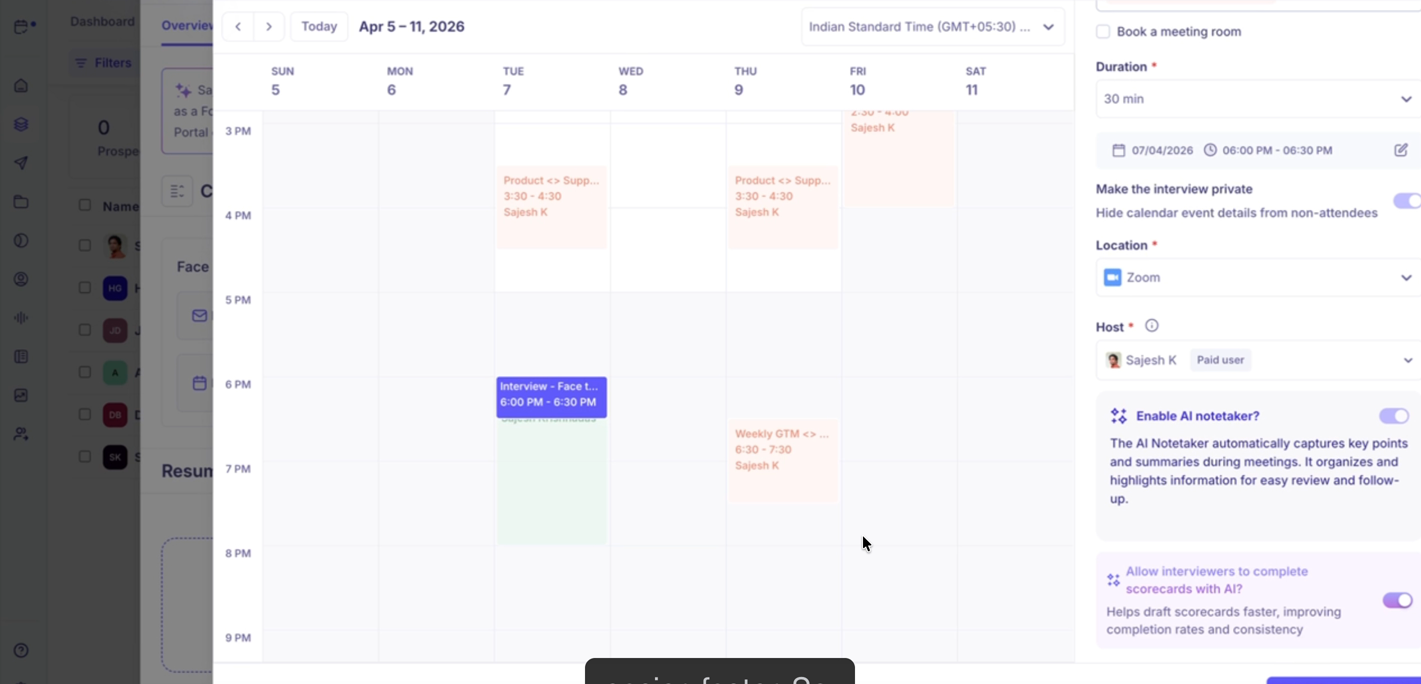
Green blocks = candidate available. Red/pink blocks = interviewer is busy. Look for a green block with no red overlap to find a time that works for everyone
Current limitations
Requesting availability currently works for individual interviews only.
Collecting availability for multi-interview stages (onsite loops / Schedule All) is coming soon.
Permissions
Any user with interview scheduling access can use the Request Availability feature. If you don't see the Request availability option in the dropdown, contact your admin to check your role permissions.
Need Help?
If you have questions or need assistance, feel free to reach out to us at support@kula.ai or use the in-app chat for assistance.