Managing Interviews in Kula
Last updated: March 9, 2026
The Interviews section gives your hiring team a centralized place to track, manage, and review all interviews — from scheduling through to final evaluation.
Who Can See What
Your access to the Interviews section depends on your role in Kula.
Super Admins
Super Admins have full visibility across the entire platform. They can view all interviews across all jobs, regardless of whether they are part of the hiring team or assigned as an interviewer.
Recruiters
If you are added as a Recruiter on a job's hiring team, you can see all interviews scheduled for that job — even interviews where you are not the assigned interviewer.
All upcoming and past interviews for jobs you are part of will appear in your Interviews tabs.
You can manage scorecards, send reminders, access AI summaries, and review recordings for any interview within those jobs.
💡 Recruiters are added to a job's hiring team via Job Settings → Hiring Team. Once added, they have full visibility into all interviews for that job.
Interviewers (Organization Member role)
If you are assigned the Organisation Member role, your access is limited to only the interviews you have been directly assigned to as an interviewer.
You will only see interviews assigned to you in the Upcoming and Past Interviews tabs.
Clicking on the job name will not open the job page — Organisation Members do not have access to job details.
To view context about the interview, click Interview Info at the bottom of the interview details page. This gives you the relevant information you need without requiring access to the full job.
💡 If you need access to the job or candidate pipeline, contact your recruiter or admin to update your role or permissions.
Interviews is divided into two tabs: Upcoming Interviews and Past Interviews.
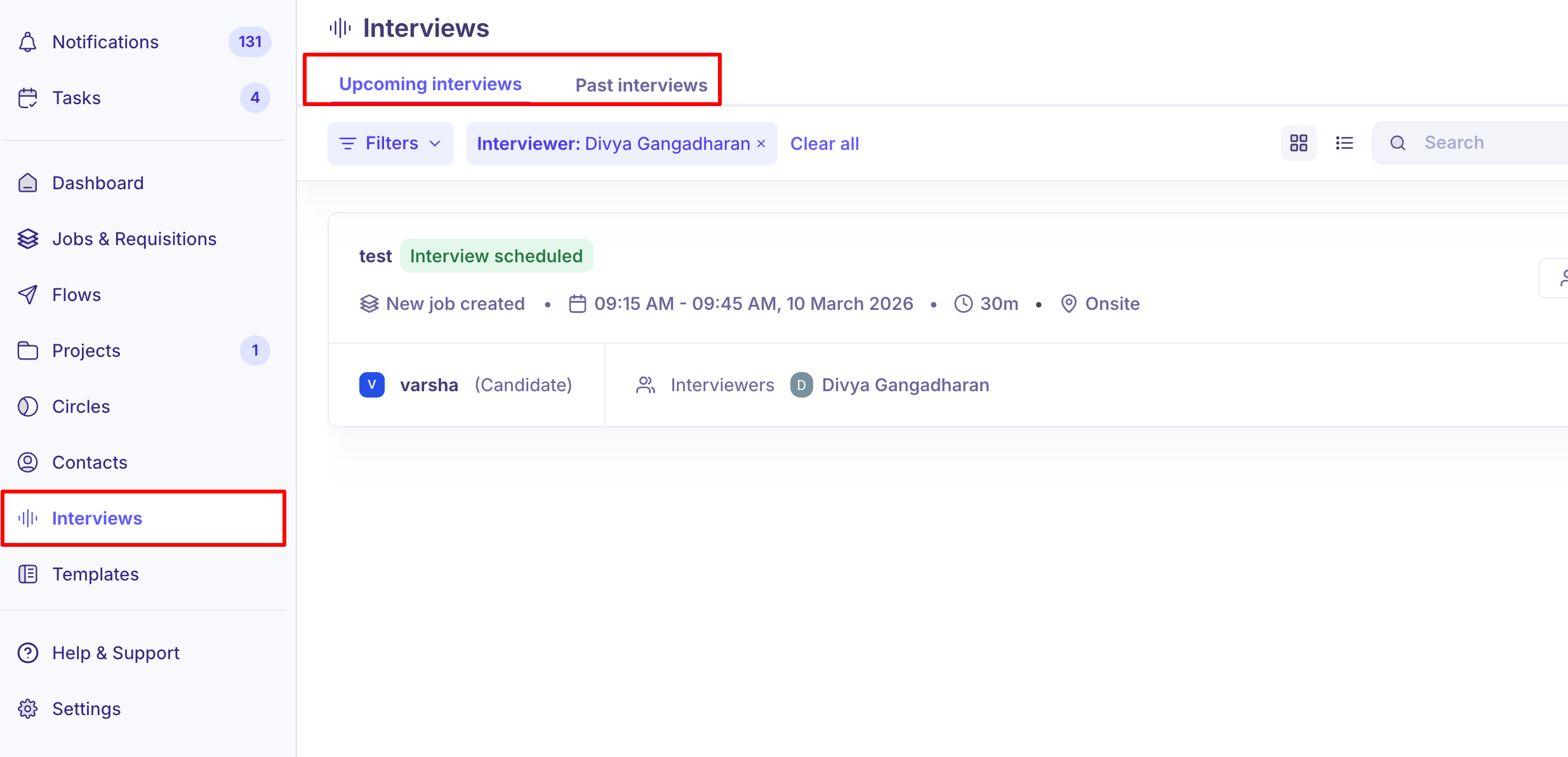
Upcoming Interviews
Navigate to Interviews → Upcoming Interviews to see all interviews that are scheduled and yet to take place.
From this view, you can:
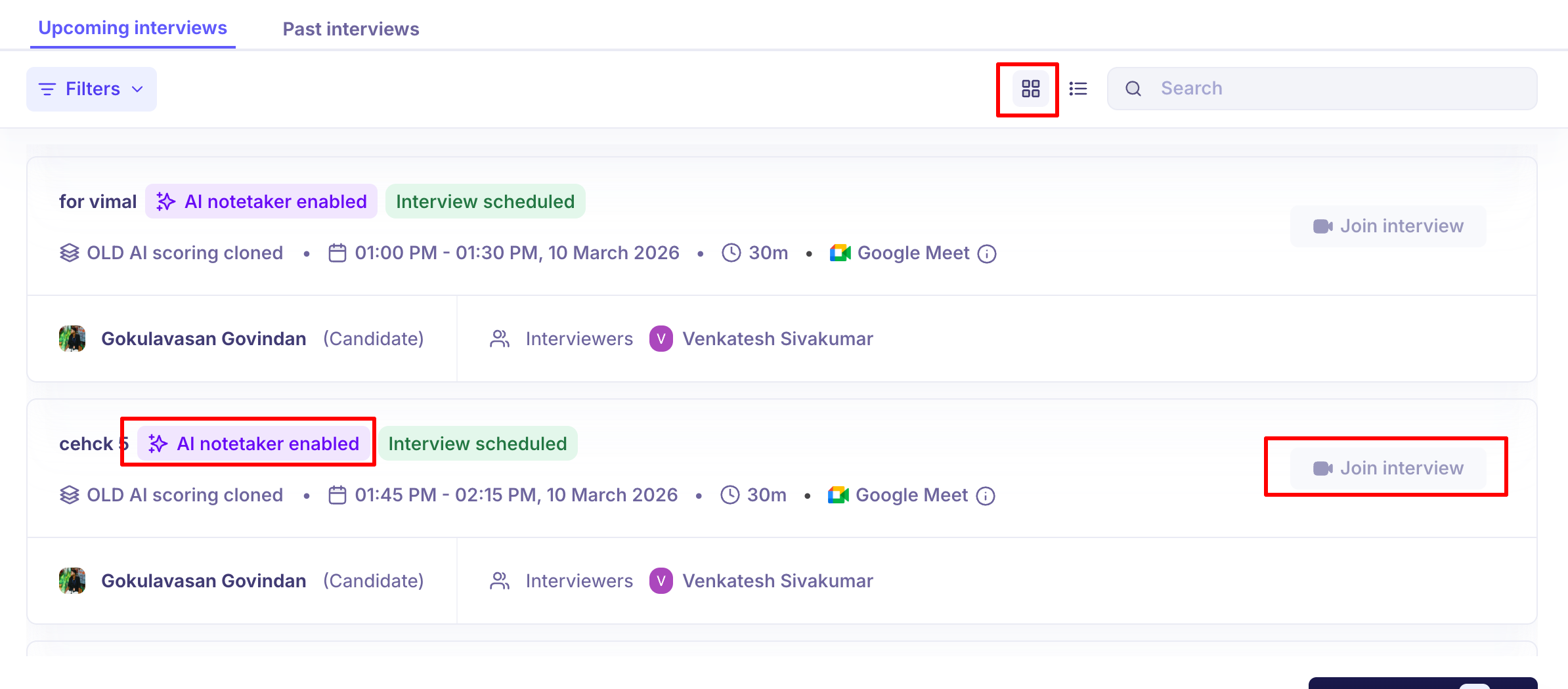
Switch between Grid and List view to display interviews in the layout that works best for you.
Join an interview — the Join Interview button becomes available 10 minutes before the scheduled start time.
Check AI Notetaker status — see at a glance whether AI Notetaker is enabled for each scheduled interview.
Filtering Upcoming Interviews
Click Filters to narrow down the list. The following filters are available:
Filter
FilterDescription
Interviewer
Filter by the assigned interviewer
Job
Filter by the associated job
Candidate
Filter by candidate name
AI Notetaker Status
Filter by the current AI Notetaker status
Interview Status
Filter by status (e.g. Interview scheduled, In-progress)
Department
Filter by department
Office
Filter by office location
AI Notetaker Enabled
Filter by whether AI Notetaker is turned on (Yes / No)
Interview Location
Filter by meeting platform (e.g. Zoom, Google Meet)
Recruiter (on job)
Filter by the recruiter assigned to the job
Interview Scheduled By
Filter by who scheduled the interview
Past Interviews
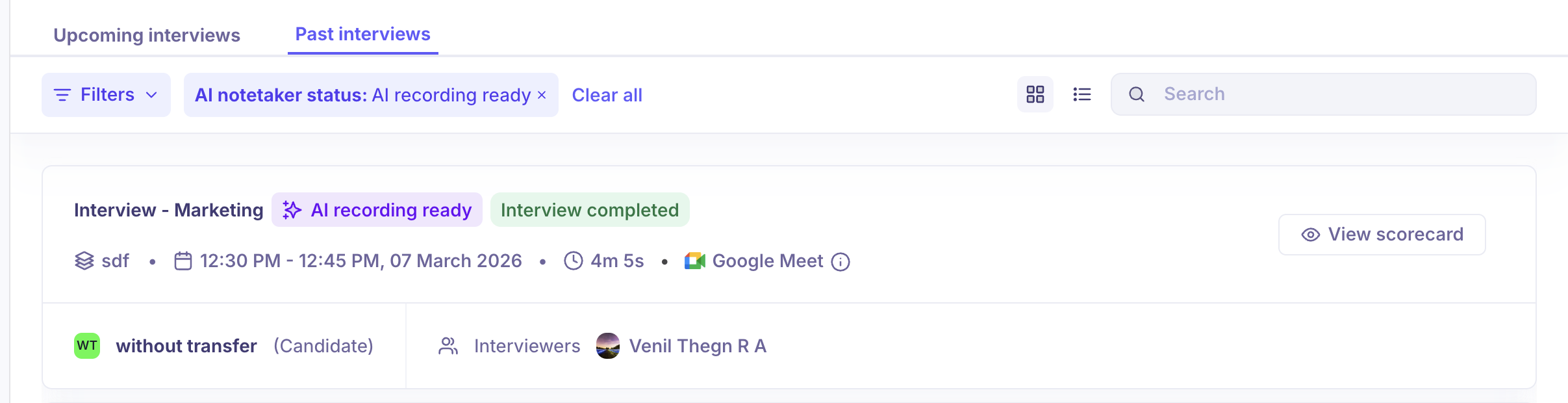
Navigate to Interviews → Past Interviews to access interviews that have already been completed.
Each interview card shows the candidate name, interviewer, date, duration, and meeting platform. You can also click View Scorecard directly from the list without having to open the full details page.
For a deeper look, click on any interview to open the full Interview Details page, where you can:
Review and submit scorecards
Access AI-generated summaries
Play interview recordings
Review candidate contact information
Add or review interview notes
Filtering Past Interviews
Past Interviews includes all the same filters as Upcoming Interviews, plus one additional filter:
Filter
FilterDescription
Scorecard Status
Filter by whether scorecards are Pending or Completed
The Interview Status filter for past interviews includes the following statuses: Interview scheduled, Interview in-progress, Interview completed, Interview canceled, and Candidate no-show.
The AI Notetaker Status filter includes: AI recording ready, AI recording failed, AI recording denied, AI notetaker enabled, AI recording now, AI waiting, and AI processing.
Interview Details
Clicking on any interview opens the Interview Details page — your central hub for everything related to that specific interview.
The header displays key information at a glance: the candidate name, interview round, job, location, and scheduled date and time.
Scorecard
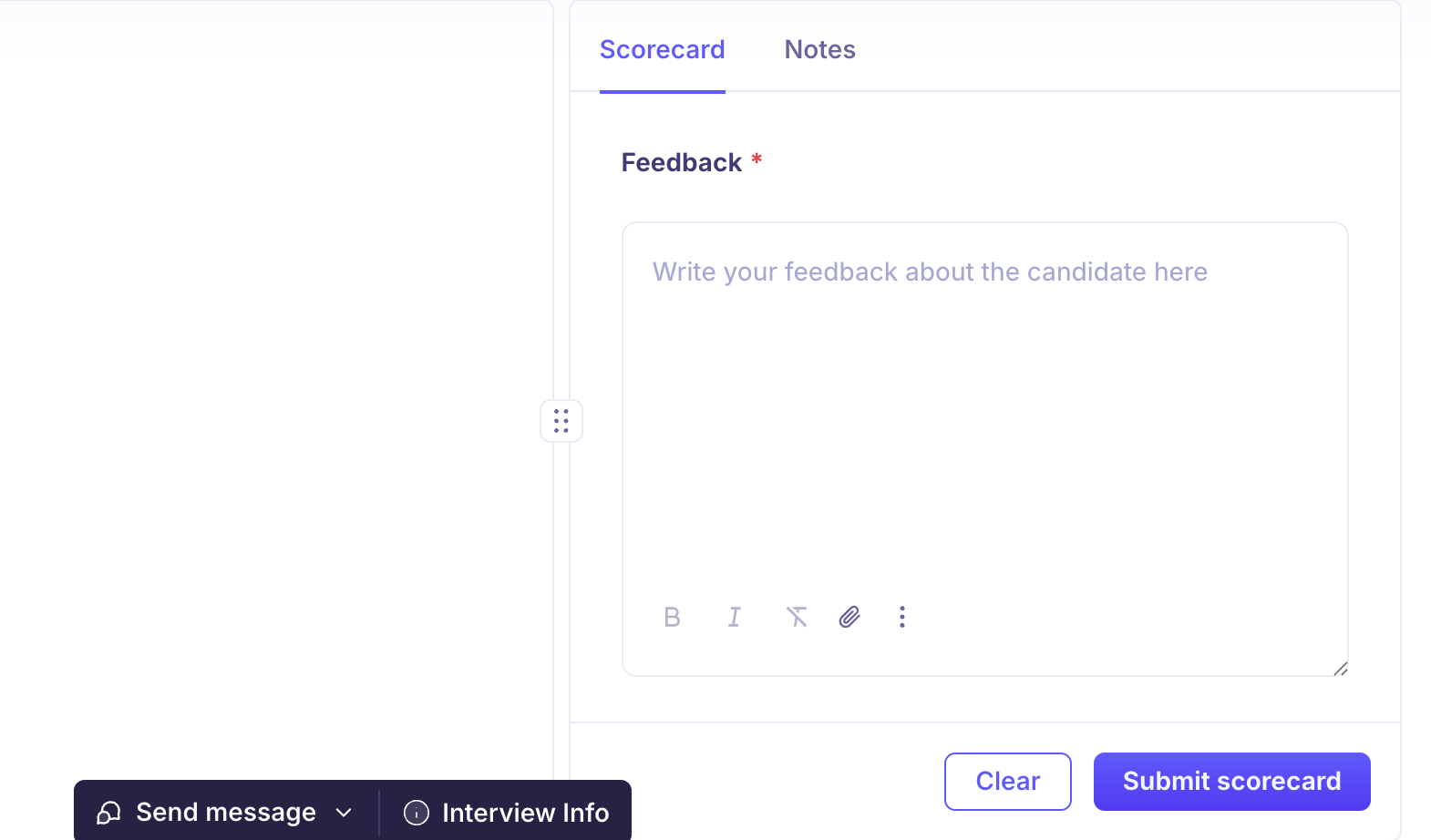
For upcoming interviews — shows a feedback form where interviewers can write and submit their evaluation after the interview.
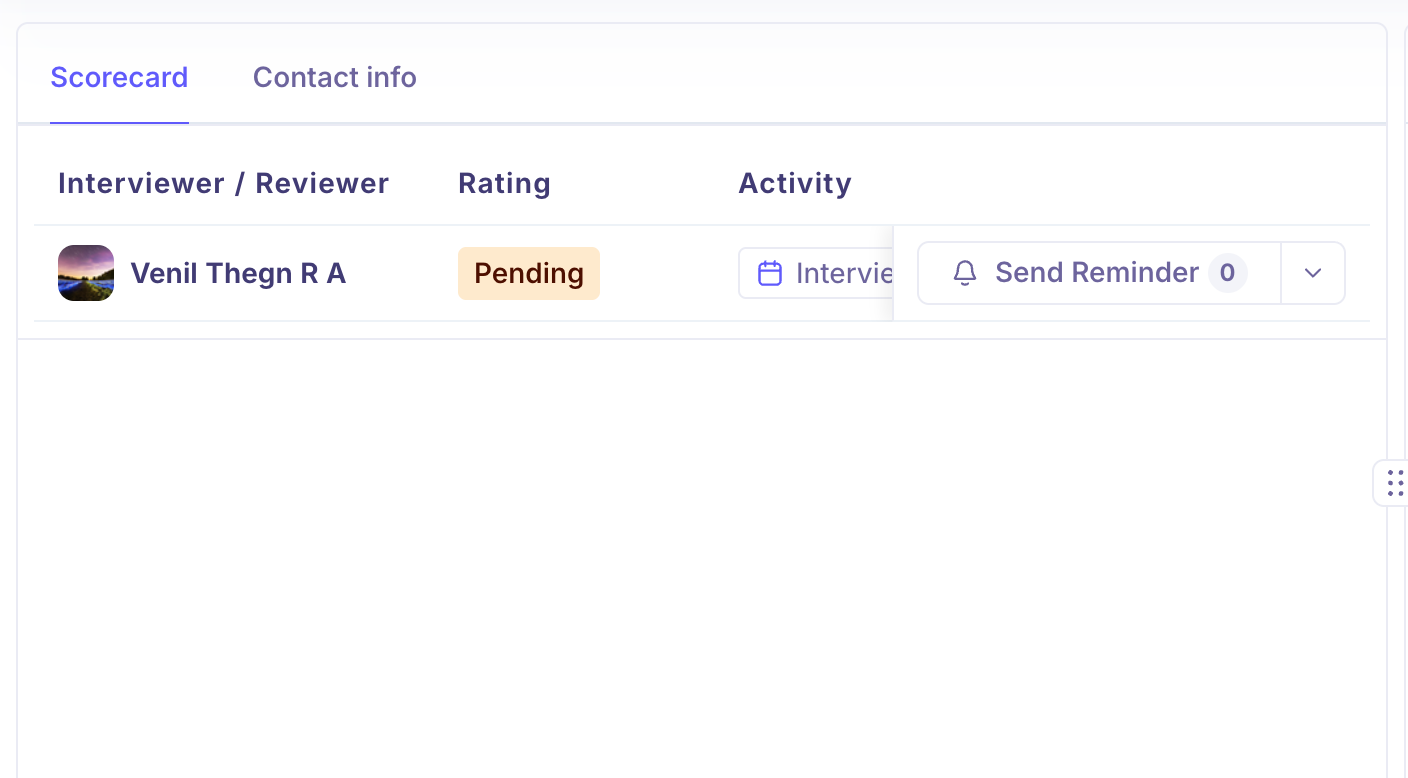
For completed interviews — shows each interviewer's name, their submission status (e.g. Pending), and a Send Reminder button to nudge anyone who hasn't submitted yet. The reminder count is displayed alongside the button.
Contact Info Displays the candidate's contact details and profile information.
Right Panel
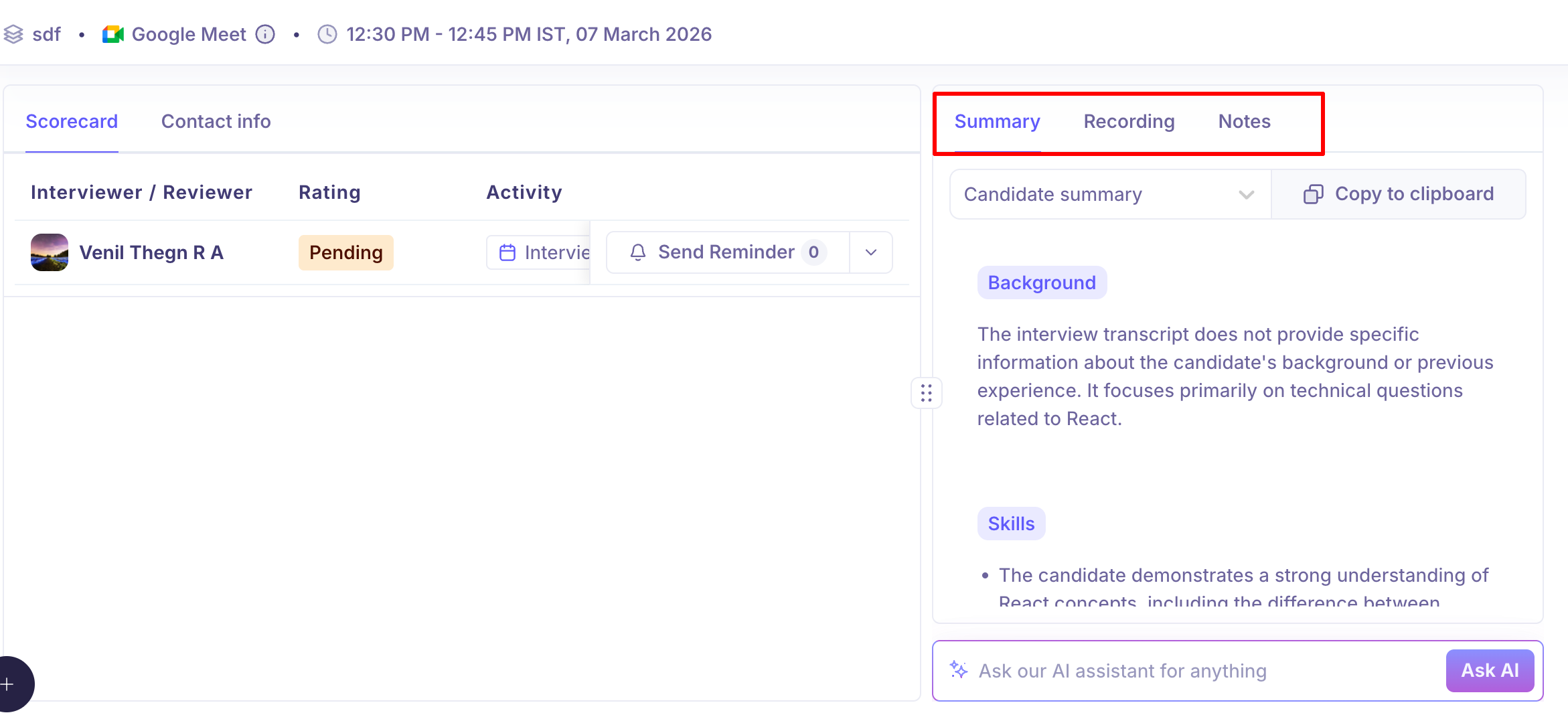
The tabs available in the right panel depend on whether AI Notetaker was enabled for the interview:
Without AI Notetaker — only the Notes tab is shown.
With AI Notetaker — three tabs are shown: Summary, Recording, and Notes.
Notes Use this tab to document additional observations about the candidate. You can:
Share notes with other interviewers by checking Share with other interviewers
Set visibility to Public or Private
Sending Messages
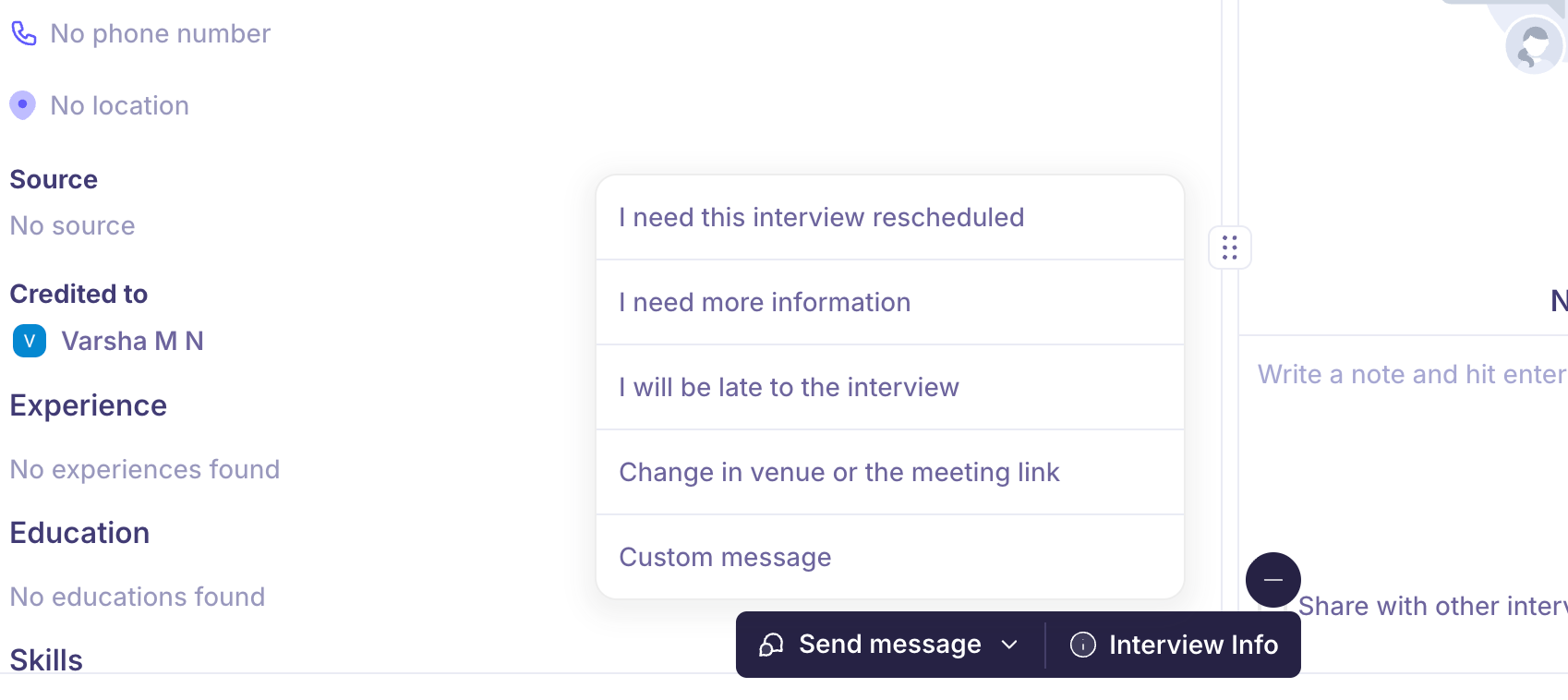
You can send interview-related messages directly from the details page using the Send Message button at the bottom of the page. Available message templates include:
I need this interview rescheduled
I need more information
I will be late to the interview
Change in venue or meeting link
Custom message
Marking a Candidate as a No-Show
If a candidate does not attend their interview, you can mark them directly from the interview details page. Click the Candidate is a no-show button at the bottom of the page.
💡 This option is only available for completed interviews and appears alongside the Send Message button at the bottom of the page.
AI Summary
If AI Notetaker was enabled for the interview, Kula automatically generates a summary once the interview is complete.
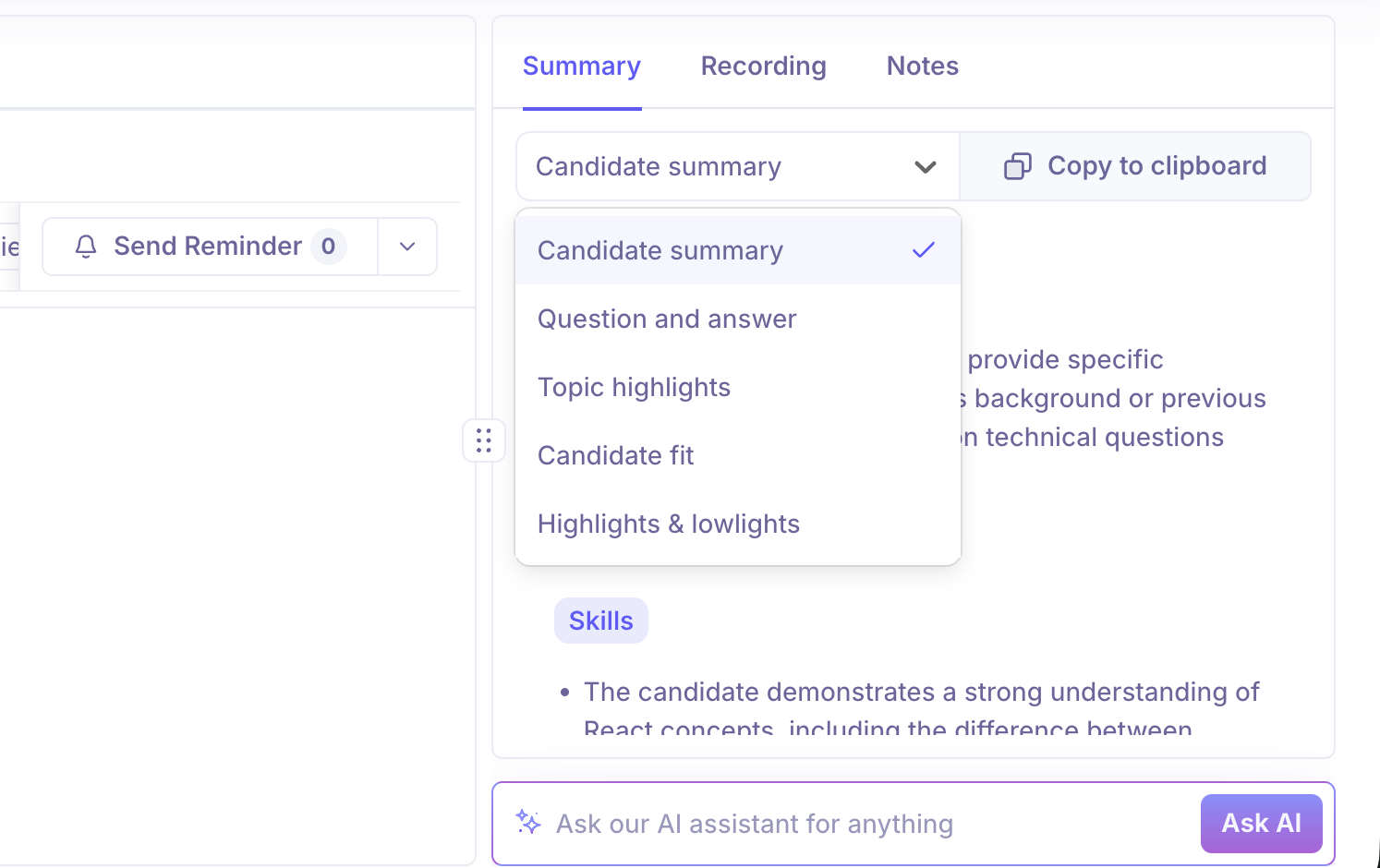
Open the Summary tab in the right panel of the interview details page to access it. You can switch between the following views using the dropdown:
ViewWhat it shows | |
Candidate Summary | A high-level overview of the candidate's responses and overall discussion |
Question & Answer | Key questions asked and the candidate's responses |
Topic Highlights | Important topics covered during the interview |
Candidate Fit | AI-generated insights on how well the candidate aligns with the role |
Highlights & Lowlights | Notable strengths and potential concerns identified |
To share insights with others, click Copy to Clipboard to copy the displayed summary.
Interview Recordings
If AI Notetaker was enabled, Kula captures the interview recording and generates a transcript automatically.
Access these from the Recording tab in the right panel of the interview details page.
Recording Player
The player lets you:
Play, pause, skip forward, or skip backward
Navigate through the recording timeline
Adjust playback speed
Reviewing the Recording
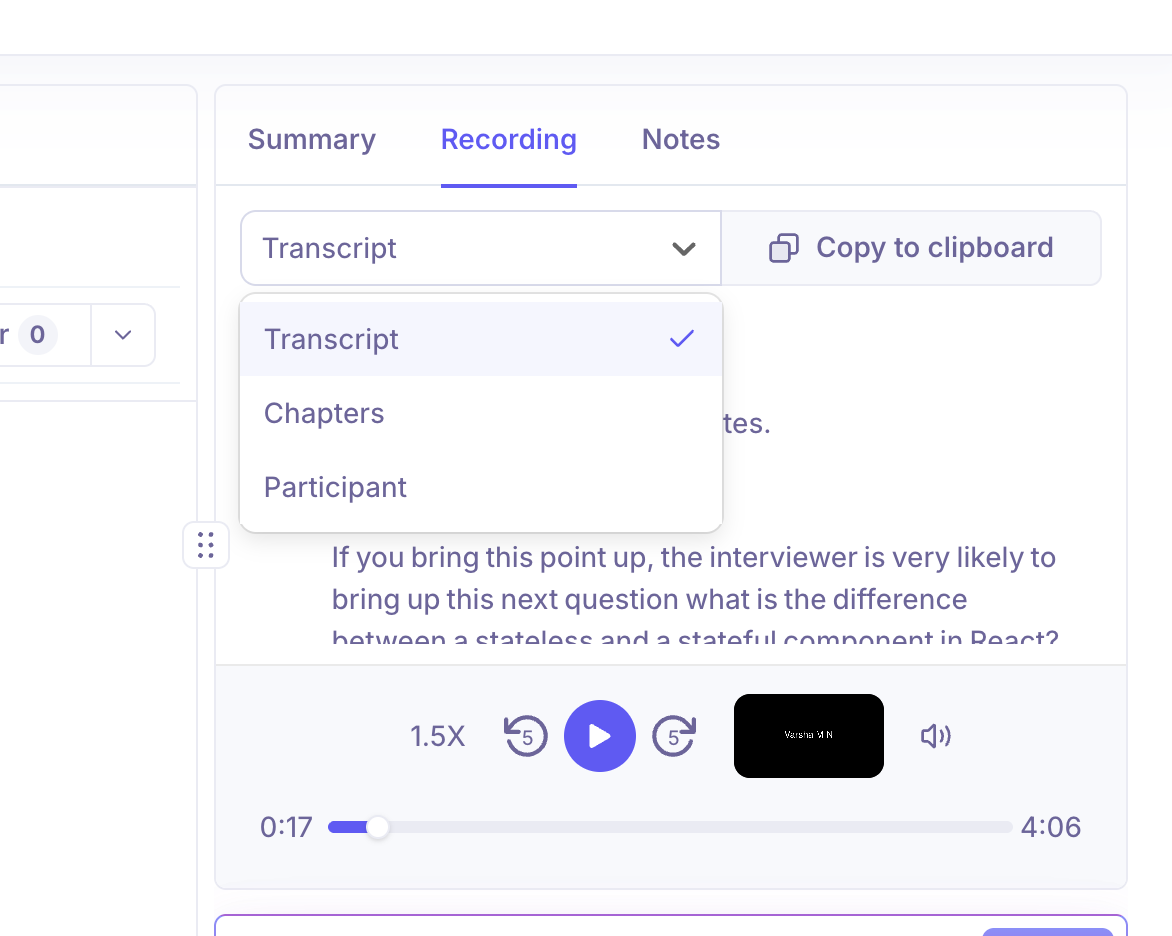
The Recording tab offers three ways to review the interview:
Transcript The full interview conversation in text format. Each entry shows the participant's name, what they said, and a shortcut to jump to that moment in the recording.
Chapters The interview broken into key discussion segments, each with a summarized topic and timestamp. Useful for jumping straight to important moments.
Participants A breakdown of speaking activity, including total talk time, individual talk time per participant, and a visual timeline of speaking segments.
Ask AI
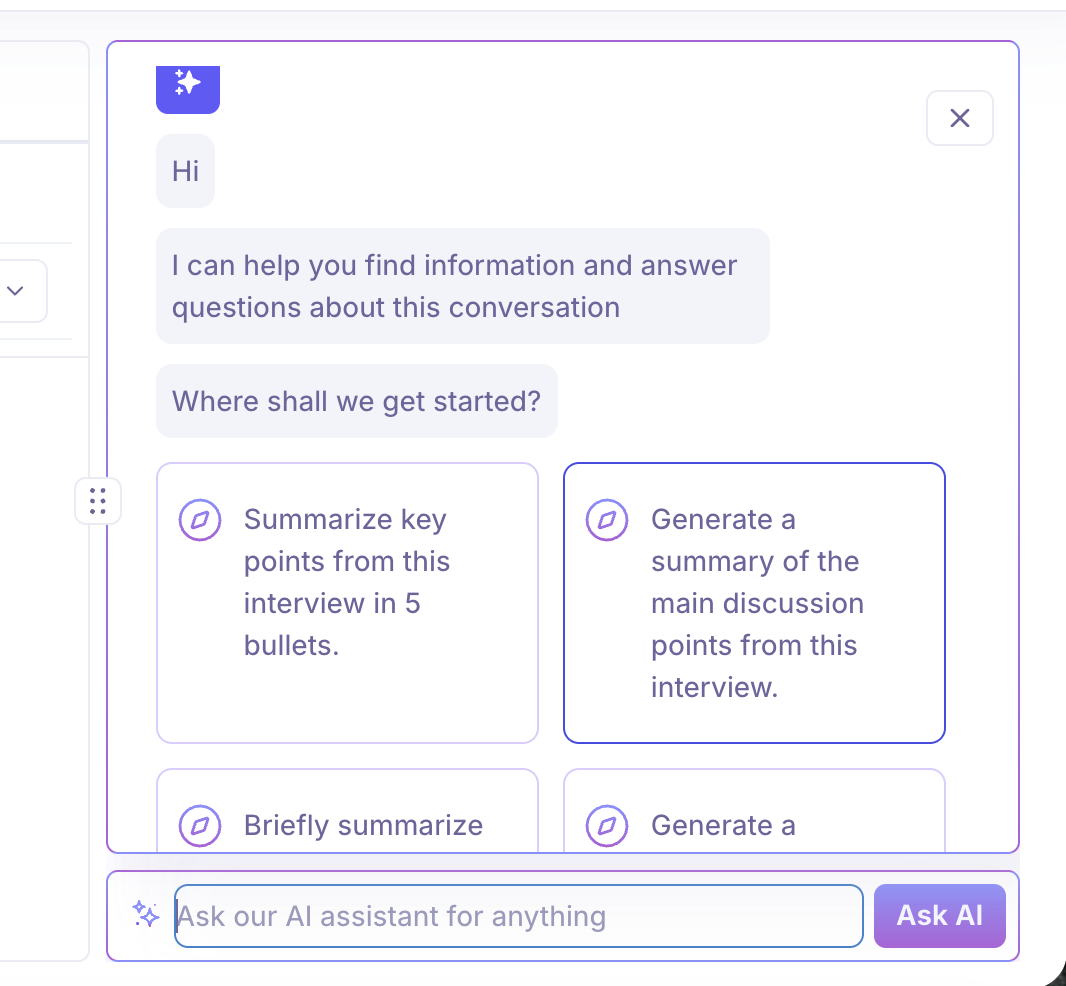
The Ask AI feature lets you quickly extract insights from the interview transcript without replaying the recording.
Once the recording and transcript are available, you'll find the Ask our AI assistant for anything input bar at the bottom of the interview details page. You can choose from suggested prompts or type your own question.
Example questions you can ask:
What were the candidate's strongest skills?
Did the candidate demonstrate experience with a specific technology?
What topics were discussed during the interview?
Ask AI helps hiring teams:
Quickly understand interview outcomes
Identify key candidate strengths and weaknesses
Review discussion points without watching the full recording
Speed up hiring decisions with instant AI-generated insights
Find Your Scenario
🧑💼 Recruiter Guide
For recruiters managing interviews across jobs
I need to check if all interviews are on track: It's Monday morning and hiring is moving fast. You want a quick pulse check before the week kicks off.
Go to Upcoming Interviews and filter by Job.
Confirm interview dates, assigned interviewers, and meeting platforms are all set
I need to chase missing scorecards: The debrief is tomorrow and half the team still hasn't submitted their feedback.
Go to Past Interviews and filter by Scorecard Status → Pending
Open the interview and click Send Reminder from the Scorecard tab
To control when interviewers see each other's feedback, see Managing Scorecards — Scorecard Customizations
I need to check if AI Notetaker is active for the interview: You want to know if the interview is being recorded before it starts.
Look for the AI Notetaker Enabled badge on the interview card in Upcoming Interviews
You can also filter by AI Notetaker Enabled → Yes to see all your interviews where it is active
🎤 Interviewer Guide
For interviewers assigned to specific interviews
I need to join my interview: Your interview starts in 10 minutes and you need the link.
Go to Upcoming Interviews
The Join Interview button appears automatically 10 minutes before the scheduled start time — click it to enter directly
I need to flag that the candidate didn't show up: You waited, they never joined. Now you need to update the status.
Open the interview from Past Interviews
Click Candidate is a no-show at the bottom of the page to update the status and notify the recruiter
I need to add my observations after the interview: You want to capture your thoughts while they're still fresh, but keep them private for now.
Open the interview and go to the Notes tab
Set visibility to Private to keep it to yourself, or Share with other interviewers when you're ready
I need to quickly recap the interview before the hiring decision meeting: The meeting is in an hour and rewatching the full recording isn't an option.
Open the interview and use the Ask AI bar at the bottom of the page
Type a specific question like "What were the candidate's strongest technical skills?" or "How did they handle the cultural fit questions?"
Get instant answers pulled directly from the transcript — no scrubbing through the recording needed
I need to send a message to the hiring team and candidate: There's a last-minute venue change and you need to notify everyone immediately.
Open the interview and click Send Message at the bottom of the page
Choose a template — Change in venue or meeting link, I need this interview rescheduled, or write a Custom message
The message is sent to the hiring team (recruiters, hiring managers, sourcers) and the candidate at the same time
Need Help?
If you have questions or need assistance with setup, feel free to reach out to us at support@kula.ai or use the in-app chat for assistance.