How to Integrate Hireflix with Kula
Last updated: March 19, 2026
Kula integrates with Hireflix to streamline one-way video interviews and bring candidate responses directly into your hiring workflow. With this integration, you can send video assessments to individual candidates or in bulk, view submission statuses in real time, and manage assessments — all from within Kula.
⚡ Key Highlights
Send Hireflix video assessments to individual candidates instantly
Automate sending assessments in bulk to candidates in a specific stage
Full control to edit or cancel assessments whenever needed
Get live updates as soon as a candidate submits their video response
Once the admin publishes the verdict, results are instantly reflected in Kula
A direct link to each assessment is available for quick access and review
⚙ Step 1: Connection Setup
Requirements: You must be a Kula Admin and have an active Hireflix account.
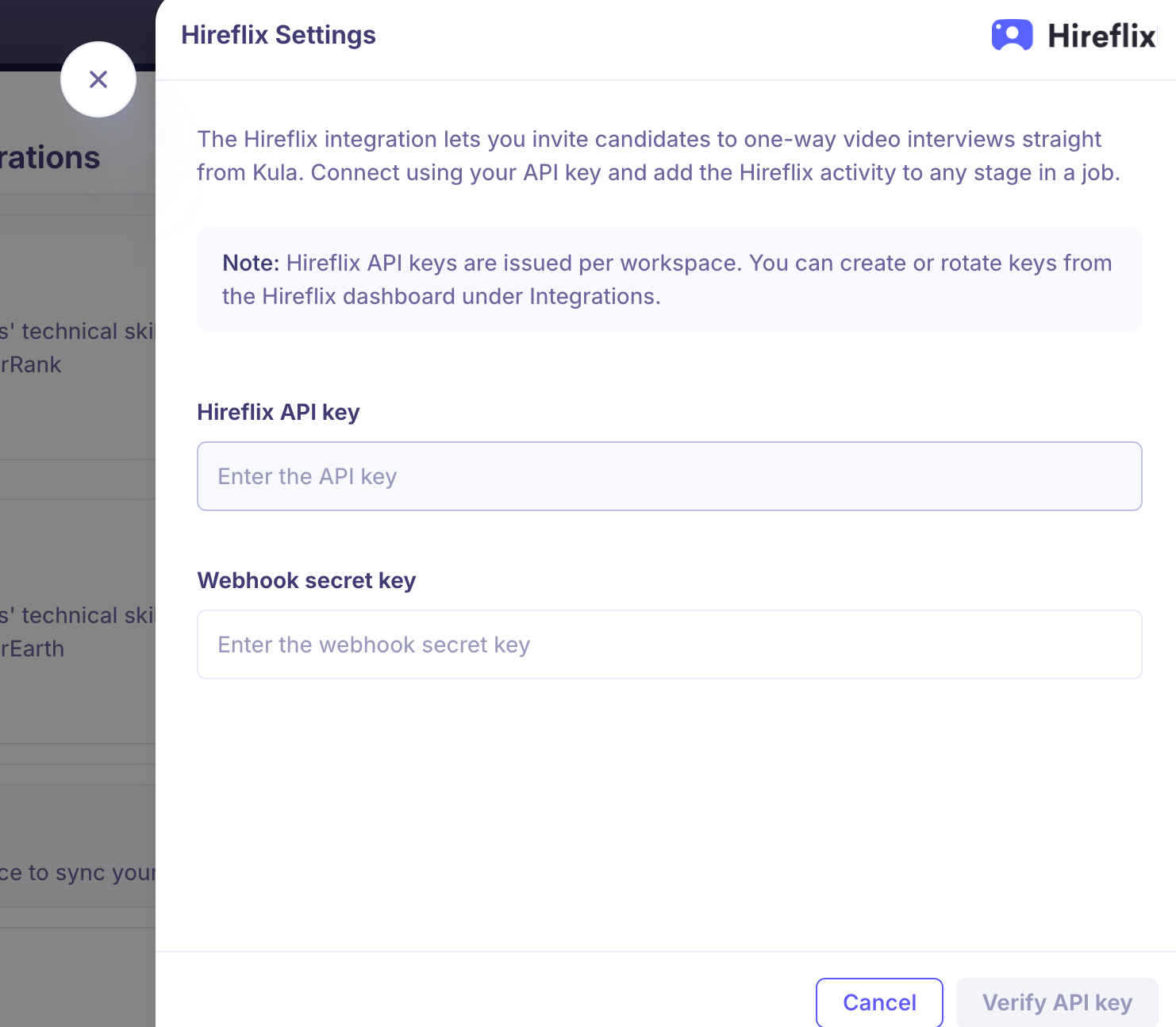
Note: Hireflix API keys are issued per workspace. You can create or rotate keys from the Hireflix dashboard under Integrations.
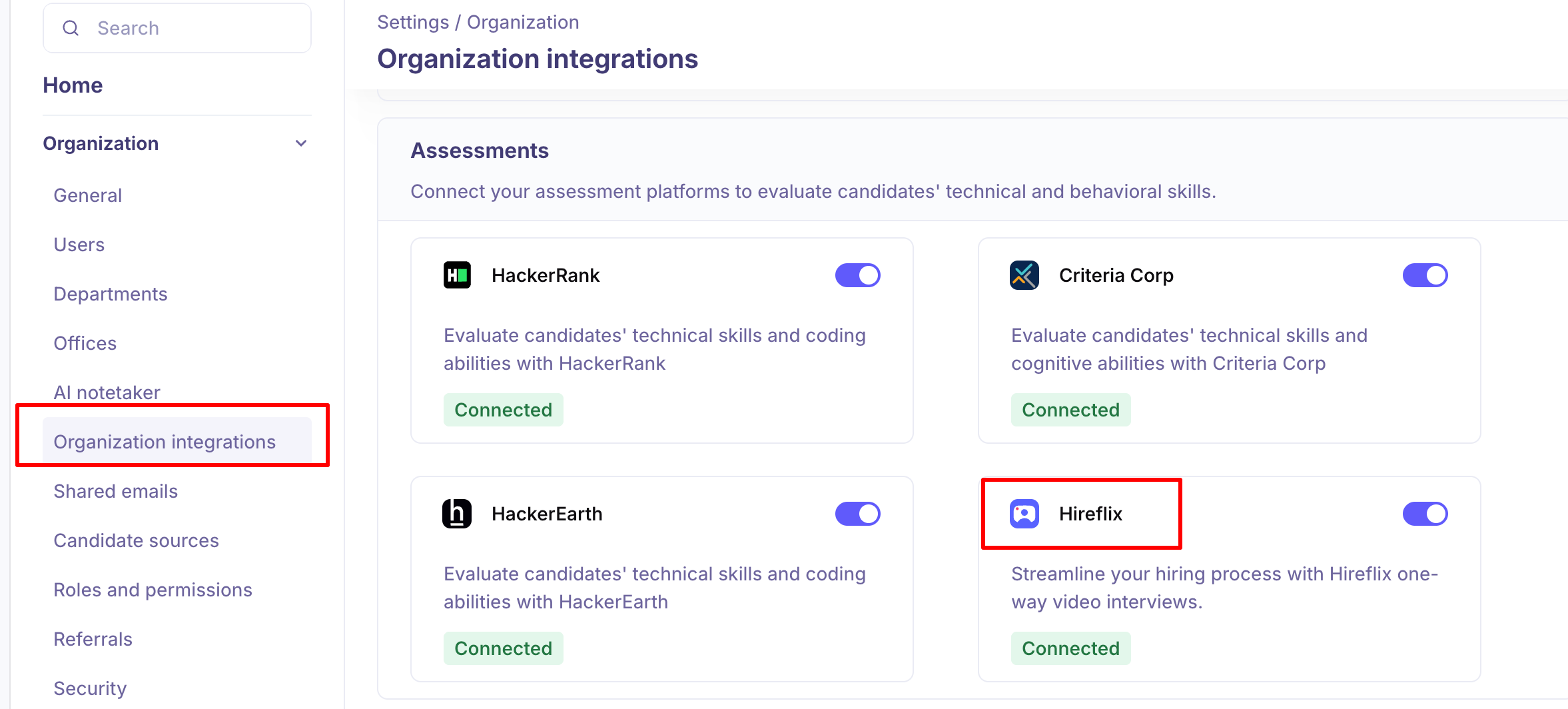
Navigate to Settings > Integrations > Assessments.
Locate Hireflix and click Enable Integration.
In the settings panel, enter your Hireflix API Key and Webhook Secret Key.
Click Verify API Key. Once the status shows as Connected, you are ready to go!
🛠 Step 2: Using Hireflix in Kula
Send Assessment Ad-Hoc (to an Individual Candidate)
Best for sending a video assessment to a specific candidate on the spot.
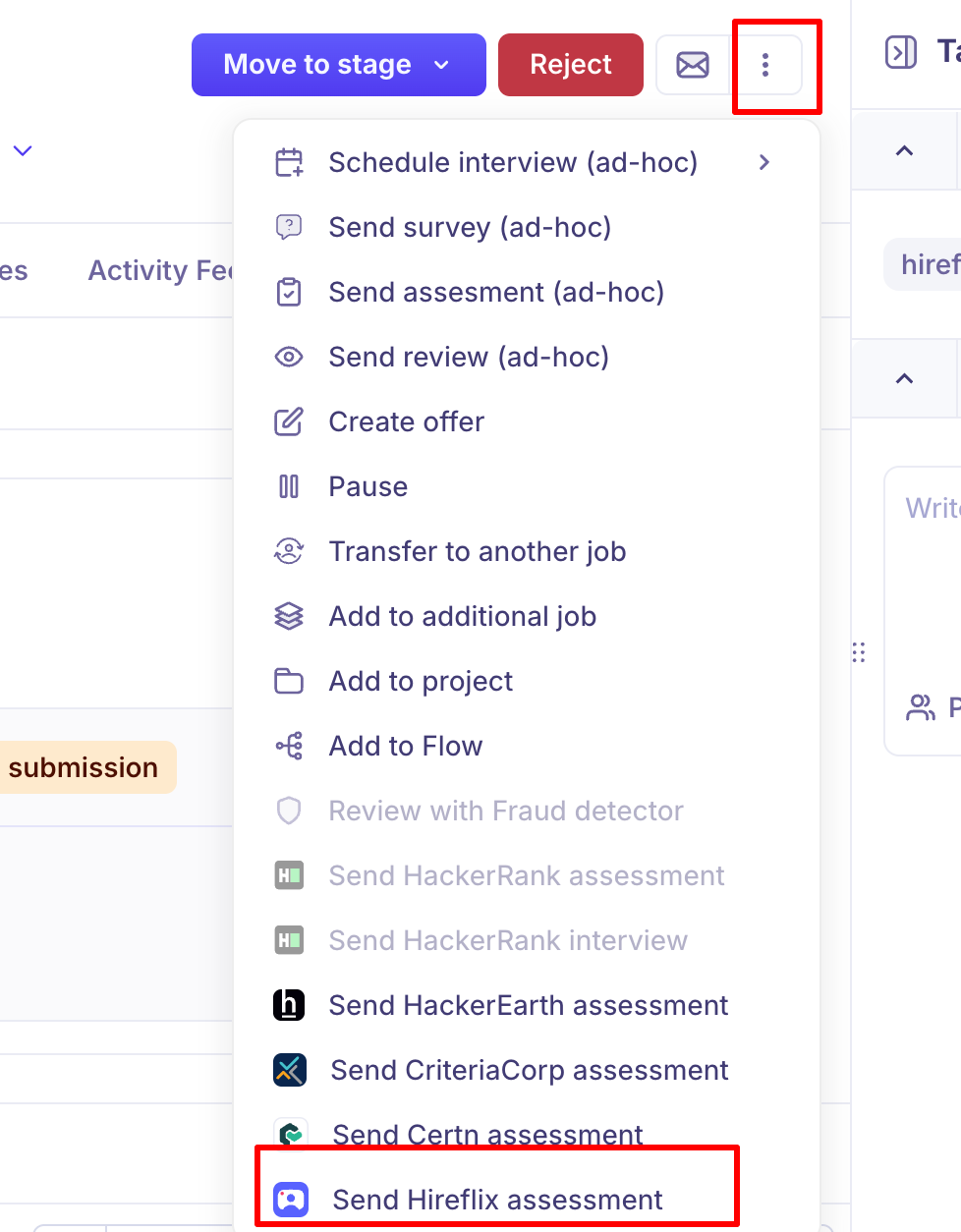
Open the candidate's profile and click three dots (top right).
From the dropdown, select Send Hireflix assessment.
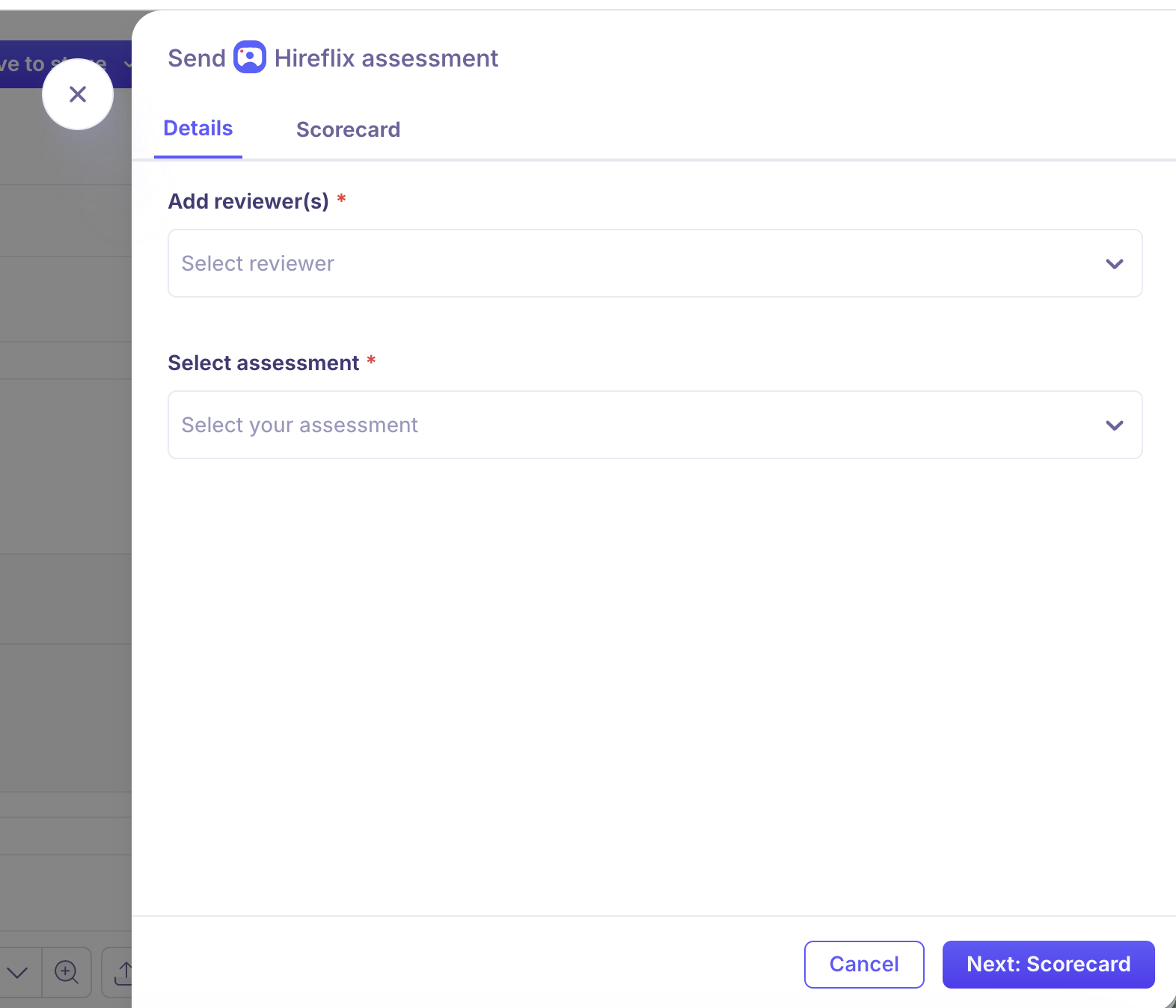
In the modal that appears:
Details tab: Select a Reviewer and choose the Assessment you want to send.
Scorecard tab: Optionally select a scorecard template, add questions, and include reviewer feedback.
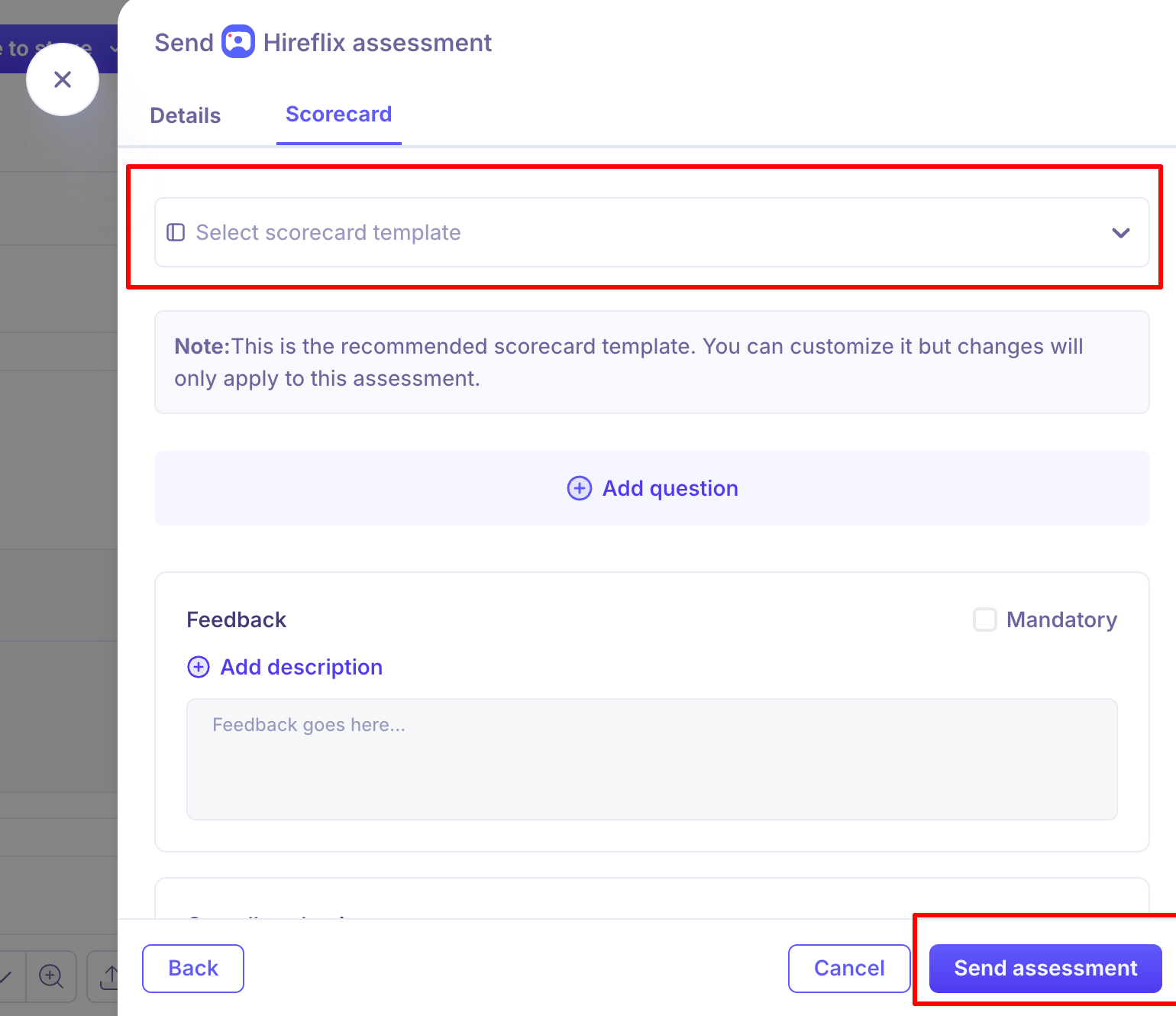
Click Send assessment.
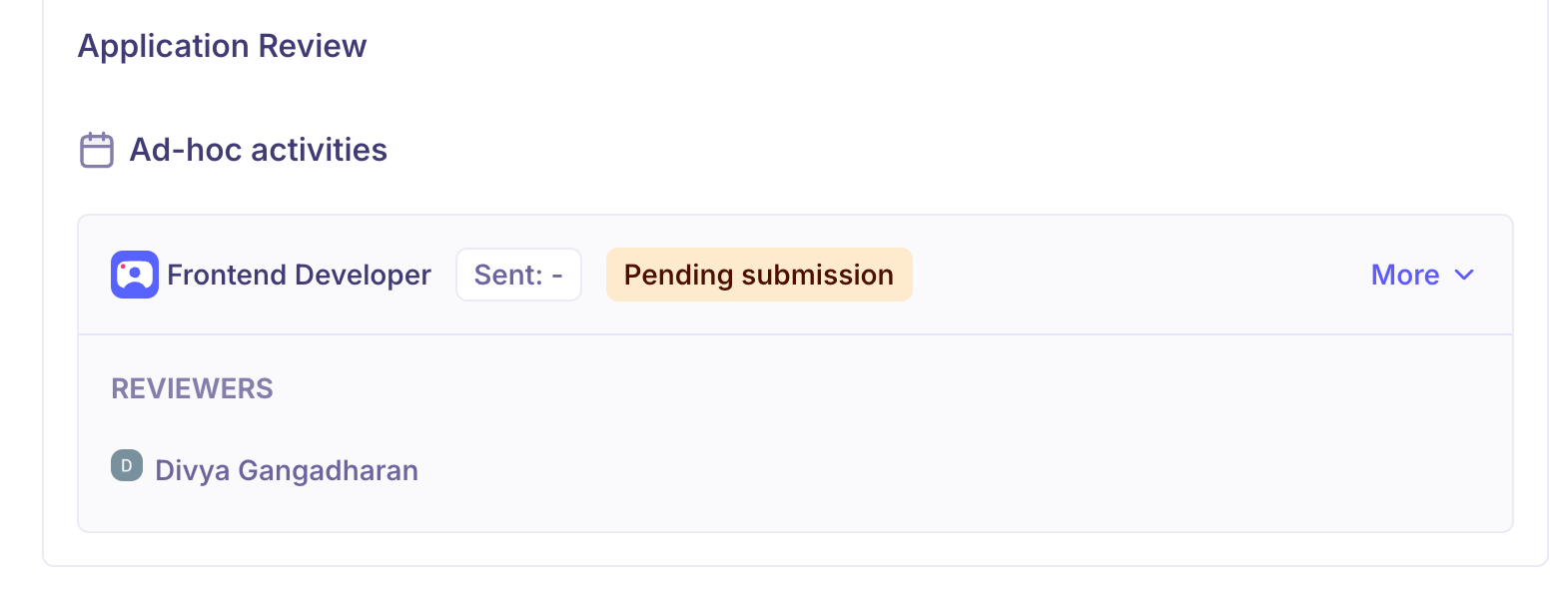
A confirmation message — "Hireflix assessment sent successfully" — will appear, and the assessment will show under Ad-hoc activities on the candidate's overview with a Pending submission status.
📋 Step 3: Managing Assessments
After sending an assessment, you can track and manage it directly from the candidate's profile.
Status tracking: The assessment card shows real-time status (e.g., Pending submission, Submitted, Verdict published).
Edit or Cancel: Click More on the assessment card to access options:
Edit assessment — update the reviewer or scorecard before submission.
Cancel — revoke the assessment if it's no longer needed.
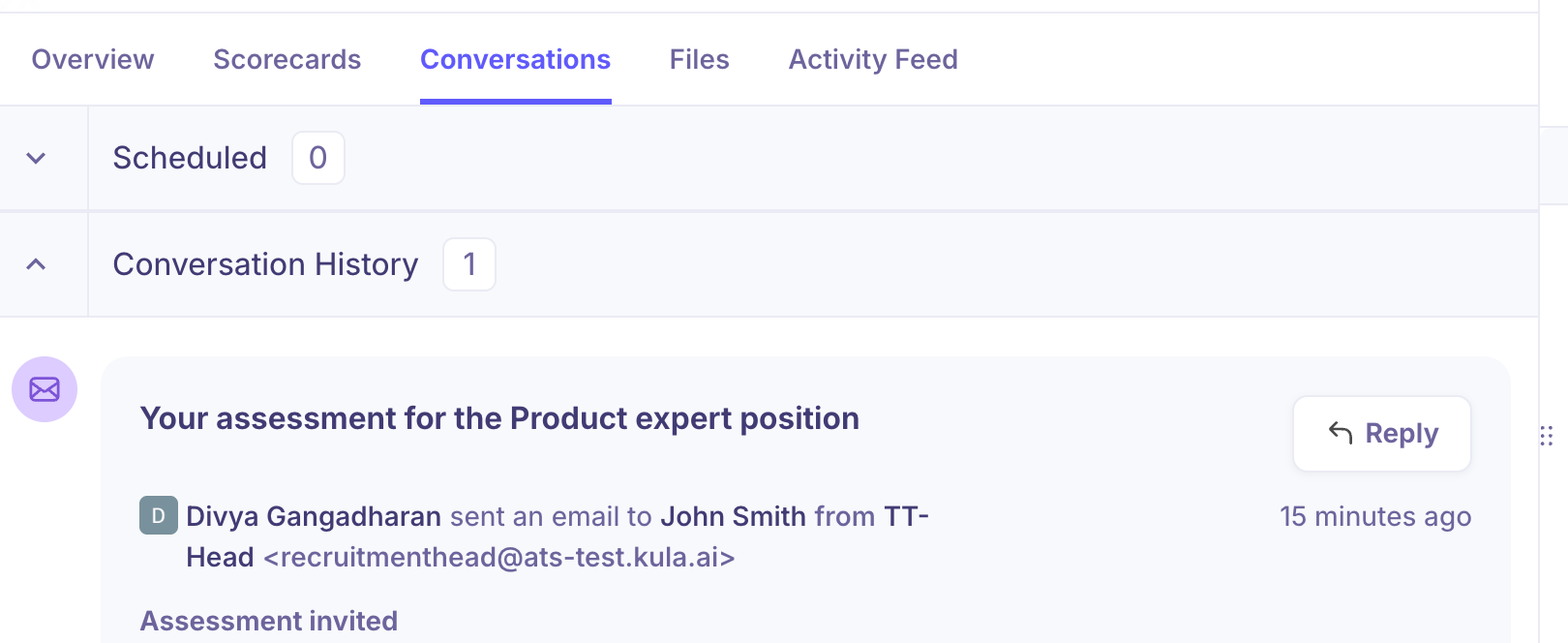
Conversations tab: An automatic email notification is logged under the candidate's Conversations tab once the assessment invitation is sent.
❓ FAQ
Q: Where do I find my Hireflix API key?
A: Log in to your Hireflix dashboard, go to Integrations, and generate or copy your API key. Note that API keys are issued per workspace.
Q: What happens after a candidate submits their video response?
A: Kula receives a live update and the assessment status changes automatically. Once the admin publishes the verdict in Hireflix, the result is instantly reflected in the candidate's profile in Kula.
Q: Can I change the assessment after it's been sent?
A: Yes, as long as the candidate hasn't submitted yet. Click More on the assessment card and select Edit assessment to make changes.
Need Help?
If you have questions or need assistance with setup, feel free to reach out to us at support@kula.ai or use the in-app chat for assistance.