How to Add a Candidate to a Job in Kula
Last updated: March 12, 2026
This article explains who can add candidates to a job and the different ways you can add them in Kula.
Who Can Add Candidates to a Job
You can add candidates to a job if you have the required permissions. The following users can typically add candidates:
Admins
Recruiters assigned to the job
Hiring Managers assigned to the job
External Recruiters or External Collaborators (if they have access to the job)
Your ability to add candidates depends on your role permissions and your access to the job.
If you cannot add candidates, check with your administrator to confirm your job access and permissions.
Ways to Add Candidates to a Job
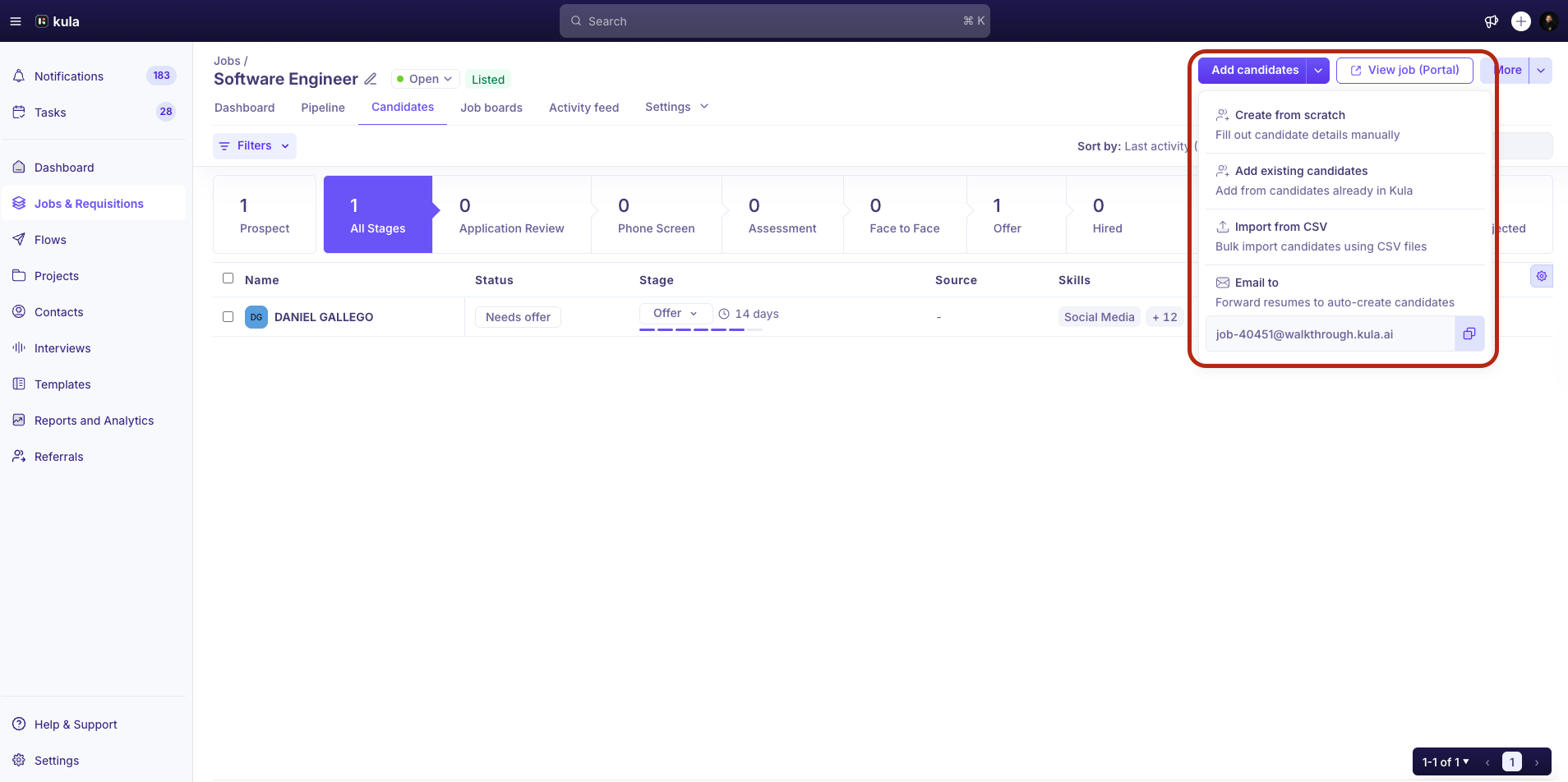
You can add candidates to a job in several ways depending on how you receive the candidate profile.
1. Add Candidate Manually
You can manually add a candidate directly to a job.
Steps
Go to Jobs.
Click the job where you want to add the candidate.
Click Add Candidate.
You can add a Candidate Resume to parse the details in the form.
Enter the candidate details, such as:
Name
Email address
Phone number (optional)
Résumé (optional)
Select the source and credited to fields if required.
Click Add Candidate.
The candidate is now added to the job and appears in the first stage of the pipeline.
2. Add Existing Candidate
You can add an existing candidate directly from the ATS
Steps
Go to Jobs.
Click the job where you want to add the candidate.
Click Add Existing Candidate.
You can search a candidate's name in the dropdown
Select the source and credited to fields if required.
Click Add Candidate.
The candidate is now added to the job and appears in the first stage of the pipeline.
3. Import Candidates in Bulk
You can upload multiple candidates at once using a CSV file.
Steps
Go to Jobs.
Open the job where you want to add candidates.
Click Import Candidates.
Upload the CSV file with candidate details.
Map the fields from the CSV file to the candidate fields in Kula.
Click Import.
Kula adds all candidates to the job after the import completes.
4. Add candidates through Mail drop
You can add candidates by sending an email to a common Mail drop mail ID. This is unique to each job
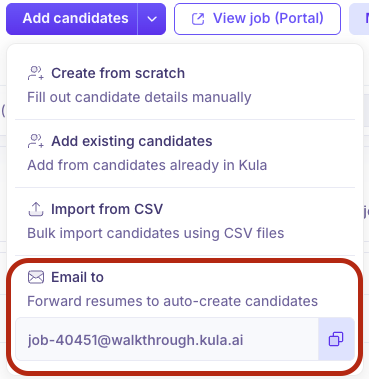
Click here to know more about how to perform a mail drop!
5. Add Candidates from the Projects
You can add candidates who already exist in your talent database.
Steps
Go to Projects.
Search for the candidate.
Open the candidate profile.
Click Add to Job.
Select the job.
Choose the stage and source if needed.
Click Add.
The candidate is now associated with the selected job.
6. Candidate Applies Through a Job Application Form
Candidates can also be added automatically when they apply through a job posting.
How it works
A candidate submits an application through the job application form.
Kula automatically creates the candidate profile.
The candidate is added to the job pipeline.
FAQs
Can I add the same candidate to multiple jobs?
Yes. A candidate can be associated with multiple jobs.
Can I add candidates in bulk?
Yes. You can add multiple candidates using the CSV import option.
Can I change the source or the credited to field while adding a candidate?
Yes. You can update the Source and Credited To fields when adding the candidate.
Can I see who added the candidate?
Yes. You can view this information in the Activity Feed on the candidate profile.