How to Review Candidates Faster
Last updated: March 12, 2026
The Quick Review feature helps you review candidates quickly in the Application Review stage. It lets you view candidate details, collaborate with your team, and take actions without opening each profile separately.
This helps recruiters move through large applicant queues faster.
Prerequisites
You must have access to the job pipeline.
Candidates must be present in the Application Review stage.
Start a Quick Review Session
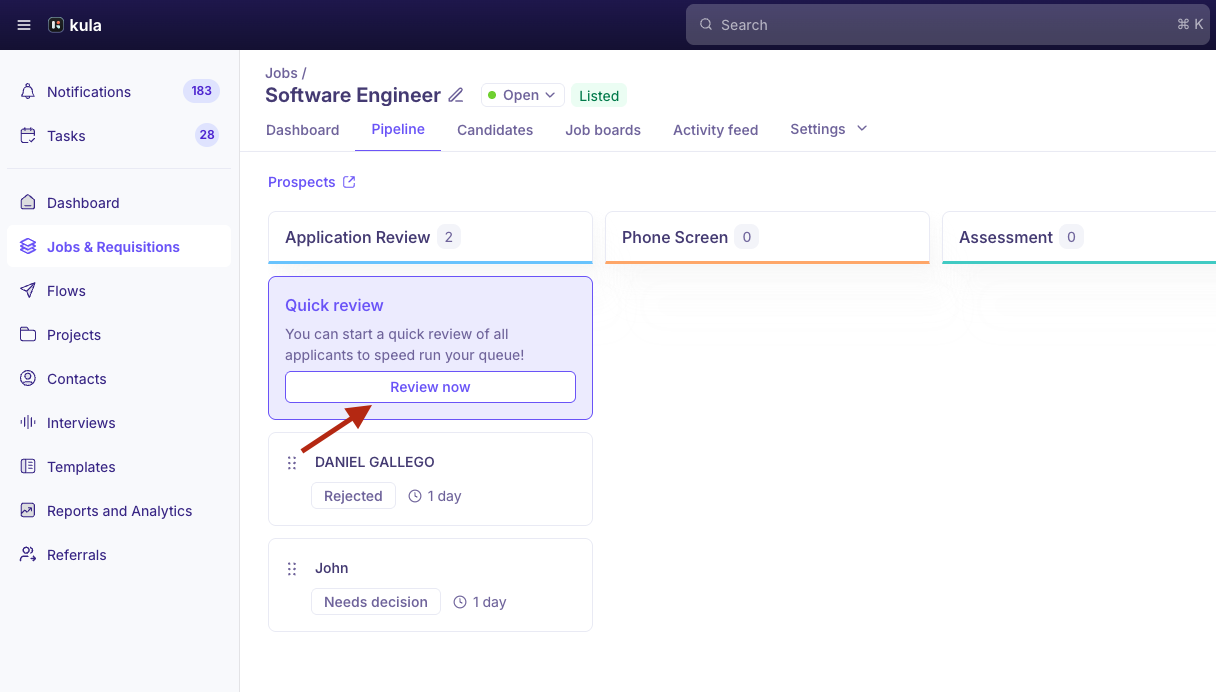
Follow these steps to review candidates using Quick Review.
Go to Jobs.
Open the job you want to review.
Click the Pipeline tab.
Locate the Quick Review section.
Click Review Now.
A pop-up opens with the first candidate available for review.
View Candidate Details
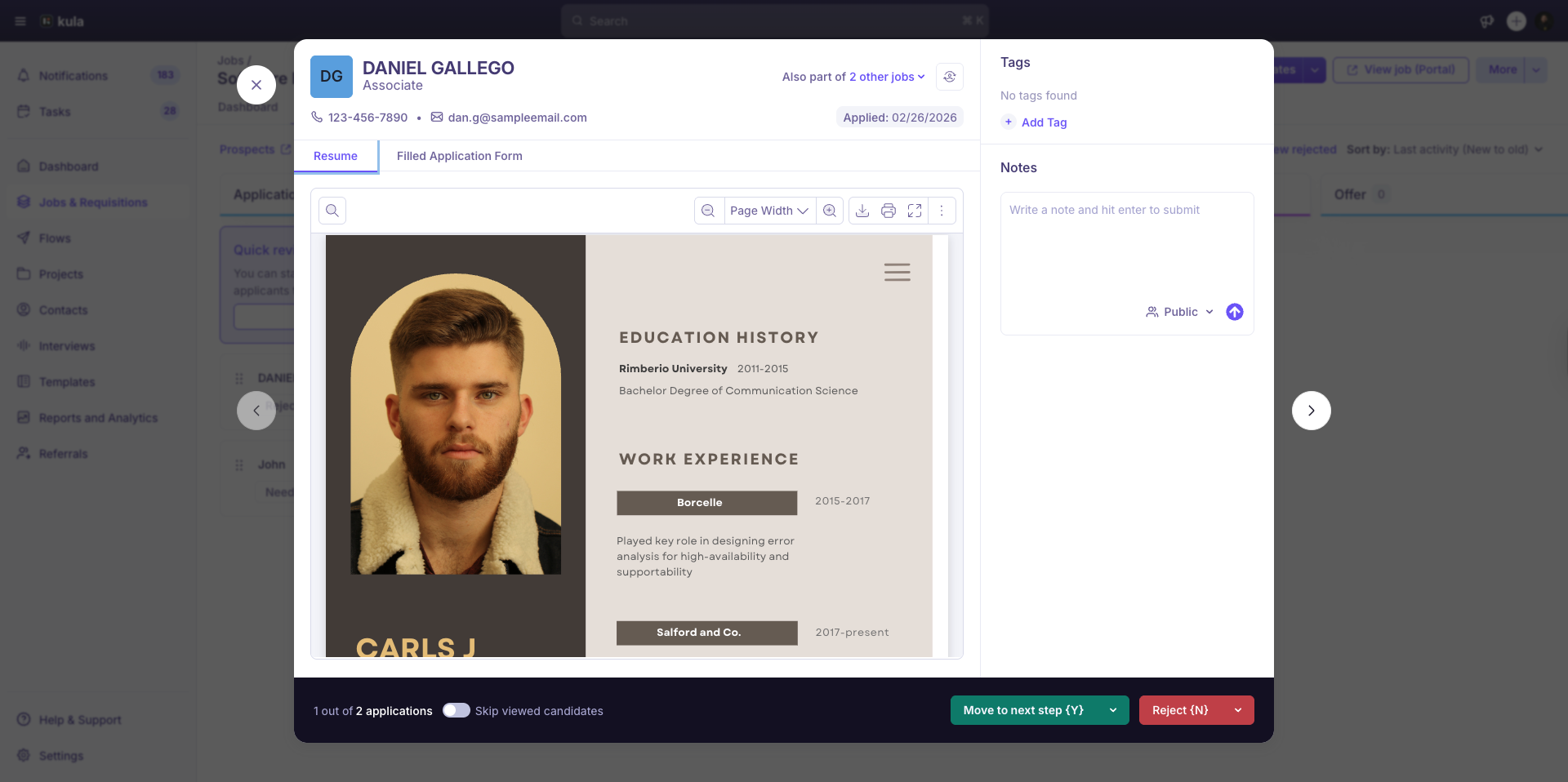
The Quick Review window displays key information to help you make faster decisions.
You can view:
Candidate details – Basic information about the applicant
Application form responses – Answers submitted during the application
AI score and breakdown – AI-generated evaluation based on job criteria
Applied date – The date the candidate applied to the job
Other jobs – Any other jobs where the candidate is currently part of the pipeline
This information helps you understand the candidate’s history and context without leaving the review window.
Add Notes and Collaborate
You can leave feedback while reviewing the candidate.
In the Quick Review window, you can:
Add a note about the candidate
Tag a team member to notify them
Choose the note visibility:
Public – Visible to the candidate
Private – Internal only
Take Action on the Candidate
After reviewing the candidate, you can take one of the following actions.
* Move the Candidate Forward
Move the candidate to the next stage in the hiring pipeline.
When moving a candidate:
Select the stage where the candidate should move
Enable Remember this selection for next applicant to apply the same stage automatically to the next candidate
This reduces repeated clicks during high-volume reviews.
* Reject the Candidate
Reject candidates directly from the Quick Review window.
When rejecting a candidate, you can:
Select a rejection reason
Send a rejection email to the candidate
Add the candidate to an existing project
Create a new project during the rejection process
If you enable Remember this selection for next applicant, the same rejection settings apply to the next candidate you reject.
Skip Viewed Candidates
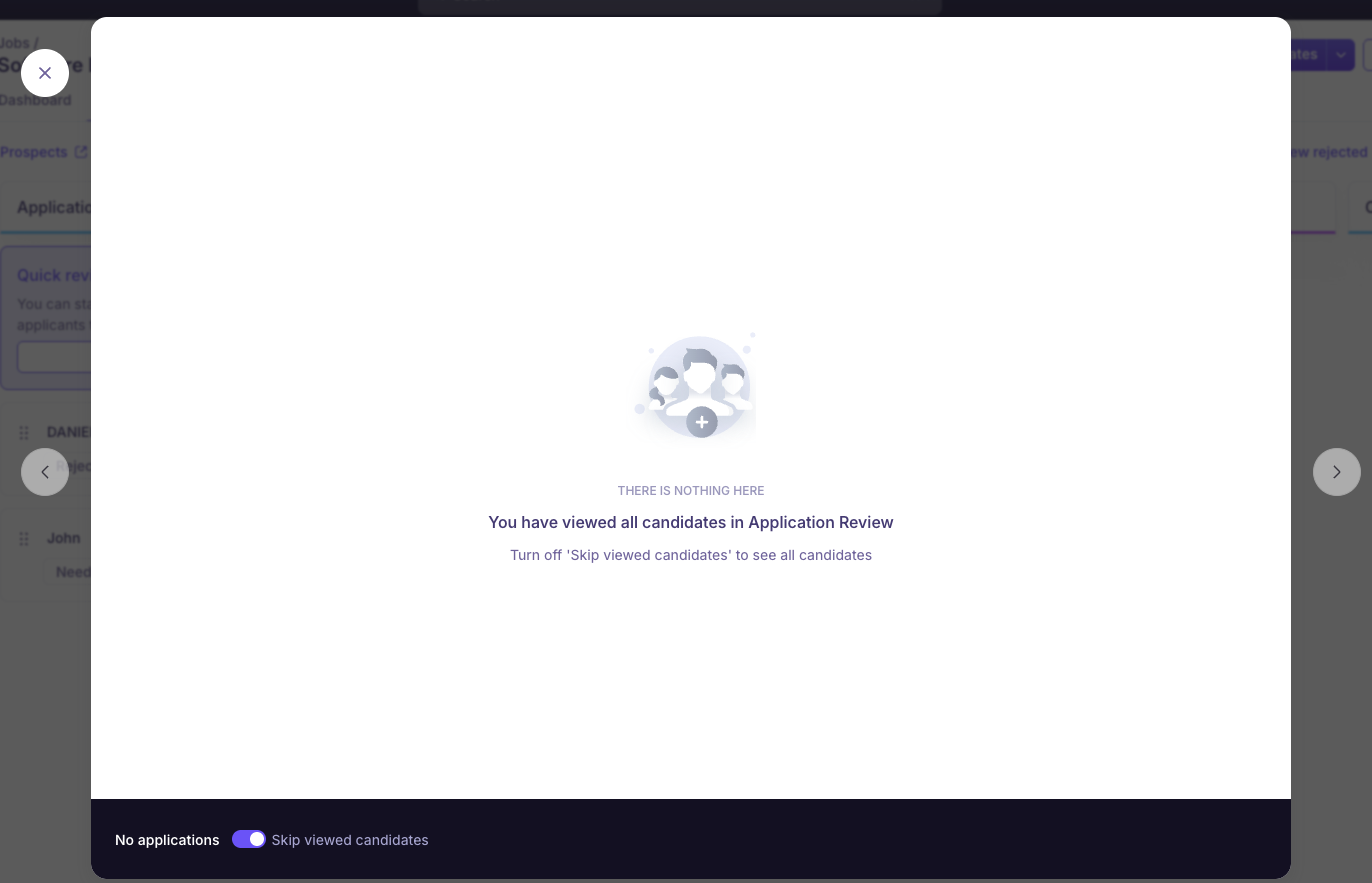
Use Skip viewed candidates to avoid reviewing the same candidates again.
When enabled:
Previously reviewed candidates are skipped
The system automatically shows the next eligible candidate for review
This helps you move through the review queue efficiently.