Jobs List View
Last updated: April 9, 2026
The Jobs list view gives you a consolidated look at all the jobs in your account — their status, pipeline activity, and key details — all from one place.
Navigate to Jobs & Requisitions → Jobs tab.
What you see in the list

Each job card displays the following:
Job name and status badges
The job title appears at the top of the card, alongside:
Job status — shows whether the job is Open, Draft, Closed, Pending Approval, Not Approved, or Scheduled.
Visibility — shows whether the job is Listed (visible on external job boards and career pages) or Unlisted (not available for direct candidate applications).
Confidential — if the job is marked confidential, a badge appears. Confidential jobs are hidden from team members not directly assigned to them.

Job metadata
Department, office location, and work type (e.g. Full Time) are shown beneath the job name.

Pipeline summary
Each card shows a candidate count at every stage of the hiring pipeline. The stages shown reflect how the interview plan is configured for that job. A typical pipeline includes:
Candidates (total)
Prospect
Application Review
Phone Screen
Assessment
Face to face
Offer

Stage names and the number of stages shown will vary depending on the interview plan set up for each job.
Job statuses
Status | What it means |
Job visibility
Each job has a visibility setting that controls whether it appears on external job boards, the Kula career page, or the internal job board:
Listed — the job is publicly visible and candidates can discover and apply through job boards or the career page.
Unlisted — the job will not appear on any board. Candidates can only be added manually. When a job is unlisted, the application form and auto-rejection rules are not available.
You can update visibility at any time from the job's Settings → Job post tab.
Viewing, sorting, and searching
By default, jobs are sorted by Created date (Newest to oldest). Use the Sort by dropdown at the top of the list to change the sort order.
You can also switch between grid view (cards) and list view (rows) using the toggle icons next to the sort control.
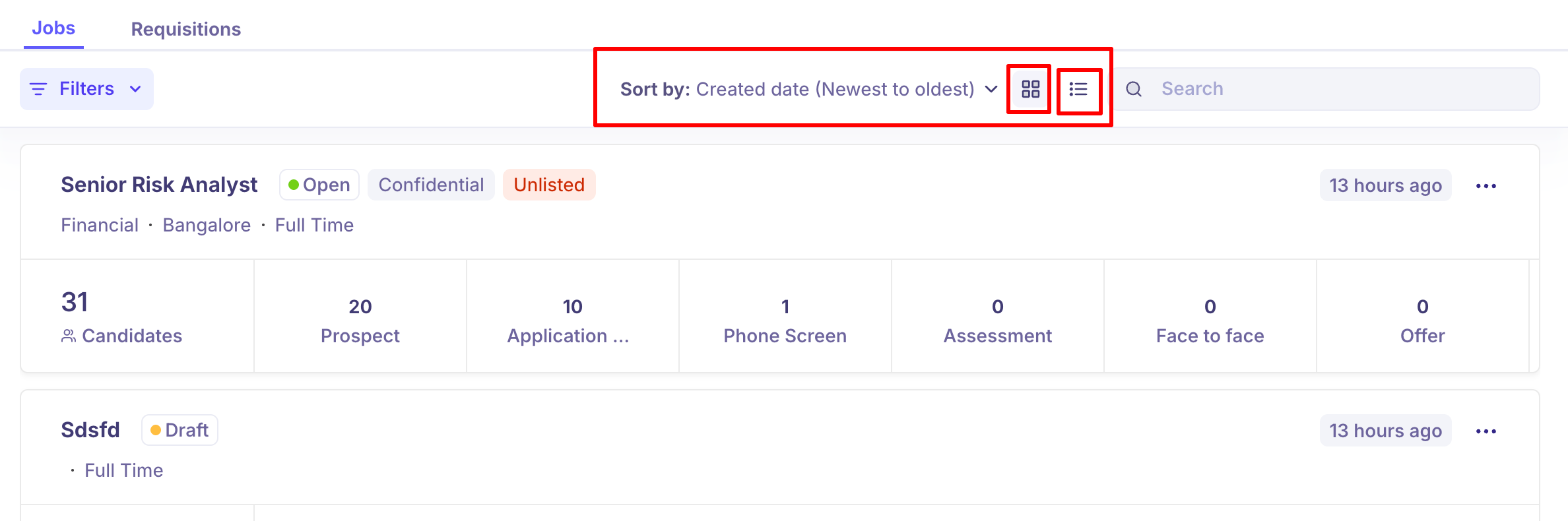
Use the Search bar to quickly find a job by name.
Filtering jobs
Click the Filters button at the top left to narrow down the jobs list. Available filter categories include Job filters (such as Status, Office, Work type, and Visibility), Role-based filters (Primary recruiter and Hiring manager), and any Custom filters your team has configured.
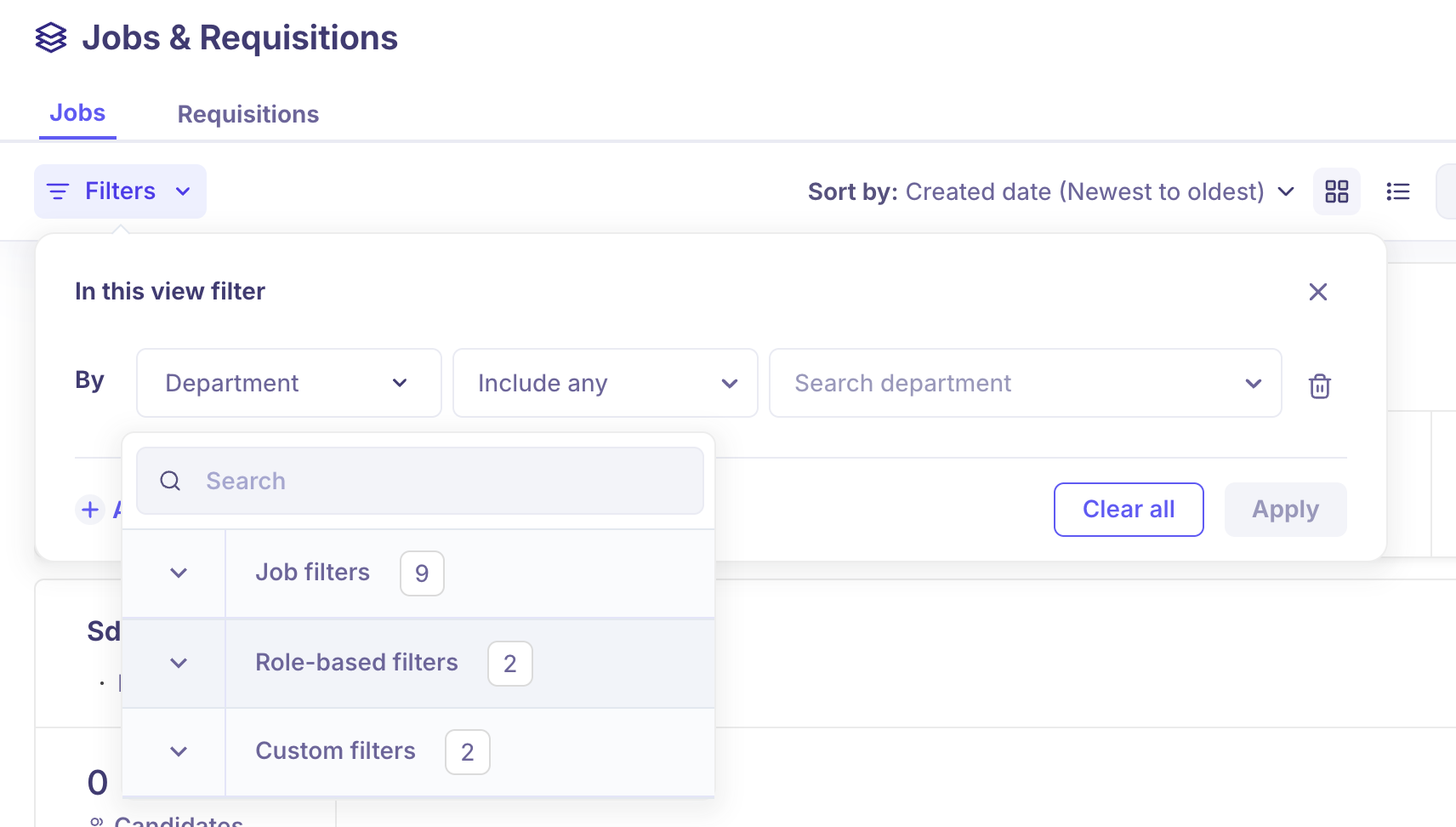
For a full list of available filters, refer Using Filters Across the Platform.
Job actions
Each job card has a three-dot menu (⋯) in the top right corner.

Click it to access the following actions:
Action | What it does |
Need Help?
If you have questions or need assistance, reach out to us at support@kula.ai or use the in-app chat.