Calendar and Scheduling view
Last updated: April 9, 2026
Kula's scheduling tool lets you book interviews directly from the candidate's Application View — without any back-and-forth emails or third-party plug-ins. You can schedule manually, send a self-schedule link to the candidate, or request their availability. All three methods pull from real-time calendar data so every booking is conflict-free.
This guide explains how each scheduling method works, what each field means, and how to configure your scheduling preferences.
How to Open the Scheduler
Open the candidate's Application View from the pipeline.
In the Current Stage section, find the interview activity (e.g., Interview – Phone Screen).
Click Schedule interview.
Choose one of the three scheduling methods:
Schedule manually — You pick the time and send calendar invites.
Send self-schedule link — The candidate picks from slots you define.
Request availability — The candidate submits their available times and you confirm.
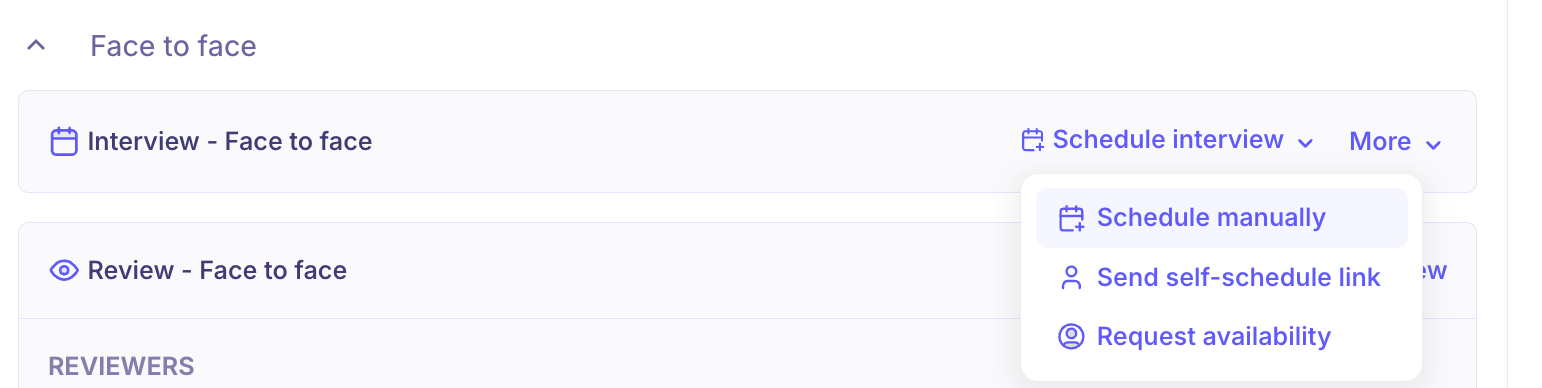
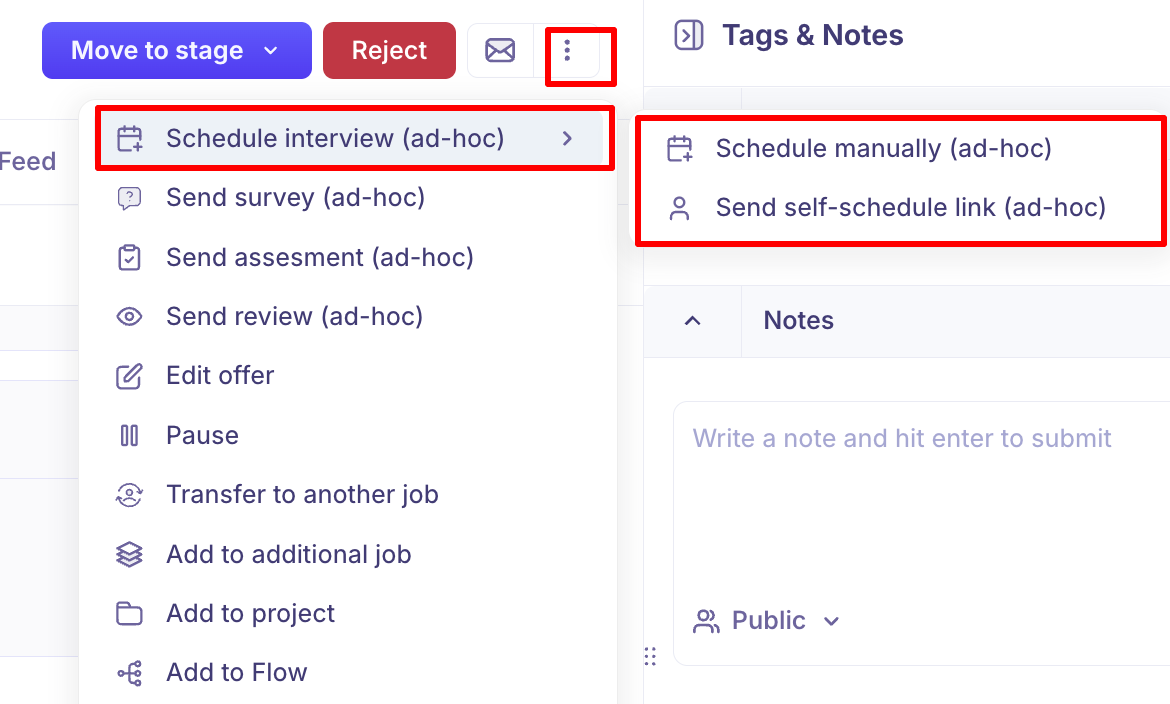
You can also schedule an interview outside the pipeline using the three-dot menu (⋮) → Schedule interview (ad-hoc) → Schedule manually (ad-hoc) or Send self-schedule link (ad-hoc). Ad-hoc interviews are not tied to a specific interview plan activity.
Schedule Manually
This is a two-step flow: Details → Calendar invites.
On the left, a weekly calendar view shows the current week. You can navigate forward or backward using the arrow buttons, or click Today to return to the current week. The timezone shown at the top of the calendar reflects the interviewer's timezone.
When you select an interviewer, their calendar availability is overlaid directly on the weekly view. Available slots are highlighted, making it easy to find a time that works. For panel interviews with multiple interviewers, the calendar highlights slots where all interviewers are free simultaneously.
On the right side panel, fill in the following fields.
Interview name (required) The name of the interview activity as configured in the job's interview plan (e.g., Interview – Phone Screen, Interview – Face to face). This is pre-filled from the activity name in the interview plan. Character limit: 250.
Interview type (required) The format of the interview. Options:
One-on-one interview
Panel interview (multiple interviewers)
Interviewer (required) Select one or more interviewers for this interview. Kula shows smart recommendations based on workload and availability. When an interviewer is selected, their free slots flash on the calendar view so you can immediately see when they are available.
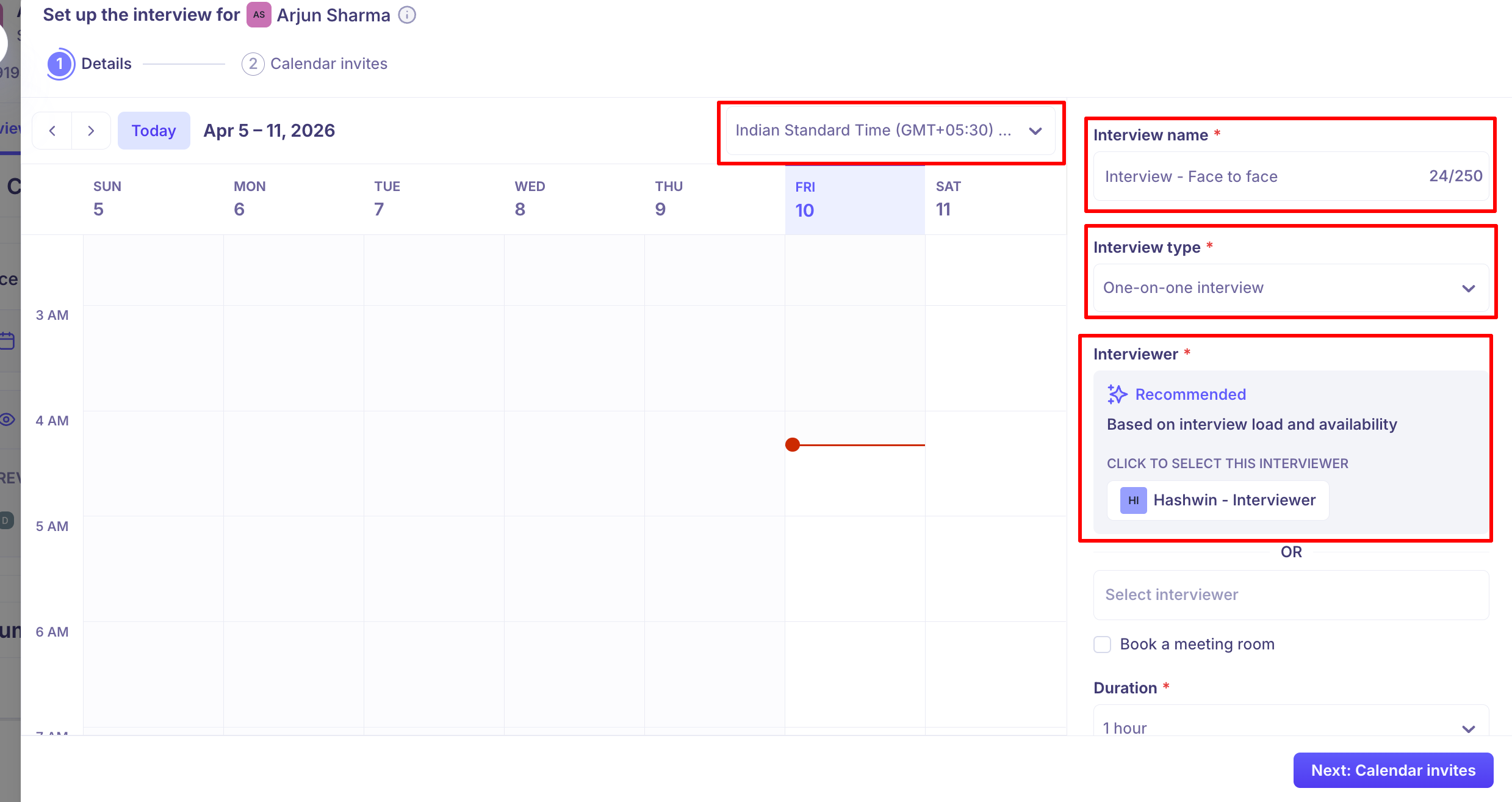
Note: All interviewers must have a timezone configured in their profile. If an interviewer's timezone is missing, scheduling will be blocked until it is set. See Settings → Scheduling preferences to configure this.
Book a meeting room (optional) Check this box to select an available meeting room in real time. Rooms are synced from your Google Workspace or Microsoft 365 calendar integration and only show rooms that are free for the selected time slot.
Duration (required) The length of the interview. Select from the dropdown (e.g., 30 min, 45 min, 60 min).
Make the interview private Toggle this on to hide calendar event details from non-attendees. When enabled, the event title and details are hidden from anyone not invited to the meeting.
Location (required) The conferencing platform or meeting format. Options:
Google Meet — Generates a Google Meet link automatically (requires Google calendar integration).
Zoom — Generates a Zoom meeting link (requires Zoom integration; shows an info icon if not connected).
HackerRank — Uses HackerRank's interview environment (requires HackerRank integration; shows an info icon if not connected).
Phone Interview — No video link; the interview is conducted by phone.
Onsite / Physical — In-person interview; no video link generated.
Enable AI notetaker? Toggle this on to have Kula's AI Notetaker join the interview. The AI Notetaker automatically captures key points and summaries during the meeting, organises highlights for easy review, and can help interviewers fill out scorecards faster. This is enabled by default.
Allow interviewers to complete scorecards with AI? When enabled, this helps draft scorecards faster after the interview, improving completion rates and consistency across the hiring team. This is enabled by default.
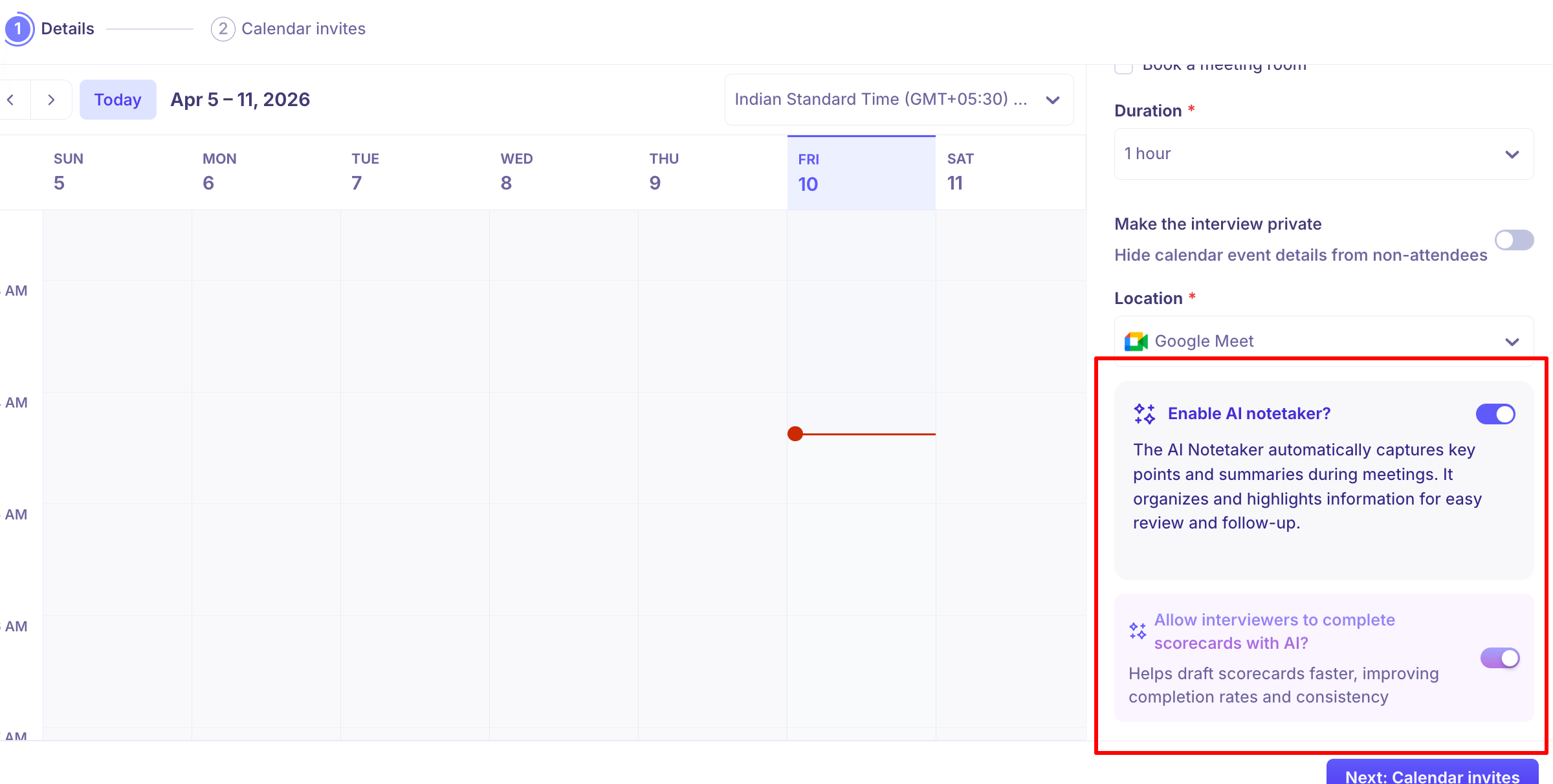
After clicking Next: Calendar invites, review and confirm the calendar invitations that will be sent to the interviewer and the candidate before finalising the booking.
Send Self-Schedule Link
This is a three-step flow: Details → Email to candidate → Calendar invites.
Self-scheduling lets the candidate pick a time from a set of slots you define. You can send self-schedule links to up to 20 candidates at once for bulk scheduling.
The setup is the same as Schedule Manually (Interview name, Interview type, Interviewer, Duration, Location, Privacy, AI notetaker). The key difference is in how slots are defined.
Selecting slots for the candidate
The weekly calendar shows checkboxes for each day. You can:
Check individual days to include them in the available window.
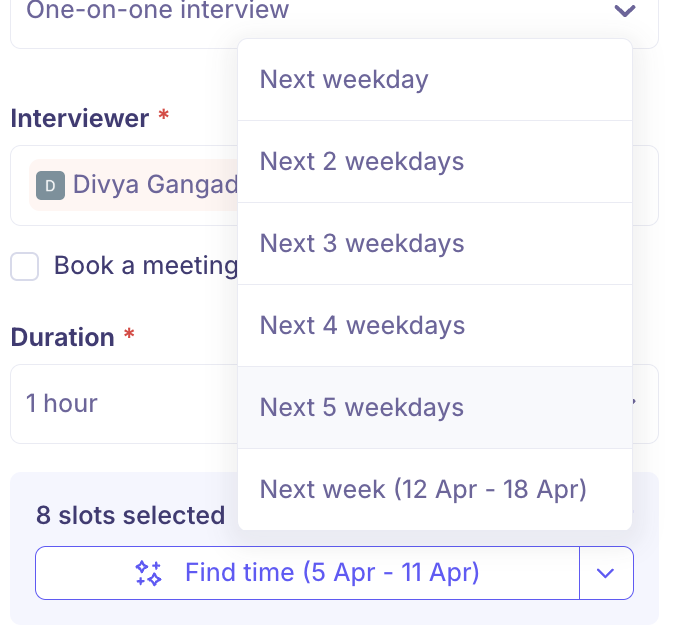
Use the Find time button to automatically select all available slots within a date range (e.g., Find time: 5 Apr – 11 Apr). Find time auto-selects slots where the interviewer is free and updates dynamically as calendar availability changes.
Use the date range dropdown to jump to a future week: Next weekday, Next 2 weekdays, Next 3 weekdays, Next 4 weekdays, Next 5 weekdays, Next week (specific date range).
The bottom of the panel shows how many slots have been selected (e.g., 11 slots selected).
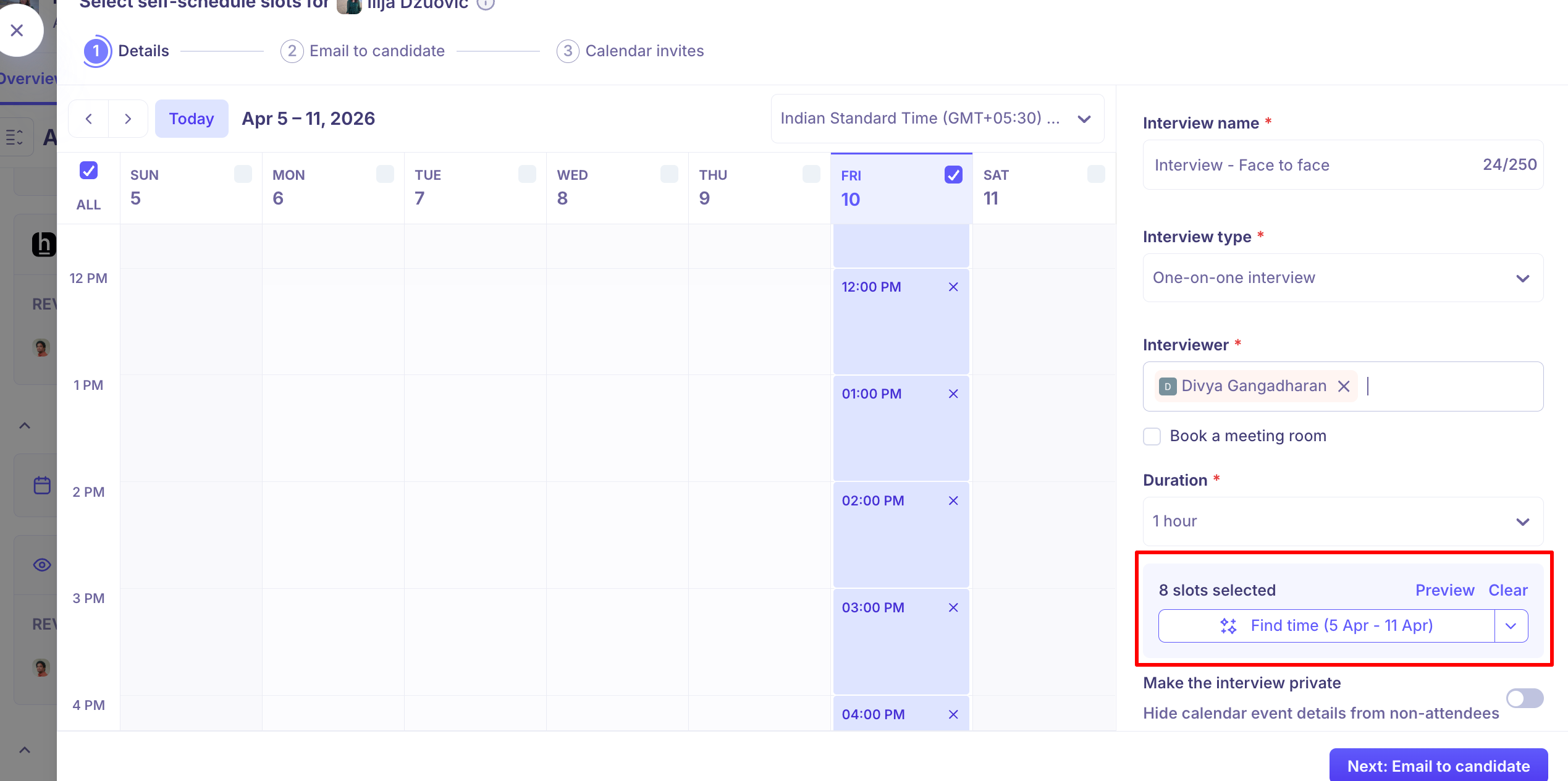
Auto vs manually selected slots
Auto slots (via Find time) — update dynamically. If a slot gets booked by someone else before the candidate selects it, it is removed automatically.
Manually selected slots — are static. They remain available to the candidate even if the interviewer's calendar changes. Use manual selection when you want to guarantee specific time windows.
Request Availability
This method sends the candidate an email asking them to share their available times within a date range you define. Once the candidate responds, you confirm the booking manually by scheduling from their submitted availability.
This flow is useful when you want the candidate to propose times without committing to a specific slot upfront.
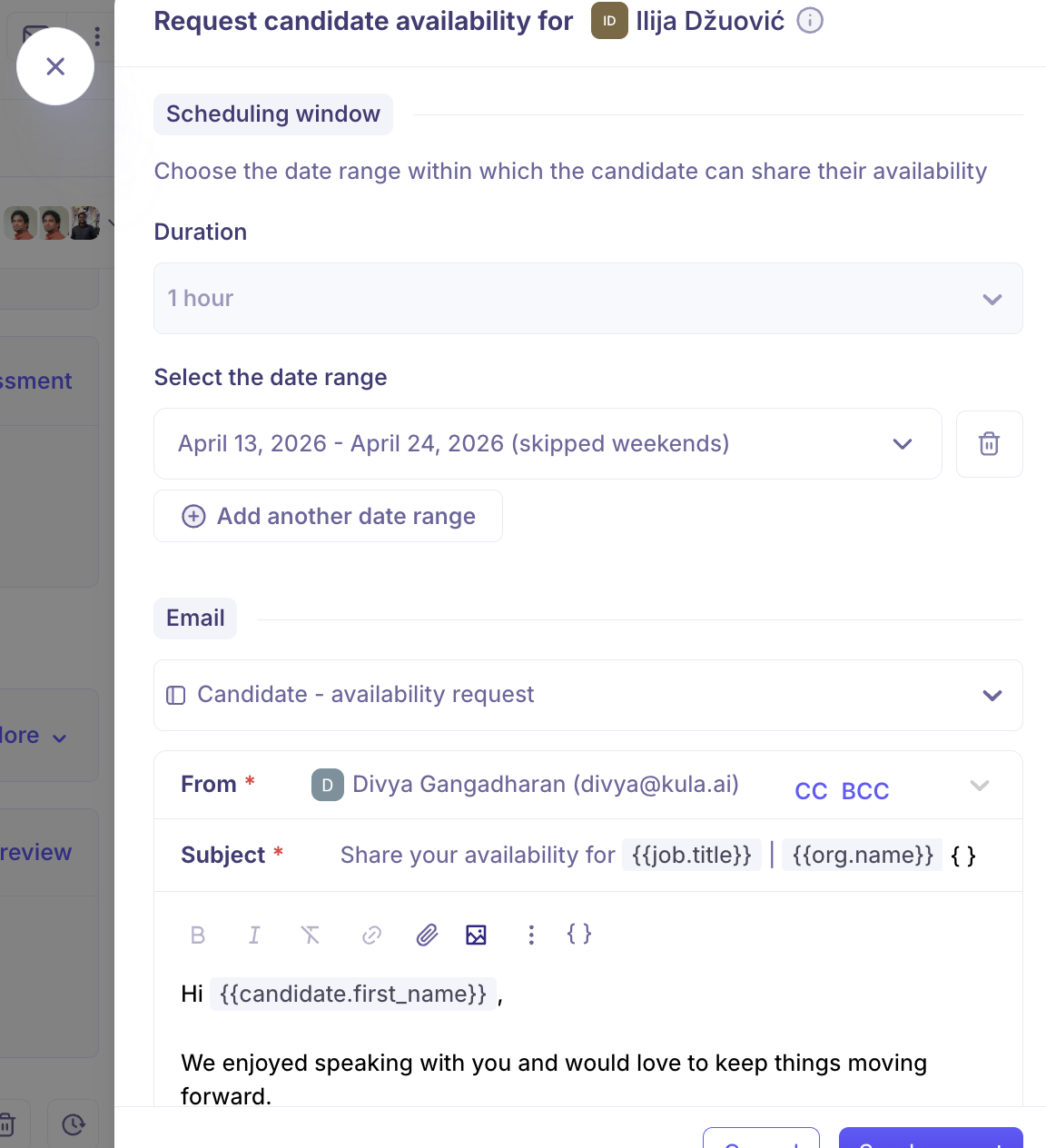
Scheduling window
Duration (required) The length of the interview the candidate is being asked to make themselves available for (e.g., 30 min).
Select the date range (required) Define the window within which the candidate can share their availability. For example: April 13, 2026 – April 24, 2026 (skipped weekends). Weekends are skipped by default.
You can click Add another date range to offer the candidate multiple non-consecutive date windows to choose from. Each date range can be deleted using the trash icon.
Email Configuration: Select an email template (default: Candidate – availability request), choose the sender address, and customize the subject and body using merge tags (e.g., {{job.title}}, {{candidate.first_name}}) along with rich text formatting options.
Once ready, click Send request to send the availability request to the candidate, or Cancel to discard.
Ad-hoc Scheduling
Ad-hoc interviews are interviews that are not part of the configured interview plan for the job. They are useful when you need to schedule an unplanned conversation.
To schedule an ad-hoc interview:
In the Application View, click the three-dot menu (⋮) at the top of the panel.
Click Schedule interview (ad-hoc).
Choose Schedule manually (ad-hoc) or Send self-schedule link (ad-hoc).
The ad-hoc scheduling flow is identical to the standard scheduling flow. The interview will appear in the candidate's Activity Feed and Conversations tab.
Scheduling Preferences
Before your team can schedule interviews, each interviewer must have a timezone configured. If an interviewer's timezone is missing, Kula will block scheduling and prompt you to resolve this first.
To configure scheduling preferences:
Go to Settings from the left navigation.
Click Scheduling preferences.
Set up the shared calendar, default conferencing tool, and ensure all team members have a timezone assigned.
Meeting rooms are managed through your Google Workspace or Microsoft 365 integration. Once connected, available rooms appear in real time in the Book a meeting room section of the scheduler.
FAQs
What is the difference between Schedule manually and Send self-schedule link? Schedule manually means you select the specific time and send the invite on the candidate's behalf. Send self-schedule link lets the candidate choose from a set of slots you define, reducing back-and-forth for both parties.
What does "Interview name" refer to? The Interview name is the name of the interview activity as defined in the job's interview plan (e.g., Interview – Phone Screen). It is pre-filled automatically but can be edited. The limit is 250 characters.
What conferencing tools does Kula support? Kula supports Google Meet, Zoom, HackerRank (interview environment), Phone Interview (no link), and Onsite / Physical. Google Meet and Zoom generate links automatically when the respective integration is connected.
What happens if an interviewer does not have a timezone set? Kula blocks scheduling until the interviewer's timezone is configured. You will see a prompt directing you to Settings → Scheduling preferences to resolve this.
How does smart interviewer recommendation work? When you open the scheduler, Kula considers each interviewer's current workload and calendar availability and highlights the best options. When you select an interviewer, their free time slots flash on the calendar so you can immediately identify open windows.
What is the difference between auto slots and manually selected slots in self-scheduling? Auto slots (using Find time) update dynamically — if a slot gets taken before the candidate books it, it is removed automatically. Manually selected slots remain static regardless of calendar changes, so they are suitable when you want to lock in specific time windows.
Can I schedule panel interviews? Yes. Select Panel interview as the Interview type and add multiple interviewers. The calendar view highlights slots where all interviewers are available simultaneously, making it easy to find a common window.
Can I book a meeting room when scheduling? Yes. Check the Book a meeting room checkbox during scheduling. Available rooms are pulled in real time from your Google Workspace or Microsoft 365 integration.
Can I schedule multiple candidates at once? Yes. Using Send self-schedule link, you can bulk-send the scheduling link to up to 20 candidates at once. This works for both one-on-one and panel interviews.
What does the AI Notetaker do? The AI Notetaker joins the interview and automatically captures key points and summaries during the meeting. It organises highlights for easy review and can help interviewers draft scorecards faster after the call.
What is an ad-hoc interview? An ad-hoc interview is an interview that is not part of the job's configured interview plan. It is useful for scheduling unplanned conversations. Access it via the three-dot menu (⋮) in the Application View.
Where do I configure the shared calendar and meeting rooms? Go to Settings → Scheduling preferences to set up your shared calendar, default conferencing tool, and timezone assignments for your team.
Need Help?
If you have questions or need assistance with setup, feel free to reach out to us at support@kula.ai or use the in-app assistance.