Candidate Pipeline View
Last updated: September 4, 2026
Inside a job, you can view and manage your candidates across two views — the Pipeline view and the Candidates view. Both give you visibility into where candidates are in your hiring process, with different layouts suited to different ways of working
Navigate to: Jobs & Requisitions → open a job → Pipeline or Candidates tab
Pipeline view
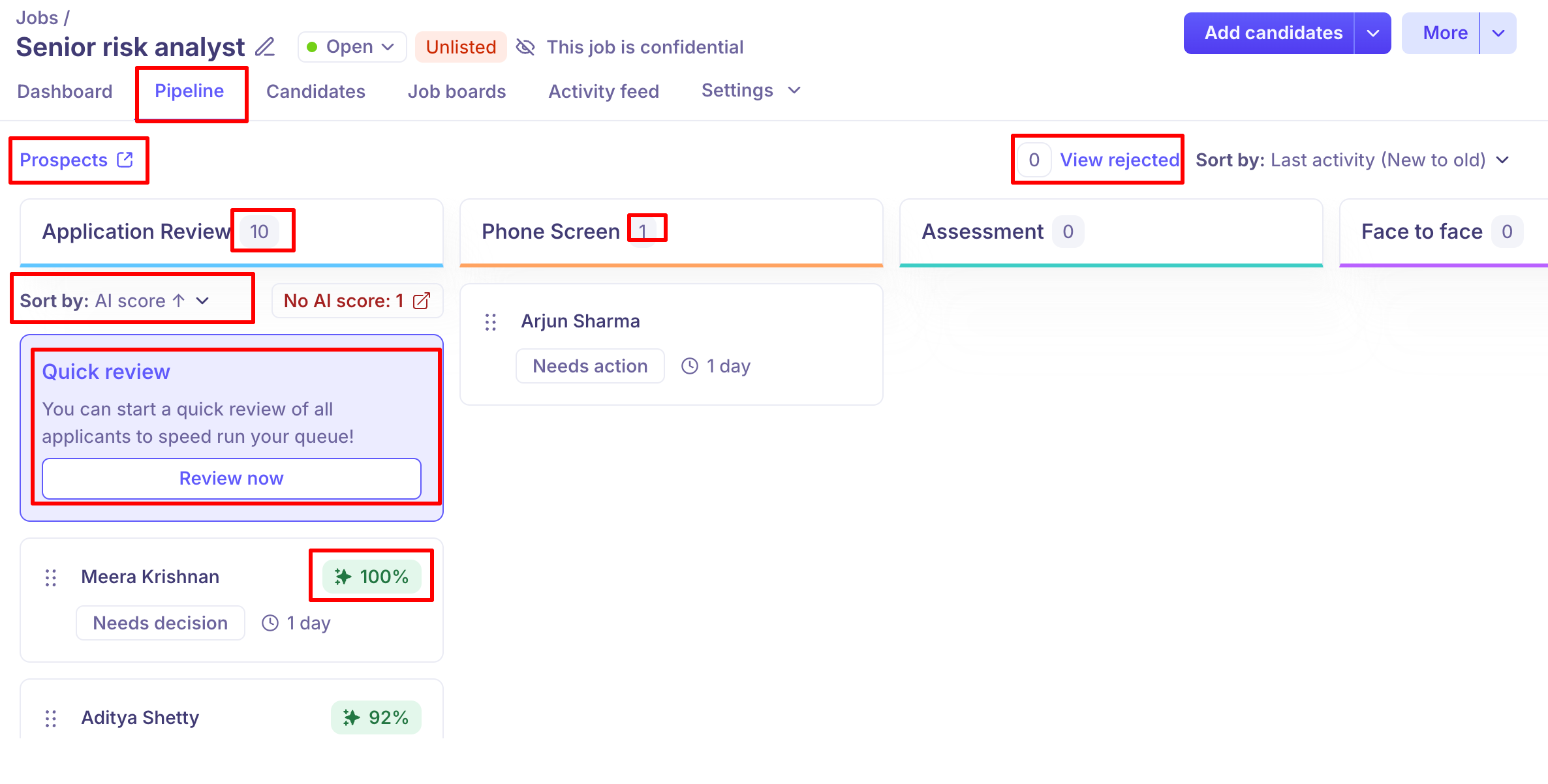
The Pipeline tab shows your hiring stages as a Kanban-style board. Each stage appears as a column, and candidates appear as cards within their current stage. You can scroll horizontally to see all stages.
Each stage column shows the name of the stage and the total count of candidates currently in that stage.
Each candidate card shows the candidate's name, current status, and time spent in the stage.
In the Application Review column, an AI Score is shown on each card where available. A Quick review card also appears at the top of the column — click Review now to go through applicants one by one.
You can drag and drop candidate cards from one stage column to another to move them through the pipeline.
The Sort by dropdown at the top right lets you sort candidates within each column — for example, by AI score or last activity.
View rejected shows the count of rejected candidates. Clicking it takes you to the Rejected column in the Candidates tab.
At the top left of the Pipeline view, you will see a Prospects link. Clicking this takes you to the Prospect stage in the Candidates tab, where all prospects are listed.
Candidates view
The Candidates tab inside a job gives you a complete view of everyone in your hiring pipeline — where they are, what their status is, and what actions need to be taken. You can review candidates individually or work with them in bulk.
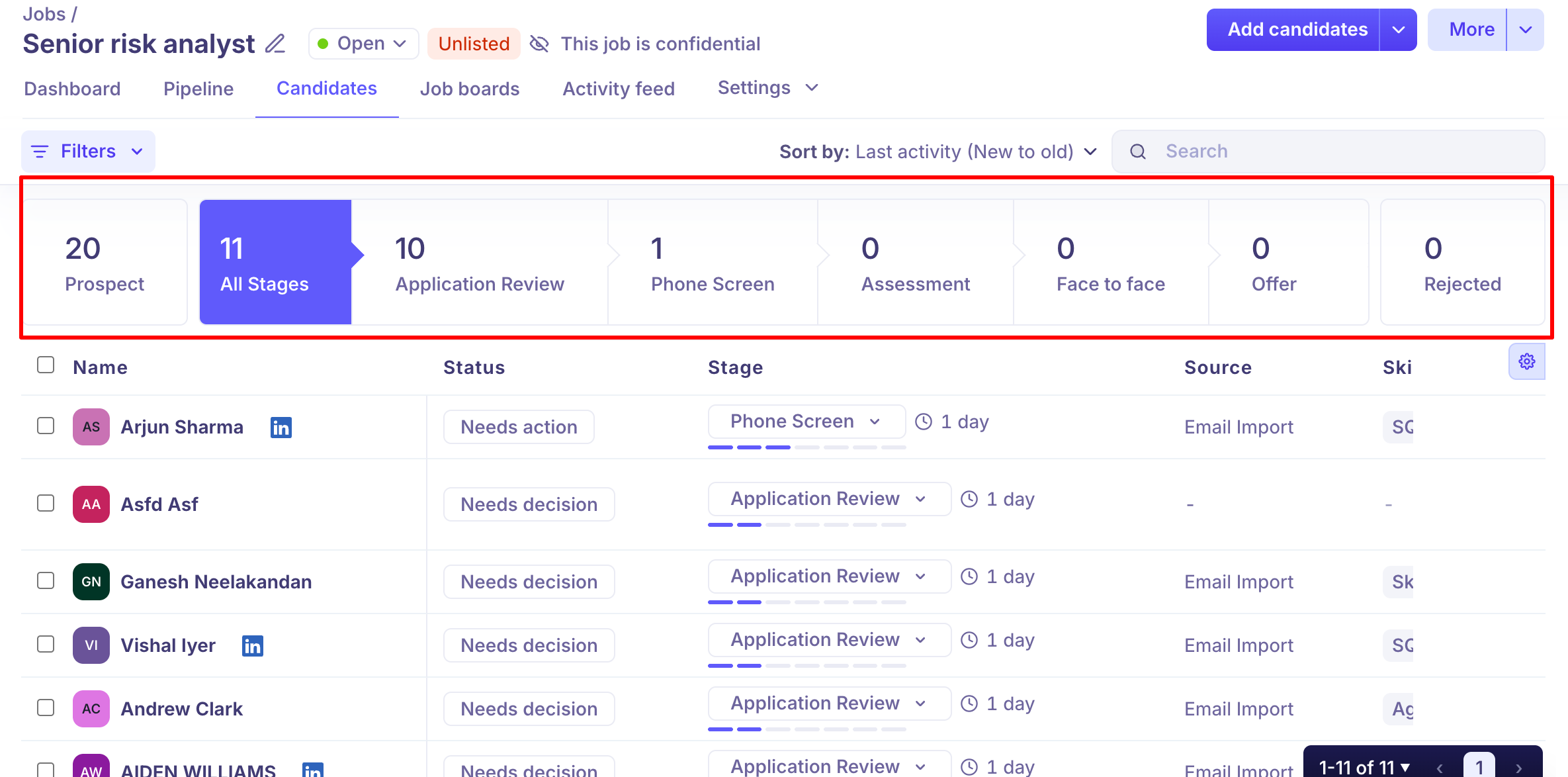
At the top of the Candidates tab, you will see a stage bar that shows candidate counts across all pipeline stages. Click any stage to filter the list to candidates in that stage.
Prospect and Rejected are fixed at either end of the bar and cannot be scrolled past.
The stages in between (Application Review, Phone Screen, Assessment, Face to face, Offer, etc.) reflect your job's interview plan. If your pipeline has many stages, you can scroll horizontally through them.
Click All Stages to view all candidates across the pipeline together.
Candidate list
Each row in the list shows the candidate's name, their current status, the stage they are in, how long they have been at that stage, their source, and any additional columns you have enabled.
Columns
By default, the list shows Name, Status, Stage, and Source. Click the settings icon (⚙) at the top right of the table to customize which columns are visible.
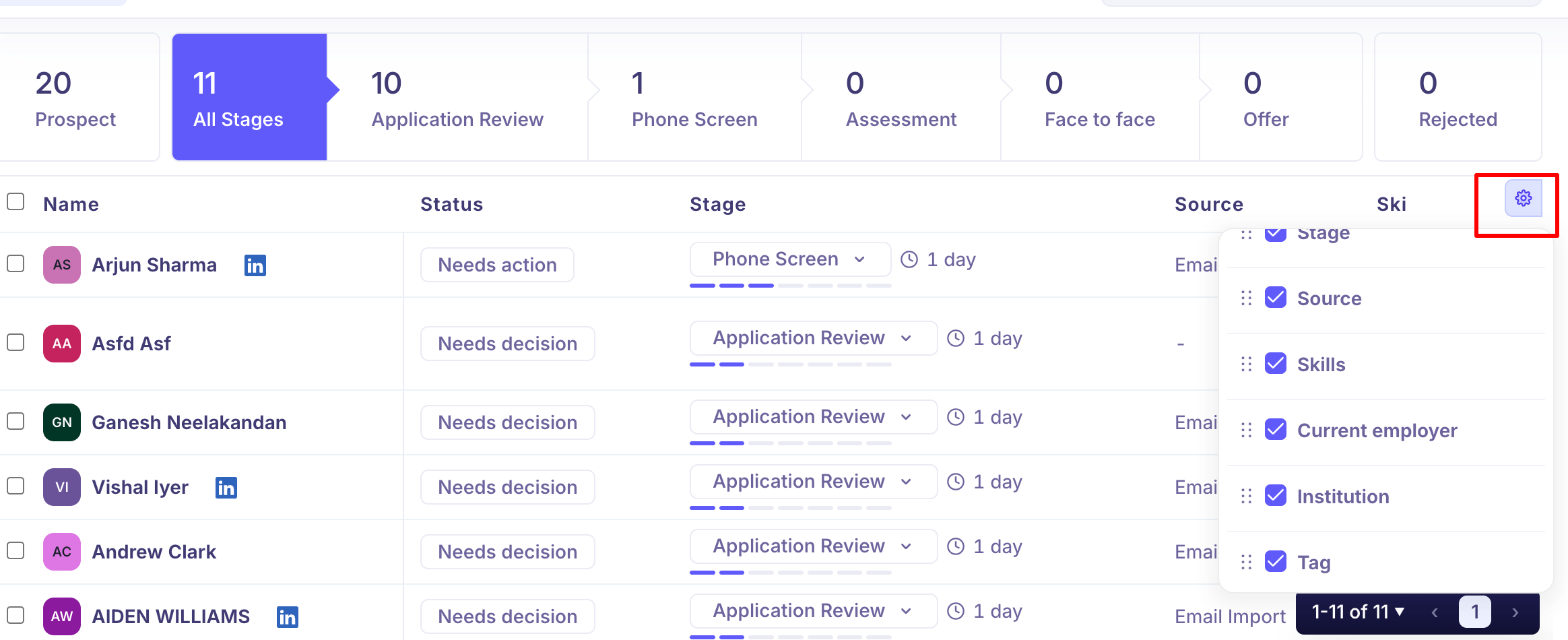
You can toggle and reorder the following columns:
Column | What it shows |
Stage | The pipeline stage the candidate is currently in, with a time-in-stage indicator. |
Source | How the candidate was added — e.g. Email Import, LinkedIn, Career page. |
Skills | Skills listed on the candidate's profile. |
Current employer | The candidate's current company. |
Institution | The candidate's educational institution. |
Tag | Any tags applied to the candidate. |
AI Score
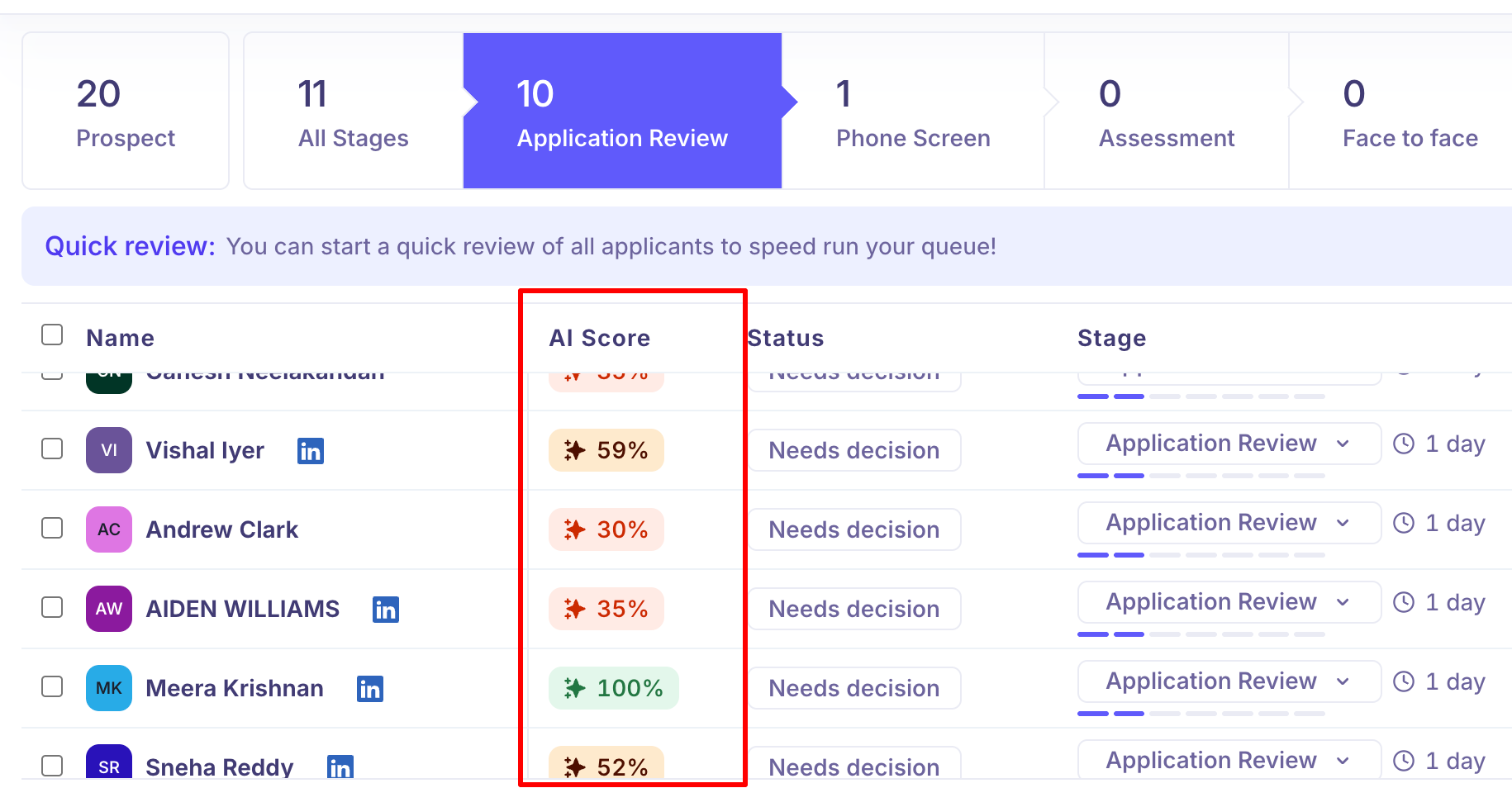
When you are viewing the Application Review stage, an AI Score column appears alongside the candidate list.
This shows how well each candidate matches the job based on AI screening.
A percentage score is shown where available.
If the AI could not score a candidate due to insufficient data, it will show as Failed — you can still review them manually.
Note: Refer to AI scoring article to set this up for your jobs
Candidate status
Each candidate has a status that reflects where things stand with their application.
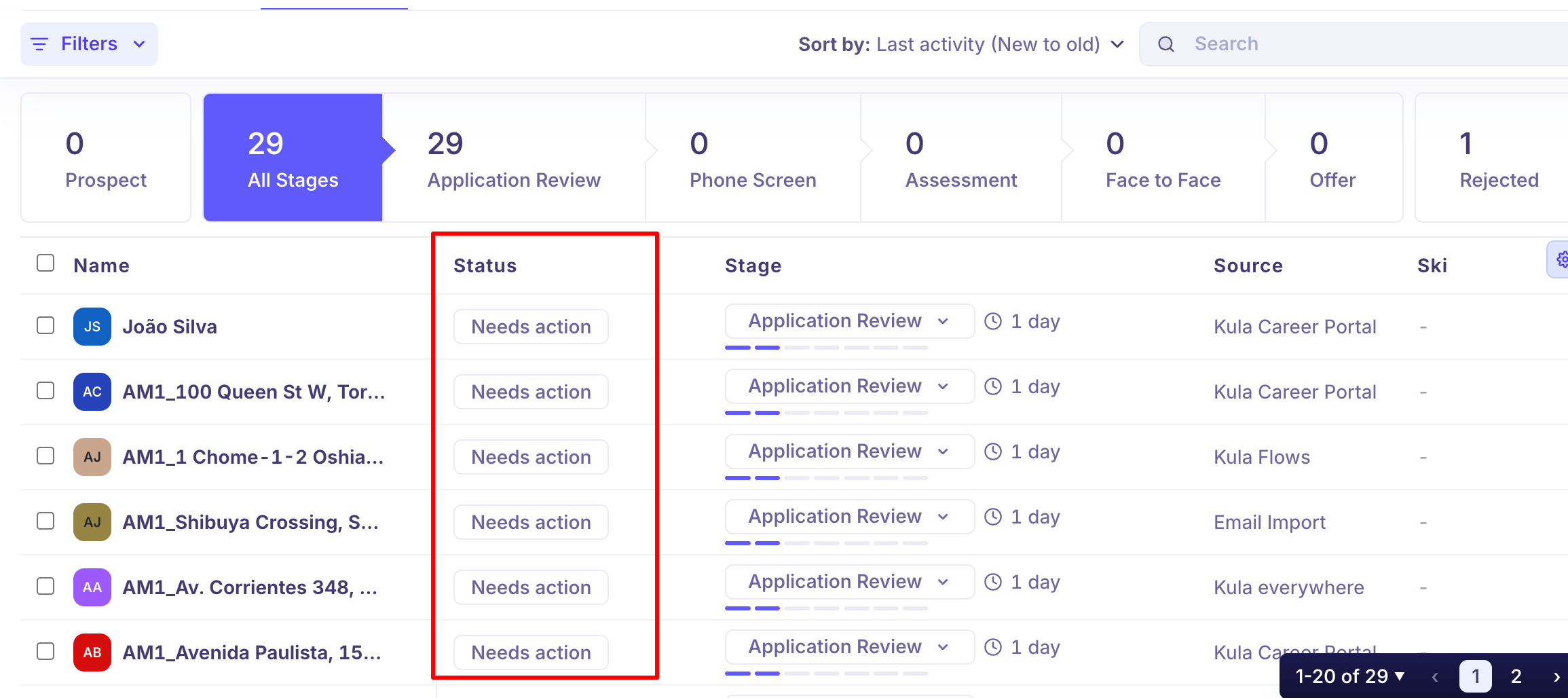
Statuses update automatically based on activity in the pipeline.
Status | What it means |
Needs scheduling | The candidate needs a meeting to be scheduled. Takes priority over all other statuses. |
Needs action | The candidate needs an assignment, email, or review to be sent to them. |
Meeting scheduled | All interviews for the candidate have been scheduled. |
Email scheduled | The candidate has a scheduled email queued. |
Assessment sent | An assessment has been sent to the candidate. |
Awaiting feedback | The candidate is waiting for feedback — from interviews, reviews, or assignments. |
Needs offer | The candidate is ready and needs an offer to be created. |
Needs offer approval | The candidate's offer has been created and is pending approval. |
Waiting on offer acceptance | The offer has been sent and is waiting for the candidate to accept. |
Offer accepted | The candidate has accepted the offer. |
Hired | The candidate has been moved to the Hired stage. |
Rejected | The candidate has been moved to the Rejected stage. |
Needs decision | All activities for this stage are complete and the candidate is waiting for a move or rejection decision. |
Quick review
When you select the Application Review stage, a Quick review banner appears at the top of the list. Click Review now to open candidates one by one in a focused review mode.
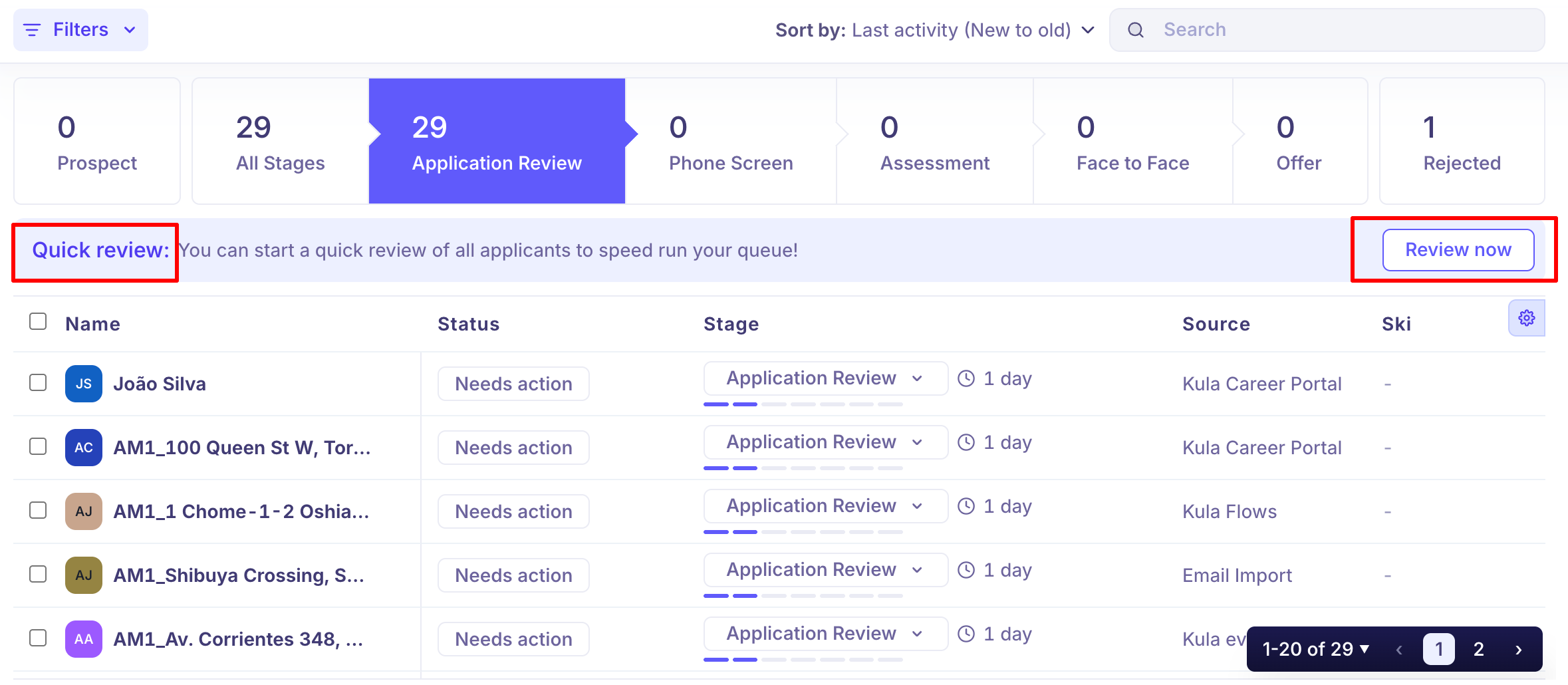
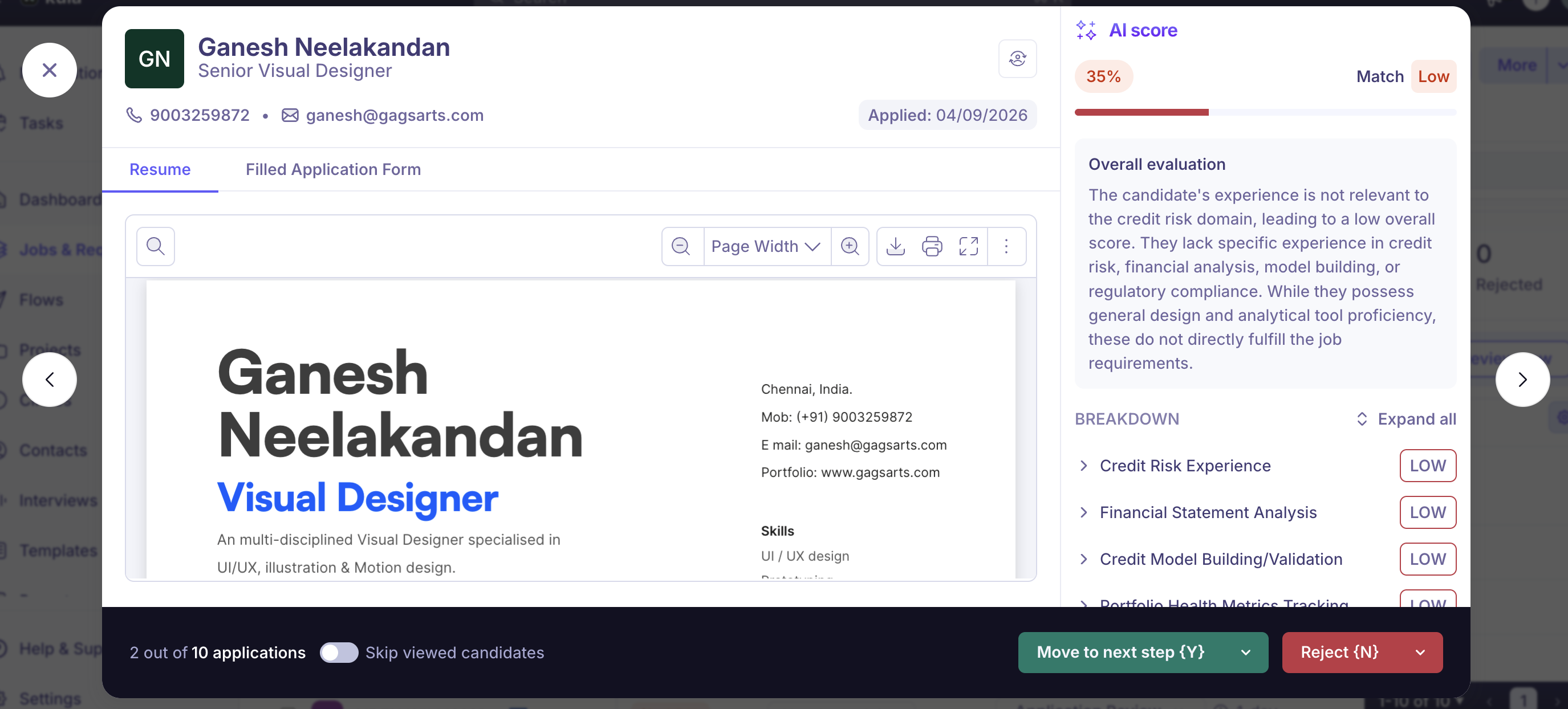
In quick review, you can:
View the candidate's profile, contact details, source, and experience.
See the AI Score breakdown explaining why a score was assigned, or why scoring was not possible.
Add tags and write notes directly from the review panel.
Navigate between candidates using the arrow controls.
Move the candidate to the next stage (keyboard shortcut: Y) or reject them (keyboard shortcut: N).
Toggle Skip viewed candidates to skip candidates you have already reviewed in this session.
Bulk actions
Select one or more candidates using the checkboxes to the left of their names.
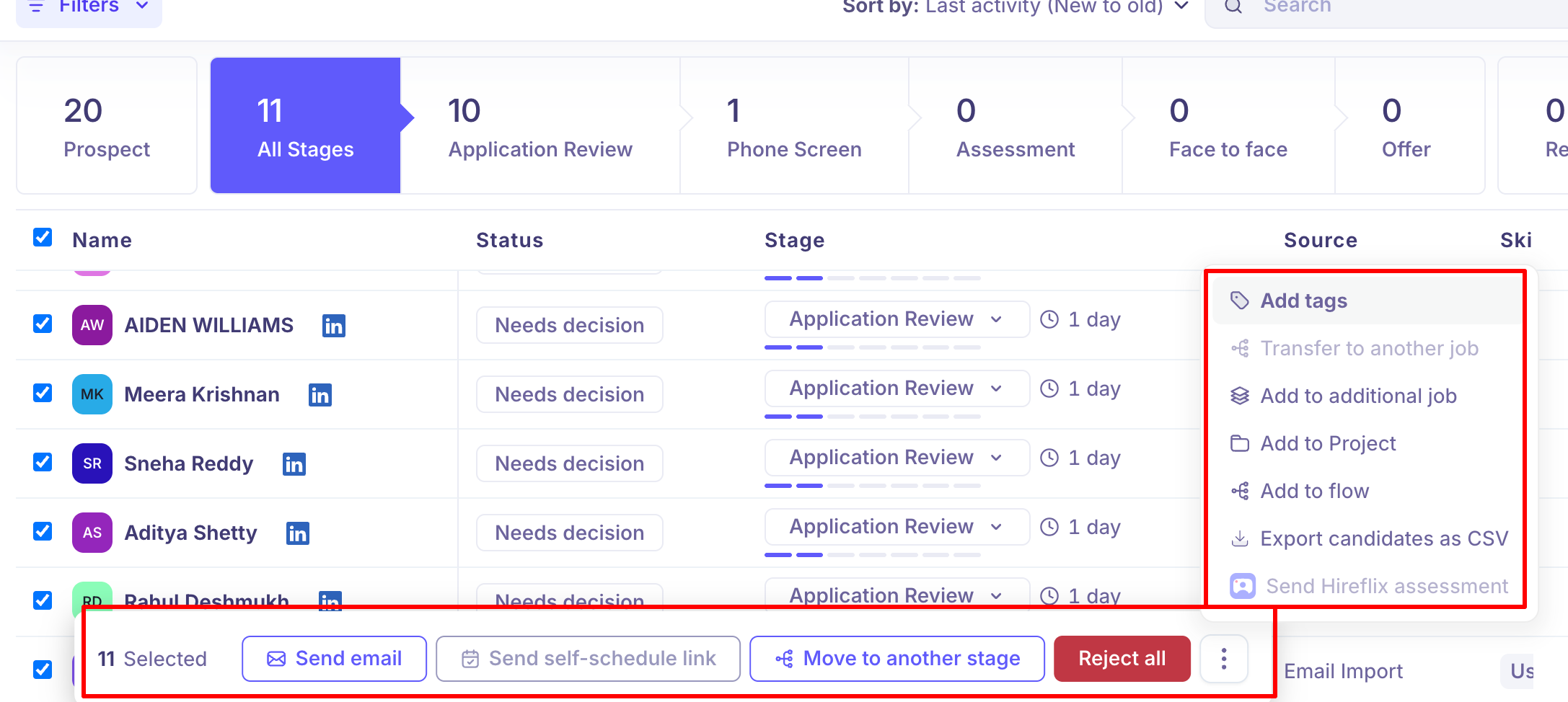
When candidates are selected, an action bar appears at the bottom of the screen with the following options:
Action | What it does |
Send email | Send an email to all selected candidates. |
Send self-schedule link | Send a self-scheduling link so candidates can book their own interview slot. |
Move to another stage | Move all selected candidates to a different pipeline stage. |
Reject all | Reject all selected candidates at once. |
Add tags | Apply one or more tags to all selected candidates. |
Transfer to another job | Move selected candidates to a different job (removes them from this one). |
Add to additional job | Add selected candidates to another job without removing them from this one. |
Add to Project | Add selected candidates to a project for further review or outreach. |
Add to flow | Enroll selected candidates into an outreach flow. |
Export candidates as CSV | Download the selected candidates' details as a CSV file. |
Send Hireflix assessment | Send a Hireflix video assessment to selected candidates (requires Hireflix integration). |
Sorting and searching
Use the Sort by dropdown at the top of the list to change the order candidates are displayed. The default sort is Last activity (New to old).
Use the Search bar to quickly find a candidate by name within the current stage view.

Need Help?
If you have questions or need assistance, reach out to us at support@kula.ai or use the in-app chat.