How to send an Internal email to notifying your team about a candidate.
Last updated: October 14, 2026
An internal email is a message about a candidate sent to your own teammates — never to the candidate. Use it to flag that a decision is needed, loop in a hiring manager, or ask a coordinator to follow up, without leaving the candidate's application.
Who can do this: Anyone who can already update the application (the same access level as other ad-hoc actions like Send assessment or Send review) can send one. No separate permission is required.
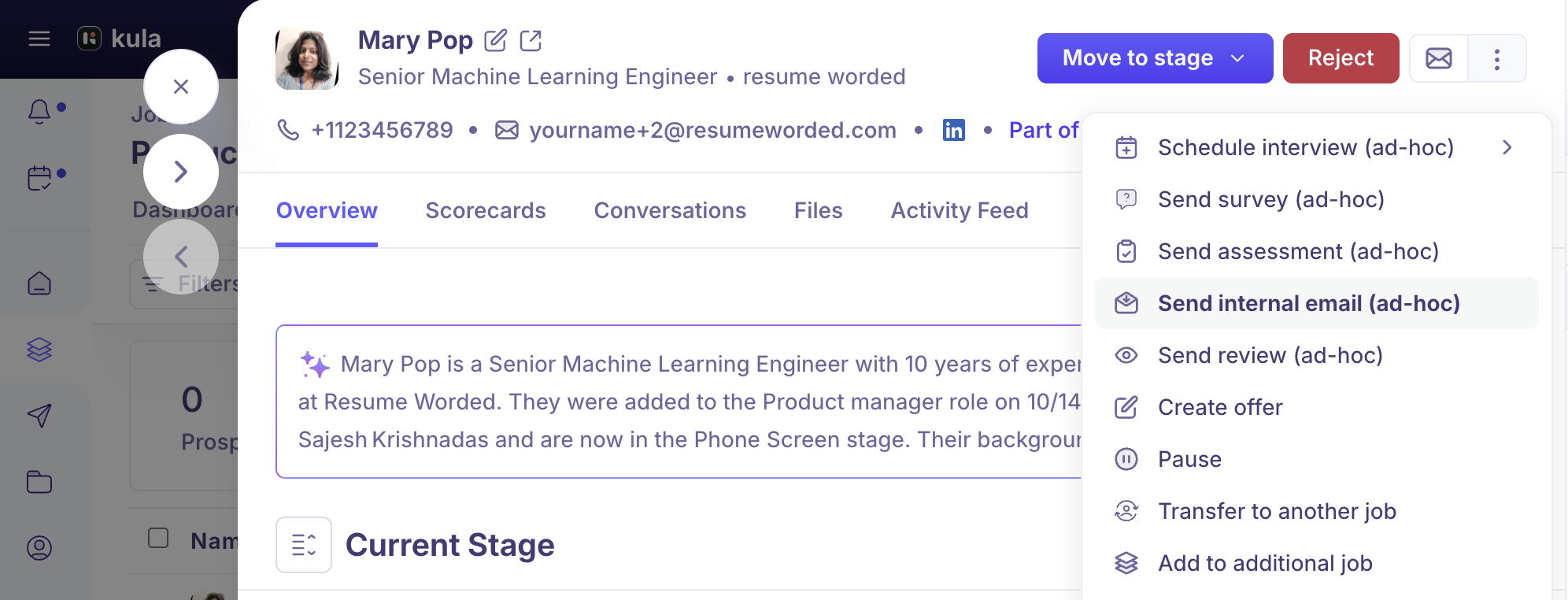
Where to find it: On a candidate's application, open the action menu and choose Send internal email (ad-hoc). It can also be set up to send automatically at a job stage, as an activity in the interview plan.
Sending one ad-hoc
Open the candidate's application.
From the action menu, choose Send internal email (ad-hoc).
Pick your recipients (see below), optionally start from a template, write the email, and attach any of the candidate's documents if needed.
Send immediately, or schedule it for later.
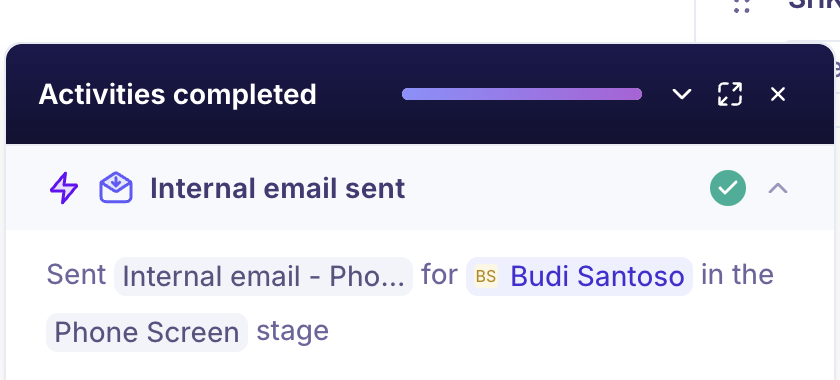
Each ad-hoc internal email shows up as its own row on the candidate's timeline — there's no interview-plan activity behind it, so View email is the only way to see exactly who it went to.
Setting one up to send automatically
Internal email can also be added as an activity in a job's interview plan, the same way you'd add a Review or an Assessment step. Once configured, Kula sends it automatically when a candidate reaches that stage — useful for a recurring "decision needed" nudge that shouldn't depend on someone remembering to send it manually.
Choosing recipients
Besides naming specific people, you can address a role on the job, which resolves to whoever currently holds it at send time:
Primary recruiters (on job)
Primary hiring managers (on job)
All recruiters (on job)
All hiring managers (on job)
All coordinators (on job)
All external recruiters (on job)
Because roles resolve at send time, the recipient list isn't retroactive — if the hiring team changes later, an already-sent email's row still shows who actually got it, via View email.
Using a template
Internal email templates live in Settings → Email templates, under the Internal email templates category — "Emails sent to teammates about a candidate's progress on a job." Every account starts with one seeded by default: "Internal email - Decision needed on candidate," which opens with Hi {{user.first_name}}, — note that {{user}} refers to the recipient teammate here, not the sender, since the email is written about the candidate for whoever's reading it.
Good to know
To has a cap of 200 recipients; cc and bcc together cap at 450. Past either limit, Kula refuses the send rather than silently truncating the list.
Everyone you put in To gets their own private copy of the email. Each To recipient's copy is a separate message end to end, so a teammate can reply without anyone else on the list seeing it. Cc and bcc recipients, by contrast, all share a single copy — they're only attached to the first recipient's message, not duplicated across every copy.
It never goes to the candidate. Internal email doesn't check for (or need) a candidate email address, unlike the candidate-facing sends in the same menu.
You can attach any of the candidate's existing documents to an internal email, the same way you can on other candidate-facing sends.
A reply to an internal email never lands in the candidate's own Conversations thread — it's kept separate specifically so it can never be mistaken for, or threaded into, a candidate-facing conversation.
Need help?
If you have questions or need assistance, reach out to us at support@kula.ai or use the in-app chat.