Requisition statuses: tracking and closing
Last updated: September 25, 2026
This article explains what each requisition status means, what changes a status automatically, and how to close, reopen or archive a requisition yourself.
Who can do this: anyone who can view a requisition can see its status. Closing, reopening or archiving needs the Create requisitions (manage requisitions created by self) permission for your own requisitions, or Manage all requisitions for everyone's. Admins and Super Admins have these by default.
Where to find it: Requisitions. The status shows on each requisition in List and Grid view and on its own page. You can also filter by status, and it's a field in the Requisitions analytics report.
The status lifecycle
With requisition approvals on: Draft → Pending approval → Approved → Open → Filled / Closed → Archived
With approvals off: Draft → Ready to open → Open → Filled / Closed → Archived
For what each stage means, see What is a requisition?
What changes the status automatically
Submitting a Draft moves it to Pending approval (approvals on) or Ready to open (approvals off).
When it's fully approved, a requisition opens automatically.
A requisition becomes Filled when its linked offer is accepted, or when a candidate with an accepted offer linked to it is moved to Hired.
If a hired candidate is later rejected or reactivated, the requisition goes back from Filled to Open, ready to hire against again.
What you change manually
Close: stops work on a requisition without filling it. Available from Draft, Pending approval, Approved, Ready to open, Open, Filled and Not approved.
Reopen: only for Closed requisitions. It returns the requisition to Draft.
Archive: only for Closed requisitions. It removes the requisition from active views.
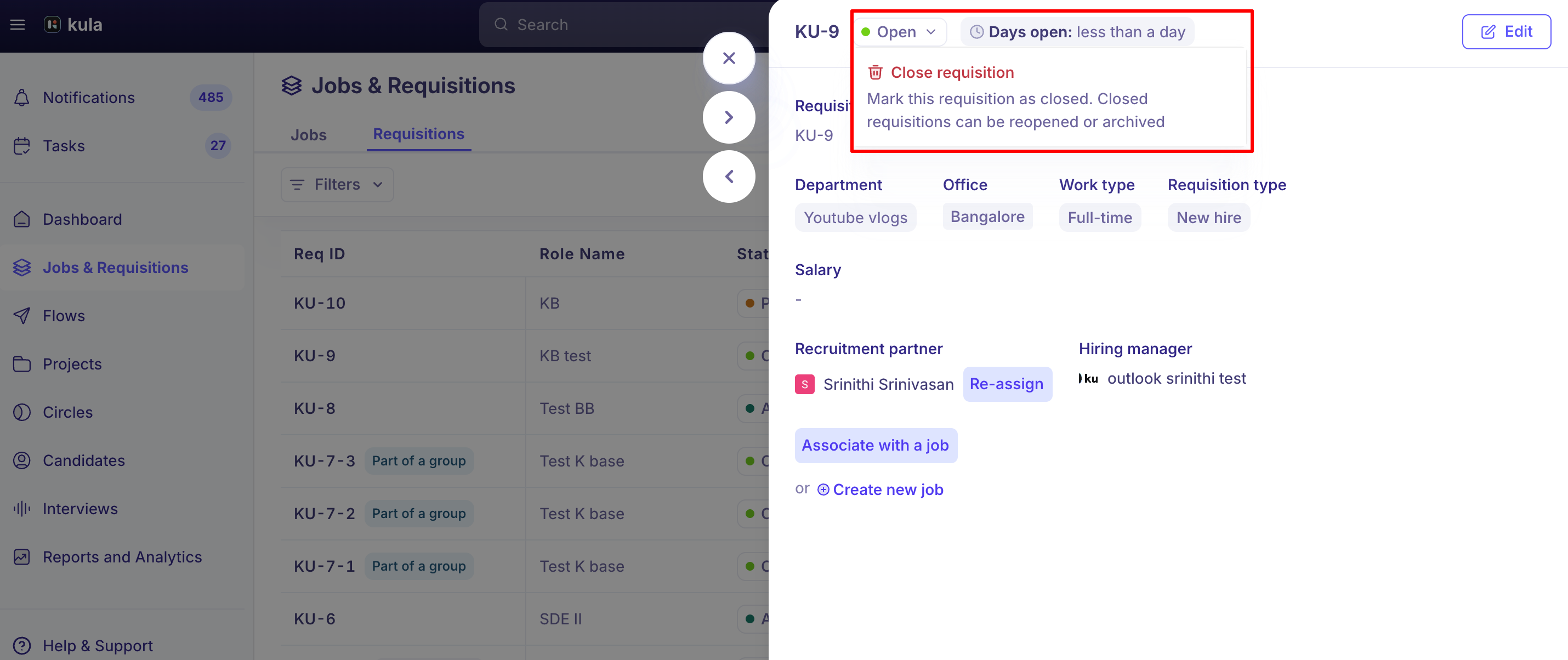
Close a requisition
Close a requisition when the role is no longer needed or hiring is paused.
Go to Requisitions and find the requisition.
Open its menu (or the requisition itself) and select Close.
Confirm.
The status changes to Closed, and the requisition leaves your open counts. You can still find it with the Closed filter.
Close is greyed out? The requisition is linked to an active offer. Delete the offer first. Editing the requisition and marking it confidential are locked for the same reason.
Close, archive and reject: the difference
Close stops work without filling the role. You can reopen it later, unless it was Filled when you closed it.
Archive removes a Closed requisition from active views.
Reject is an approver declining the requisition during approval. You can close a rejected requisition if it won't be resubmitted. See Approving or rejecting a requisition.
Requisition groups
Requisitions created together through bulk headcount form a group.
Close one member or the whole group. Closing one member on its own takes it out of the group. The rest of the group isn't affected.
Reopening a group only lists members that are Draft or Open. Filled or Closed members don't appear.
Tracking status over time
The Requisitions analytics report shows requisitions opened, filled and closed, average time to fill, and trends by department, requisition type, job, recruiter and hiring manager.
Good to know
A Filled requisition can't be edited. Its fields lock once the headcount is filled.
Closing a Filled requisition is permanent. It can't be reopened. If you closed one by mistake, contact support.
Closing a requisition doesn't close its job. Filling or closing a requisition leaves the linked job Open. Close the job yourself.
Status changes are checked. For example, you can only link a requisition to an offer or hire when it's Approved, Ready to open or Open. If a change fails with an error, the requisition isn't in a status that allows it yet.
FAQ
Where can I see a requisition's status? In the Requisitions list (List or Grid view) and on the requisition's own page. You can filter the list by status.
Why is Close greyed out? The requisition is linked to an active offer. Delete the offer first.
Can I reopen a requisition I closed? Yes, unless it was Filled when you closed it.
What's the difference between closing and archiving? Closing stops work and can be undone. Archiving removes a closed requisition from active views.
Can I close a rejected requisition? Yes.
Why is the linked job still Open after the requisition was filled? Job and requisition statuses aren't linked. Close the job yourself.
Need help?
If a requisition's status isn't what you expect, or a status change won't go through, reach out to us at support@kula.ai or use the in-app chat.