How To Create and Manage your Templates
Last updated: April 8, 2025
The Templates section in Kula provides ready-to-use email templates for various stages of the recruitment process. These templates are designed to ensure consistent and professional communication with candidates and interviewers.
Add a Template
Click on the Settings icon that is located at the very bottom of the left-side menu.
Under the User Settings section, click on Templates.
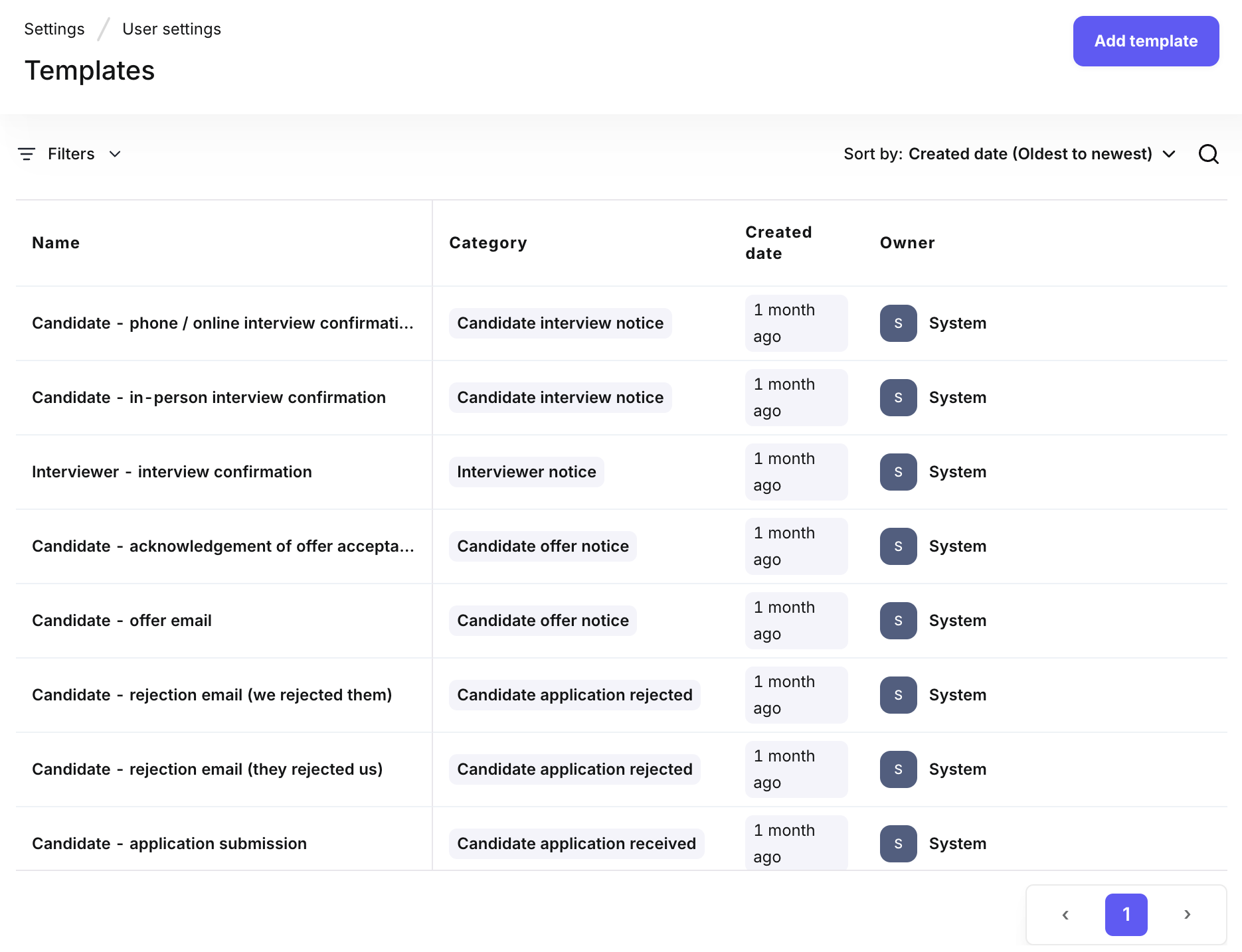
You will notice the following sample templates provided by us for your reference:
Category
Use Case
Template Name
Application submission email templates
Sent to the candidate when the candidate has applied for a job
Candidate: application submission
Candidate interview coordination templates
Sent to the candidate when an interview is scheduled (phone or conferencing)
Candidate: phone / online interview confirmation
Candidate interview coordination templates
Sent to the candidate when an interview is scheduled (in person)
Candidate: in-person interview confirmation
Email activity templates
Sent to the candidate before an interview (pre-interview prep—in-person)
Candidate: pre-interview prep for an in-person interview
Email activity templates
Sent to the candidate before an interview (pre-interview prep—phone or conferencing)
Candidate: pre-interview prep for a phone / online interview
Email activity templates
Sent to the candidate to get their availability for an interview (after every round)
Candidate: Availability check for a phone / online interview
Email activity templates
Sent to the candidate to get their availability for an in-person interview
Candidate: Availability check for an in-person interview
Interviewer coordination templates
Sent to the Interviewer when an interview is scheduled
Interviewer: interview confirmation
Offer email templates
Sent to the candidate when they have been hired
Candidate: acknowledgement of offer acceptance
Offer email templates
Sent to the candidate when an offer is made to them
Candidate: offer email
Offer email templates
Sent to the candidate when an offer is made to them via DocuSign
Candidate: offer email for DocuSign
Rejection email templates
Sent to the candidate when they have been rejected
Candidate: rejection email (we rejected them)
Rejection email templates
Sent to the candidate when they have rejected the company
Candidate: rejection email (they rejected us)
To create a new template from scratch, click on the Add Template button that is located on the top right corner of the screen.
Enter an appropriate name for the template in the Name of the Template field.
Next, choose an appropriate category for the email to be nested in the Choose Category field.
Add the appropriate email subject in the Subject field.
Add the appropriate email content in our text editor section.
Click the Save button to save the changes.
Template Preview
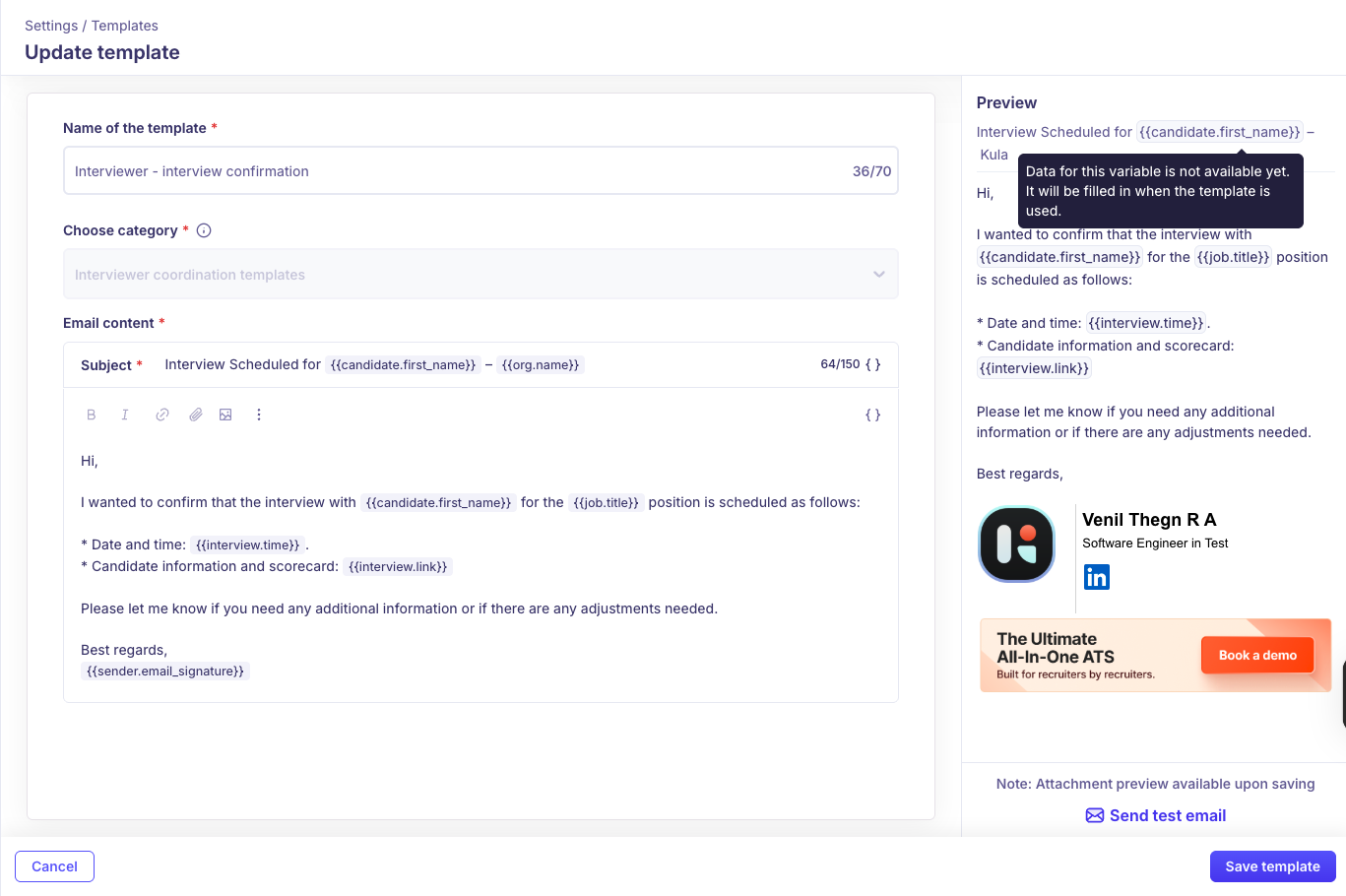
When creating or editing an email template, you can use the Preview feature to see how your message will appear to recipients. Additionally, for other dynamic values, helpful tooltips will show when the actual content will appear.
Edit a Template
You can easily edit and update the templates by simply clicking on them and updating the necessary details according to your needs. Complete the action by clicking on the Save button.
Clone a Template
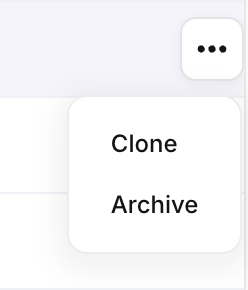
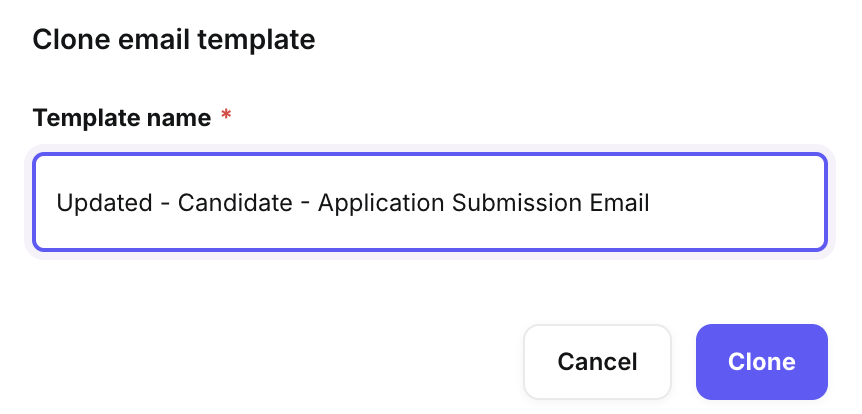
You can clone a template by simply clicking on the Ellipsis (...) icon that appears when you hover over the respective section on the Templates homepage > Click on the Clone option > Update the Template Name field according to your needs > Complete the action by clicking on the Clone button.
Archive a Template
You can archive a template by clicking on the Ellipsis icon that appears when you hover over the respective section on the Templates homepage > Click on the Archive option > Complete the action by clicking on the Yes, archive button.