Running a background check with Springverify
Last updated: August 26, 2026
Send a candidate for a background check through SpringVerify, right from their profile in Kula. This article covers connecting SpringVerify and sending a check.
Who can do this: Recruiter, Hiring Manager send a check. Super Admin, Admin connect SpringVerify.
Where to find it: Candidates → open a candidate → actions menu → Send SpringVerify assessment. To connect: Settings → Organisation → Integrations → Background checks → SpringVerify
Before you start
SpringVerify needs to be turned on for your organisation before it appears as an option — ask your Kula contact if you don't see it under Integrations.
Connect SpringVerify
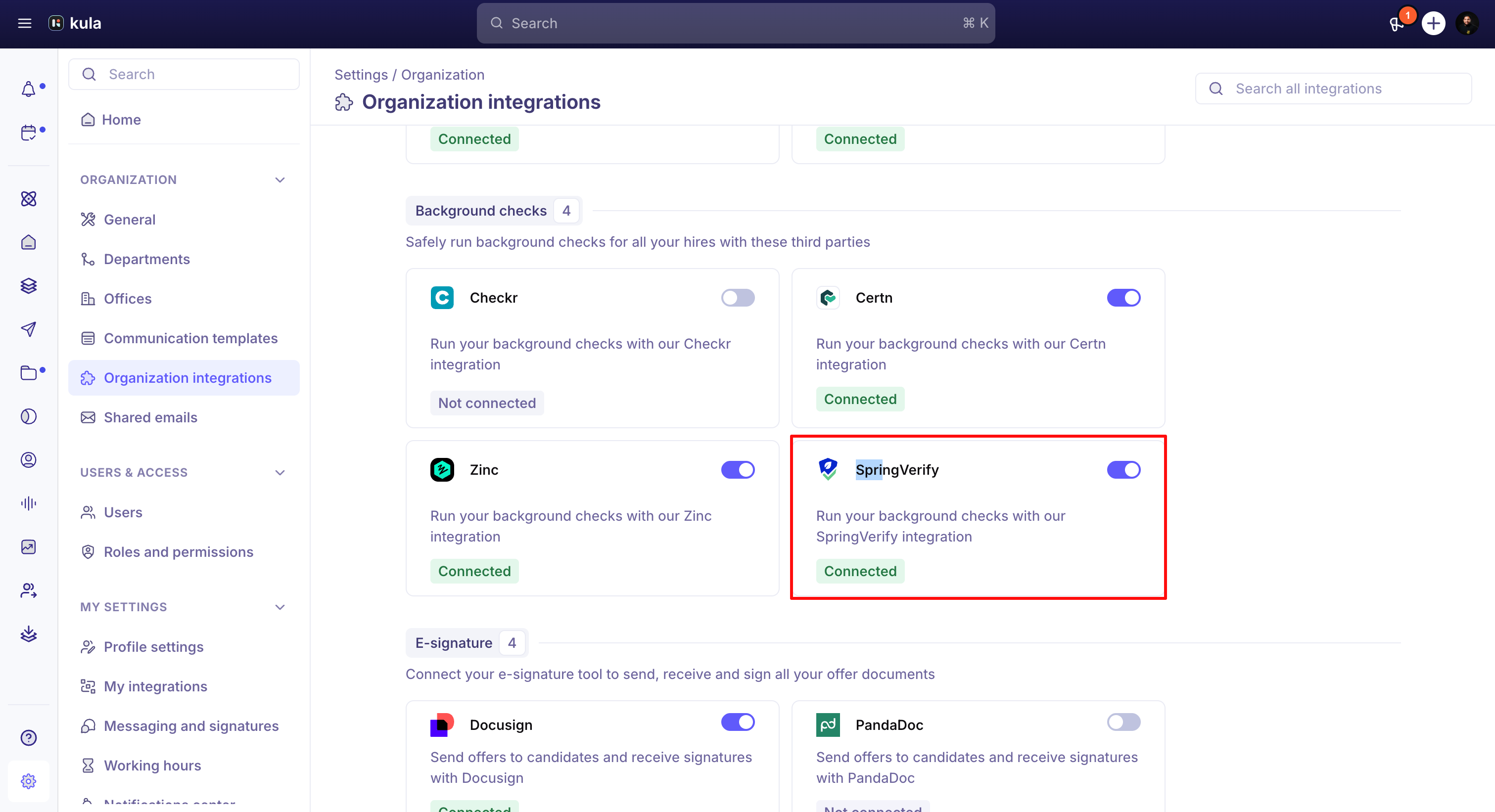
Go to Settings → Organisation → Integrations → Background checks → SpringVerify.
Enter your API Token from your SpringVerify account settings — note this is a token, not the API key format some other integrations use.
Save.
Send a SpringVerify assessment
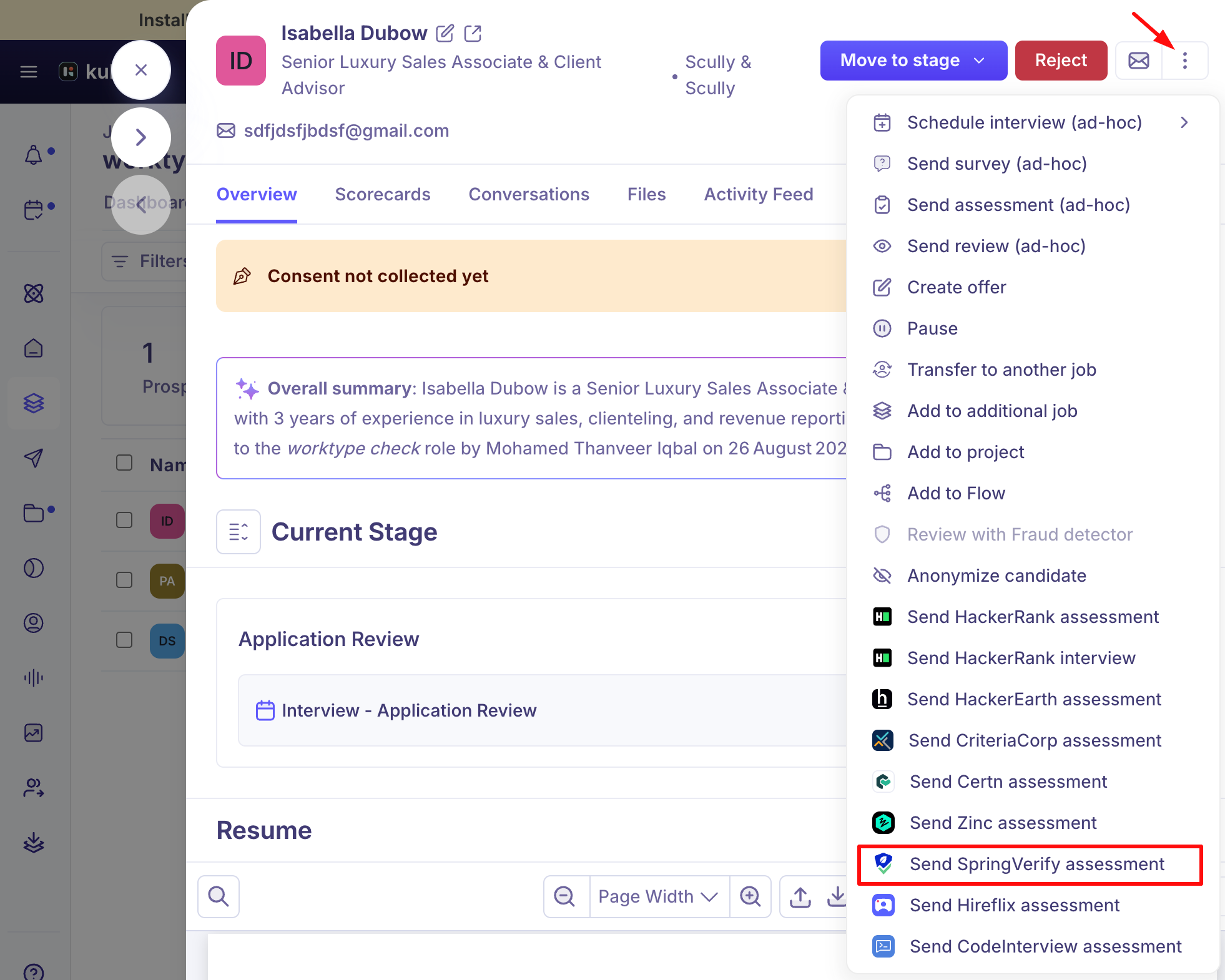
Open the candidate's profile and choose Send SpringVerify assessment from the actions menu. This is unavailable if the candidate has no email address.
Select a package from the dropdown — the checks included show underneath.
Click Submit.
Good to know
SpringVerify doesn't send Kula live updates the way some other providers do — Kula checks in on progress roughly once an hour, so a status change on SpringVerify's side may take up to an hour to show up in Kula.
Disconnecting SpringVerify while checks are in progress will affect them — Kula warns you before you disconnect.
View progress and the finished report from the candidate's background check card — see Reading a background check report.
FAQ
I don't see SpringVerify as an option under Integrations — why?
SpringVerify needs to be enabled for your organisation first. Contact support if you'd like it turned on.
The status on SpringVerify's own site changed but Kula still shows the old status — why?
Kula checks in with SpringVerify roughly once an hour rather than getting instant updates, so there can be a short delay. For more, see Reading a background check report.
Need help?
If you have questions or need assistance, reach out to us at support@kula.ai or use the in-app chat.