Running a background check with Checkr
Last updated: August 26, 2026
Send a candidate for a background check through Checkr, right from their profile in Kula. This article covers connecting Checkr and sending a check.
Who can do this: Recruiter, Hiring Manager send a check. Super Admin, Admin connect Checkr.
Where to find it: Candidates → open a candidate → actions menu → Send Checkr assessment. To connect: Settings → Organisation Integrations → Background checks → Checkr
Connect Checkr
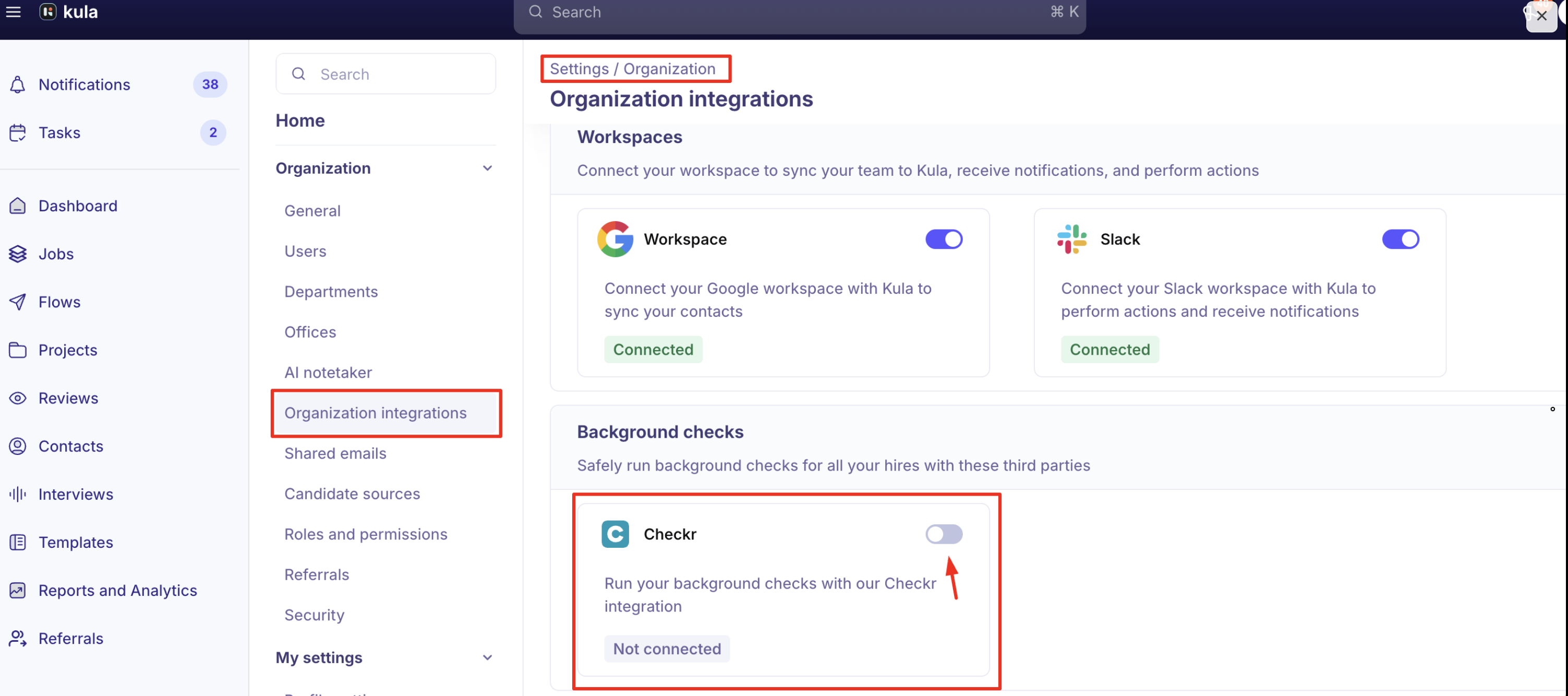
Go to Settings → Organisation → Integrations → Background checks → Checkr.
Click Connect and follow Checkr's sign-up flow to authorise Kula.
Your connection stays pending until Checkr confirms your account is credentialed.
Send a Checkr assessment
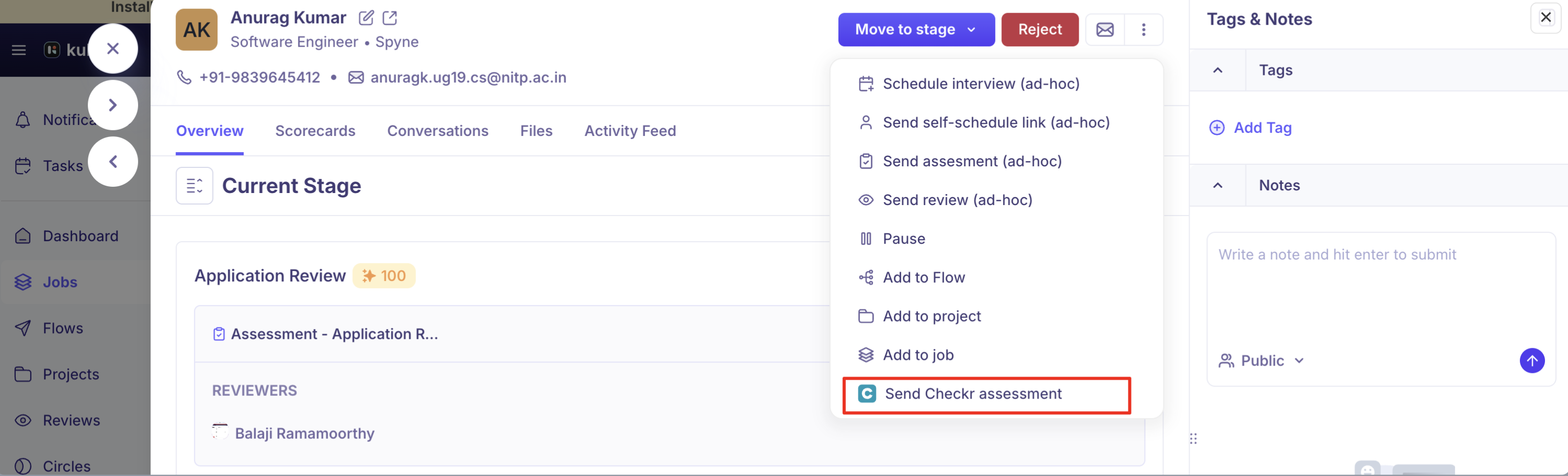
Open the candidate's profile and choose Send Checkr assessment from the actions menu.
Choose the package inside Checkr's own screen, which opens right there in Kula.
Submit.
Good to know
Checkr works a bit differently from Kula's other background check integrations — you pick the package inside Checkr's own screen, not a Kula-built form, and viewing the finished report also opens Checkr's own report screen. See Reading a background check report.
Disconnecting Checkr while checks are in progress will affect them — Kula warns you before you disconnect.
If your organisation later reconnects with a different Checkr account, background checks created under the old account can no longer be opened from Kula.
FAQ
Q: How do I enable Checkr in Kula?
A: Go to Settings > Integrations > Background Checks, select Checkr, and connect with your Checkr Admin credentials.
Q: Can I run background checks from Kula?
A: Yes, open the candidate’s profile → Actions (⋮) → Run Background Check.
Q: How are candidates notified?
A: They’ll receive a consent email directly from Checkr.
Q: Where do I see the results?
A: In the candidate’s Background Check tab in Kula.
Q: What do the statuses mean?
A: Pending = awaiting candidate action, In Progress = running, Clear/Consider = final result.
Q: Who handles billing for background checks?
A: Checkr manages billing directly.
Q: Who do I contact for issues?
A: Kula Support for setup, Checkr Support for results or billing.
Need help?
If you have questions or need assistance, reach out to us at support@kula.ai or use the in-app chat.