Running a background check with Zinc
Last updated: August 26, 2026
Send a candidate for a background check through Zinc, right from their profile in Kula. This article covers connecting Zinc and sending a check.
Who can do this: Recruiter, Hiring Manager send a check. Super Admin, Admin: connect Zinc.
Where to find it: Candidates → open a candidate → actions menu → Send Zinc assessment. To connect: Settings → Organisation → Integrations → Background checks → Zinc
Connect Zinc
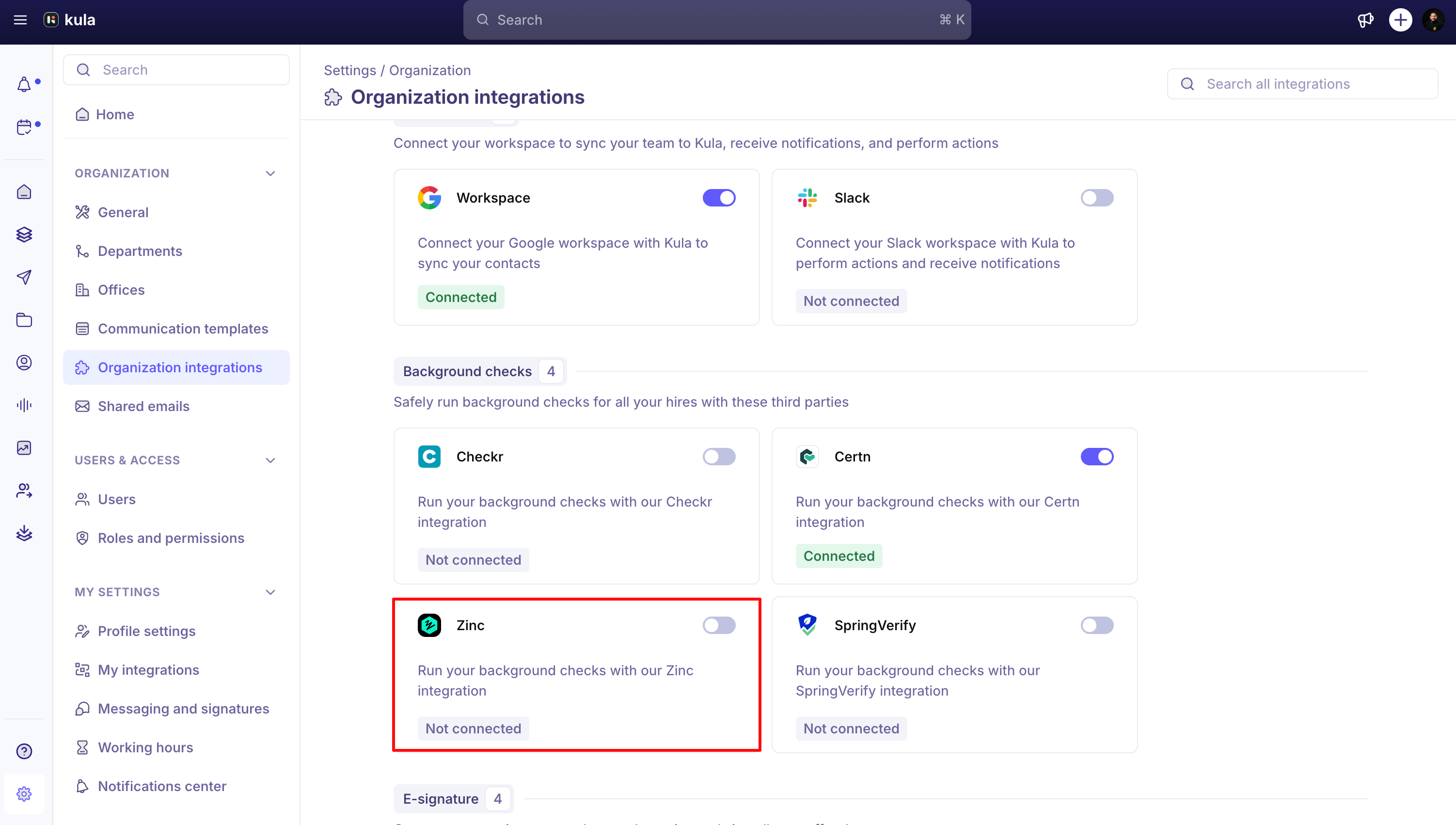
Go to Settings → Organisation → Integrations → Background checks → Zinc.
Enter your API key from your Zinc account settings.
Save.
Send a Zinc assessment
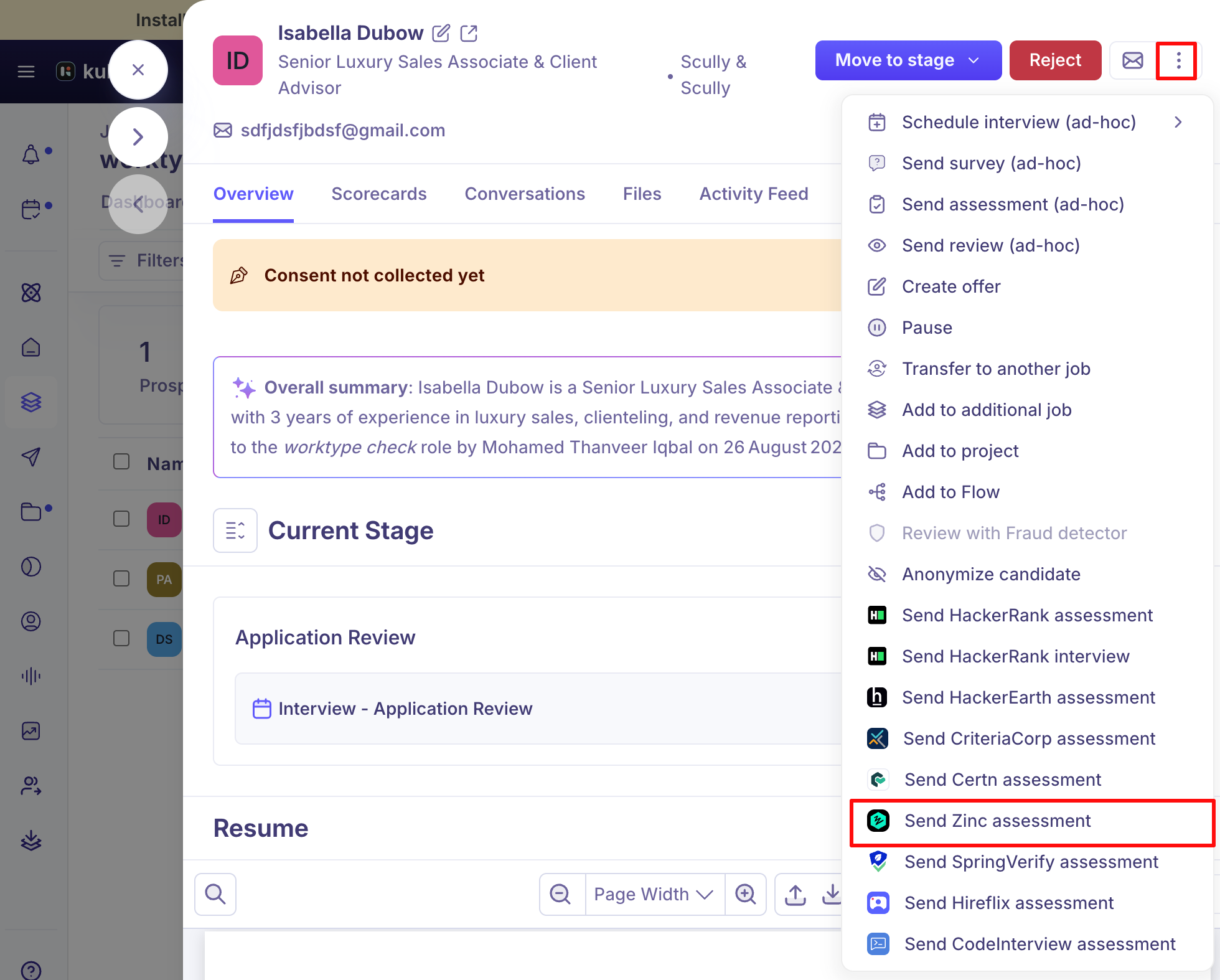
Open the candidate's profile and choose Send Zinc assessment from the actions menu. This is unavailable if the candidate has no email address.
Select a package from the dropdown — the checks included show underneath.
Click Submit.
Good to know
Disconnecting Zinc while checks are in progress will affect them — Kula warns you before you disconnect.
View progress and the finished report from the candidate's background check card — see Reading a background check report.
FAQ
Why is the Send Zinc assessment option greyed out for this candidate?
Zinc assessments need a candidate email address to send an invitation — add one to the candidate's profile first.
How do I know which checks are included before I send a Zinc assessment?
The checks included in a package — for example criminal, employment verification, or education — are listed underneath the package dropdown before you submit.
Need help?
If you have questions or need assistance, reach out to us at support@kula.ai or use the in-app chat.