Managing your company's career page URL
Last updated: August 5, 2026
The Career Page Builder controls your Kula-hosted career page — its URL, branding, embedding, job filters, SEO, and social previews. This article walks through each section so you can set up a polished, on-brand page.
Who can do this: Super Admin, Admin
Where to find it: Settings → Sourcing → Career Page Builder (or search "Career Page Builder" in Settings)
Work through the sections below, then click Save at the bottom to apply all changes. Updates go live on your career page immediately.
Find your career page URL
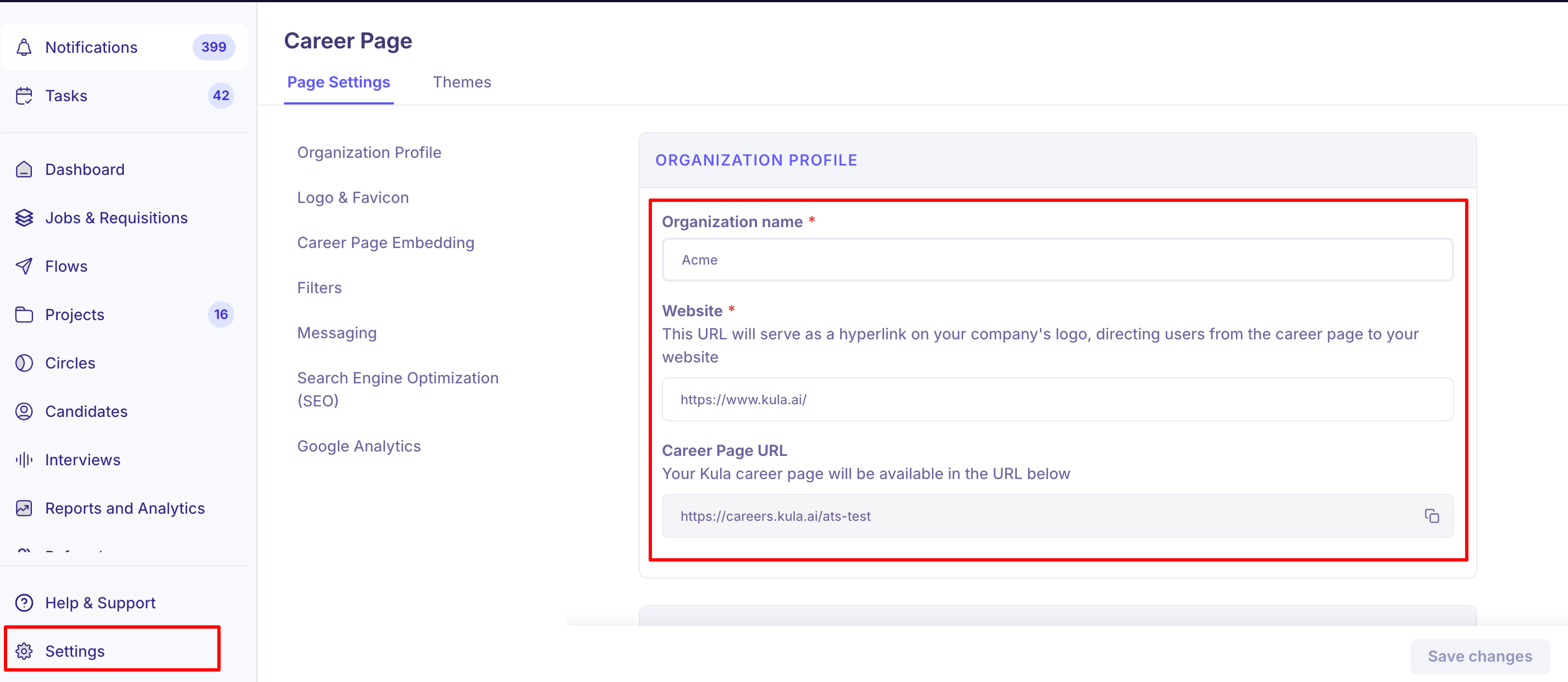
The Organization Profile section holds the core details shown on and linked from your career page.
Field | What it does |
|---|---|
Organization Name | Your company name as it appears on the career page |
Website | The URL your logo links to — sends candidates to your main site |
Career Page URL | The address where your Kula career page is hosted |
Your Career Page URL is generated automatically from your organisation name and follows the format https://careers.kula.ai/your-company-name. Review it here before you share it or add it to job-board postings.
Add your logo and favicon
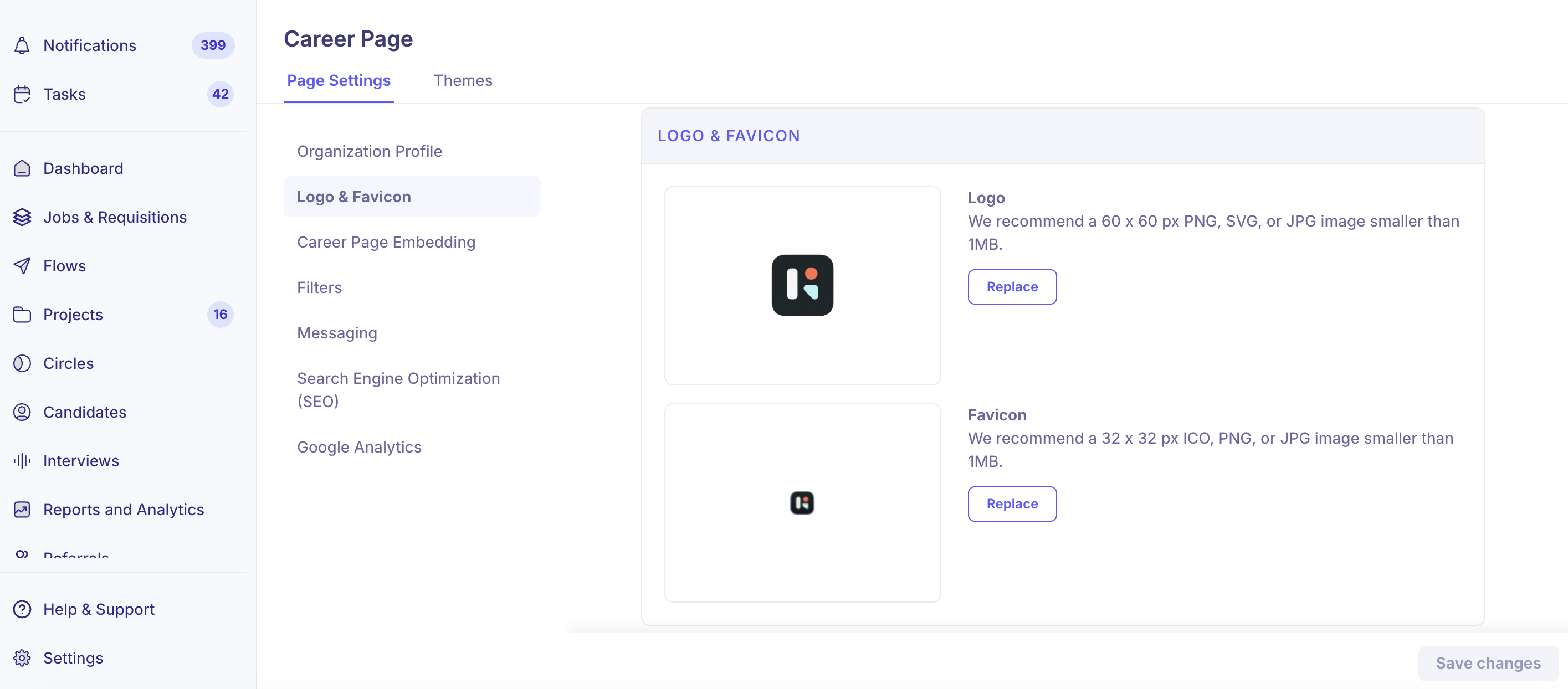
Set these in the Logo & Favicon section. The logo appears in your career page header and links to your website; the favicon shows in the browser tab.
Asset | Recommended size | Supported formats |
|---|---|---|
Logo | 60 × 60 px | PNG, SVG, JPG |
Favicon | 32 × 32 px | ICO, PNG, JPG |
Embed the career page on your own website
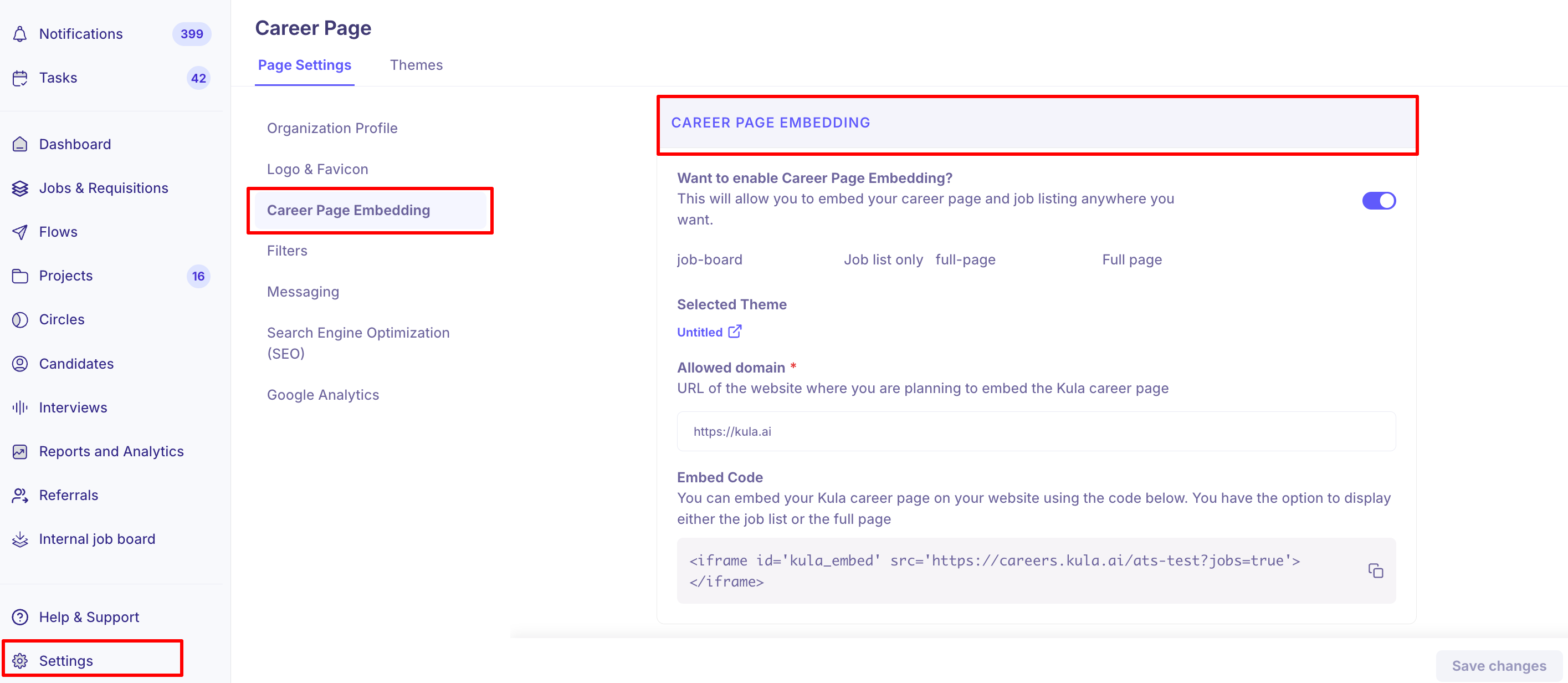
If you'd rather host the career page inside your own site than send candidates to the Kula-hosted page, embed it from the Career Page Embedding section.
In the Career Page Builder, go to Career Page Embedding.
Copy the Embed Code.
Paste it into the relevant page on your website.
In the Allowed Domain field, enter the address of the site where you're embedding the page (for example
https://www.yourcompany.com).
You can choose what the embed shows:
Option | What it shows |
|---|---|
Job list only | Just the list of open roles |
Full page | The full career page with branding, filters, and listings |
Job links inside the embedded page open in a new browser tab by default.
Other career page settings
The remaining sections of the Career Page Builder let you finish the page:
Section | What you set |
|---|---|
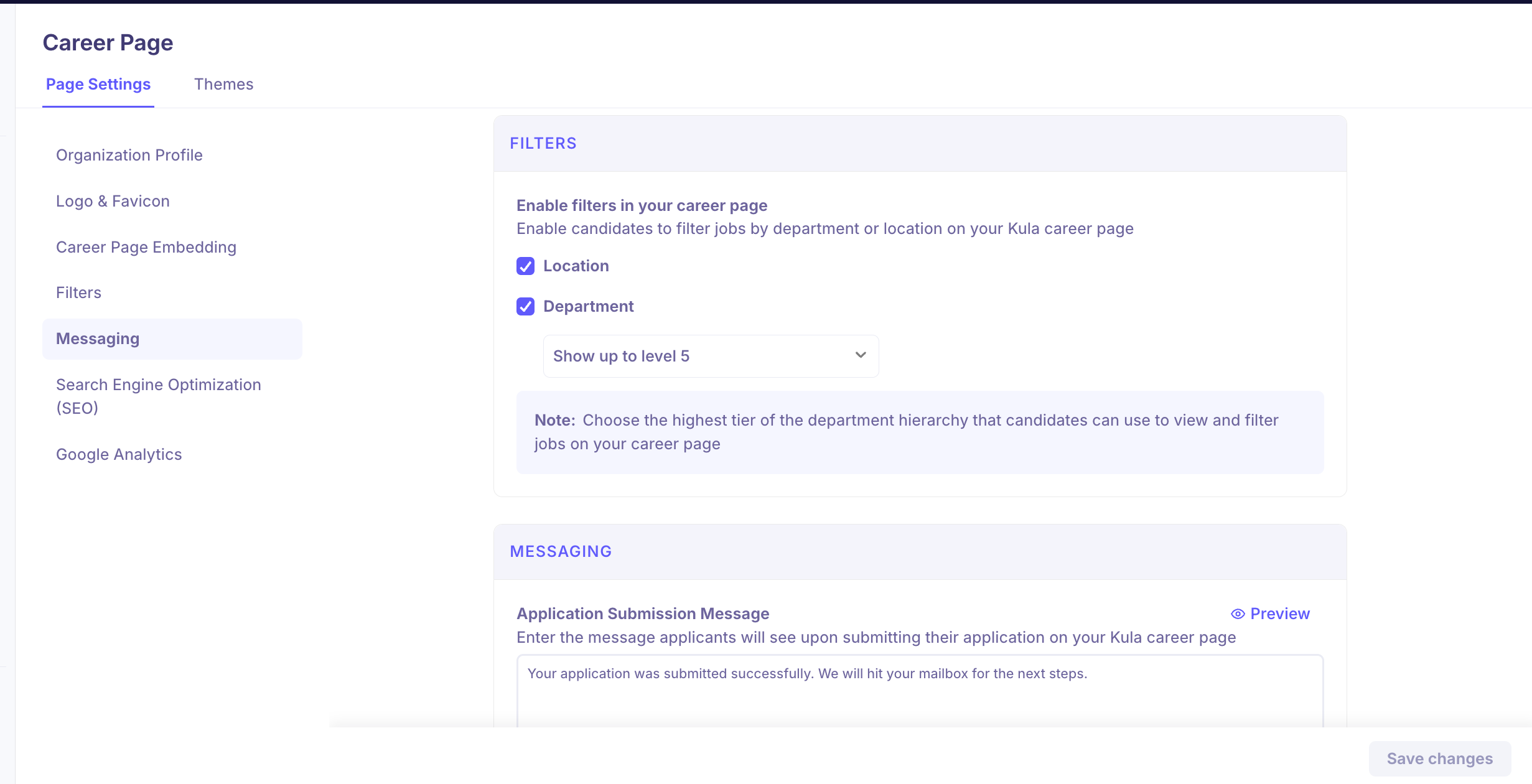
Filters | Let candidates filter jobs by department, location, or both. For department filters, choose which department level candidates can browse by. |
Messaging | The confirmation message candidates see after they submit an application. |
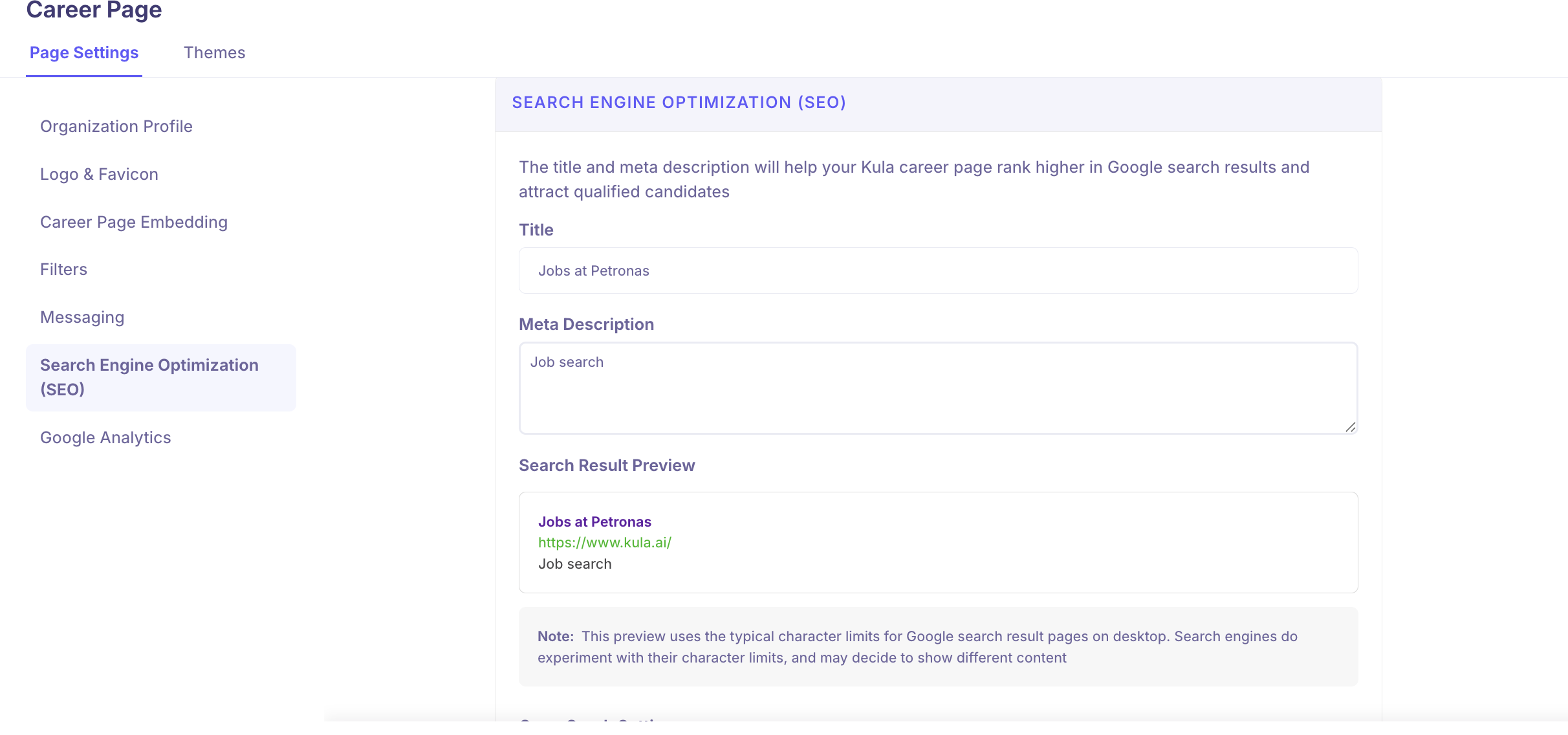
SEO | The SEO title and meta description that show in search engine results (aim for ~150–160 characters for the description). |
Open Graph | The title, description, and image shown when your page is shared on LinkedIn, Facebook, or X. Recommended image: 1200 × 630 px (1.91:1). |
Google Analytics | Connect your Google Analytics Measurement ID to track traffic and candidate behaviour. |

Not sure which option is right for you? Kula offers several ways to publish your open roles — this ready-made hosted page, listings or apply embedded on your own site, an RSS feed, and more. This article covers setting up the Kula-hosted career page. If you haven't chosen an approach yet, start with Careers Page Setup, which lays out every option and helps you pick.
Good to know
Your career page URL is auto-generated from your organisation name — review it in Organization Profile before sharing. It isn't a free-text field you edit directly.
Set the Allowed Domain when embedding. The embed needs the domain where the page will be hosted to load correctly.
You own privacy compliance. If you connect Google Analytics, you're responsible for handling candidate data in line with applicable laws, including GDPR.
Need help? If you have questions or need assistance with setup, reach out to us at support@kula.ai or use the in-app chat.