Your organization's general settings
Last updated: September 17, 2026
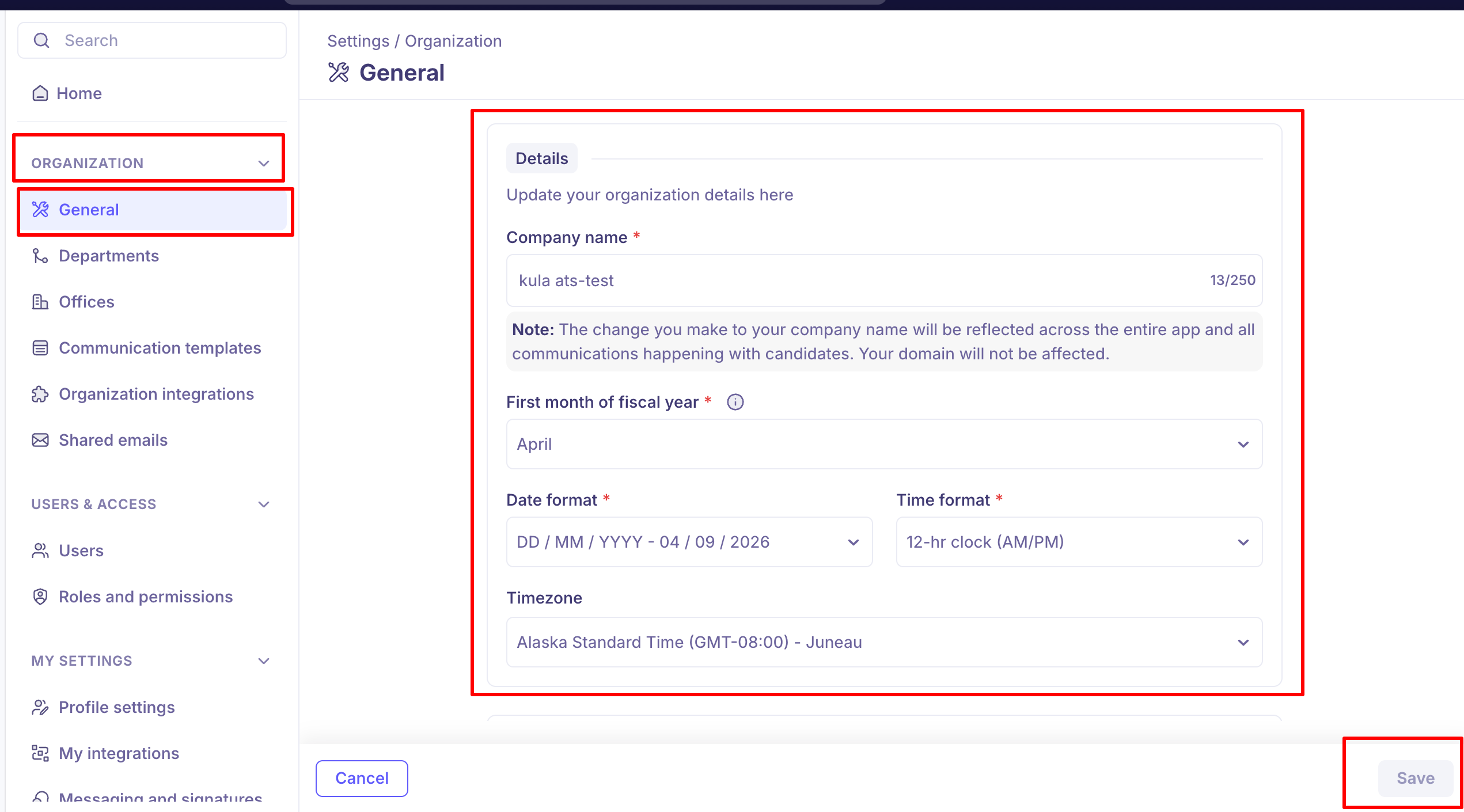
The General screen holds the basics every other part of Kula reads from: your company name, the date, time and timezone your team sees, the first month of your fiscal year, and the logo and favicon shown to candidates.
Who can do this: Super Admin, Admin
Where to find it: Settings → Organization → General
What you can set here
Setting | What it controls |
|---|---|
Company name | The name shown across the app and in every candidate communication, including emails and your . Does not change your Kula web address. |
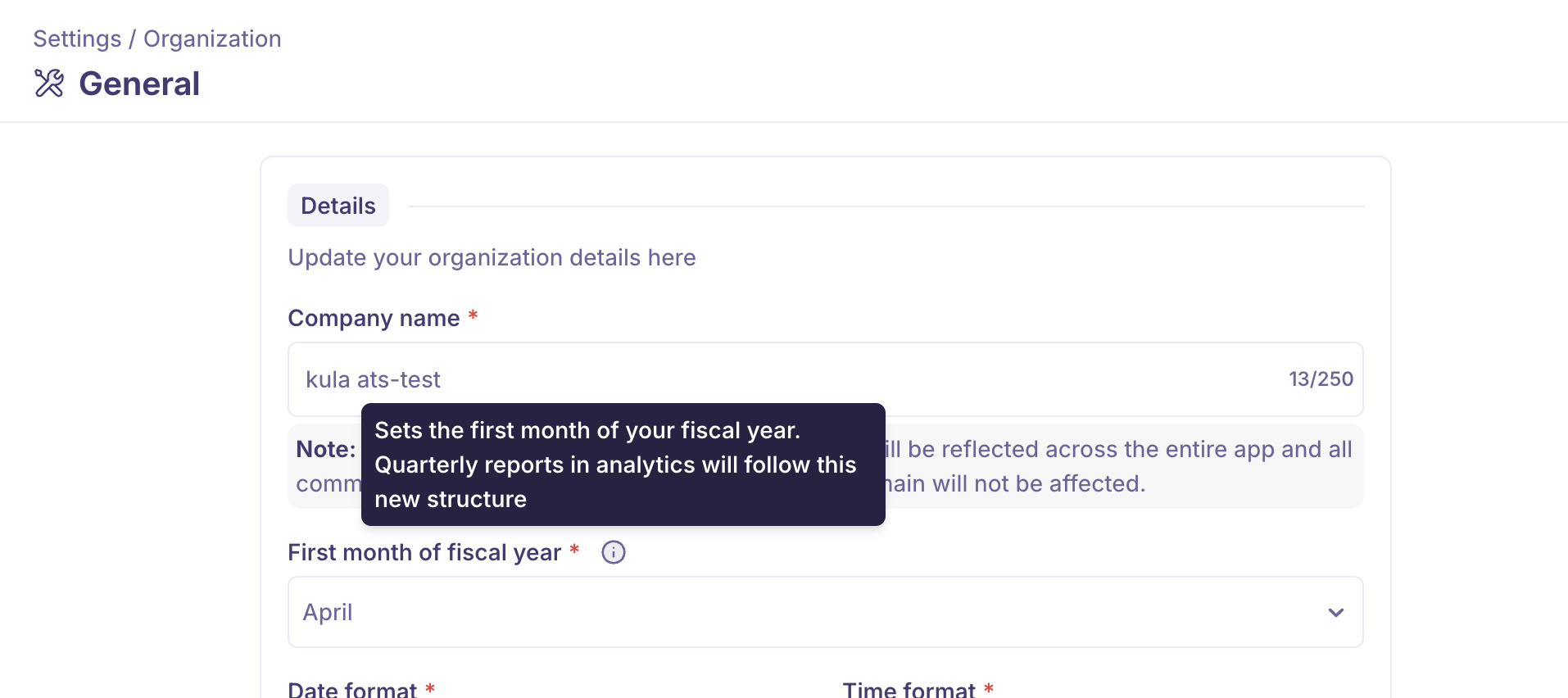
First month of fiscal year | Which month starts your financial year. Quarterly groupings in follow it. Defaults to January. |
Date format | The default date format for new users. Six options, from |
Time format | The default clock for new users: 12-hr (AM/PM) or 24-hr. |
Timezone | Your organisation's timezone. Used for anyone who has not set their own timezone in their profile settings. |
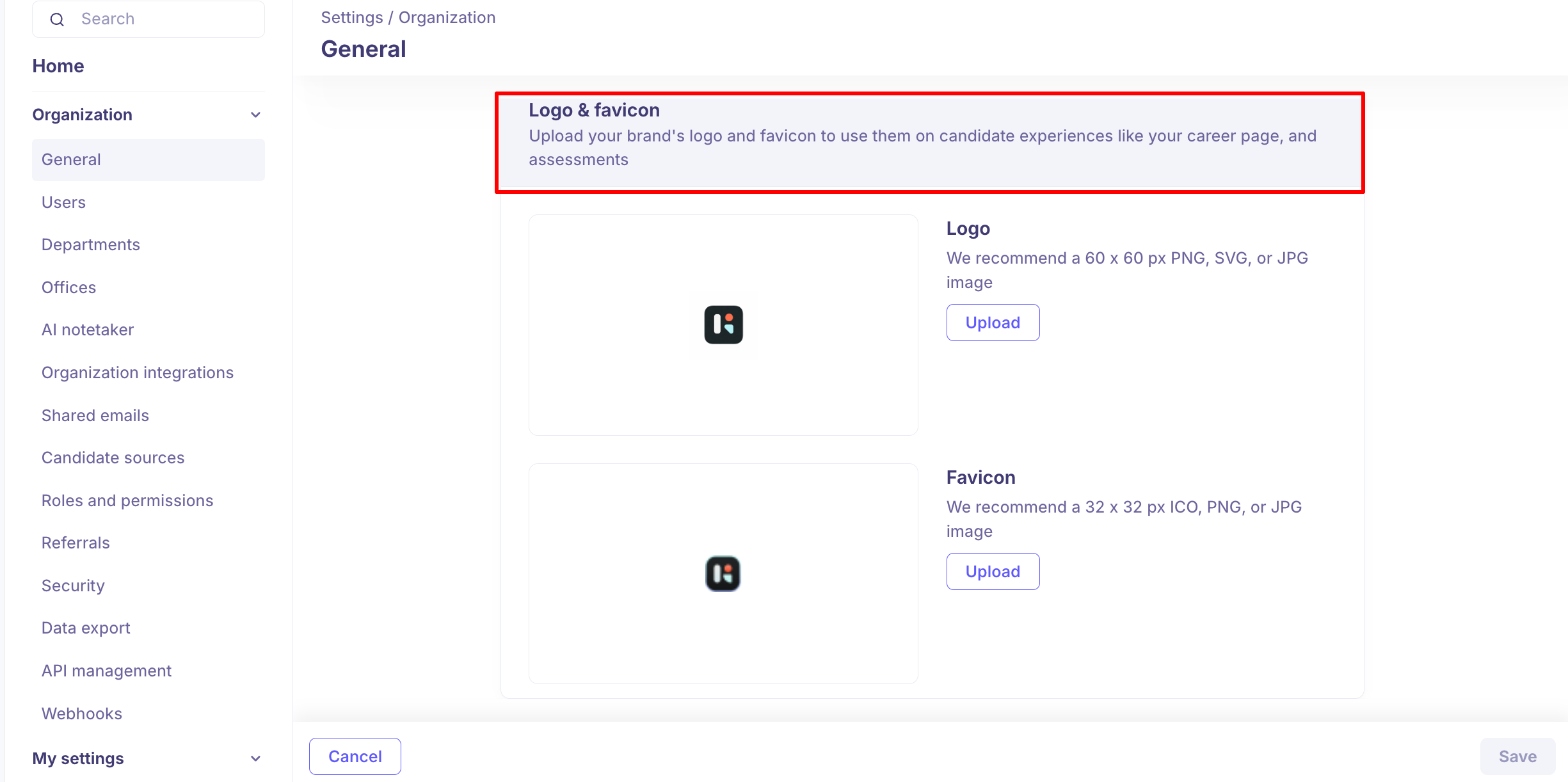
Logo | Shown on candidate-facing experiences — your career page header, hero and footer, and assessments. |
Favicon | The small icon in the browser tab on candidate-facing pages. |
Change your organisation details
Go to Settings → Organization → General.
Update the fields you want to change in the Details card.
Click Save.
Save stays greyed out until you change something on the screen.
Changes to your company name are reflected immediately across the entire app and all candidate-facing communications. Your domain or career page URL is not affected by this change.
The name you set here is your account display name. It fills the {{org.name}} token used across the account, so it updates in candidate emails, offer letters, and other templated messages.
Upload your logo and favicon
Your logo and favicon are shared between your organisation settings and your career page — set them once and they apply in both places.
Go to Settings → Organization → General.
Scroll down to the Logo & Favicon section.
Click Upload next to:
Logo — appears on your career page and candidate-facing assets.
Favicon — the small icon shown in the browser tab when candidates visit your career page.
Select your image file and save.
Recommended specifications:
Asset | Size | Formats |
Logo | 60 × 60 px | PNG, SVG, JPG |
Favicon | 32 × 32 px | ICO, PNG, JPG |
Tip: Use SVG format for your logo wherever possible. SVG files scale cleanly at any resolution and look sharp on all screen sizes.
Where your name and logo appear
What you set | Where it shows |
|---|---|
Organisation name ( | Candidate emails, offer letters, and other templated messages sent from Kula |
Logo | Your career page, assessment pages, and the interview self-scheduling page candidates see |
Favicon | The browser tab on your career page and other candidate-facing pages |
What changing the fiscal year does to your reports
Setting a first month other than January re-labels every quarter in reports and analytics.
If your fiscal year starts in April, Q1 becomes April–June rather than January–March. Existing quarterly reports recalculate immediately — there is nothing to refresh or re-run.
The setting applies to the whole organisation. It is not something individual users can override.
Good to know
Changing the company name doesn't change your Kula web address or career page URL. Only the name shown in the app and in candidate communications changes.
The company name fills the
{{org.name}}token. Candidate emails, offer letters and other templates pick up a new name straight away.Date format, time format and timezone here are defaults. They apply to people who haven't set their own in their profile settings — anyone who has keeps their own.
The fiscal year setting applies to the whole organization. Individual users can't override it, and quarterly reports recalculate as soon as you save.
Your logo and favicon are shared with your career page. Upload them once here and they're used in both places.
Save stays greyed out until you change something. If you can't click it, nothing on the screen has changed yet.
FAQ
We renamed the company. Will our career page link change? No. The name updates across the app and in candidate communications, but your Kula web address and career page URL stay the same.
I changed the timezone here, but one of my colleagues still sees times in a different timezone. Why? The timezone on this screen is only a default. Your colleague has set their own timezone in their profile settings, and that takes priority.
Our financial year starts in April. How do we make reports use it? Set First month of fiscal year to April and click Save. Q1 becomes April–June, and existing quarterly reports recalculate straight away.
What size should our logo and favicon be? Logo 60 × 60 px (PNG, SVG or JPG — SVG looks sharpest). Favicon 32 × 32 px (ICO, PNG or JPG).
Where does our logo show up? On your career page, assessment pages, and the interview self-scheduling page candidates see.
Need Help?
If you have questions or need assistance with setup, feel free to reach out to us at support@kula.ai or use the in-app chat.