Submitting a scorecard
Last updated: October 28, 2026
After an interview you fill in a scorecard: answers to the questions your team set, written feedback, and an overall recommendation. This article covers how to fill one in, what happens when you submit, and what to do if you need to change it.
Who can do this: The person assigned as reviewer on the interview. Super Admin, Admin and Recruiter can also submit on someone else's behalf.
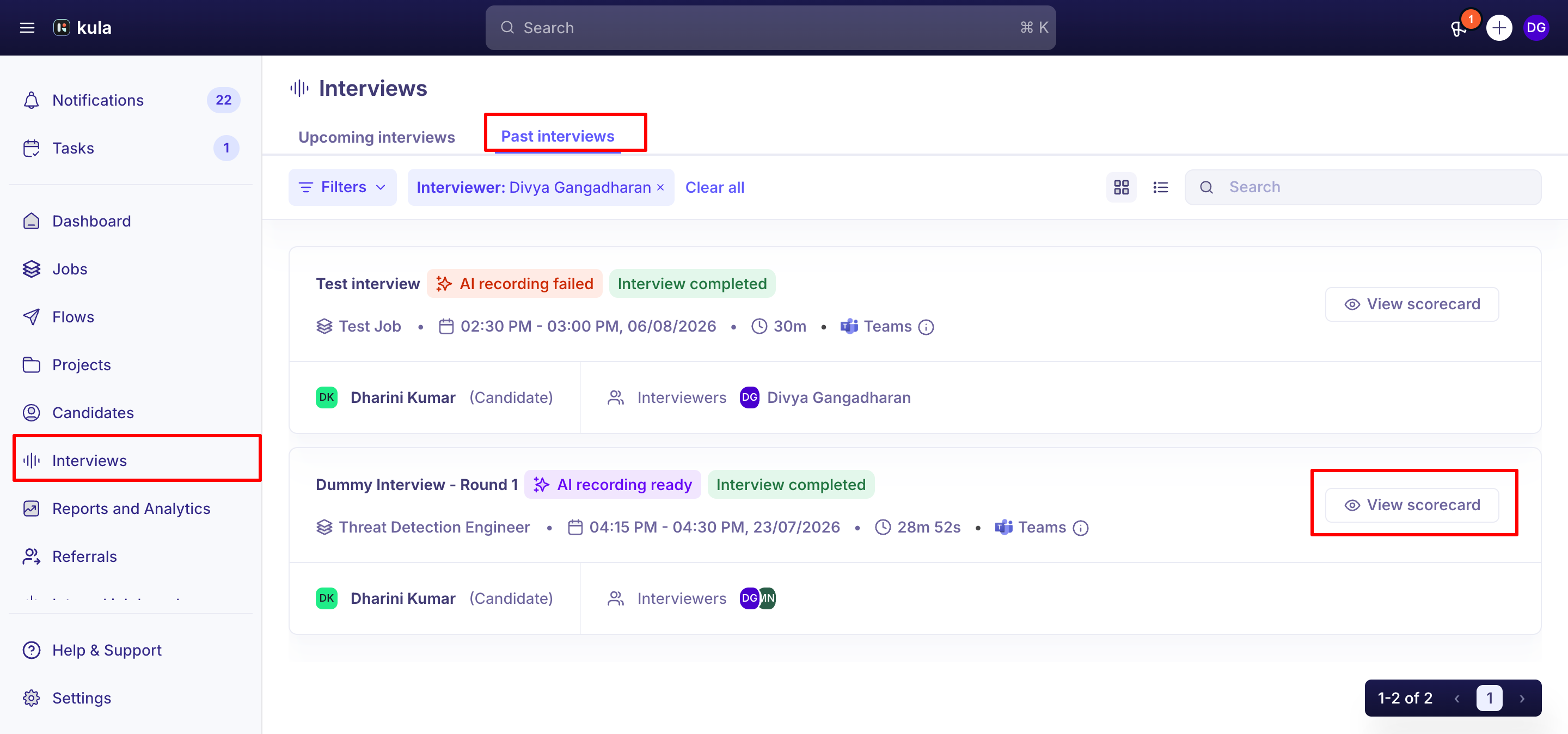
Where to find it: Interviews → Past interviews → View Scorecard
How to Fill in your scorecard
Navigate to Interviews --> Past Interviews and Click on "View Scorecard".
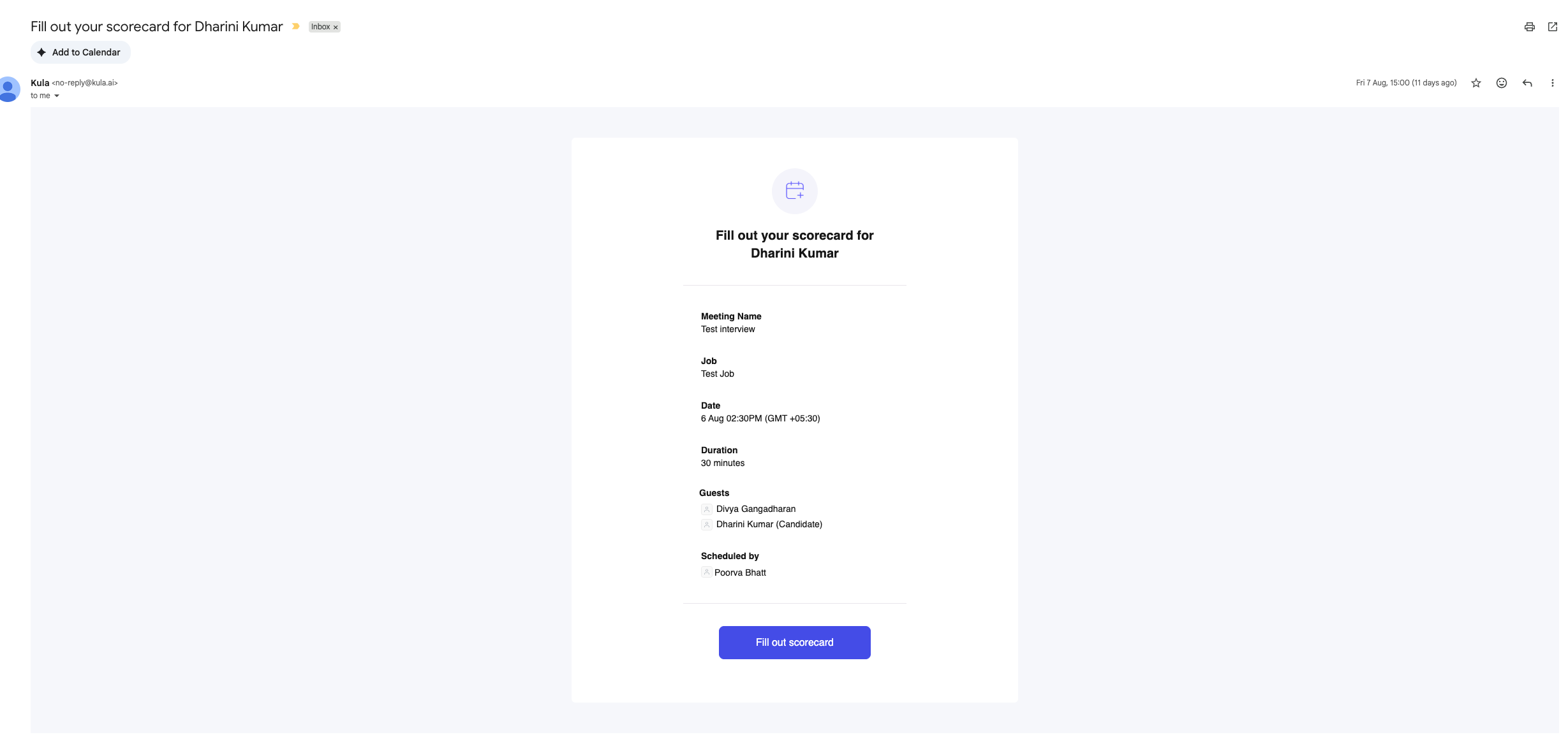
Alternatively you will also receive email/slack/in-app notification to fill your scorecard.
Answer the questions. Some may be marked mandatory.
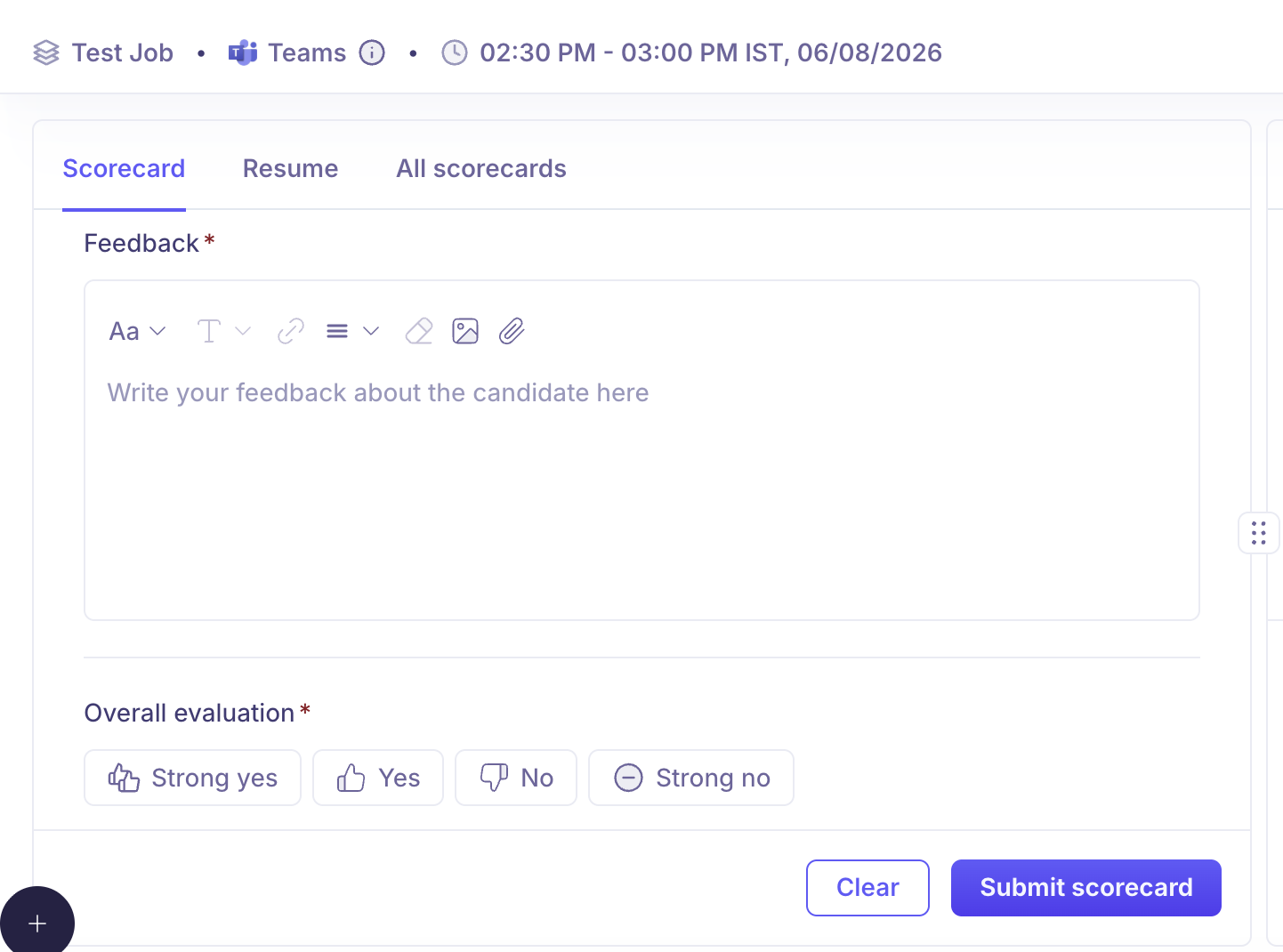
Write your Feedback. Your organization may require this.
Choose an Overall evaluation: Strong yes, Yes, No or Strong no.
Click Submit scorecard.
Your work is saved as you go. The scorecard saves automatically while you type, so a closed tab or a dropped connection won't lose what you've written. An indicator at the bottom of the form shows when the last save happened.
Saving automatically is not the same as submitting. Until you click Submit scorecard it stays a draft and your team can't see it.
Clear empties the form. There's no undo, so use it only if you want to start again.
Use the AI notetaker's write-up
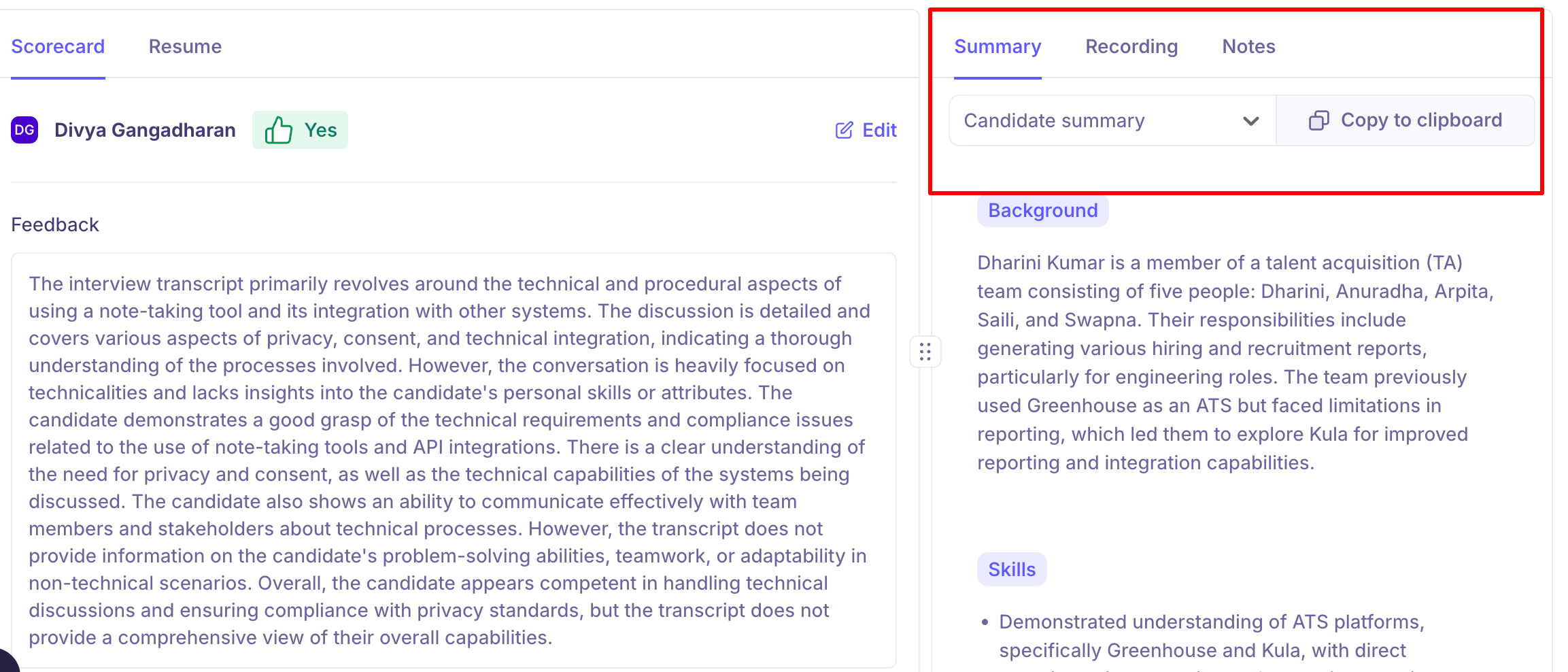
If the AI notetaker joined the interview, you don't have to reconstruct the conversation from memory. Once it has finished processing, the right-hand side of the interview page carries Summary and Recording tabs.
The badge in the page header tells you where the notetaker has got to.
Badge | What it means |
|---|---|
AI notetaker enabled | It will join this interview. |
AI waiting | It's in the meeting's waiting room and needs admitting. |
AI recording now | The interview is being recorded. |
AI processing | The call has ended and the write-up is being produced. |
AI recording ready | The summary, transcript and recording are available. |
AI recording denied | It wasn't allowed to record. |
AI recording failed / No AI recording | Nothing was captured. |
If it says AI waiting, someone in the meeting needs to admit it — otherwise there'll be no recording for that interview.
Summary — five ways to read the interview
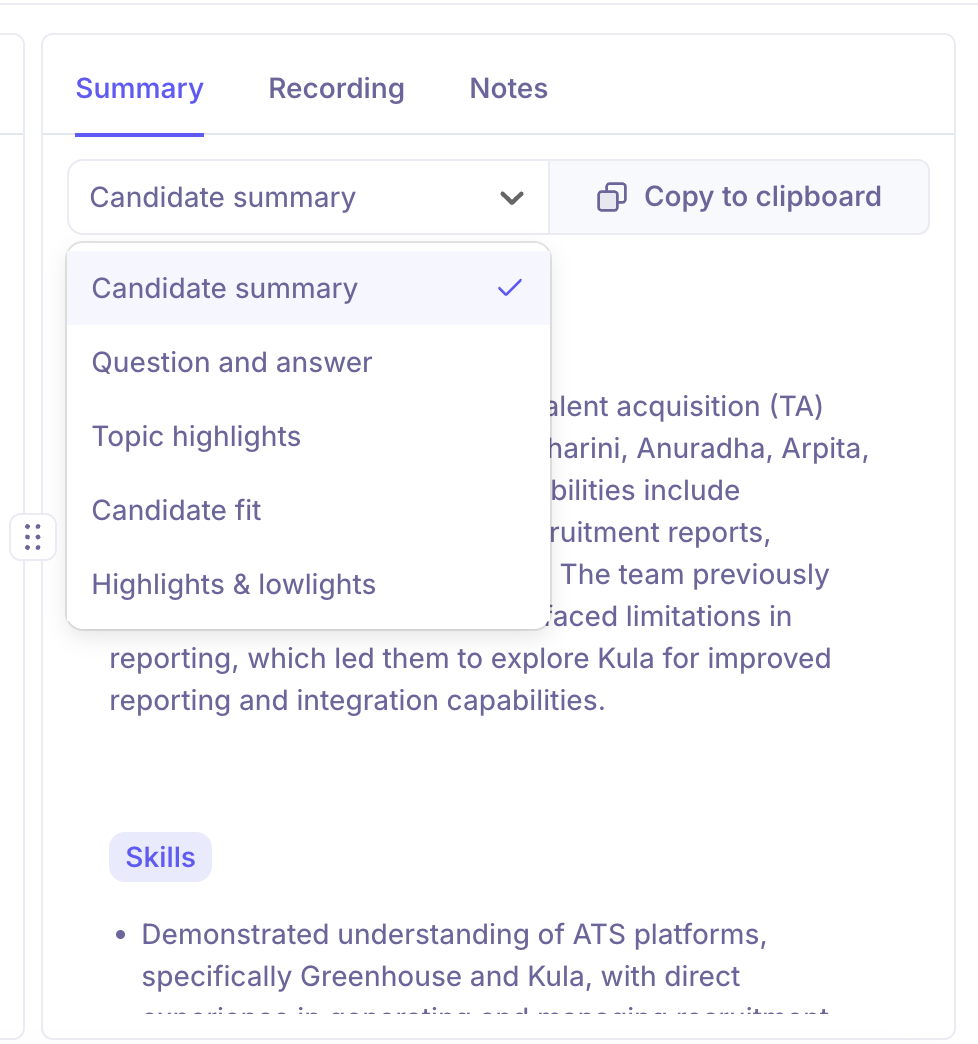
The Summary tab has a dropdown that reframes the same conversation. Pick whichever helps you answer the questions on your scorecard:
View | What it gives you |
|---|---|
Candidate summary | A prose write-up of the candidate's background and what came out of the conversation. |
Question and answer | The interview reorganised into what was asked and how the candidate answered — the closest match to a question-by-question scorecard. |
Topic highlights | The conversation grouped by subject. |
Candidate fit | An assessment of the candidate against the role. |
Highlights & lowlights | The strongest and weakest moments, side by side — useful when you're deciding your overall evaluation. |
Copy to clipboard copies the current view, so you can paste it into a debrief note.
Recording — find the moment you need
The Recording tab plays the interview back, with speed control, skip forward and back, and a scrubber. Its dropdown switches what sits alongside:
View | What it gives you |
|---|---|
Transcript | The full conversation, attributed by speaker. Click any line to jump the playback there. |
Chapters | The interview broken into timestamped sections, so you can jump straight to a topic. |
Participant | Who spoke and for how long, including each person's share of the total talk time. |
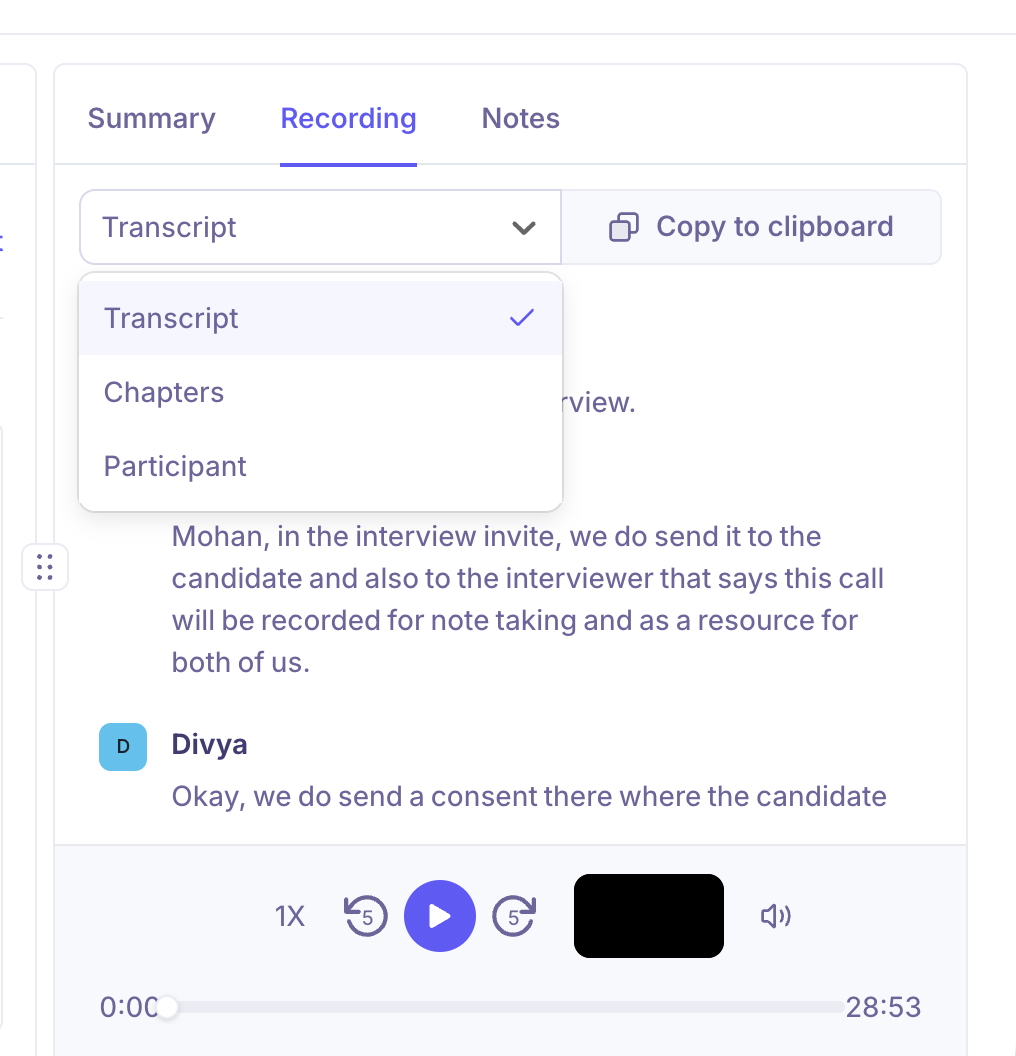
When you need to check exactly what a candidate said before scoring them, Chapters or a click in the Transcript is faster than scrubbing.
Ask AI
Beneath both tabs is an Ask our AI assistant for anything box. Ask in your own words — what the candidate said about their notice period, how they handled a particular topic — and it answers from the recording and transcript instead of making you search.
Check before you rely on it. The summary and transcript are machine-generated and can misattribute or mishear. Listen to the recording before quoting something specific in your feedback.
Fill scorecard with AI
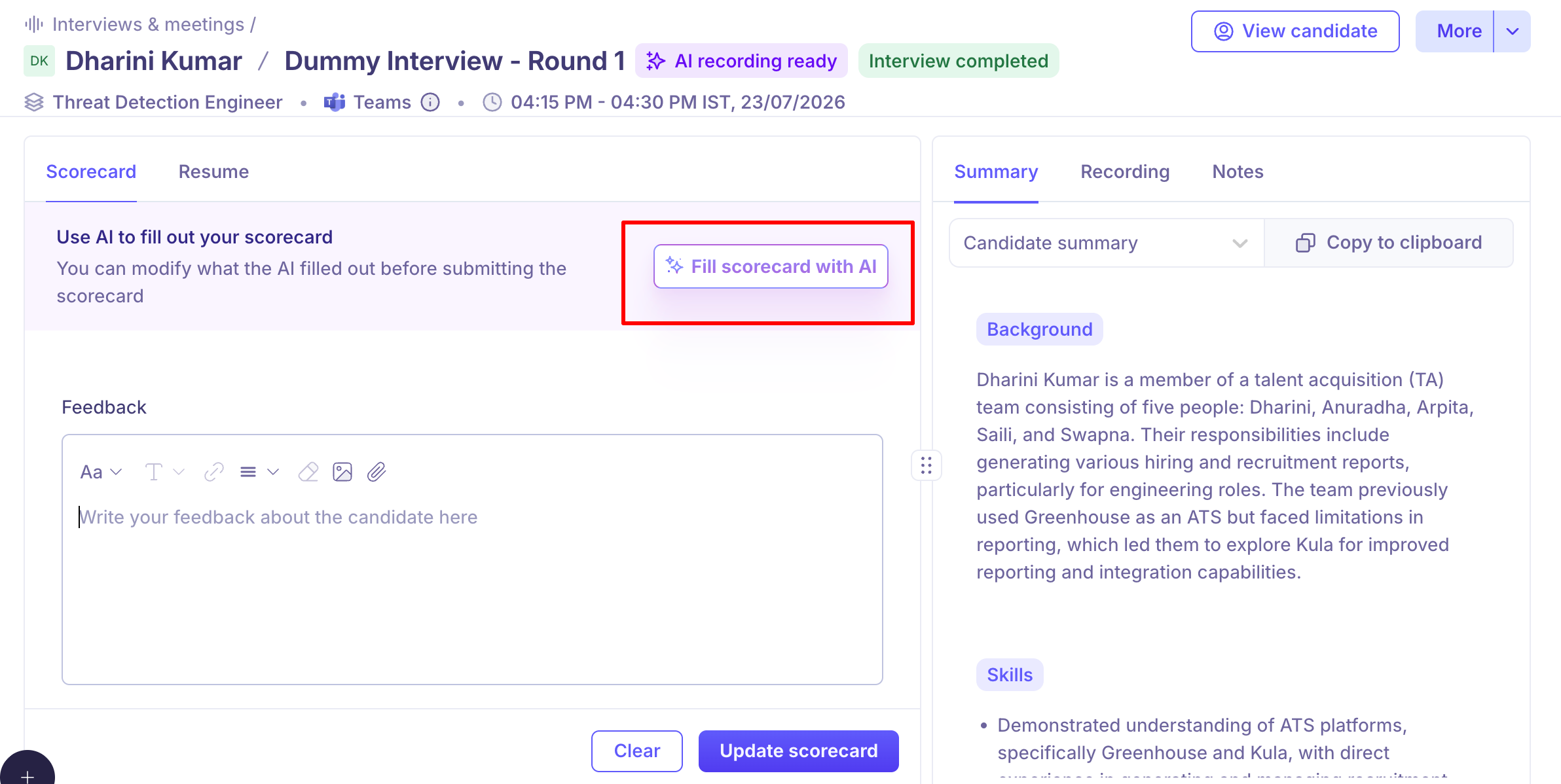
If your organisation has turned it on, Fill scorecard with AI drafts your answers from the interview recording and transcript.
It's a draft, not a submission. Read every answer, correct anything wrong, and submit it yourself.
You can add an instruction to steer the draft before generating.
Generating takes a moment. If it times out, try again.
You are responsible for what you submit, so treat an AI draft the way you'd treat notes from a colleague who sat in — useful, but yours to check.
You'll be reminded if you don't submit. Kula sends a reminder once every 24 hours, up to three times, stopping as soon as you submit. Reminders follow your working schedule and pause while you're on leave, so they won't reach you on a day off. A recruiter can also nudge you directly at any point.
Change a scorecard after submitting
Open the scorecard again and the button reads Update scorecard. Make your changes and submit again.
Edits are recorded — Kula tracks that the scorecard was edited, when, and by whom, so the change is visible to your team rather than silently replacing the original.
Submitting on someone else's behalf
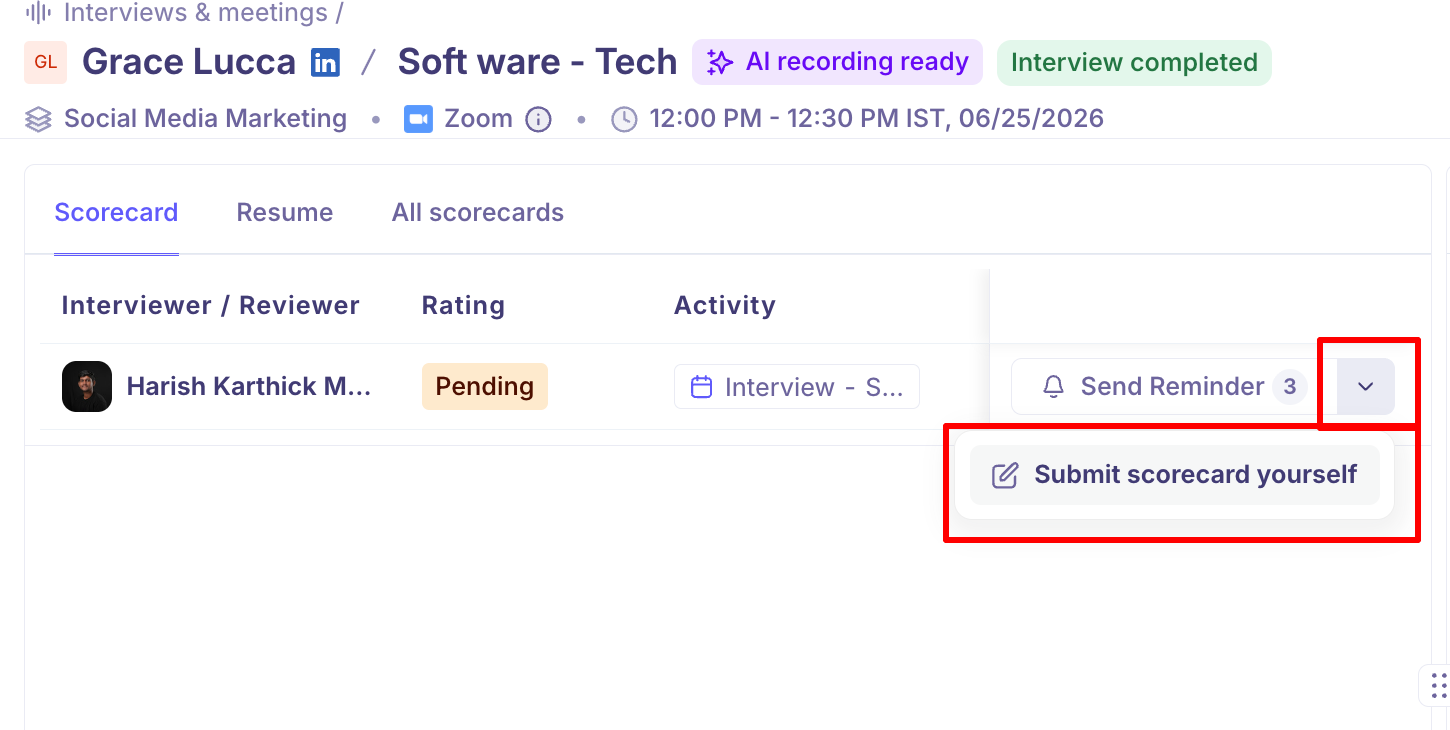
If you have permission, you can fill in a scorecard for another interviewer — useful when someone has left, or gave their feedback verbally. The button says Submit scorecard on their behalf, and the scorecard is still attributed to them as the reviewer, with your name recorded as the person who submitted it.
Good to know
Drafts are private. Nothing you type is visible to your team until you submit.
Submitting may unlock other people's feedback. Depending on your organization's setting, other interviewers' scorecards — and their overall ratings — become visible once yours is submitted. You'll still only see feedback from the current stage or earlier.
A scorecard can be optional on an interview — if your team set it up that way, you won't be prompted for one.
Reminders are automatic, and a recruiter can send one too. Kula reminds you every 24 hours, up to three times, until you submit. A recruiter can also send a reminder at any point, and Kula records when the last one was sent
FAQ
I closed the tab before submitting — have I lost my answers? No. The scorecard saves automatically as you type, so reopening it brings back what you'd written. It stays a draft until you click Submit scorecard.
Can I edit my scorecard after submitting it? Yes. Open it again and the button reads Update scorecard. Kula records that it was edited and by whom, so your team can see the change.
Can I see other interviewers' feedback before writing mine? It depends on an organisation-wide setting: never, only after you submit your own, or always. Even where written answers are visible beforehand, someone's overall Strong yes / Yes / No / Strong no is held back until you've submitted your own.
Someone else did the interview but can't fill in the scorecard. Can I do it for them? If you're a Super Admin, Admin or Recruiter, yes — open their scorecard and the button reads Submit scorecard on their behalf. It stays attributed to them as reviewer.
Is the AI-filled scorecard submitted automatically? No. It produces a draft you review and submit yourself. Check every answer before submitting — you're accountable for the feedback, not the AI.
I held the interview outside Kula (by phone, or a meeting I scheduled somewhere else). Can I still add a scorecard? Yes. You don't need to send an invite, and the candidate isn't emailed.
Open the candidate and go to the interview on their current stage.
Click More, then Mark interview as done.
The scorecard opens. Fill it in and click Submit scorecard.
If the stage has no interview at all, add a Review activity to the interview plan instead, which collects a scorecard without a meeting. See Creating an Interview plan.
Need help? If you have questions or need assistance, reach out to us at support@kula.ai or use the in-app chat.