Viewing team feedback as a recruiter
Last updated: October 15, 2026
There are two places to read your team's interview feedback on a candidate: the Overview tab, which shows it round by round in context, and the Scorecards tab, which collects all of it in one list. This article covers both, how you're told when feedback arrives, and how outstanding scorecards get chased.
Who can do this: Anyone on the job's hiring team as a recruiter, hiring manager or coordinator. External recruiters see only the candidates credited to them.
Where to find it: your job → the candidate → Overview or Scorecards
Overview Tab: Feedback in context, round by round
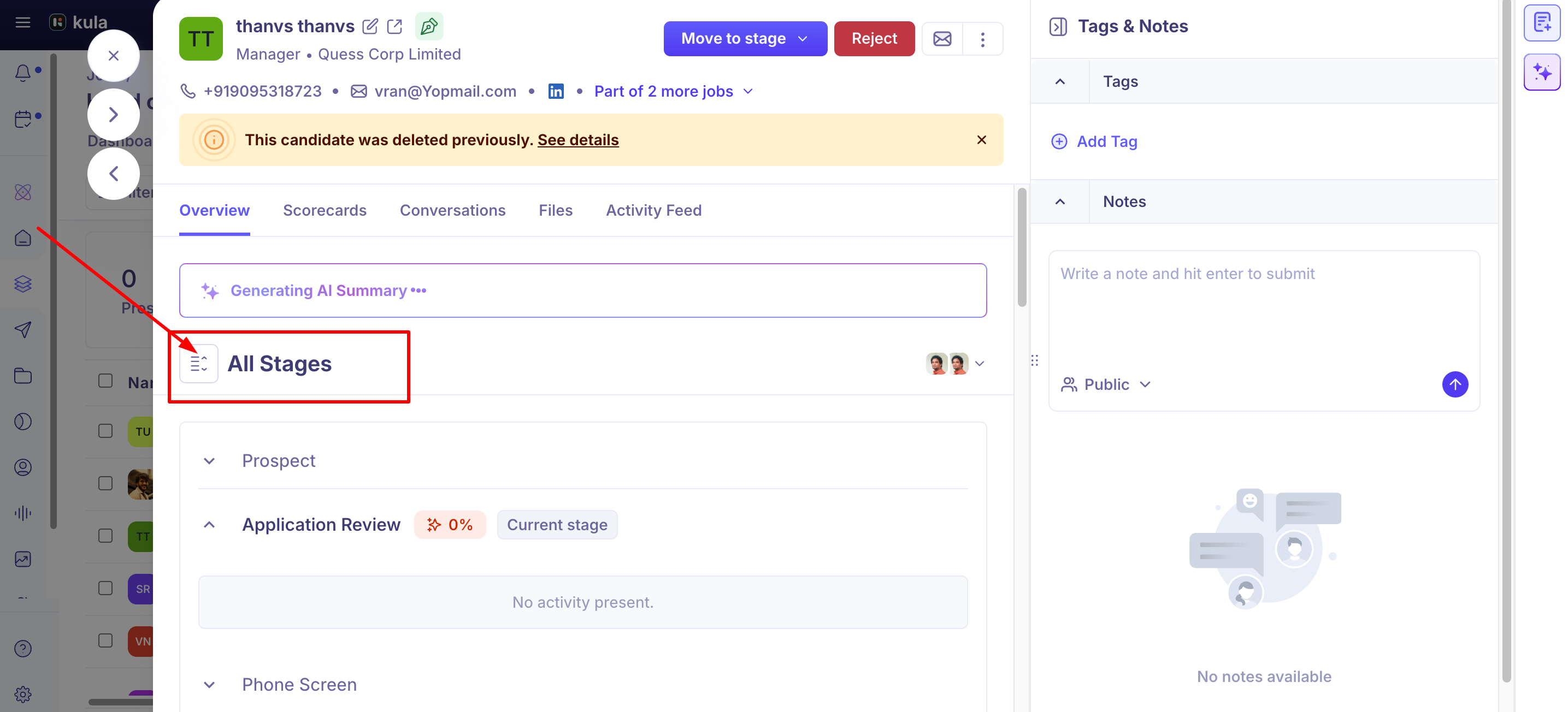
The Overview tab shows the candidate's progress as a series of rounds, each holding the activities that happened in it. Use the selector at the top to switch between Current Stage and All Stages — All Stages is the one to pick when you want the whole history.
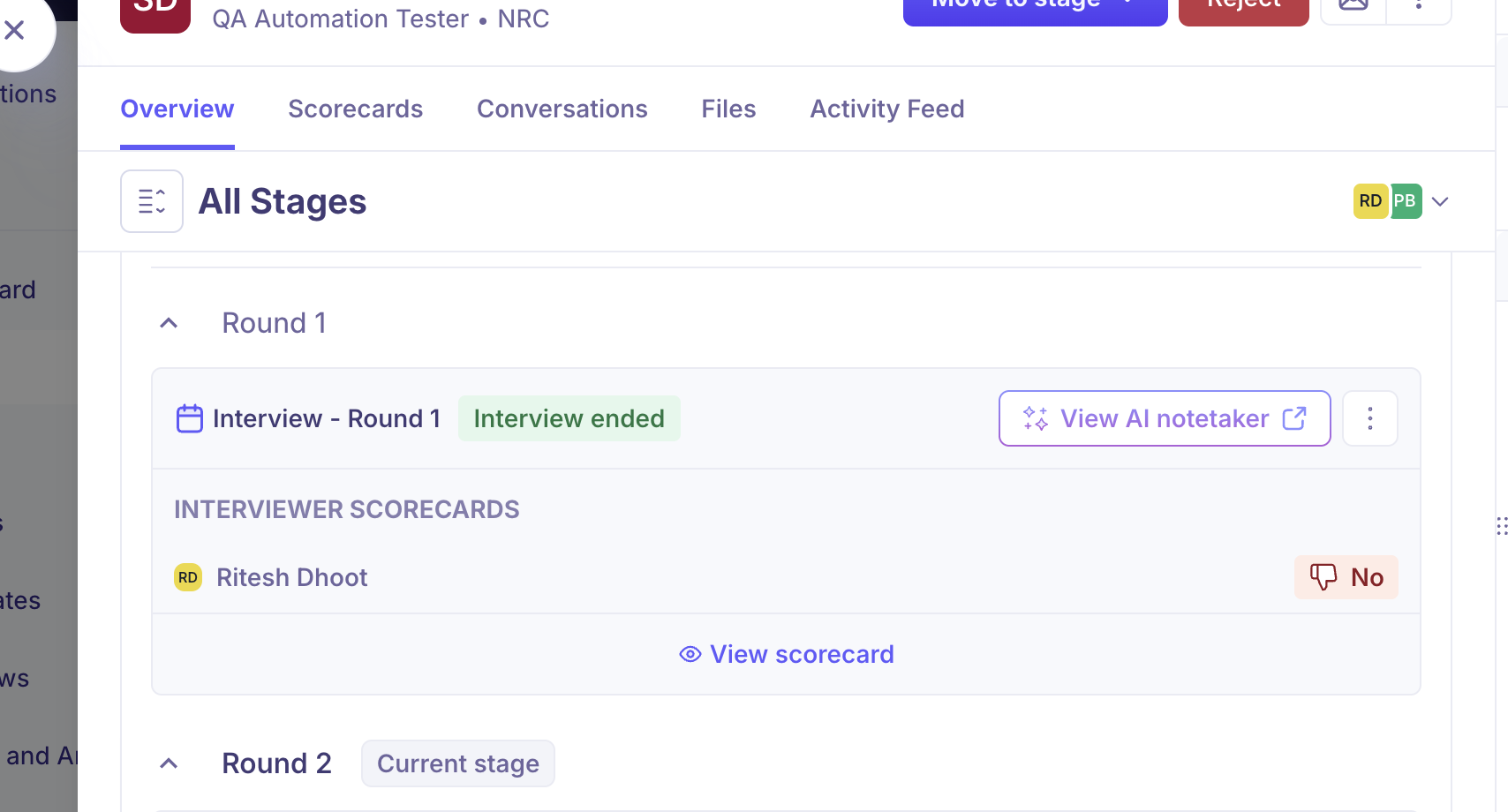
Expand a round and each interview shows its name and status. Once it has ended, an Interviewer scorecards list appears underneath: every interviewer on that round with the rating they gave. View scorecard opens the full feedback, and View AI notetaker opens the summary, recording and transcript for that interview.
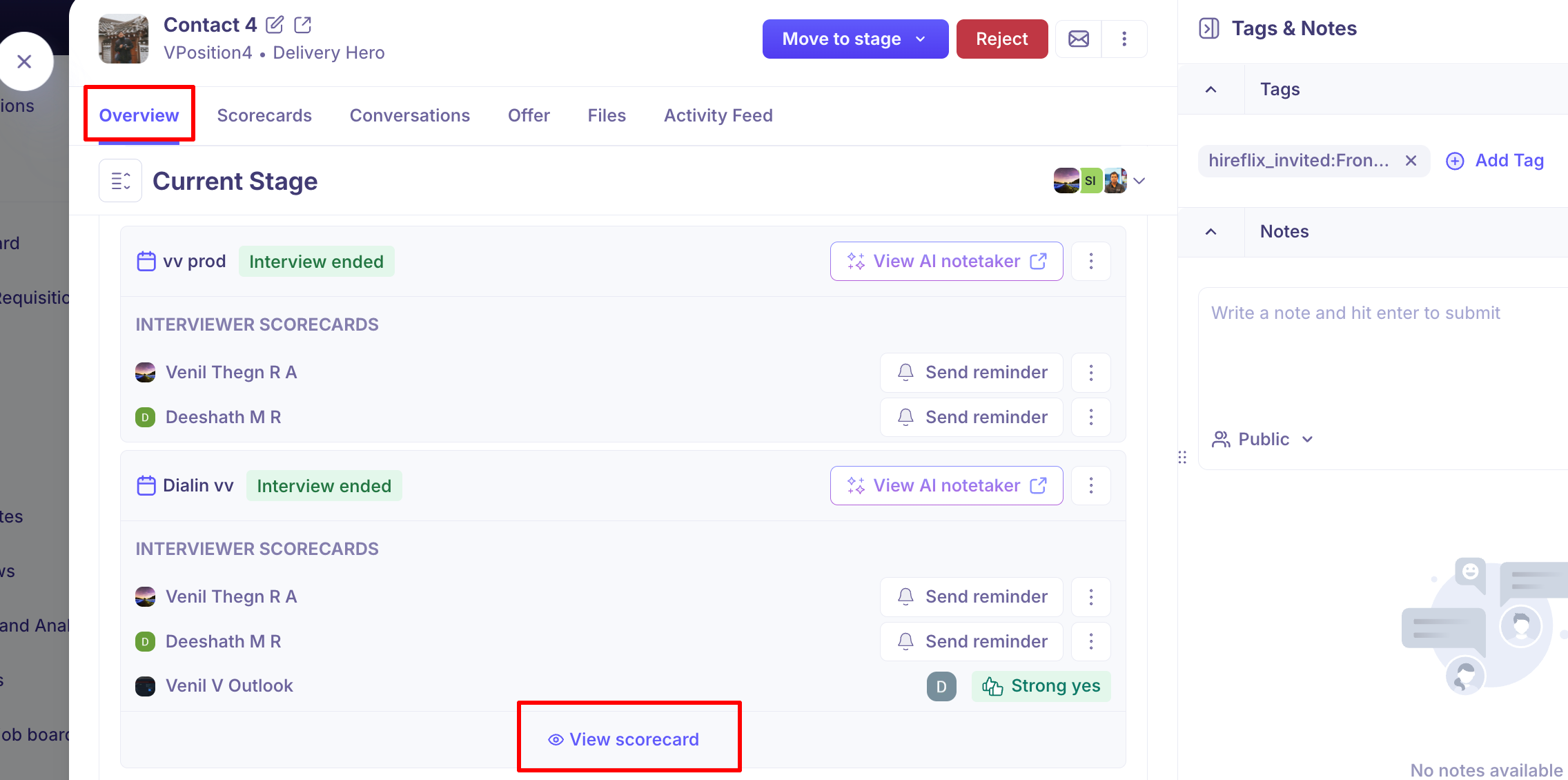
Two things to know about this view:
The scorecards list only appears once the interview has ended and a scorecard was required. Before that you'll just see who's interviewing.
If someone was added to give feedback outside the original panel, their scorecard appears under Additional scorecards beneath the main list.
Use Overview when you want feedback in context — which round it came from and how the candidate has moved. Use Scorecards when you want everything at once — all the ratings together, sortable and downloadable.
Everything in one list: the Scorecards tab
The Scorecards tab splits feedback into two sections:
Completed — scorecards that have been submitted, with their ratings and written feedback.
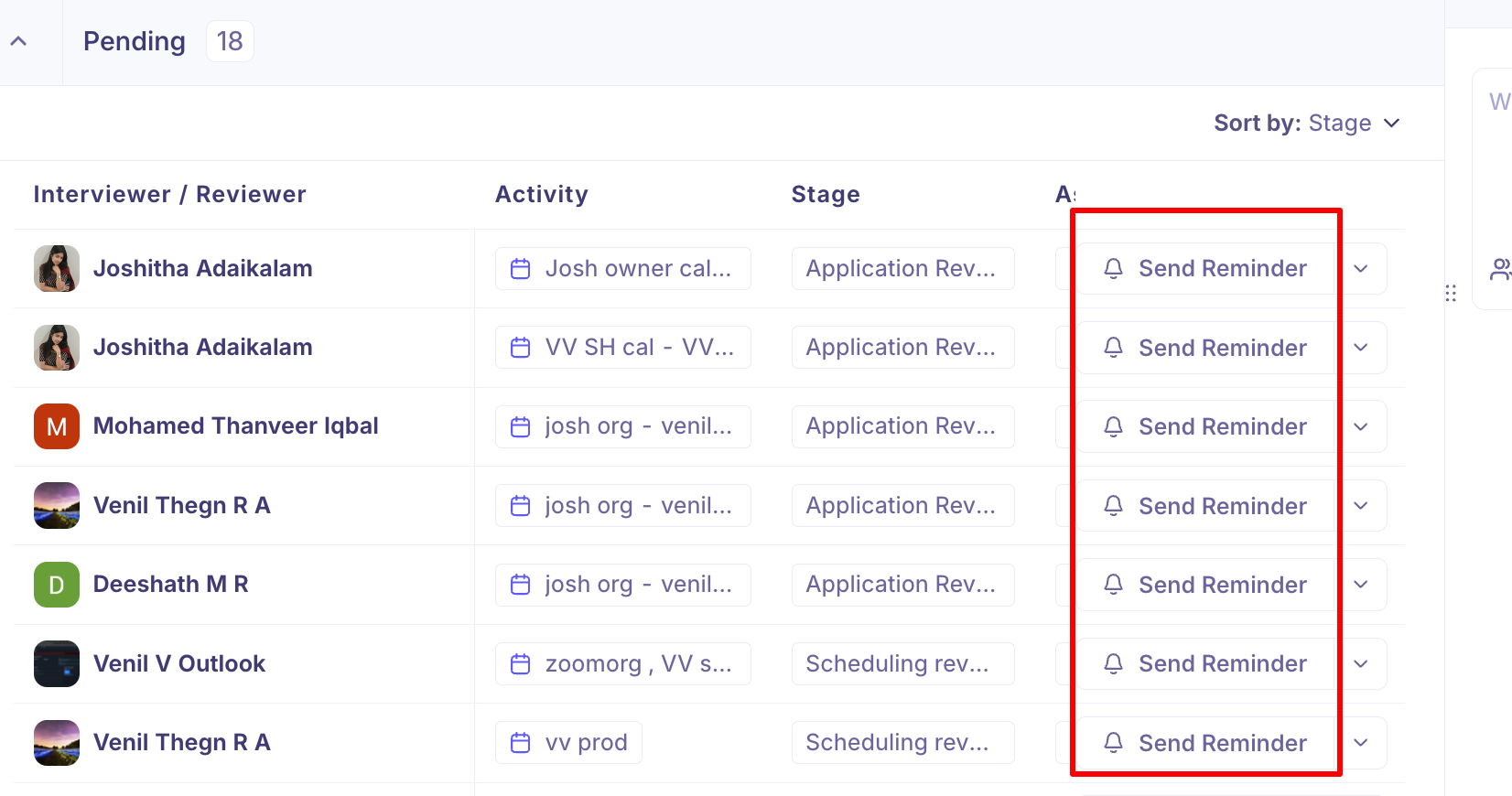
Pending — scorecards still outstanding, and who owes them.
That split answers the two questions you actually have before a debrief: what does the panel think, and who hasn't replied yet.
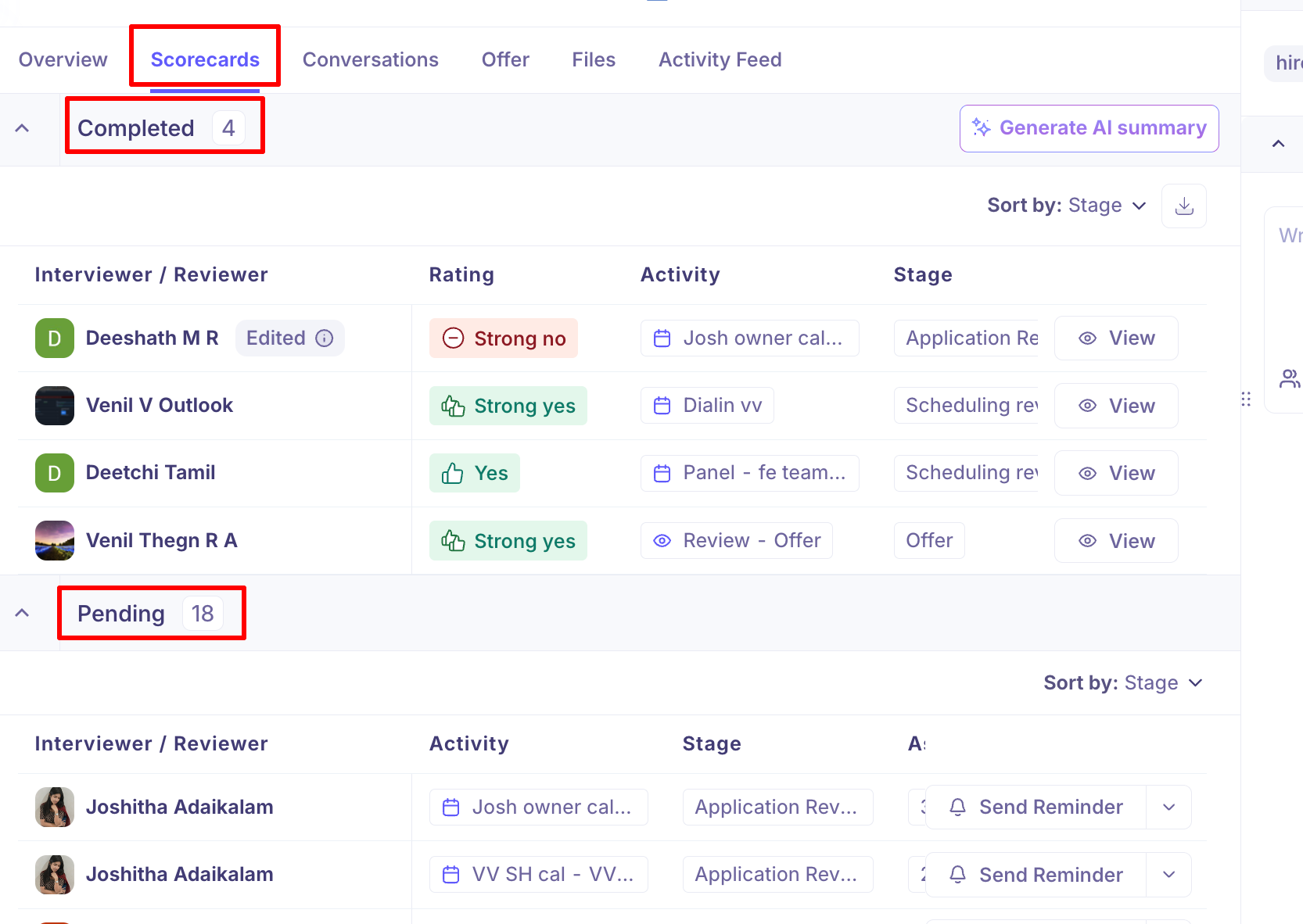
Each row shows the interviewer or reviewer, their rating, and the activity the scorecard belongs to — the interview, review or assessment. Open a row to read the full scorecard.
Sort to answer a specific question
Both sections can be sorted, and the right sort depends on what you're trying to find out.
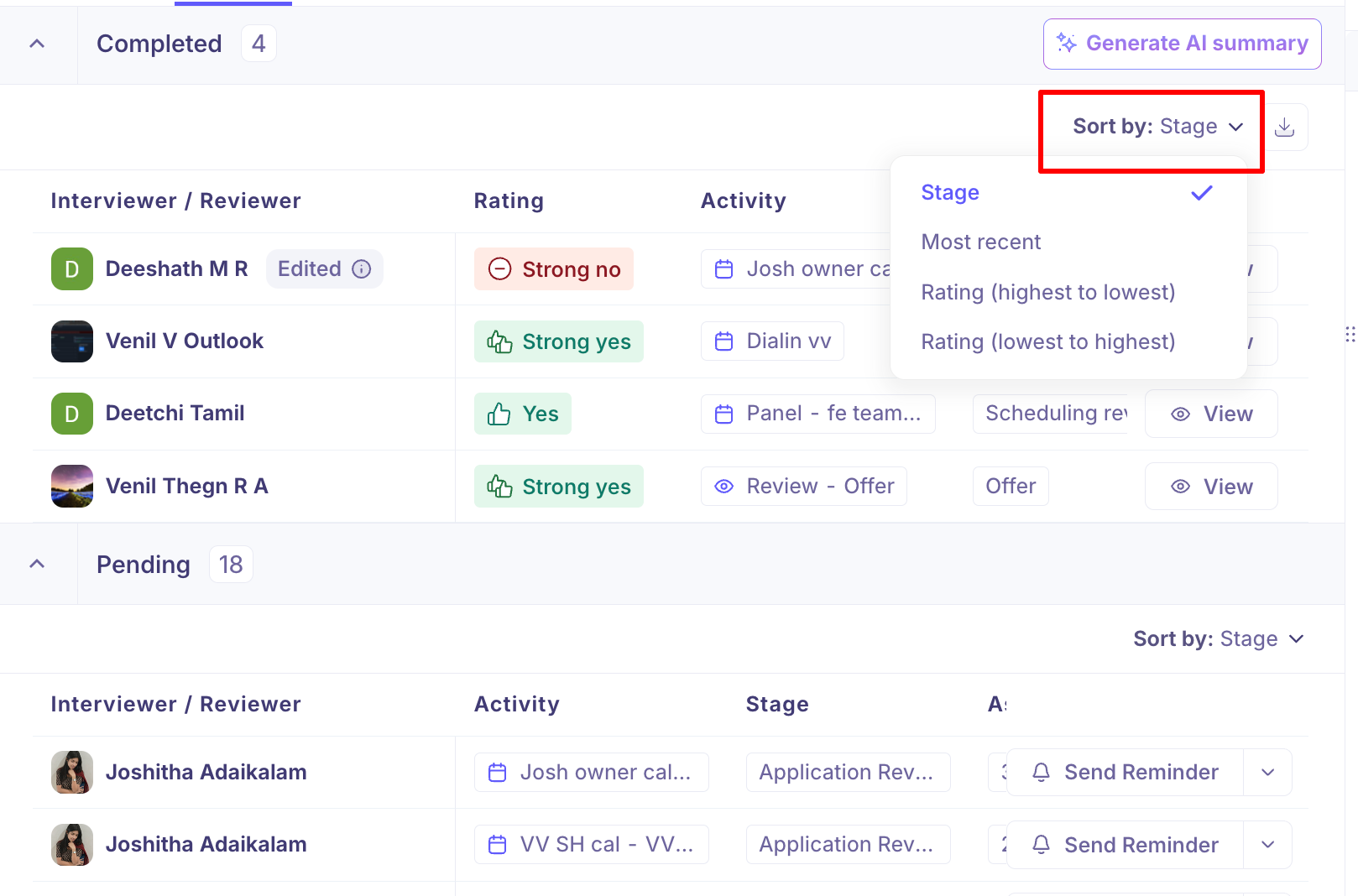
Sort by | Use it to |
|---|---|
Stage | Follow the candidate's progress in pipeline order — the default, and the best way to read a full history. |
Most recent | See the latest feedback first, before a debrief or a quick decision. |
Rating (highest to lowest) | Find the strongest advocates for a candidate. |
Rating (lowest to highest) | Surface concerns first when deciding whether to progress someone. |
Get told when feedback arrives
You don't have to keep checking. When an interviewer submits a scorecard, Kula notifies you, carrying the same core facts wherever it reaches you:
Field | What it shows |
|---|---|
Candidate | Who was interviewed |
Reviewer | Who submitted the feedback |
Overall evaluation | Strong yes, Yes, No or Strong no |
Job | The job the candidate applied to |
Activity | The interview, review or assessment it came from |
Each notification has a button "View Scorecard" that opens the scorecard directly.


Channel | What it looks like |
|---|---|
In app | In your notifications list, with the details and a Review scorecard now button. |
From Kula ( | |
Slack | A message from the Kula app with the same fields and a View scorecard button, if your workspace is connected. |
Notification preferences are per person — each of you picks which activities notify you and on which channels.
Chasing pending scorecards: Scorecard Submission Reminders
Interviewers who haven't submitted are chased automatically. You can also nudge someone yourself, and it's worth knowing the difference so you're not duplicating what Kula is already doing.
Kula chases automatically
Once an interview has ended and a scorecard is outstanding, Kula reminds the interviewer once every 24 hours, up to three times. Automatic reminders stop as soon as the scorecard is submitted.
They're also deliberately considerate, which is why an interviewer may not get one exactly a day later:
They follow the interviewer's working schedule, so a reminder due on a non-working day waits for the next working day.
They pause for short periods of leave and resume afterwards.
They stop entirely if someone is away for a week or more, or has no working schedule set.
They're never sent where no scorecard was required for the interview, or if the interviewer's account has been deactivated.
Send a reminder yourself
For anything in Pending, use Send Reminder on the scorecard. The button carries a count of how many reminders that person has already had, and hovering it tells you when the last one was sent — check that before nudging again.
Manual reminders are separate from the automatic ones and don't use up the allowance of three.
If chasing isn't working, the dropdown beside Send Reminder offers Submit scorecard yourself, so you can record feedback an interviewer gave you verbally rather than leaving the round unresolved.
Reading feedback fairly
Two things worth knowing when you interpret what you're seeing:
The overall evaluation is the same on every scorecard — Strong yes, Yes, No, Strong no — so ratings are comparable across interviews, stages and jobs.
Interviewers may not have seen each other's feedback. Many teams deliberately hide it so opinions stay independent, and even where it's shared, an interviewer doesn't see anyone's rating until they've submitted their own. If two scorecards agree under those settings, that agreement means more. See Scorecard visibility and permissions.
Scorecards edited after submission are marked with when and by whom.
Good to know
A scorecard you can't see may still exist. What you see depends on your position on the job, not just on whether feedback was submitted.
External recruiters see less. Someone on the hiring team as an external recruiter sees only candidates credited to them.
Panel interviews produce one scorecard per interviewer, so a single interview can appear as several rows.
The same feedback appears in both places. Overview shows it inside its round; the Scorecards tab lists it all together.
Automatic reminders are capped at three. After that, chasing is manual.
Feedback from a transferred candidate carries across and is marked as transferred — see Downloading and transferring scorecards.
You can download everything as a PDF for a debrief or an offline review.
Notifications go to whoever can see the feedback. Someone who can't see a scorecard won't be notified about it either.
FAQ
An interviewer says they submitted, but I can't see their scorecard. Check the Completed section rather than Pending, and confirm you're on the right stage — sorting by Stage makes this easier. If it still isn't there, check your position on the job: recruiters, hiring managers and coordinators see all feedback, but external recruiters see only candidates credited to them.
Does Kula chase interviewers automatically, or do I have to? Automatically. Once the interview has ended, an outstanding scorecard triggers a reminder every 24 hours, up to three times, and they stop as soon as it's submitted. You can send extra reminders yourself at any point.
How do I chase someone who hasn't filled in their scorecard? Use Send Reminder on the pending scorecard. The count on the button and the tooltip tell you how many they've had and when the last one was sent, so you can see whether they've already been nudged.
Someone gave me their feedback verbally and won't fill in the scorecard. Use Submit scorecard yourself from the dropdown beside Send Reminder. It stays attributed to them as the reviewer, with your name recorded as the person who submitted it.
Where do I see the feedback for one particular round? Open the candidate's Overview tab, Click the All Stages button at the top of the Overview tab to switch from Current Stage to the full history.
Each ended interview lists its interviewers with their ratings and a View scorecard link.
Why does one interview show several scorecards? Panel interviews create a separate scorecard for each interviewer, so everyone gives independent feedback.
Can I export all the feedback for a candidate? Yes — download the scorecards as a PDF from this tab.
Can I see all interviews with pending or completed scorecards, or everything one person still owes? Yes. Go to Interviews → Past interviews and use the Scorecard status filter. Pending shows interviews with scorecards that haven't been submitted yet, and Completed shows interviews where every scorecard has been submitted. To see what one person still owes, also filter by Interviewer. You can get the same list from Reports & Analytics → Interview report by clicking the number in the Pending scorecards column next to their name.
A scorecard has been pending for months. Can I clear it? Yes, in two ways. To record the feedback yourself, open the interview, go to the Scorecard tab and submit it on their behalf. To drop the scorecard instead, open the interview, click Edit interview and remove the person as an interviewer or reviewer. That removes their pending scorecard, as long as they haven't already submitted it.
Need help?
If you have questions or need assistance, reach out to us at or use the in-app chat.