Downloading and transferring scorecards
Last updated: September 17, 2026
Two things often need to happen to interview feedback: getting it out of Kula as a document, and keeping it with a candidate who moves to a different job. This article covers both.
Who can do this: Anyone on the job's hiring team as a recruiter, hiring manager or coordinator. External recruiters see only the candidates credited to them.
Where to find it: your job → the candidate → Scorecards
Download scorecards as a PDF
Use this when feedback has to leave Kula — a debrief with someone who doesn't have access, a hiring committee pack, or a record for a regulated process.
Open the candidate's Scorecards tab.
Sort the list the way you want it to appear in the document.
Click the download icon above the list.
Wait while the PDF is built, then it downloads.
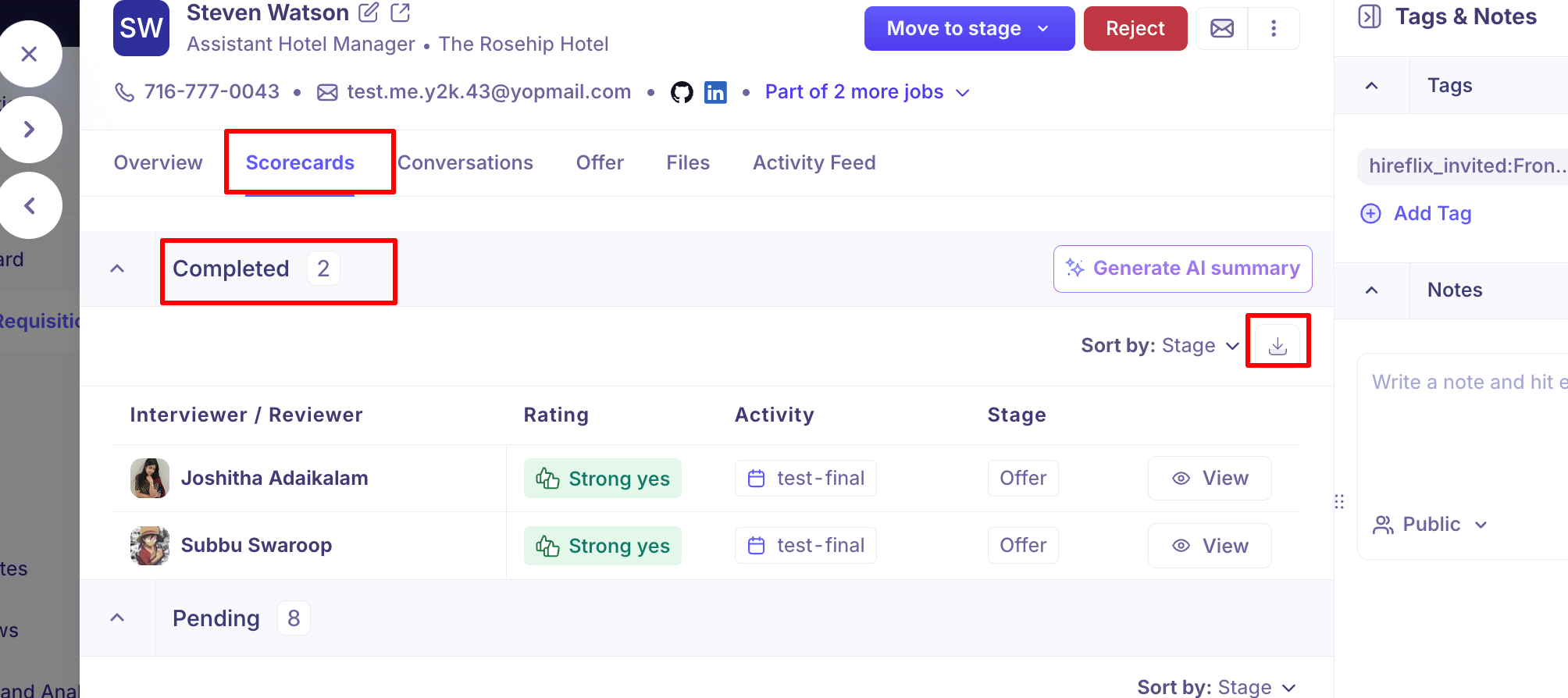
Sort before you download. The PDF follows the sort order on screen, so sorting by Stage produces a chronological pack, while sorting by rating groups the strongest or weakest feedback first.
What's in the PDF
The document contains the submitted scorecards grouped by stage, with each interviewer's answers, written feedback and overall evaluation, plus a summary. Dates and times use your own timezone and date format, so the pack reads correctly for whoever generated it.
It contains only the feedback you can see. The document is built as you — it goes through exactly the same permission checks as the screen, so downloading can't reveal a scorecard you aren't allowed to read. Two people downloading the same candidate may get different documents.
Attaching a sample PDF scorecard
Keep scorecards when a candidate moves to another job
You don't need to download anything to keep feedback with a candidate who moves to a different job. When you transfer them, their scorecards go with them.
Open the candidate on the job they're currently on.
Choose Transfer to another job.
Under Select job, pick the job to move them to, and confirm.
Kula shows what moves and what doesn't before you confirm:
What's transferred | Resume, completed activities, scorecards, forms, conversations, notes and files |
What's not transferred | Scheduled or pending activities, active offers and AI score |
On the new job, the earlier feedback is marked as transferred, and the stages from the old job appear under Transferred Stages on the candidate's Overview.
Transferring a candidate is permanent. Their scorecards move to the new job and can't be moved back.
Good to know
The PDF is generated on demand. There's no stored copy, so each download reflects the feedback as it stands at that moment.
The download reflects your current sort, not a fixed order.
Only feedback you're allowed to see is included — the same rules as the screen.
FAQ
How do I get interview feedback out of Kula for a hiring committee? Download the candidate's scorecards as a PDF from their Scorecards tab. Sort by Stage first for a chronological pack.
Does the PDF include feedback I'm not allowed to see? No. The document is generated as you and passes the same permission checks as the screen, so it can only contain scorecards you could already open.
I clicked download and nothing happened. The PDF is built when you ask for it, which takes a few seconds, and the icon shows a spinner meanwhile. If nothing arrives, try again, and check your browser isn't blocking the download.
If I move a candidate to another job, do I lose their interview feedback? No. Transfer them with Transfer to another job and their scorecards go with them, marked as transferred. Scheduled interviews and active offers don't move.
Need help? If you have questions or need assistance, reach out to us at support@kula.ai or use the in-app chat.