Sending self-schedule links
Last updated: September 26, 2026
A self-schedule link lets a candidate book their own interview slot from times when the interviewer, or someone in the interviewer pool, is actually free. You don't have to go back and forth to find a time. As soon as the candidate picks a slot, Kula books the interview and sends calendar invites.
You can send a link to one candidate from their application, or to a batch of candidates at once from the job's candidate list. In both cases each candidate gets their own personal link, booking against their own interview.
Who can do this: anyone who can manage the job's candidates: Super Admin and Admin on any job, the person who created the job, and Recruiters, Hiring Managers, Coordinators and Sourcers on the job's hiring team. Your calendar must be connected in Kula. Where to find it: one candidate: the Interview activity on their application. Several candidates: the job's Candidates tab, filtered to one stage → select candidates → Send self-schedule link in the bulk action bar.
Send a link to one candidate
Open the candidate's application and find the Interview activity for the stage you're scheduling.
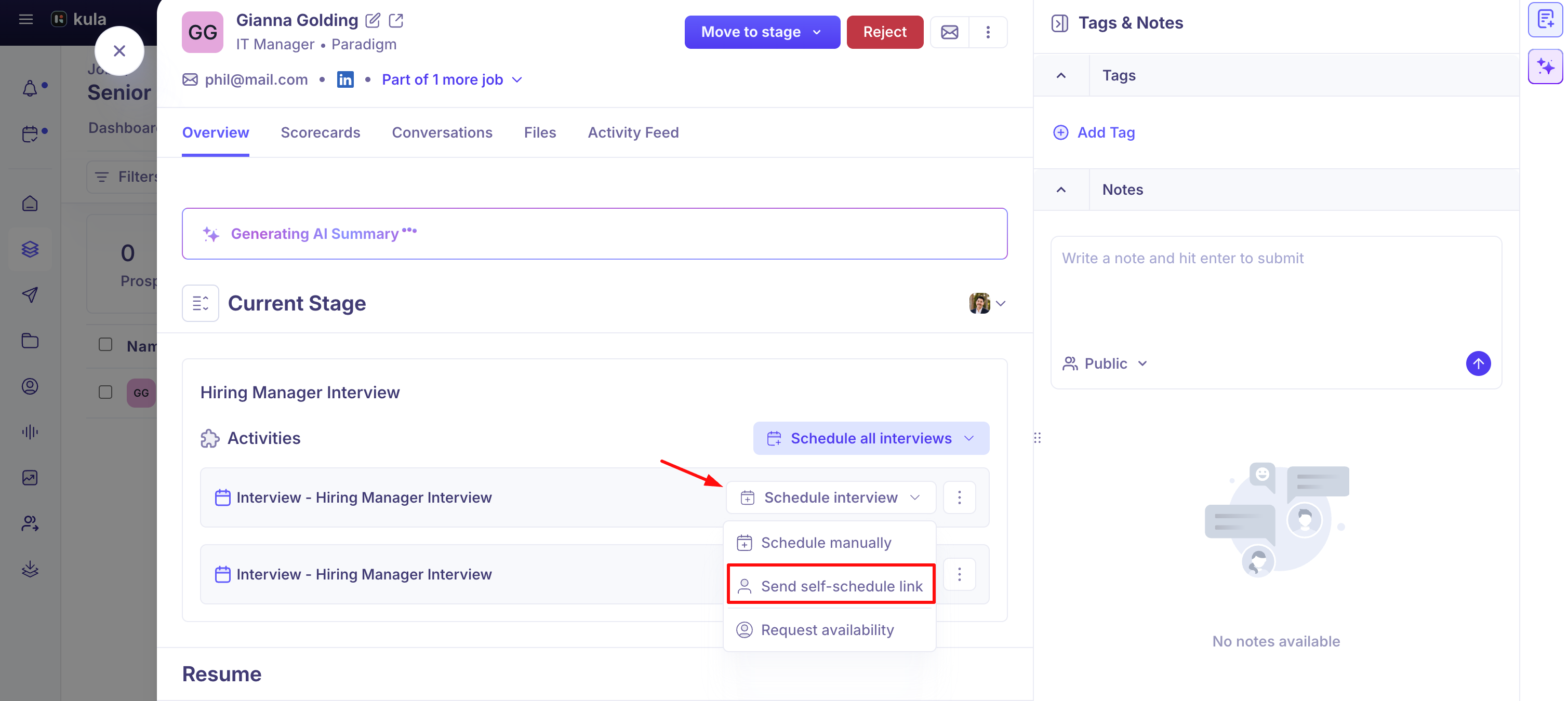
Open the scheduling options and select Send self-schedule link.
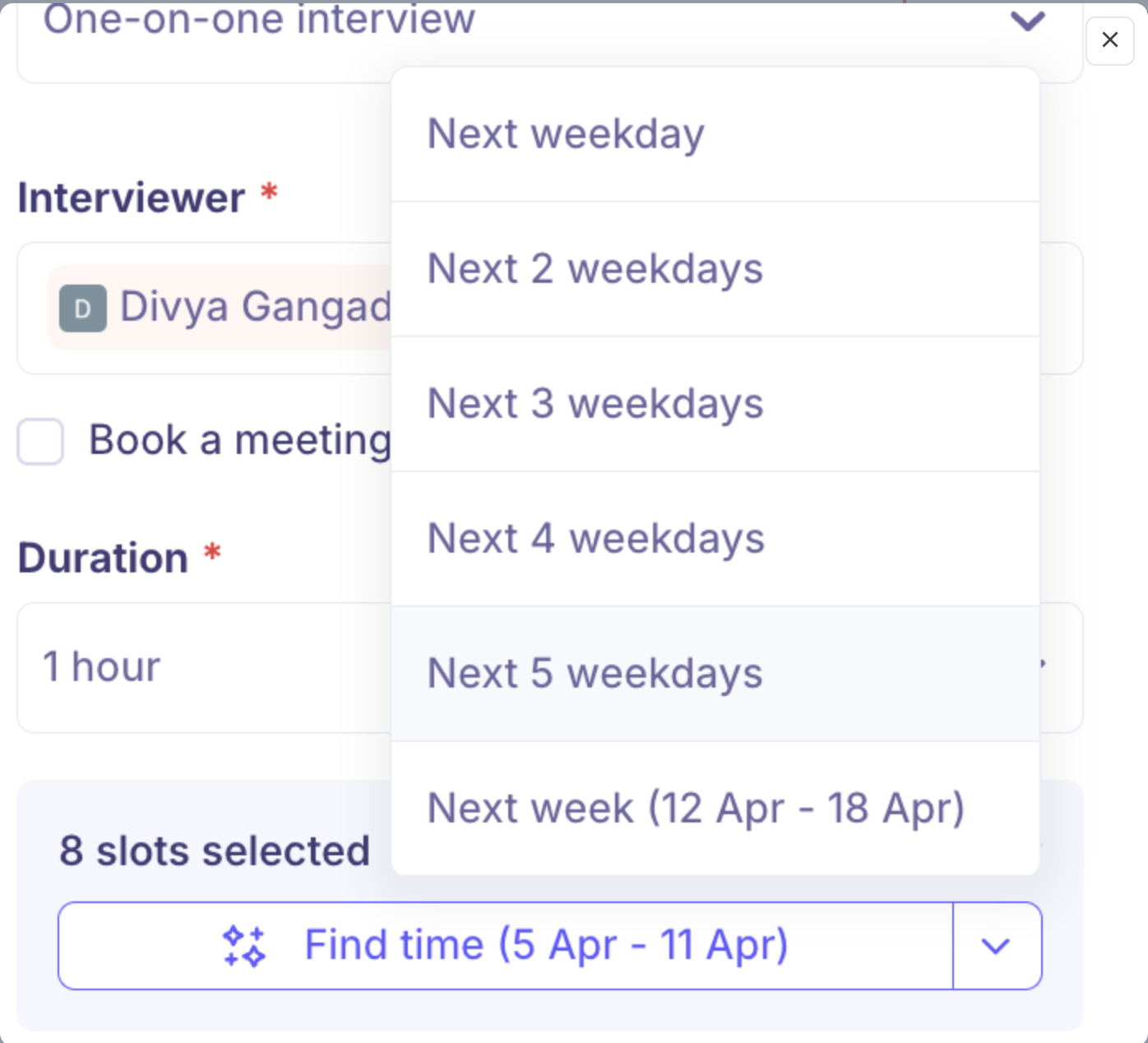
Choose a scheduling window: Next weekday, Next 2 weekdays, Next 3 weekdays, Next 4 weekdays, Next 5 weekdays, Next week or Custom. The candidate can only book inside this window, and the link stops working when it ends.
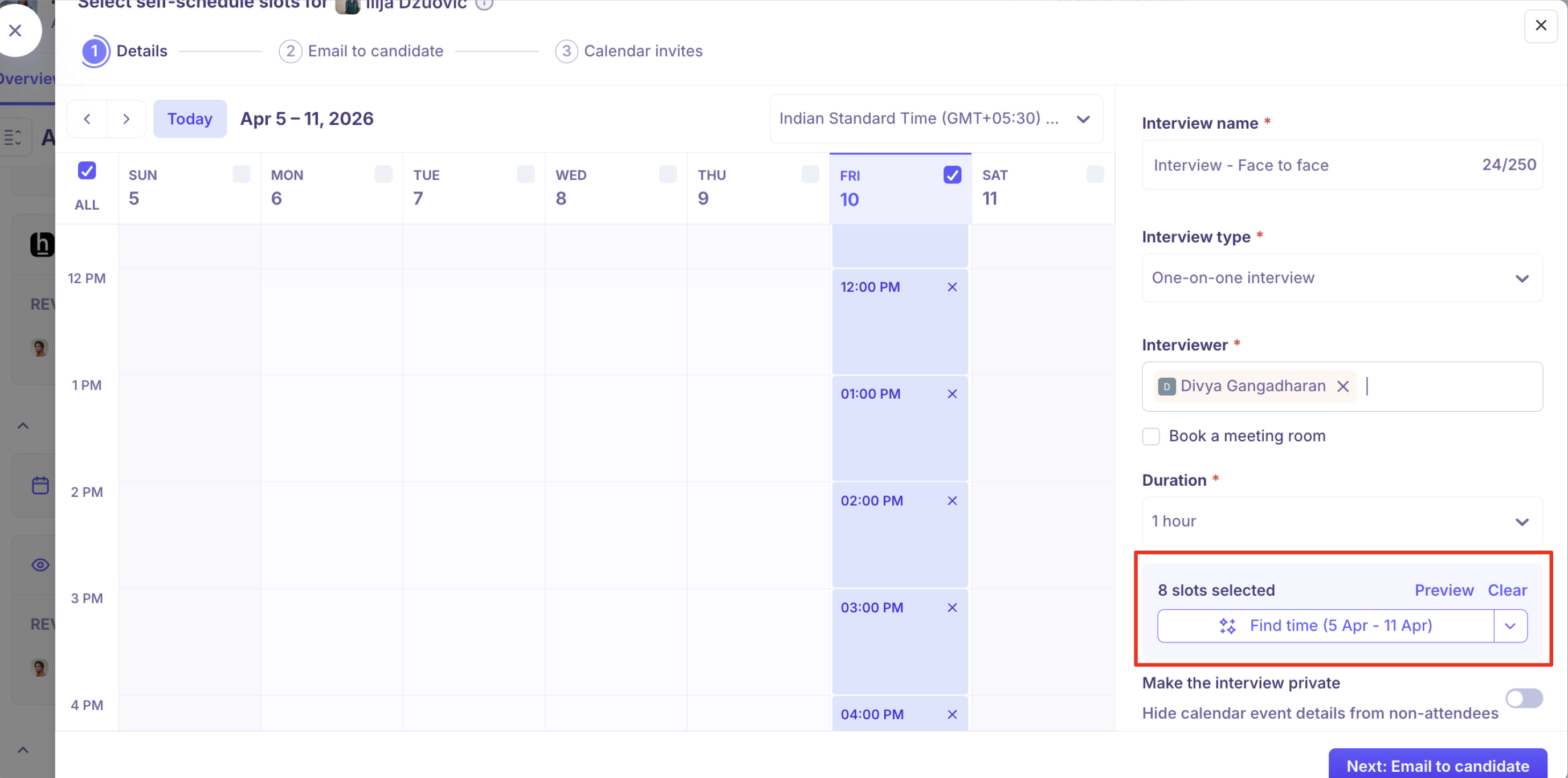
Check the interview duration and the interviewer or interviewer pool. Both are filled in from the interview plan.
Edit the email the candidate receives if you want to, then send it.
Send links to several candidates at once
Use this when a batch of candidates all need the same interview at the same stage, for example after a screening call.
Step 1: Select candidates in one stage
Go to the job's Candidates tab and filter the list to one stage. Bulk self-schedule isn't available from the All stages view.
Tick each candidate you want to send a link to. The stage needs at least one interview activity in the interview plan, and you can't send links to rejected candidates.

Step 2: Send the links
In the bulk action bar at the bottom, click Send self-schedule link.
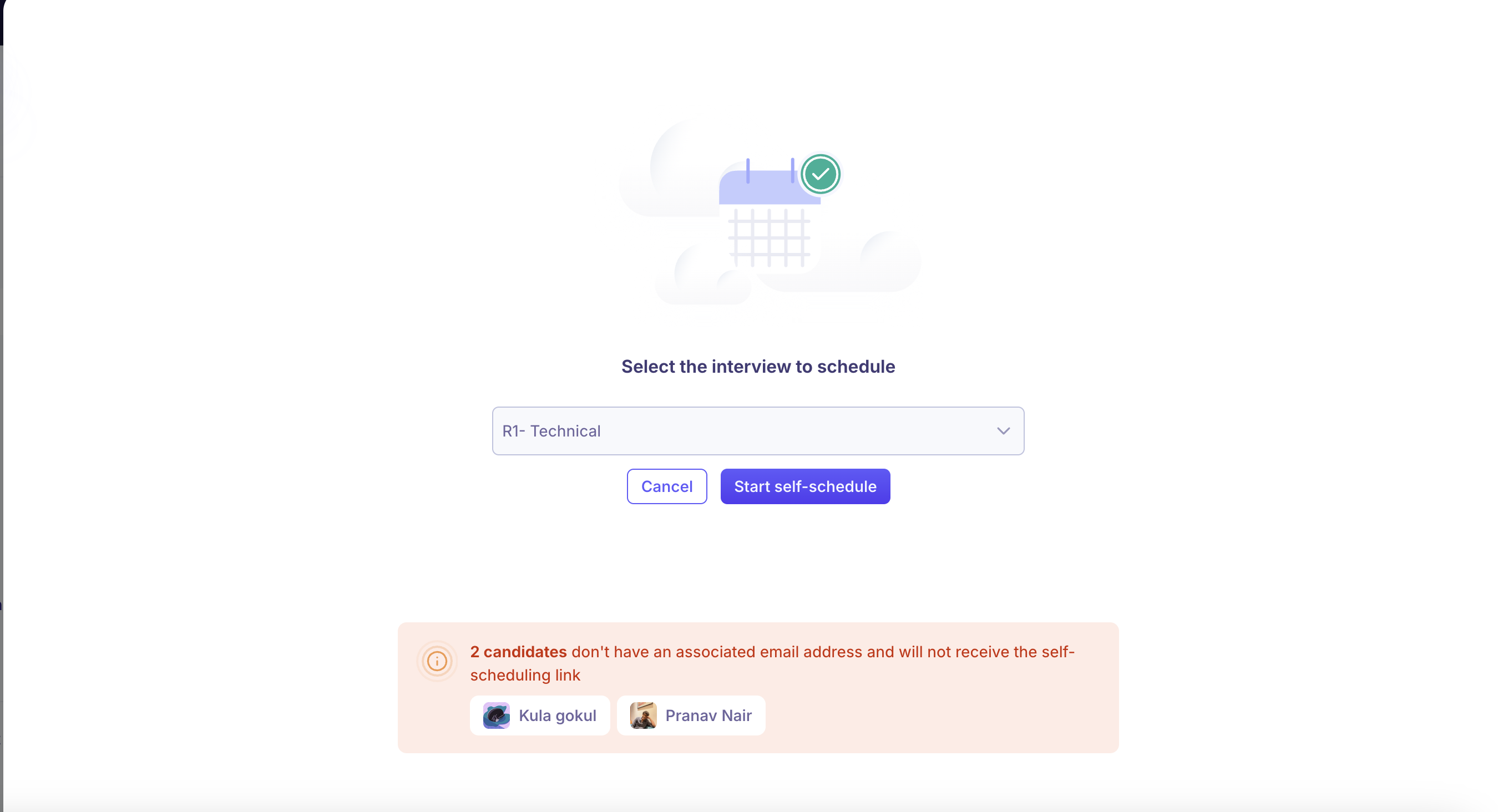
If the stage has more than one interview, choose the one to schedule. Kula flags any selected candidate who has no email address or is already scheduled. Continue to the scheduling details.
On the Details step, set the scheduling window, duration and interviewer or pool, the same way as for one candidate.
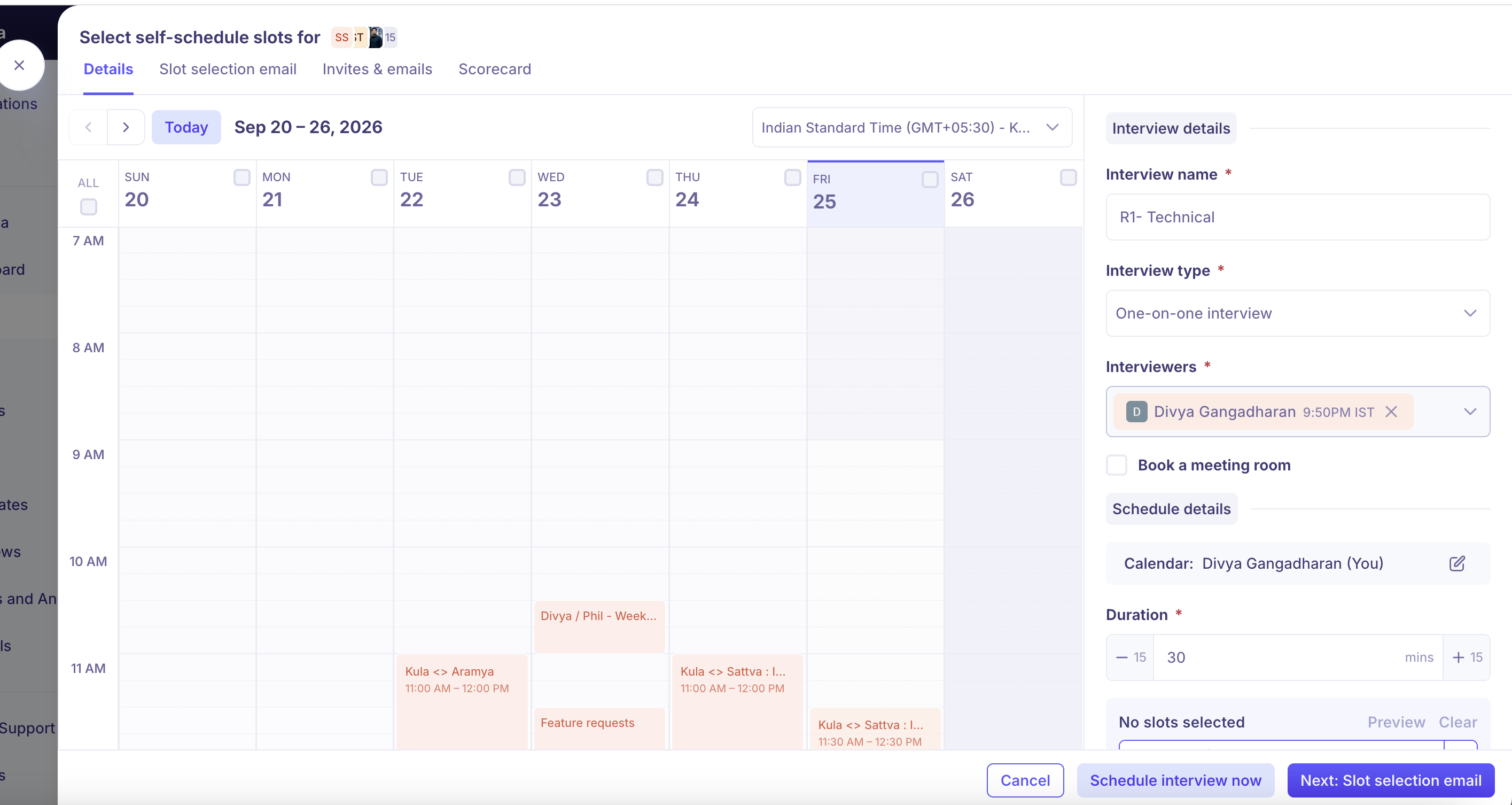
Click Find time to let Kula find slots that match the interviewers' availability.
Tick the days you want to offer slots on.
Confirm the time options and click Next: Email to candidate. Review the email, click Next: Calendar invites, then send.
What the candidate sees
The candidate opens the link and sees only times when the assigned interviewer, or someone in the assigned pool, is free. As soon as they pick a slot, Kula books the interview and sends calendar invites. You don't need to do anything else.
One-on-one interviews with several interviewers: Kula checks all the interviewers' calendars and offers slots where any one of them is free. When the candidate picks a slot, Kula assigns the interviewer who is available at that time.
Good to know
Your calendar must be connected. If it isn't, Kula asks you to connect it before you can send a link.
For several candidates, pick one stage first. Bulk self-schedule isn't available from the All stages view.
Some candidates may be skipped. Kula flags selected candidates who have no email address or are already scheduled for the interview.
Closed and archived jobs. The bulk action isn't offered on closed or archived jobs.
The link expires with the window. Once the scheduling window ends, the candidate can't book. Send a new link if they missed it.
FAQ
Do candidates share one link when I send in bulk? No. Each candidate gets their own link and books their own slot against the same interview activity.
Why is Send self-schedule link greyed out? Check that you've filtered to a single stage, that the stage has an interview in its interview plan, and that you're not on the rejected candidates list.
Who does the candidate meet if several interviewers are on a one-on-one interview? Kula offers slots where any one of the interviewers is free, and assigns whoever is available at the time the candidate picks.
Does a self-schedule link work for a panel interview? Yes. It books every panel interviewer into the slot the candidate picks.
Need help?
If you have questions or need assistance, reach out to us at support@kula.ai or use the in-app chat.