Schedule an interview with a Zoom, Teams, or Meet link
Last updated: October 23, 2026
When you schedule an interview in Kula, you choose how the candidate and interviewers actually meet. Kula supports video interviews over Zoom, Google Meet, or Teams, phone interviews, in-person interviews, and live coding interviews through HackerRank, and it handles generating and attaching the right link or details for whichever one you pick.
Who can do this: Anyone who can manage the candidates on the job: Super Admin and Admin on any job, the person who created the job, and Recruiters, Hiring Managers, Coordinators and Sourcers on the job's hiring team.
Where to find it: Location is part of the regular scheduling flow, whether you're scheduling manually, with AI, or sending a self-schedule link. HackerRank interviews work a little differently, covered in its own section below.
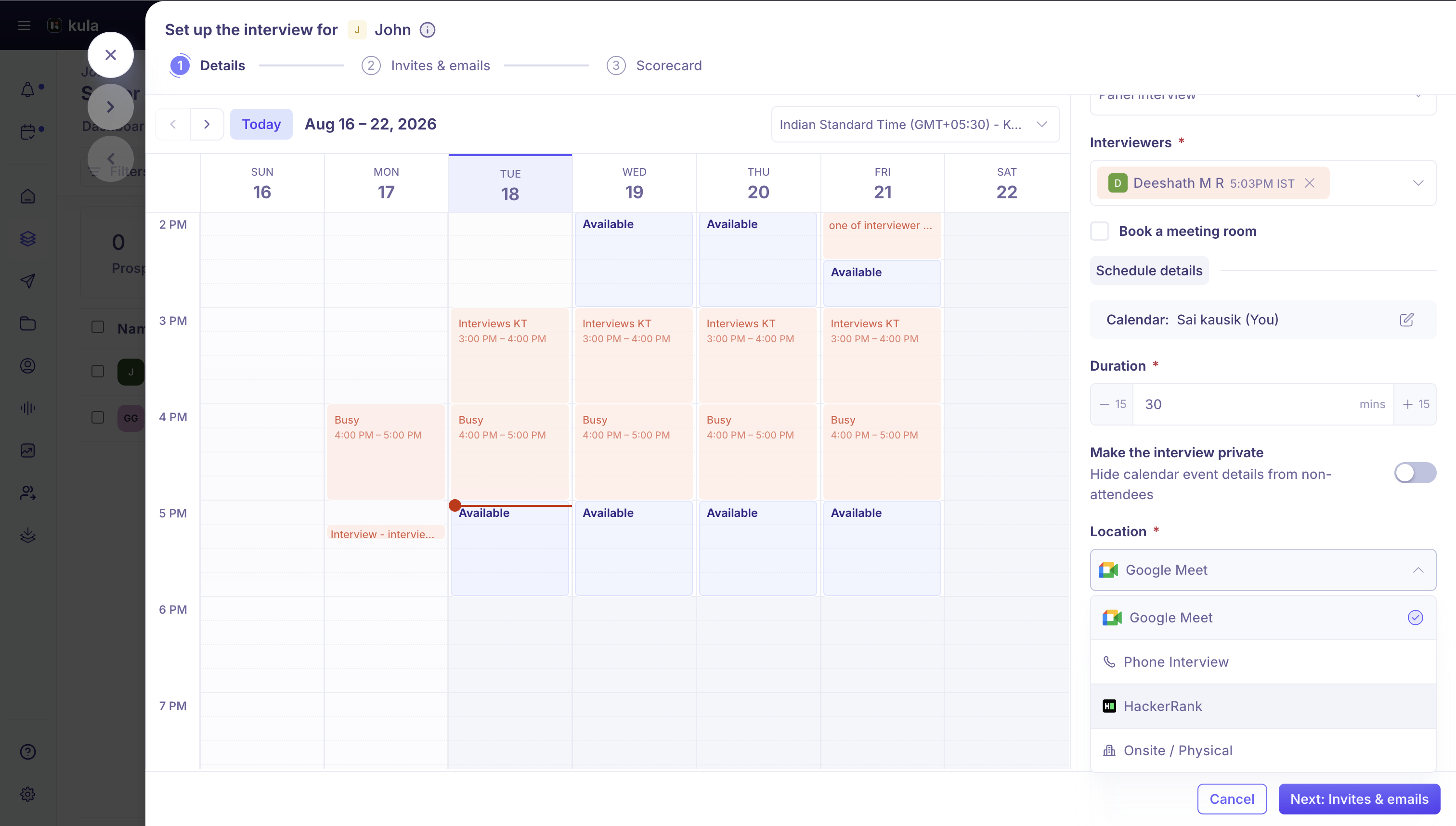
Use this to understand what each location option does and what you need to set up beforehand.
Zoom
Set Location to Zoom, then set Host to the interviewer whose Zoom account should host the call. Kula shows that person's Zoom account status, for example whether they're a paid or free user, need a license, or aren't part of your organization's Zoom account, so you can catch a problem before you send the invite. Kula generates the Zoom link automatically and attaches it to the calendar invites and confirmation email.
Google Meet
Set Location to Google Meet, then set Host the same way you would for Zoom. Kula generates the Meet link and attaches it to the invites and confirmation email. See Google Meet host settings for choosing who hosts
Teams
Set Location to Teams. Kula generates the Teams link and attaches it to the invites and confirmation email.
Who can host. Which accounts are available to host a Zoom, Google Meet, or Teams call from depends on your account's integration with that tool. If an interviewer can't host, connect their account or choose a different interviewer.
Phone Interview
Set Location to Phone Interview. There's no link to generate; Kula uses the candidate's phone number on file instead, so it's worth confirming that's correct before you schedule.
Onsite / Physical
Set Location to Onsite / Physical for an in-person interview. There's no meeting link involved.
HackerRank
A HackerRank interview is a live coding interview, and it's set up differently from the other locations. Instead of choosing HackerRank from the Location field on a regular Interview activity, add a HackerRank interview activity to the stage in the job's interview plan. From there, scheduling it works like any other interview: you pick the interviewer, date, and time, plus which HackerRank template to use for the coding environment.
Integration needed. HackerRank interviews require your account to be connected. This is separate from a HackerRank assessment activity, which sends candidates an async take-home test instead of a live interview.
What happens after you schedule
For Zoom, Google Meet, and Teams interviews, Kula attaches the meeting link to the calendar invites and confirmation email. If your account has the AI notetaker enabled, it can join those three to record and transcribe the interview; it isn't available for phone, onsite, or HackerRank interviews.
Good to know
Set up the tool first. See Connect Zoom to Kula and Set up Google Meet and Microsoft Teams for interviews.
Check the Zoom host before you send. Kula shows the host's Zoom account status, so you can spot a free account, a missing licence or someone outside your Zoom account first.
Phone interviews use the number on file. Confirm the candidate's phone number before you schedule.
The AI notetaker only joins video calls. It can join Zoom, Google Meet and Teams interviews, not phone, onsite or HackerRank ones. Turn it on for each interview with Enable AI notetaker?
FAQ
Why can't I pick an interviewer as the host?
Which accounts can host depends on your account's integration with that tool. Connect their account or choose a different interviewer.
Is there a link for phone or onsite interviews?
No. Phone interviews use the candidate's phone number on file, and onsite interviews have no meeting link.
Where does the meeting link go?
Kula attaches it to the calendar invites and the confirmation email.
Can I schedule two interviews that overlap, one on Zoom and one on Teams?
Yes, as long as different interviewers are on each interview. You can be the host of both.
Why do I see Teams but not Google Meet (or the other way round)?
The options depend on the calendar connected for the person scheduling. Outlook gives you Teams and Zoom. Google Calendar gives you Meet and Zoom.
Need Help?
If you have questions or need assistance with setup, feel free to reach out to us at support@kula.ai or use the in-app assistance.