AI in outreach — drafting and editing messages

Last updated: August 20, 2026

Kula can draft candidate outreach messages — for Flow email steps, LinkedIn InMails, and LinkedIn connection requests — using AI, personalized to each candidate's profile. This article covers how message generation actually works, what it draws on to personalize a message, how review and editing fit into the process, and known limitations.

Who can do this: Recruiter, Admin, Super Admin — anyone who can build or edit a Flow.

Where to find it: Job → Flows → a Flow step (Email, LinkedIn InMail, or LinkedIn Connection Request) → "Generate with AI." The Dynamic AI Block is a component within a generated message that pulls in a specific personalization focus (such as a candidate's work experience or skills).


How message generation works

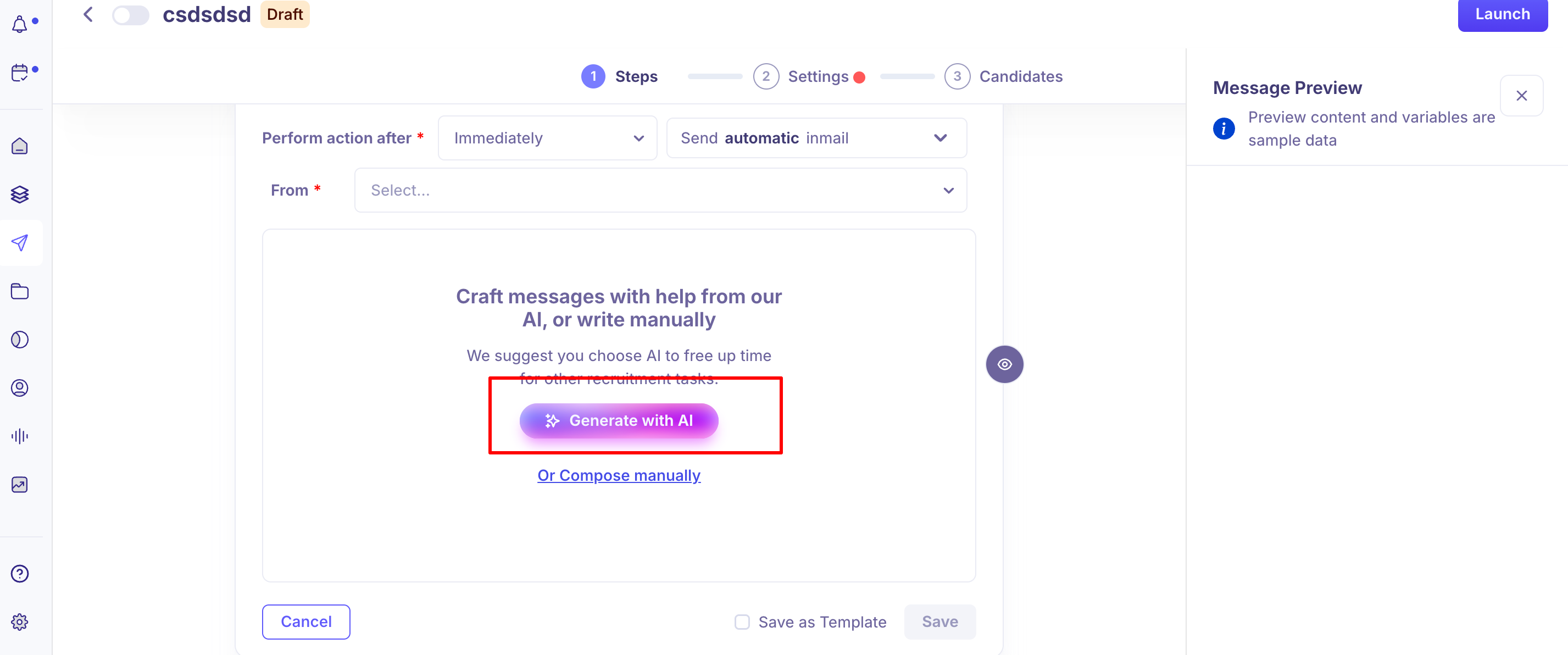
When you add or edit a Flow step, you can generate its content with AI instead of writing it manually:

  • Create or open a Flow and add a step — Email, LinkedIn InMail, or LinkedIn Connection Request.

  • Set the step's schedule and sender.

  • Click "Generate with AI."

  • In the popup, provide the role being hired for and the message's focus (for example, a specific skill or experience area you want highlighted).

  • Click "Generate Message" to produce a draft.

  • Review the draft against your company's tone and the message's purpose.

  • If it's not right, regenerate — up to the version limit described below — before saving.

  • Click "Save."

image.png

Generation isn't limited to one candidate at a time when a step uses AI personalization: once AI personalization is turned on for a step, messages are generated automatically in the background for every candidate already on that step, and for any candidate added later. You don't need to trigger generation manually per candidate.

What personalizes the message

The AI draws primarily on LinkedIn enrichment data pulled for the candidate — profile summary, work experience, and skills. If that data isn't available or is incomplete, the AI falls back to more generic inputs, which visibly affects how personalized the output feels.

If you're seeing flat or generic AI-drafted messages, incomplete LinkedIn enrichment is the most likely cause — make sure enrichment has run before a candidate reaches a personalized step.

When generating, you can also set:

  • The role being hired for

  • The message's focus (which experience, skill, or detail to foreground — this is what the Dynamic AI Block surfaces in the message)

  • A preferred tone: Professional, Casual, Enthusiastic, or Persuasive

Regenerating and editing

  • You aren't locked into the first draft. You can regenerate to get a different version, and switch between generated versions before choosing one. Per a direct support answer to a customer question about this: each candidate gets up to three message versions total — the original AI draft plus two regenerations — after which regeneration is disabled for that message. (The live article "Crafting a Flow message using the AI feature" describes this differently — see Needs Verification above.)

  • You can also manually edit any AI-generated draft before it's used — nothing requires you to send the AI's output verbatim.

Review is mandatory before sending

A message generated by AI is not sent automatically just because it was generated. Before a message goes out, it must be reviewed and approved by a recruiter. If a candidate reaches a personalized Flow step and the message hasn't been approved yet, the sequence pauses at that step and the candidate stays on hold until someone reviews and approves it — then the Flow resumes and the message sends as scheduled.


Good to know

  • No bulk approval. AI-generated messages must be reviewed and approved per candidate; there's no way to approve a batch at once.

  • LinkedIn InMail sends can silently fail. If the LinkedIn account sending an InMail has hit its InMail credit limit, the Chrome extension can skip that send without surfacing an error to the recruiter (Linear ENG-3351/ENG-3335, unresolved as of this writing). If candidates on a LinkedIn-InMail step don't seem to be getting messages, check the sending account's InMail credit balance, not just the Flow configuration.

  • The Dynamic AI Block can intermittently fail to fetch LinkedIn profile data, even when a valid LinkedIn URL is provided — a reported, sometimes-intermittent issue rather than a hard rule about which profiles work.

  • LinkedIn InMail subject lines have, in the past, been garbled by LinkedIn's own AI-generated match-insight text concatenating with Kula's configured subject template (Linear ENG-3459, fixed). If you ever see an InMail subject that doesn't match what you configured, that's a known historical failure mode worth ruling out.

  • AI-generated content has occasionally shipped with LinkedIn-specific formatting problems — text breakage, lost paragraph spacing, or stray line breaks appearing only after a message template is saved — reported and fixed in past cases (Linear ENG-1748, ENG-1946, ENG-103, ENG-1974). If a message looks fine while editing but wrong once sent or saved, this class of bug is worth flagging to support even if the specific past tickets are closed.

  • AI-generated messages don't have their own separate compliance disclosure the way, for example, the Fraud detector does — see "AI data privacy and candidate consent" and "Which features use AI?" for the broader disclosure picture.

FAQ

  • How many times can I regenerate an AI-drafted message? Per a direct support answer, up to three total versions per candidate — the original draft plus two regenerations — after which regeneration is disabled. (Note: this doesn't fully match the click-by-click description in "Crafting a Flow message using the AI feature" — see Needs Verification.)

  • Why does my AI-generated message feel generic instead of personalized? Most often, incomplete LinkedIn enrichment data for that candidate. The AI personalizes primarily from LinkedIn profile summary, experience, and skills; without that, it falls back to more generic content.

  • Can I approve AI-generated messages for a whole batch of candidates at once? No — review and approval is done one candidate at a time. There's no bulk-approval option today.

  • Why is my Flow paused at a step that's supposed to send an AI-generated message? The message likely hasn't been reviewed and approved yet. Flows automatically pause at a personalized step until the AI-drafted message for that candidate is approved, then resume and send on schedule.

  • A candidate on a LinkedIn InMail step never got a message — why? Check whether the sending LinkedIn account has hit its InMail credit limit. The extension can skip a send in that situation without showing an error, which can look like nothing went wrong on the Flow side.

  • Can I edit an AI-generated message before it sends? Yes — AI-generated drafts can be manually edited like any other message content before you save and send them.

Need help?

For step-by-step help generating a specific message, see "Crafting a Flow message using the AI feature." For anything else, reach out to us at support@kula.ai or use the in-app chat.