Personalisation tokens
Last updated: September 26, 2026
Personalisation tokens drop real candidate, job and hiring-team details into your messages and documents, so you don't retype a name, job title or interview time each time.
Who can do this: anyone who builds flow steps, email templates or offer letter templates
Where to find it: the token picker in a flow step, an email template or an offer letter template
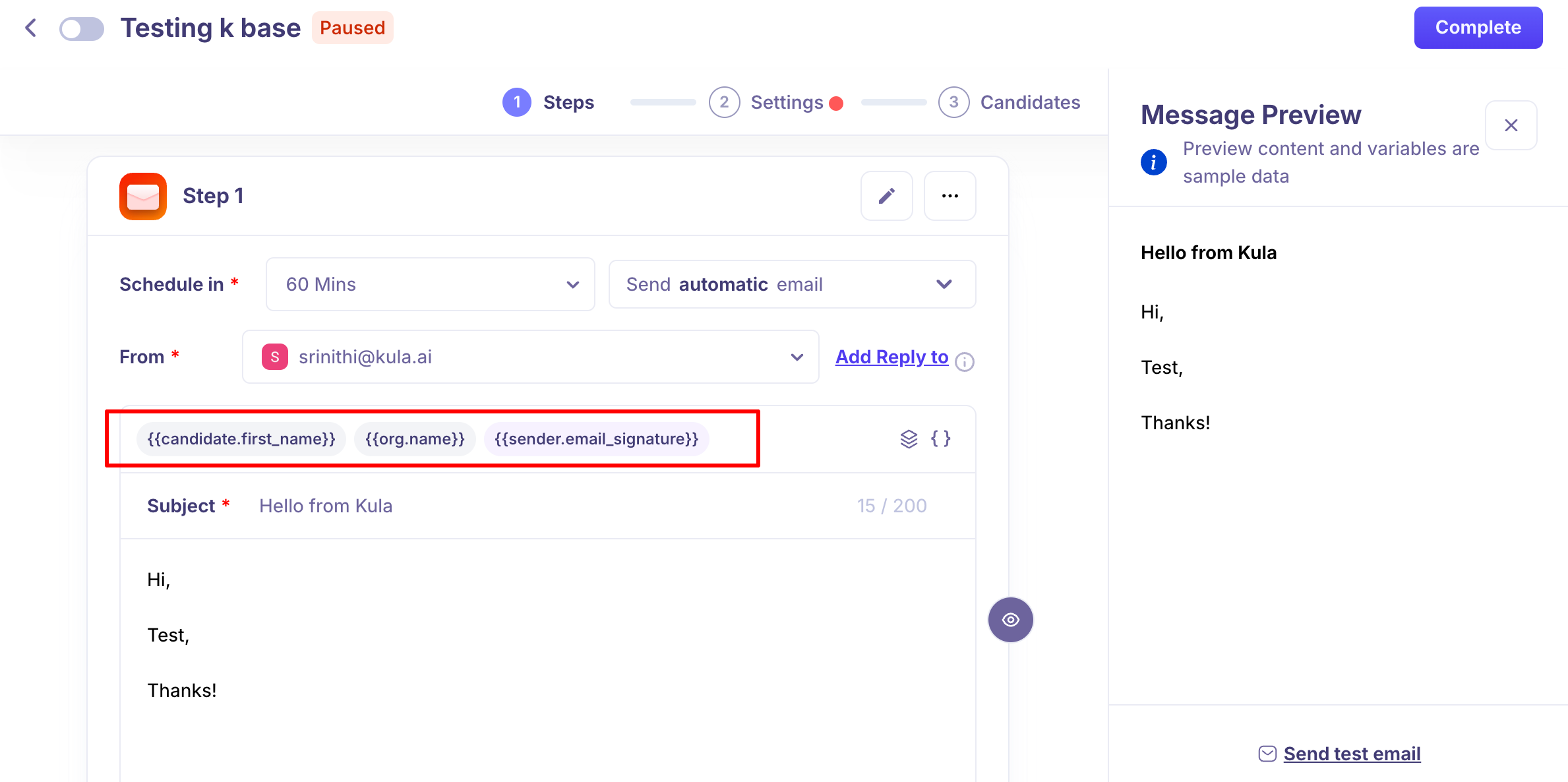
What a token looks like
Tokens use {{ }} syntax — for example, {{candidate.first_name}}. Kula replaces the token with the real value at send or document-generation time.
Where you can use them
Flow steps: emails and LinkedIn messages. See Creating a flow.
Email templates: such as referral and offer emails.
Offer letter templates: including DocuSign templates and multi-document packets.
Default tokens available
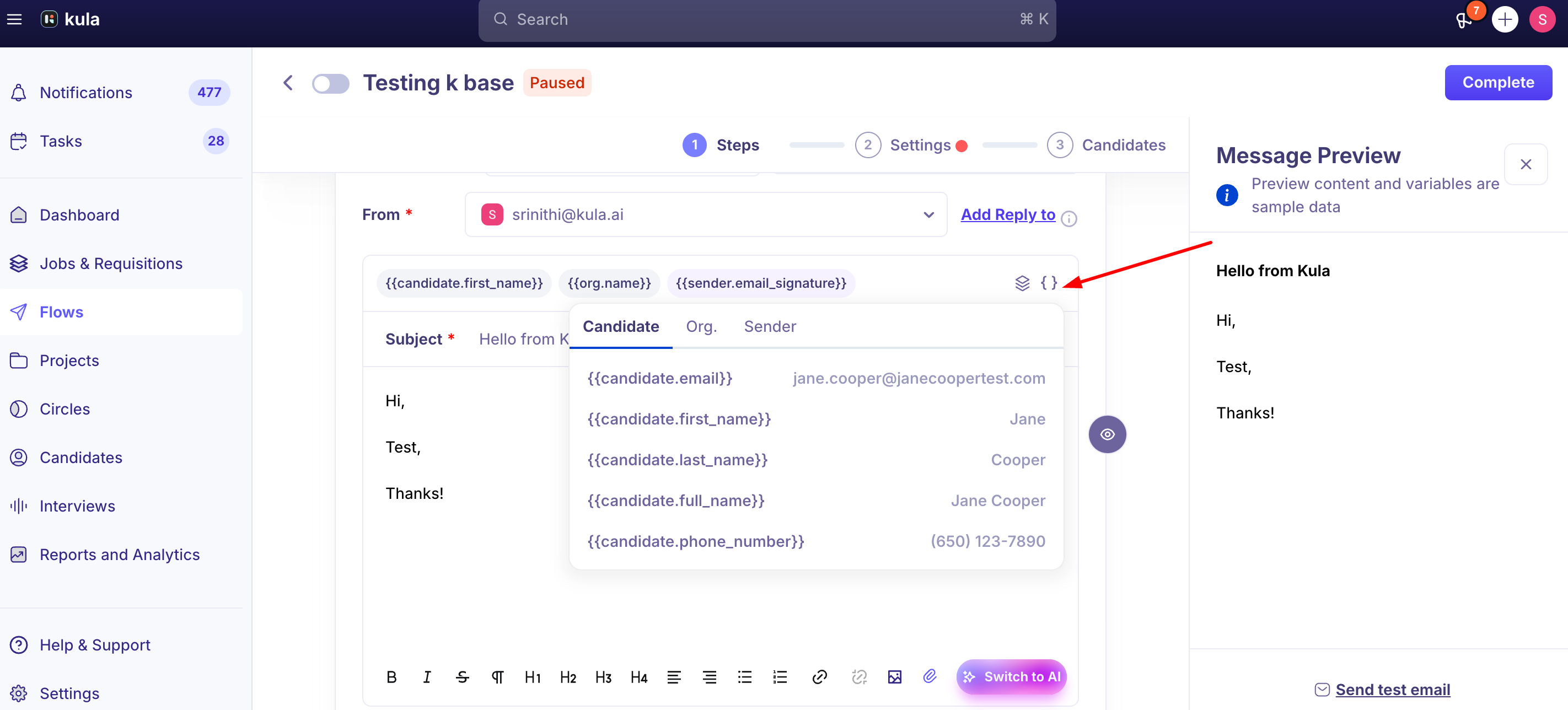
Flow steps show the broadest set of variables Kula supports, including details for the job's recruiter, coordinator, and hiring manager (name, title, email — for one or all of them), office name and location, and interviewer details.
Treat this as a general sense of what's available rather than a complete list — check the token picker inside the flow step editor for the current, full set, since new variable types continue to be added over time.
Custom field tokens
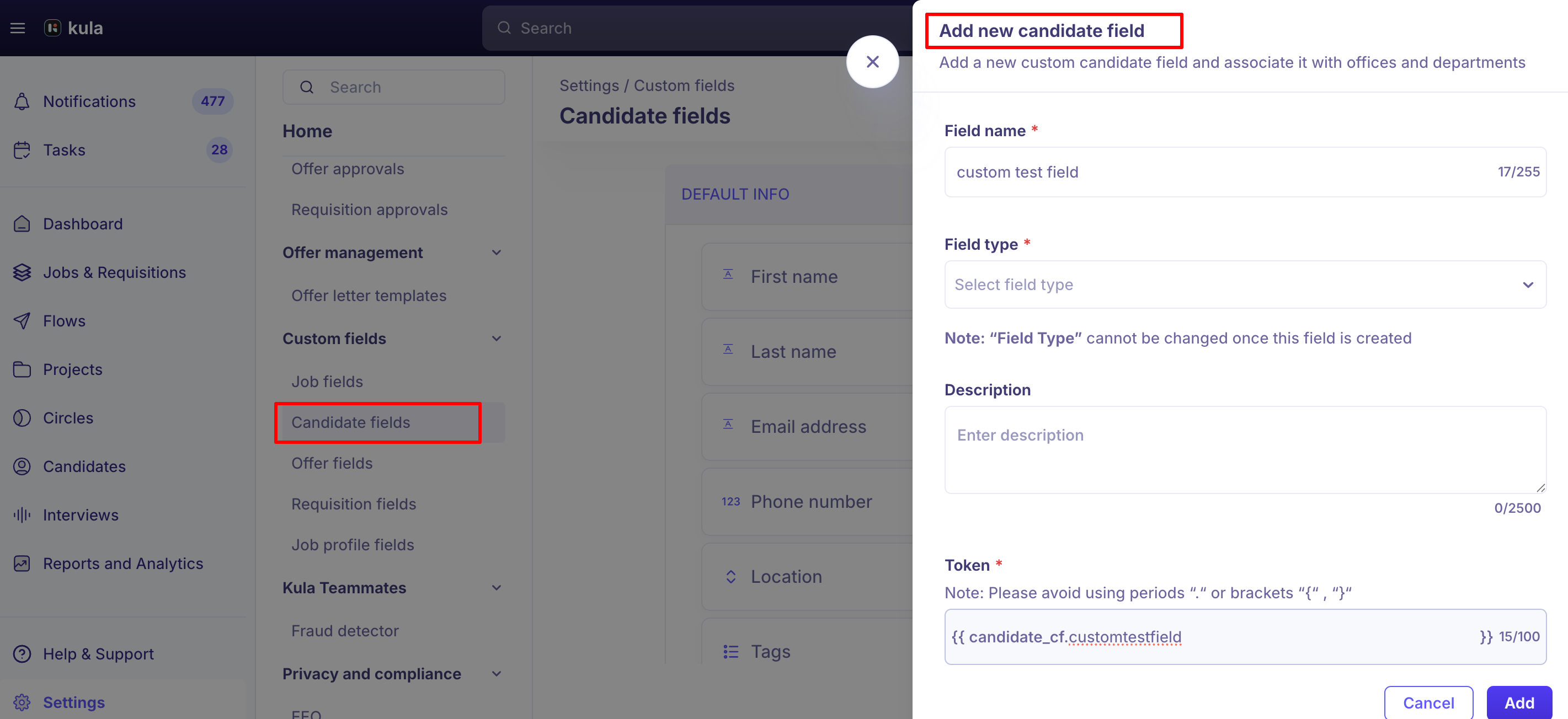
When you create a custom field, Kula automatically generates a token for it that works the same way as a default token. A couple of things to know:
Kula has added custom variables specifically for outreach personalization on request.
Only custom fields get customizable tokens today. You can't create or rename a token for a default/built-in field like candidate name — custom tokens are specifically for fields you create yourself.
Finding and copying tokens
Available tokens are listed at the point where you're personalizing a flow step. If you can't find a token you expect, check the field's own settings.
Good to know
Tokens use {{ }} syntax consistently across default and custom-field tokens.
Default/built-in fields don't support custom or renamed tokens today — only fields you create yourself do.
Flow steps show the broadest variable set Kula supports. If a token you expect isn't showing up, check the token picker directly in the step editor rather than assuming it doesn't exist.
Always preview before sending. A missing or mismatched data point won't be flagged automatically — previewing catches an unresolved or misplaced token before a candidate sees it.
FAQ
What does a token actually look like? Tokens use {{ }} syntax — for example, {{candidate.first_name}} — and get replaced with the real value when the step sends.
Can I create a custom token for a default field like candidate name? No. Only fields you create yourself can have custom tokens.
Where do I find the list of available tokens in a flow step? In the token picker inside the flow step's email or LinkedIn message editor, when you're personalizing the step.
Can I add a personalization variable that isn't offered by default? Yes — create a custom field and Kula automatically generates a token for it. Kula has also added custom variables on request in the past, like a candidate's previous company.
My token isn't resolving to the real value — what should I check? Confirm the exact token syntax matches what's shown in the picker (a typo or missing {{ }} won't resolve), and always preview the step before sending so you catch it before a candidate does.
Need help?
If you have questions or need assistance, reach out to us at support@kula.ai or use the in-app chat.