Required vs. Optional Fields
Last updated: April 17, 2026
When building an application form in Kula, every field you add can be configured as Required, Optional, or Hidden. Getting this balance right is important: too many required fields can discourage candidates from completing their applications, while too few can leave you without the information you need to evaluate them effectively.
This article explains how to configure field visibility and obligation settings, and when to use each option.
The Three Field States
Each field in a Kula application form can be set to one of three states:
State | What It Means | Candidate Sees It? | Submission Blocked If Empty? |
Mandatory (Required) | Candidate must fill this in to submit | Yes | Yes |
Optional | Candidate can skip this field | Yes | No |
Hidden | Field is not shown to the candidate | No | No |
How to Set a Field as Required or Optional
In an Application Form Template
Go to Settings > Jobs & Applications > Application Forms.
Open the form you want to edit.
Click the Form section.
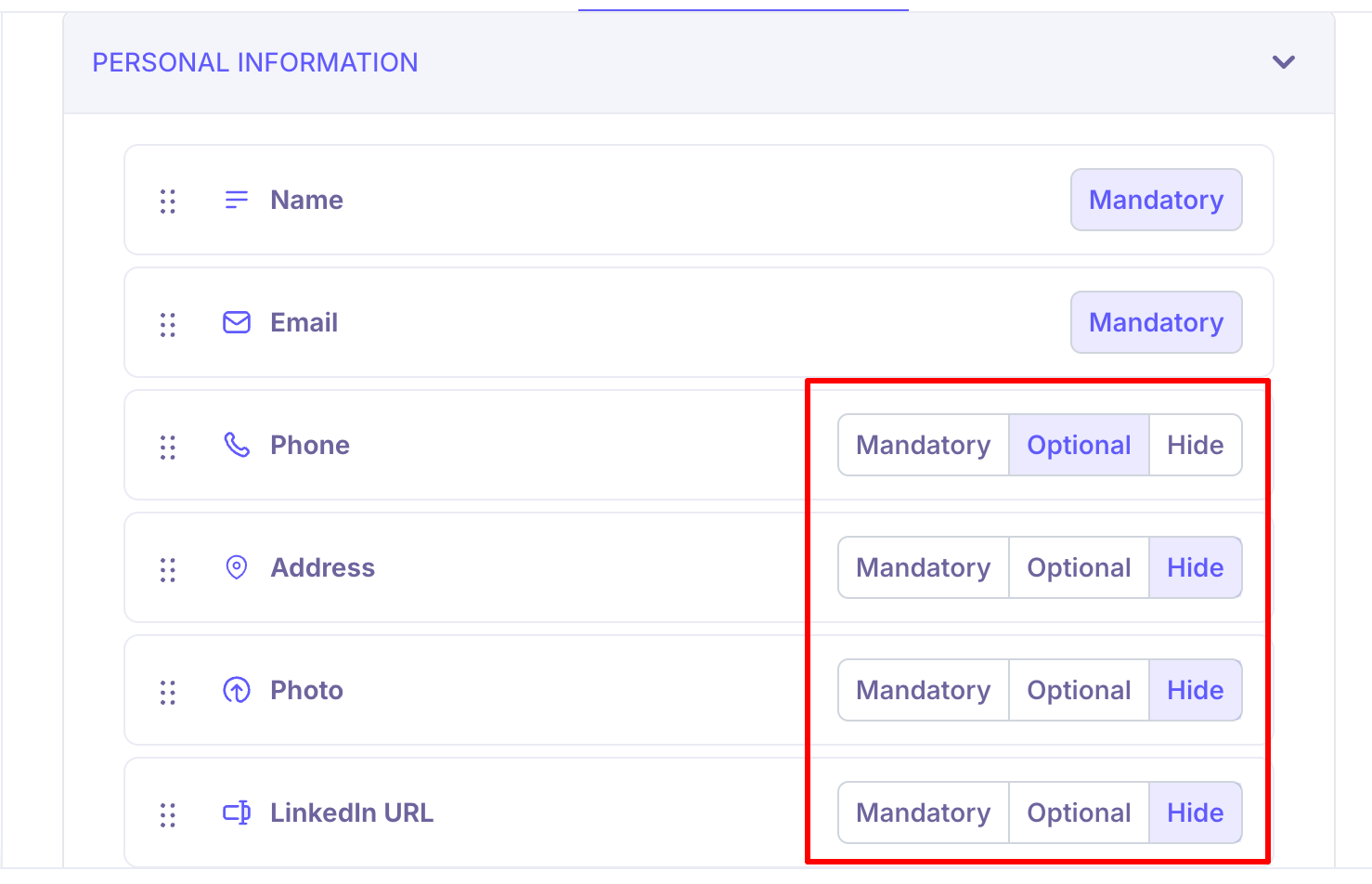
For each field, find the Mandatory / Optional / Hidden toggle.
Select the appropriate setting.
Click Update Form to save.
Within a Specific Job
Open the job.
Go to Job Post Settings.
Edit the assigned application form.
Adjust the required/optional/hidden setting for individual fields.
Save changes.
Remember: Changes made at the job level apply only to that job and do not affect the template or other jobs using the same form.
When Creating a New Field
When adding a new custom field to a form:
Fill in the field name and type.
Check the Required Field checkbox to make it mandatory.
Leave it unchecked to make it optional.
Click Add to save the field.
When to Use Required Fields
Mark a field as Required when:
The information is essential to assess a candidate's eligibility (e.g., work authorisation status).
The data is needed to move the candidate through your pipeline without follow-up (e.g., current location for an on-site role).
Compliance or legal requirements mandate collection of certain information.
The field is used as a key filter to shortlist candidates (e.g., years of experience, expected salary range).
Examples of commonly required fields:
Full name and email address
Work authorisation / right to work
Earliest start date (for roles with urgent timelines)
Location preference (for multi-city roles)
Years of experience in a specific area
When to Use Optional Fields
Mark a field as Optional when:
The information is useful but not a dealbreaker.
Asking too many mandatory questions may discourage applicants.
The field is relevant to some candidates but not all (e.g., a GitHub link for a designer).
You want to collect supplementary context without gating the application.
Examples of commonly optional fields:
Portfolio or personal website URL
LinkedIn profile
Current employer name (unless relevant to the role)
Referral source ("How did you hear about us?")
Cover letter or additional notes
When to Use Hidden Fields
Mark a field as Hidden when:
A field exists in the base template but is not relevant to this specific job.
You want to maintain consistency in your form structure across roles without showing irrelevant questions.
A field is being temporarily removed from candidate view without deleting it from the form permanently.
Tip: Using hidden fields is preferable to deleting fields when you may want to re-enable them in the future or track consistency across form versions.
Built-in Fields vs. Custom Fields
Kula's default form includes built-in fields in the Personal Info and Profile sections. These system fields:
Cannot be deleted from the form.
Can be set to Mandatory, Optional, or Hidden.
Can be reordered within their section by drag and drop.
Custom fields you add (in custom sections) can be both edited and deleted.
Best Practices
Keep required fields to a minimum — every additional mandatory field adds friction to the application experience. Aim for only the fields that are truly necessary at the application stage.
Don't ask for information you already have — if a candidate uploads a resume, avoid making redundant fields (like current employer or job title) mandatory.
Use optional fields for enrichment — optional fields let motivated candidates share more without penalising those who prefer brevity.
Review field settings per job — a field that's required for a senior role may be irrelevant (and should be hidden) for an entry-level role using the same template.
Use hidden fields strategically — if a template has fields that don't apply to every job type, hide them at the job level rather than creating entirely new templates.
Frequently Asked Questions
Can I change a field from required to optional after the job is published? Yes. You can update field settings at any time via Job Post Settings. Changes apply to new applicants going forward; existing submissions are not affected.
Can I make a built-in field (like LinkedIn URL) hidden? Yes. Built-in fields in the Personal Info and Profile sections support all three states: Mandatory, Optional, and Hidden.
What if a candidate tries to submit without filling in a required field? Kula will prevent submission and highlight the empty required fields, prompting the candidate to complete them before proceeding.
Can I set different required/optional settings for the same form field across two jobs? Yes. Configure the form at the job level (via Job Post Settings) to override the template settings for individual jobs.
Does hiding a field lose its data for existing candidates? No. Hiding a field removes it from the candidate-facing form going forward, but does not affect responses already submitted.
Need Help?
If you have questions or need assistance with setup, feel free to reach out to us at support@kula.ai or use the in-app chat for assistance.