Candidate-Facing Application Experience
Last updated: April 17, 2026
The application form is one of the first touchpoints a candidate has with your company. Kula's application form is designed to be clean and straightforward for candidates, while giving your team the flexibility to collect the information you need. This article describes what candidates see and experience when they apply to a job through Kula, and how your form configuration choices directly shape that experience.
What Candidates See
When a candidate clicks the Apply button on a job posting, they are directed to the Kula-hosted application form. The form is organised into sections (such as Personal Info and Profile), followed by any custom sections your team has configured.
Candidates will only see fields that are set to Mandatory or Optional — fields marked as Hidden do not appear.
Default Fields Candidates Encounter
Personal Info section typically includes:
First and last name
Email address
Phone number
Location / city
Profile section typically includes:
Resume / CV upload
LinkedIn profile URL
Portfolio or personal website URL
These are followed by any custom sections with role-specific questions your team has added.
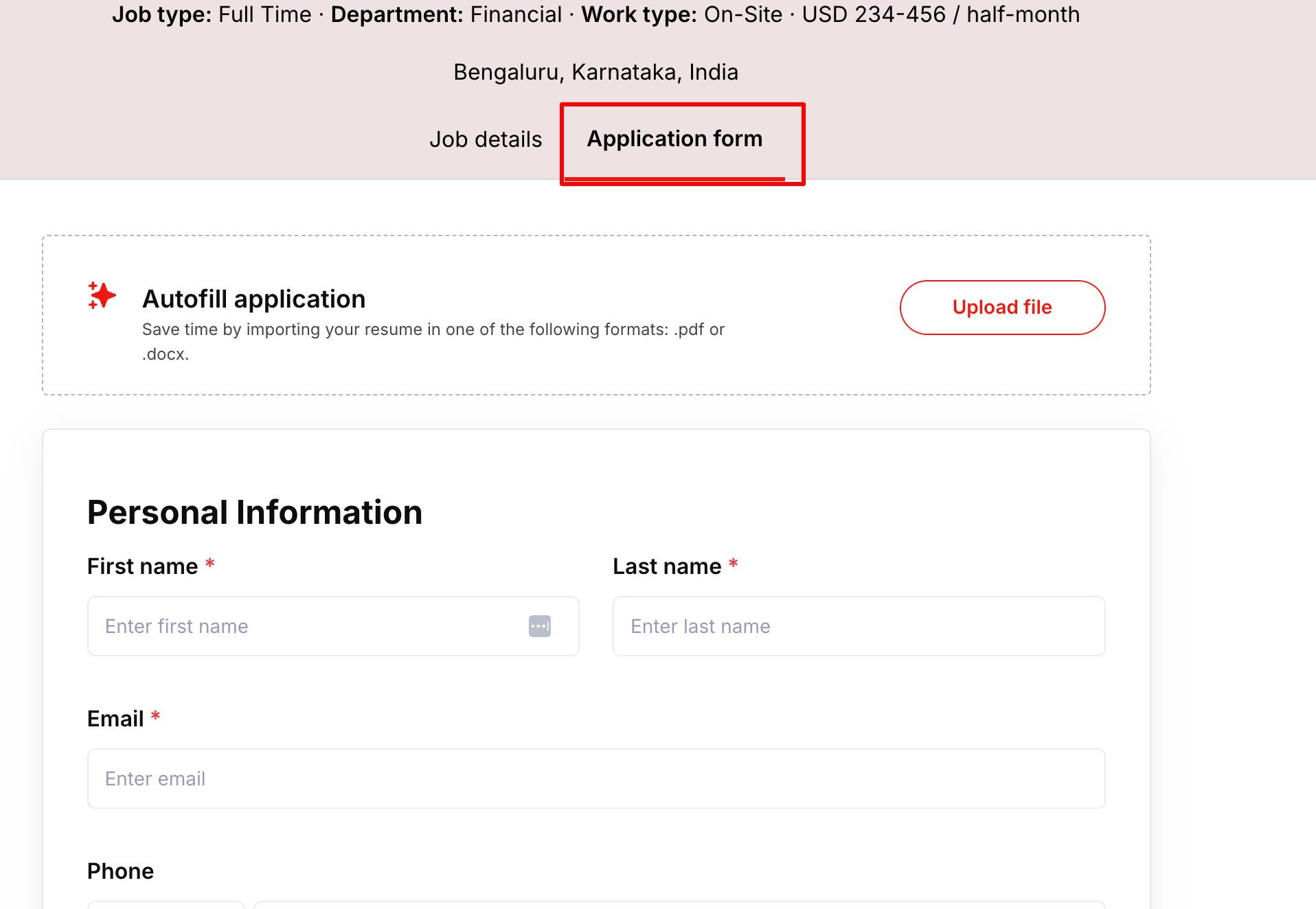
How Candidates Experience the Form
Clear Question Labels
Each field is shown with the label you defined when creating the field. Writing descriptive, candidate-friendly labels improves completion rates (e.g., "Are you open to relocating to Bangalore?" is clearer than "Relocation?").
Required vs. Optional Indicators
Mandatory fields are clearly marked. Candidates cannot submit the form without completing all required fields — Kula highlights missing required fields and prompts the candidate to fill them in before proceeding.
Optional fields are visible but skippable. Candidates can choose to provide that information or leave it blank without any impact on their submission.
Field Types in Action
From a candidate's perspective, different field types present as:
Field Type | How It Appears to Candidate |
Short Text | Single-line text input |
Long Text | Multi-line text area |
Yes / No | Two-button toggle |
Single Select | Dropdown or radio button |
Multi-Select | Checkbox list |
Number | Numeric input field |
Date | Date picker |
URL | Text input validated as a web address |
Currency | Numeric input with currency context |
Submission
Once all required fields are completed, the candidate submits their application. They receive a confirmation on screen (and typically a confirmation email, depending on your setup).
Previewing the Candidate Experience
Before publishing a job, you can preview exactly how the form will appear to candidates:
Open the job in Kula.
Use the View Job Portal option in the job post settings.
Review the form layout, field labels, and section order as a candidate would see them.
This allows you to catch any unclear question labels, unnecessary required fields, or missing sections before candidates encounter them.

How Your Configuration Choices Affect Candidates
Every decision you make in the form builder has a direct impact on the candidate's experience:
Form Length and Completion Rate
Longer forms with many required fields create friction. Each additional mandatory question reduces the likelihood that a candidate completes and submits their application, especially for competitive or passive talent. Keep required fields to only what's essential at the application stage.
Section Organisation
Grouping related questions into labelled sections (e.g., "About Your Experience", "Compensation & Availability") makes the form feel structured and intentional rather than a generic list of questions. This signals professionalism to candidates.
Field Labels and Clarity
Vague or internal-sounding labels can confuse candidates. Write labels from the candidate's perspective. For example:
Instead of "Notice period (days)" → use "How many days' notice do you need to give your current employer?"
Instead of "Relocation" → use "Are you willing to relocate for this role?"
Hidden Fields
Fields marked as Hidden are completely invisible to candidates. Use this to keep your internal form structure consistent without exposing irrelevant questions to candidates applying for specific roles.
Mobile Experience
Candidates increasingly apply from mobile devices. Kula's application form is designed to be responsive, but form length and field complexity can affect the mobile experience. Short Text, Yes/No, and Single Select fields provide the smoothest mobile experience. Long Text and Multi-Select fields may require more effort on smaller screens.
Tip: If you're hiring for roles where many candidates are likely to apply from mobile (e.g., field, logistics, or frontline roles), keep your form concise and favour simpler field types.
Frequently Asked Questions
Can candidates save and return to a partially completed application? Candidates should complete the form in a single session. Partial save functionality depends on your Kula configuration — check with your admin if you need this enabled.
Do candidates get a confirmation after submitting? Yes. Candidates see an on-screen confirmation upon successful submission.
Can candidates edit their application after submitting? By default, submitted applications cannot be edited by the candidate. If a candidate needs to update their information, your team can update their profile from within Kula.
What happens if a candidate leaves a required field blank and tries to submit? The form will not submit. Kula highlights the missing required fields and asks the candidate to complete them before proceeding.
Can candidates apply without uploading a resume? This depends on whether the resume/CV upload field is set as Required or Optional in your form configuration. If it is marked Optional, candidates can submit without one.
Is the application form mobile-friendly? Yes. The Kula application form is responsive and works on mobile browsers. For the best mobile experience, keep forms concise and use simple field types where possible.
Can candidates see the full job description while filling out the form? The application form is typically linked from the job posting page, which candidates would have read before clicking Apply. The form itself is focused on collecting responses.
What if a candidate wants to apply to multiple roles? Candidates can submit separate applications for each job they're interested in. Each job may have a different form based on the template assigned to it.
Can the form be embedded on our careers page? Yes. Kula supports embedding job postings and application flows on external careers pages. Contact your Kula admin or account team for embed setup instructions.
Need Help?
If you have questions or need assistance with setup, feel free to reach out to us at support@kula.ai or use the in-app chat for assistance.