Configuring Your Application Form
Last updated: April 17, 2026
Kula allows you to build and configure application forms that collect the right information from candidates for each role. Every Kula account includes a Default Application Form that is automatically applied to all job postings. You can customize this default form or create entirely new form templates and assign them to specific jobs.
Where to Find Application Forms
Click the Settings icon at the bottom of the left-side menu.
Under Jobs & Applications, click Application Forms.
You will see the default form along with any custom forms you have created.

Understanding the Default Form
The default application form comes pre-configured with two standard sections:
Personal Info — Captures basic candidate details such as name, email, and phone number.
Profile — Collects professional information such as resume, LinkedIn, and portfolio links.
The Departments, Offices, and Work Type fields in the default form cannot be edited — they are automatically mapped to all available categories in your account.
Creating a New Application Form Template
Step 1 — Navigate to Application Forms
Go to Settings > Jobs & Applications > Application Forms.
Click Add Application Form at the top-right corner.
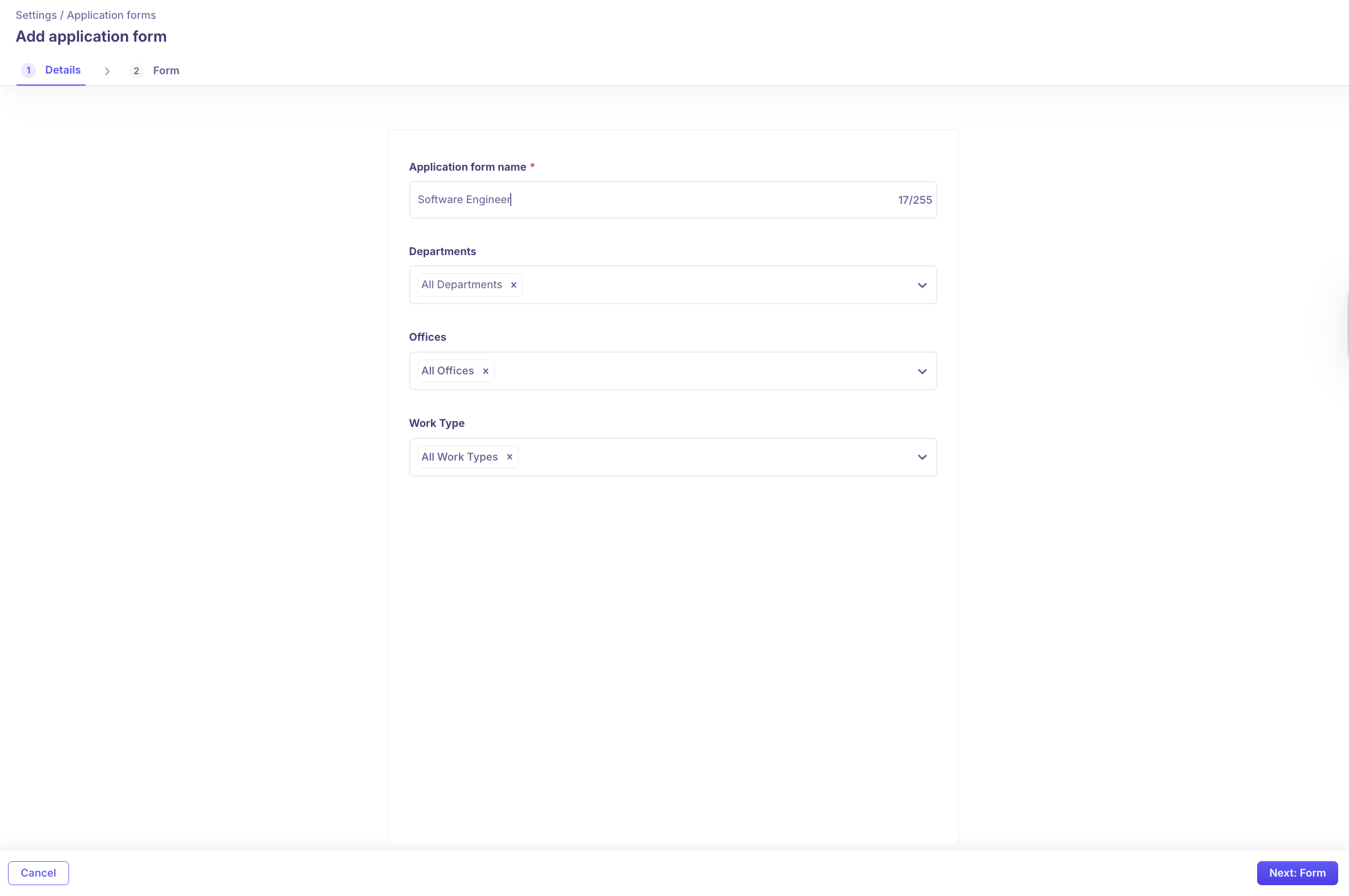
Step 2 — Add Form Details
Fill in the following metadata for the form:
Field | Description |
Name | A clear, recognizable name for the form |
Departments | The departments that will use this form |
Offices | Relevant office locations |
Work Type | Full-time, Part-time, Remote, etc. |
Click Next to open the form builder.
Step 3 — Customize the Form
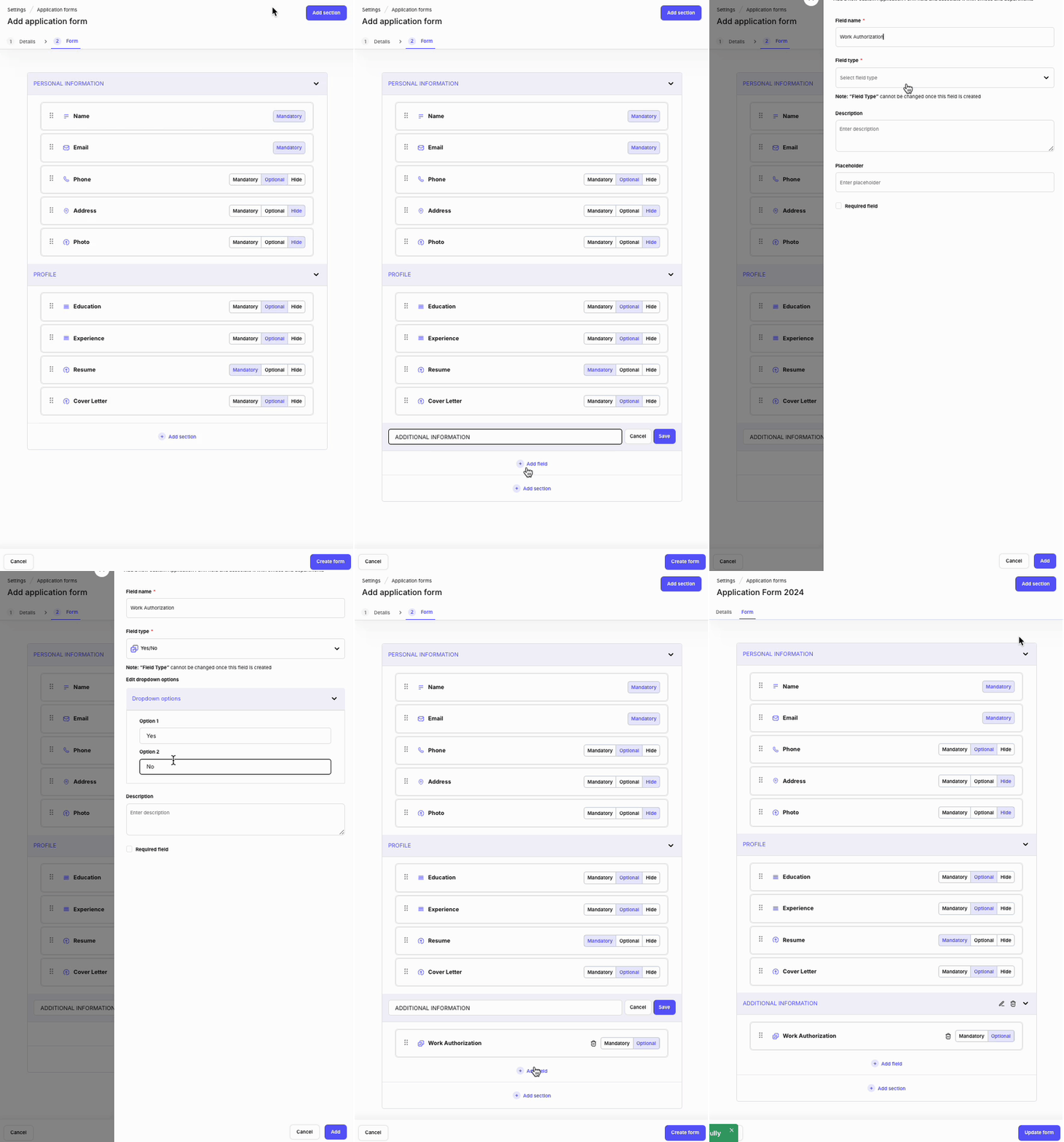
In the form builder, you can:
Edit or add to the default Personal Info and Profile sections.
Add new custom sections by clicking Add Section and entering a section name.
Add fields within each section (see field types below).
Reorder fields within a section by dragging and dropping.
Mark individual fields as Required or Optional.
Once you're done, click Create Form to save.
Assigning a Form to a Job
After creating a form template, you need to assign it to a job for it to take effect.
While Creating a New Job
Create or open a job.
Go to Job Post Settings.
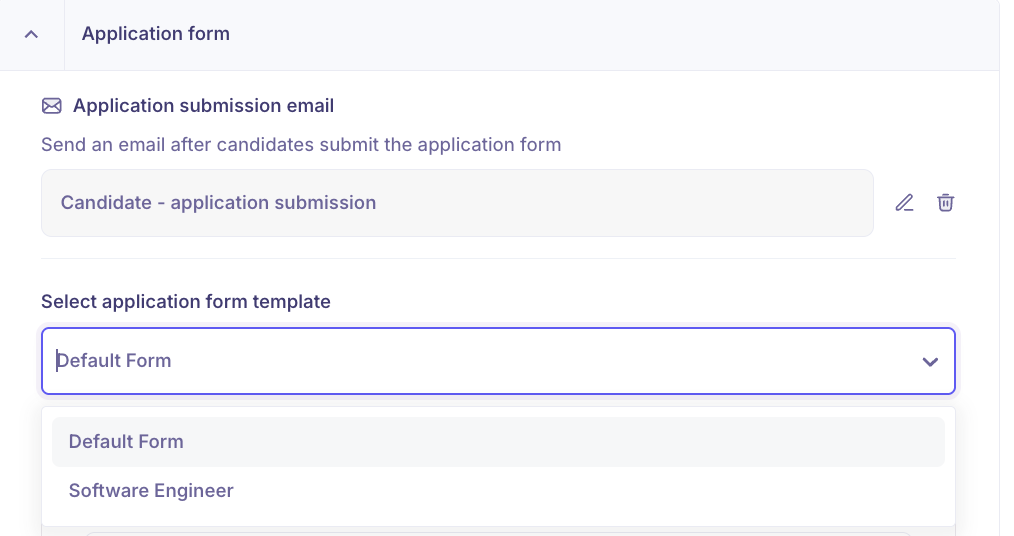
Click the Select Application Form Template dropdown.
Choose the appropriate form.
Save the job.
After a Job is Created
You can also update or customize the form directly within the job:
Open the job.
Go to Job Post Settings.
Edit the assigned application form.
Adjust required/optional settings or hide fields as needed.
Save changes.
Important: Changes made at the job level apply only to that job and do not affect the underlying template or other jobs using the same form.
Managing Existing Forms
Clone a Form
On the Application Forms homepage, hover over the form.
Click the Ellipsis (⋯) icon and select Clone.
Update the form name.
Click Clone to complete.
Cloning is useful when you want to reuse an existing structure with minor changes for a different role type or department.
Delete a Form
Hover over the form and click the Ellipsis (⋯) icon.
Select Delete.
Type
DELETEin the confirmation modal.Click Yes, Delete.
You cannot delete a form that is currently assigned to an active job.
Use Cases for Multiple Forms
Consider creating separate application forms for the following scenarios:
Multiple Locations — Collect location-specific information, such as office preference or local compliance details.
Different Role Types — Ask technical questions for engineering roles and request portfolio links for creative roles.
Department-Specific Hiring — Align application questions with each department's unique requirements.
Frequently Asked Questions
Can I edit a form after assigning it to a job? Yes. You can update the form from within the job's Job Post Settings at any time.
Will changes to the template affect existing jobs? No. Changes to a template only apply to new jobs that use it going forward.
Can I reorder sections? You can drag and drop fields within a section, but fields cannot be moved between sections.
What happens to candidate data if I update the form? Existing candidate responses are not affected. New or updated fields apply only to future applicants.
Can I preview the form before publishing? Yes. Use the preview option in the job post to see how the form will appear to candidates before publishing.
Need Help?
If you have questions or need assistance with setup, feel free to reach out to us at support@kula.ai or use the in-app chat for assistance.