Adding Custom Questions to Applications
Last updated: April 17, 2026
Beyond the standard Personal Info and Profile fields, Kula lets you add custom questions to your application forms. This allows you to gather role-specific information — such as technical skills, work preferences, availability, or compliance details — directly during the application stage, before candidates even speak to your team.
Custom questions are added as fields within sections of the application form. They can be created at the template level (reusable across jobs) or added directly within a specific job's settings.
Where to Add Custom Questions
Custom questions can be added in two places:
Application Form Templates — Via Settings > Jobs & Applications > Application Forms. These questions become available to any job using that template.
Within a Specific Job — Via the job's Job Post Settings > Application Form. Questions added here apply only to that job.
Supported Field (Question) Types
When adding a custom question, choose the field type that best fits the kind of response you need:
Field Type | Best Used For |
Short Text | Single-line open answers (e.g., "What is your notice period?") |
Long Text | Multi-line detailed responses (e.g., "Describe a recent project you led") |
Yes / No | Simple binary questions (e.g., "Are you open to relocation?") |
Single Select | One answer from a predefined list (e.g., preferred work location) |
Multi-Select | Multiple answers from a predefined list (e.g., programming languages known) |
Number | Numeric inputs (e.g., years of experience, expected salary) |
Date | Date inputs (e.g., earliest available start date) |
URL | Web addresses (e.g., portfolio, GitHub, LinkedIn) |
Currency | Monetary values (e.g., current or expected CTC) |
How to Add a Custom Question
From an Application Form Template
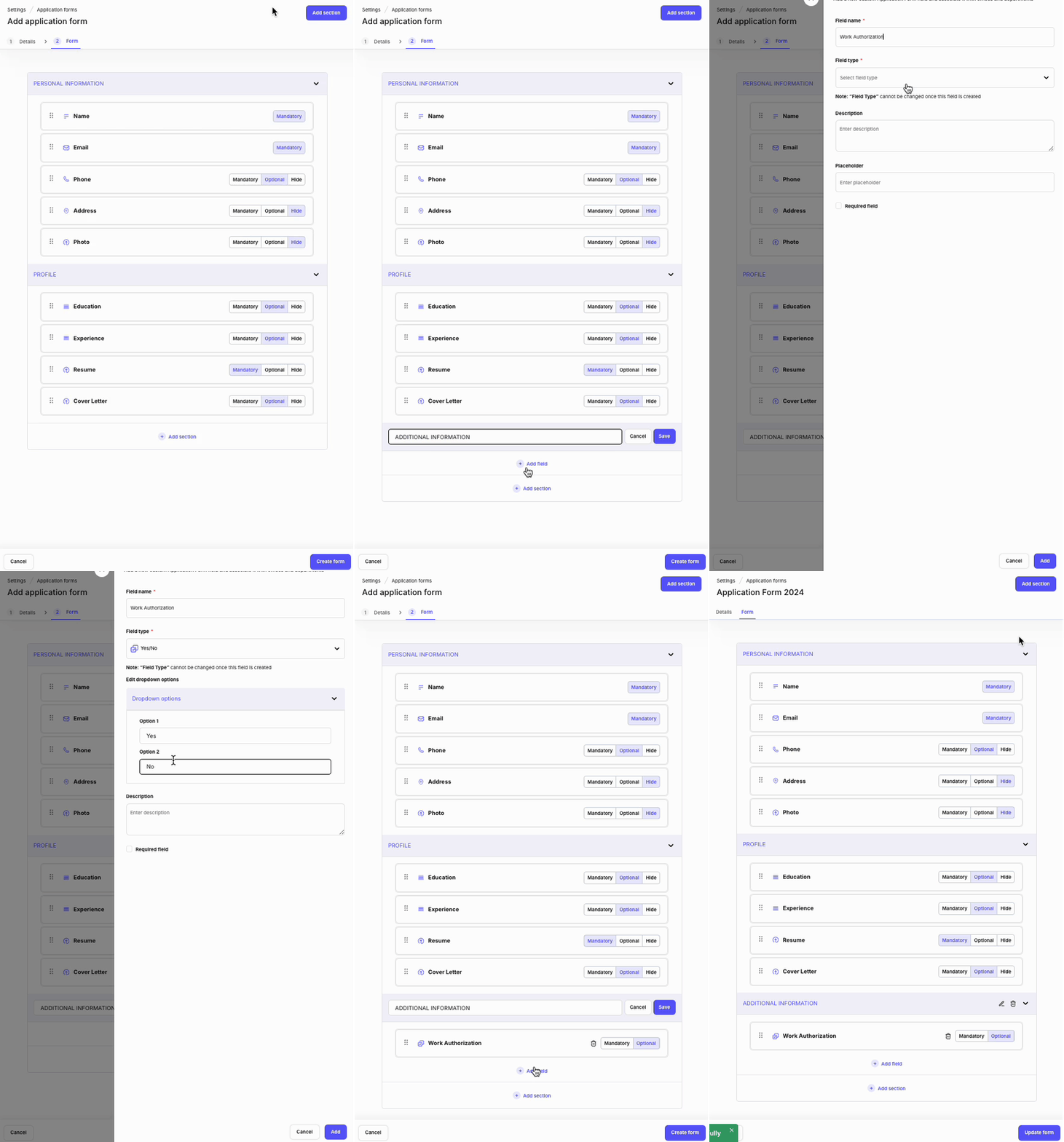
Go to Settings > Jobs & Applications > Application Forms.
Open an existing form or click Add Application Form.
Scroll to the section where you want to add the field, or click Add Section to create a new grouping.
Click Add Field.
Enter a Field Name (this is what candidates will see as the question label).
Select the appropriate Field Type.
If the question has predefined choices (Single Select, Multi-Select), add the answer options.
Check Required Field if the question must be answered before submission.
Click Add to save the field.
Click Update Form (or Create Form for new forms) to save all changes.
From Within a Job
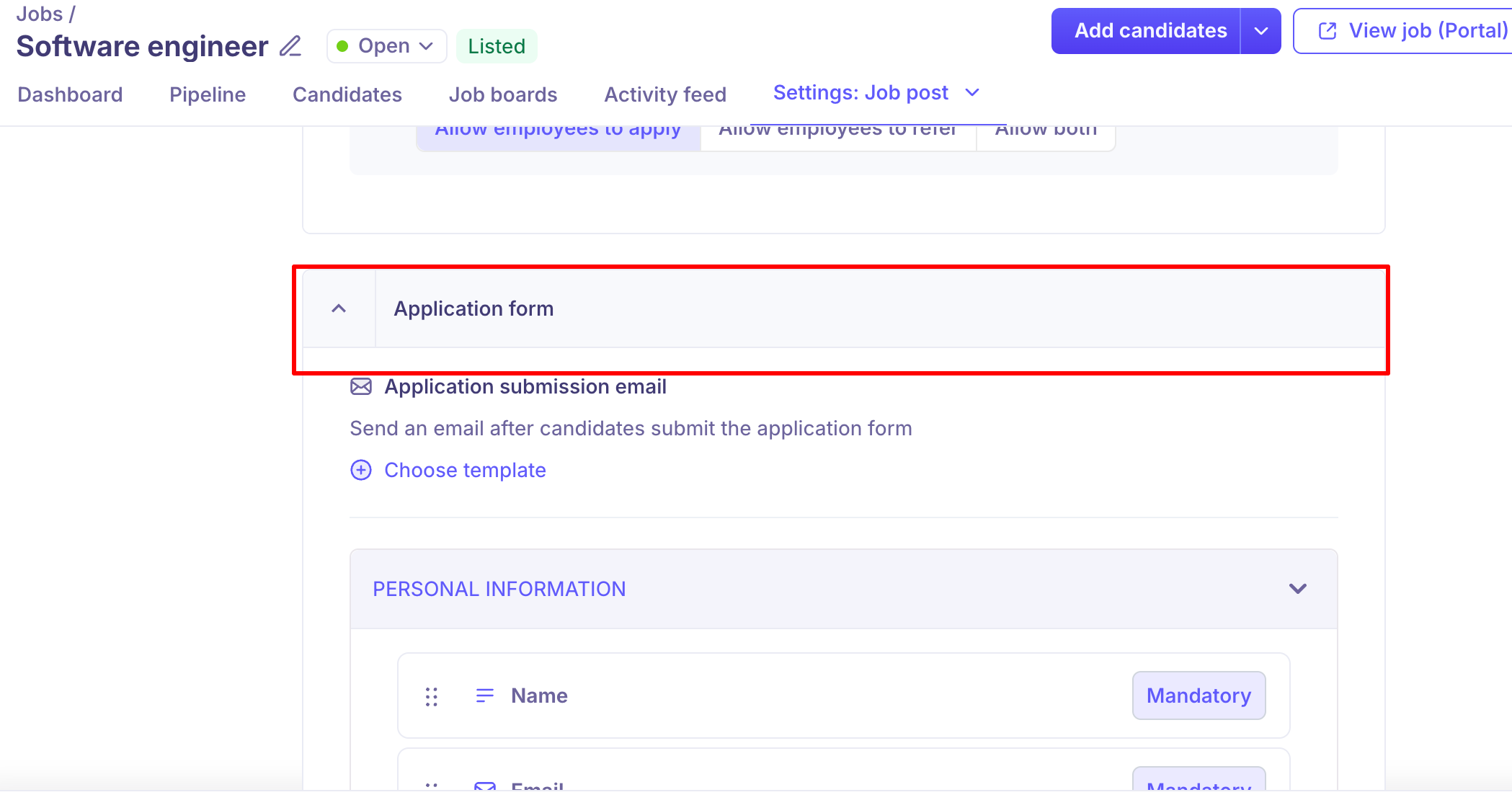
Open the job.
Go to Job Post Settings.
In the Application Form section, click to edit the assigned form.
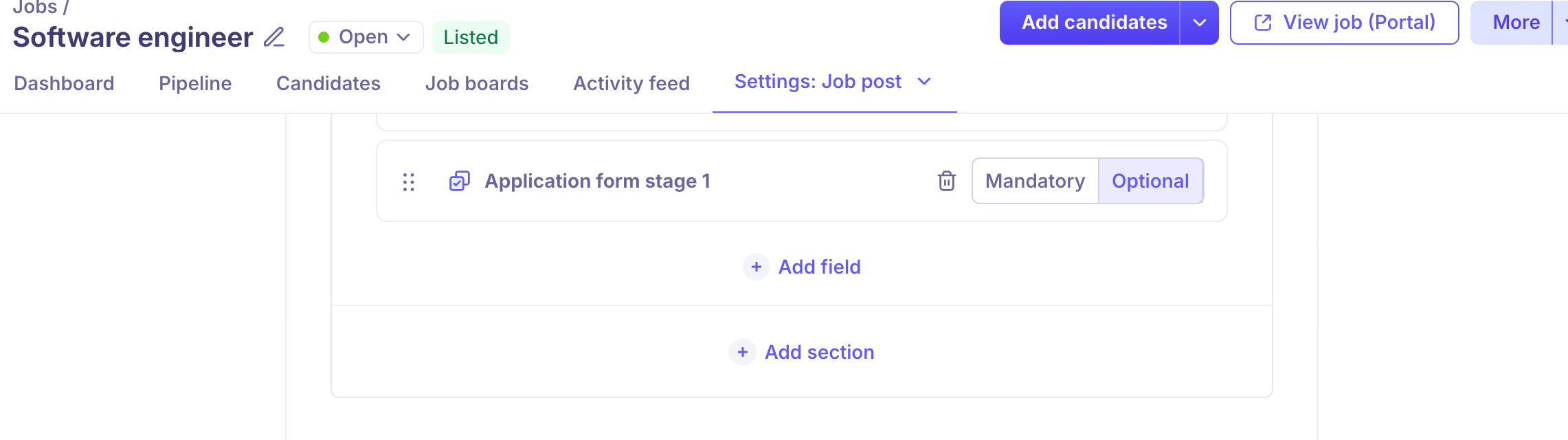
Follow steps 3–9 above.
Save changes — these will only apply to this job.
Organizing Questions with Sections
Sections help group related questions for a cleaner candidate experience. To add a new section:
Click Add Section in the form builder.
Enter a section name (e.g., "Role-Specific Questions", "Compensation & Availability").
Add the relevant fields within that section.
To rename a section later, click the Edit icon next to the section name, update the text, and click Save.
Note: You can drag and drop fields to reorder them within a section, but fields cannot be moved between sections.
Practical Examples of Custom Questions
For Engineering Roles:
"How many years of experience do you have with Python?" (Number)
"Which frameworks are you proficient in?" (Multi-Select: React, Angular, Vue, etc.)
"Share your GitHub profile link" (URL)
For Sales Roles:
"What is your current OTE?" (Currency)
"Are you open to 50%+ travel?" (Yes/No)
"Describe your largest deal closed" (Long Text)
For Compliance or Location-Specific Hiring:
"Are you legally authorised to work in this country?" (Yes/No)
"What is your preferred office location?" (Single Select)
"What is your earliest available start date?" (Date)
Frequently Asked Questions
Can I add custom questions to just one job without affecting the template? Yes. Edit the application form from within the job's Job Post Settings. Changes made there apply only to that job.
Can I reuse custom questions across multiple jobs? Yes. Add them to the application form template. Any job that uses that template will include those questions. You can also clone a form to reuse its structure with slight variations.
Will existing candidates be asked new questions I add after publishing? No. New or updated fields apply only to candidates who apply after the change is made. Existing candidate responses are preserved.
Can I delete a custom question? Yes. Hover over the field and click the Delete icon. Note that built-in fields in the Personal Info and Profile sections cannot be deleted.
Can I delete a custom section? Yes. Click the Delete icon next to the section, confirm in the modal, and click Yes, Delete. This will remove the section and all fields within it.
What happens if a candidate doesn't answer an optional custom question? Their application will still be submitted. Optional questions are skipped without any impact on submission.
I tried adding custom questions within a job but couldn't find the option — where is it? Go to the job > Job Post Settings > Application Form section. You can edit the assigned form directly from there. If you're unsure whether to add at the job level or template level, check whether the question is role-specific (job level) or common across many roles (template level).
Need Help?
If you have questions or need assistance with setup, feel free to reach out to us at support@kula.ai or use the in-app chat for assistance.