Reviewing candidates in a project
Last updated: September 26, 2026
When a recruiter sends you candidates from a project, they land in your review queue. Reviewing means marking each person Good Fit or Not a Good Fit, with optional written feedback.
Who can do this: The named reviewer. The project owner and Super Admins and Admins can also set or change a review status.
Where to find it: Projects → Reviews
How you find out you have candidates to review
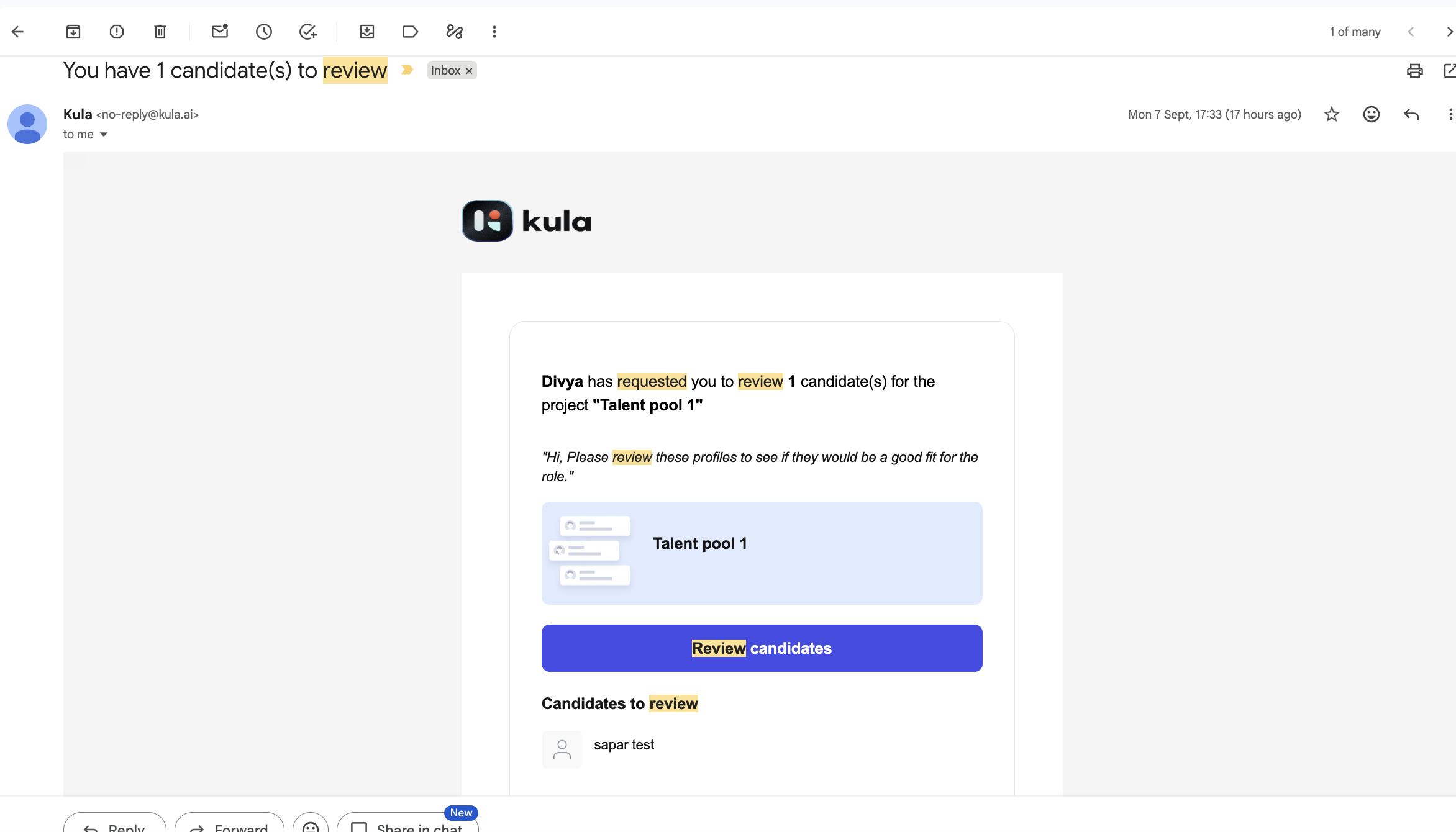
You get an email from Kula titled "You have 1 candidate(s) to review", naming the requester, the project and the candidates, with a Review candidates button.
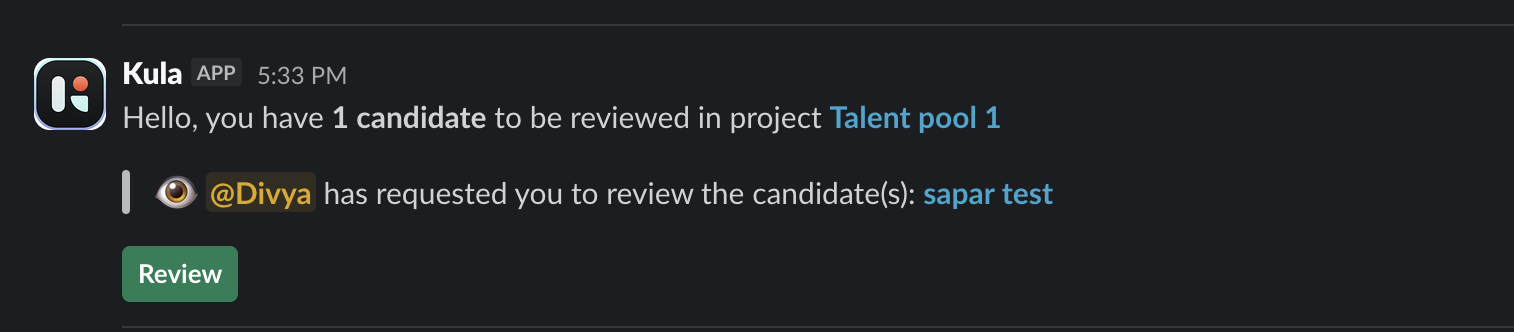
If your organisation uses the Slack integration you also get a Slack message — "Hello, you have 1 candidate to be reviewed in project Talent pool 1" — with a green Review button. Kula users get an in-app notification too.
All three routes land in the same place: Projects → Reviews.
Your review queue
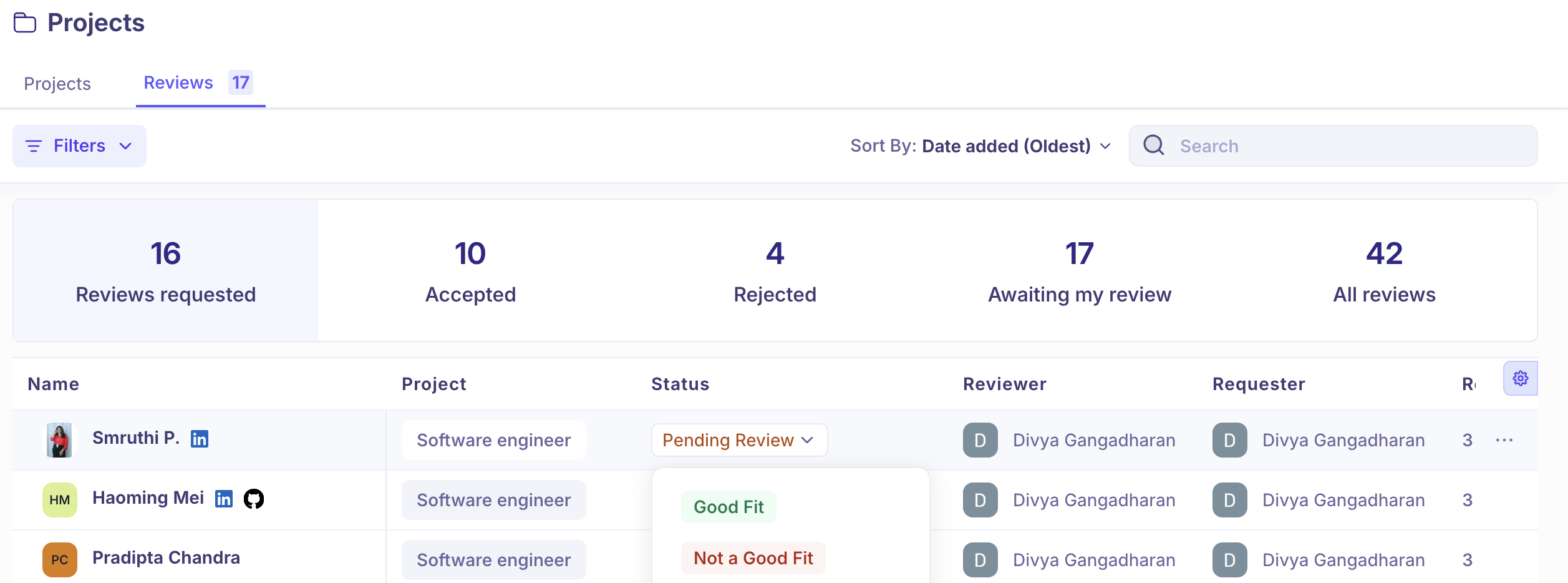
The Reviews tab shows every review you are involved in, as a requester or a reviewer. The number on the tab itself is your Awaiting my review count.
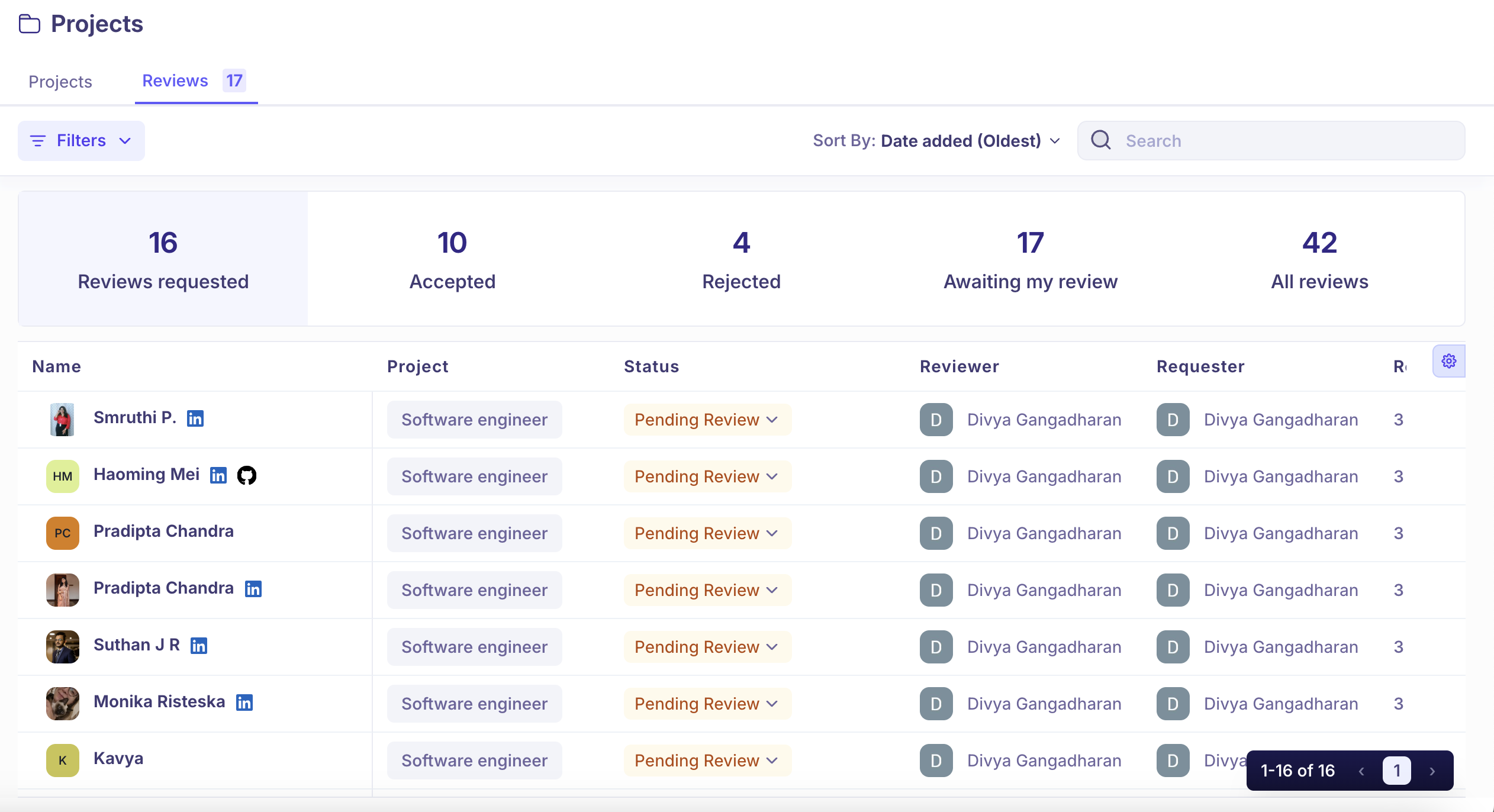
Tile | What it counts |
|---|---|
Reviews requested | Reviews you asked other people for. |
Accepted | Candidates marked Good Fit. |
Rejected | Candidates marked Not a Good Fit. |
Awaiting my review | Candidates waiting on you. This is the number on the Reviews tab. |
All reviews | Everything you can see. |
Click a tile to filter the table to it. The table also has Filters, a Search box, and a Sort By control.
Mark a candidate Good Fit or Not a Good Fit
Go to Projects → Reviews.
Find the candidate. Click Awaiting my review to narrow the list to yours.
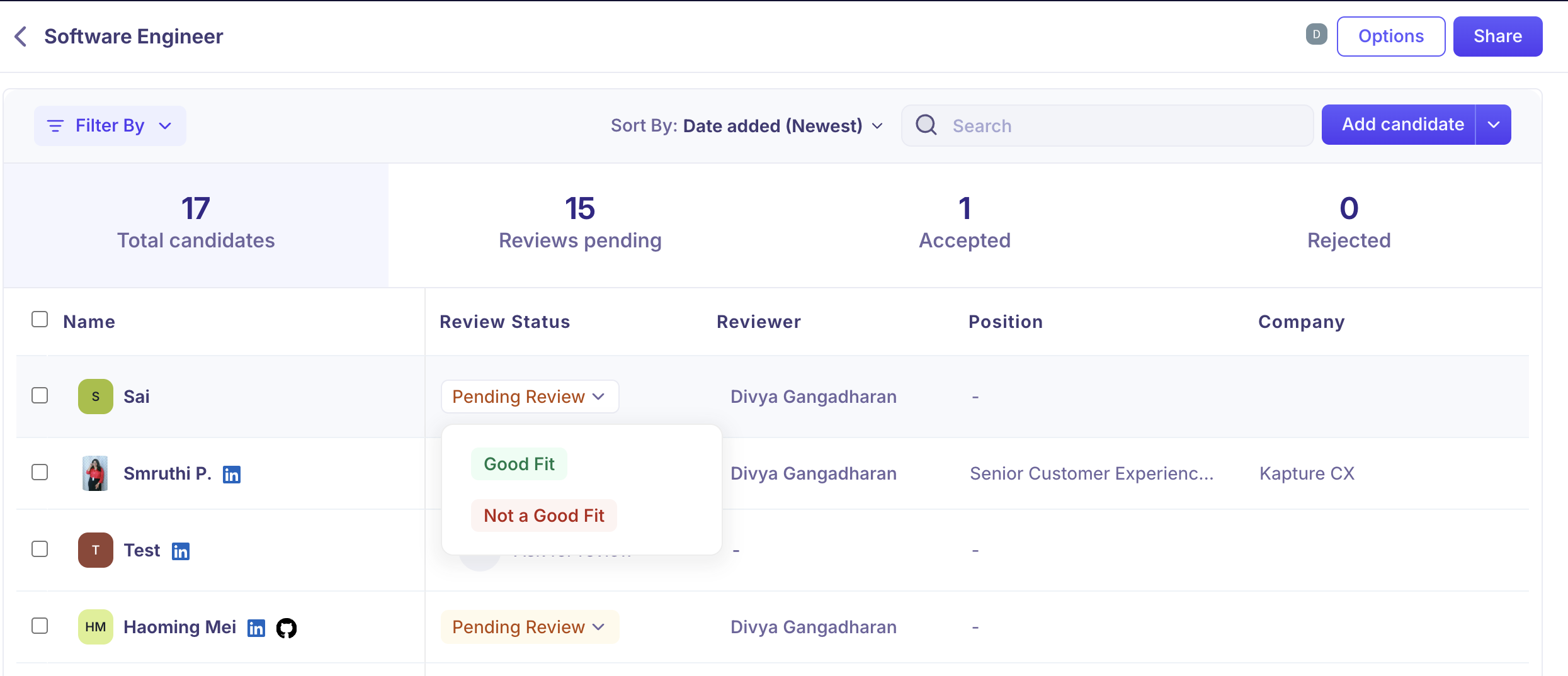
Click the Pending Review chip in the Status column.
Choose Good Fit or Not a Good Fit.
In the Review Candidate box, add Feedback if you want to. It is optional.
Click Confirm.
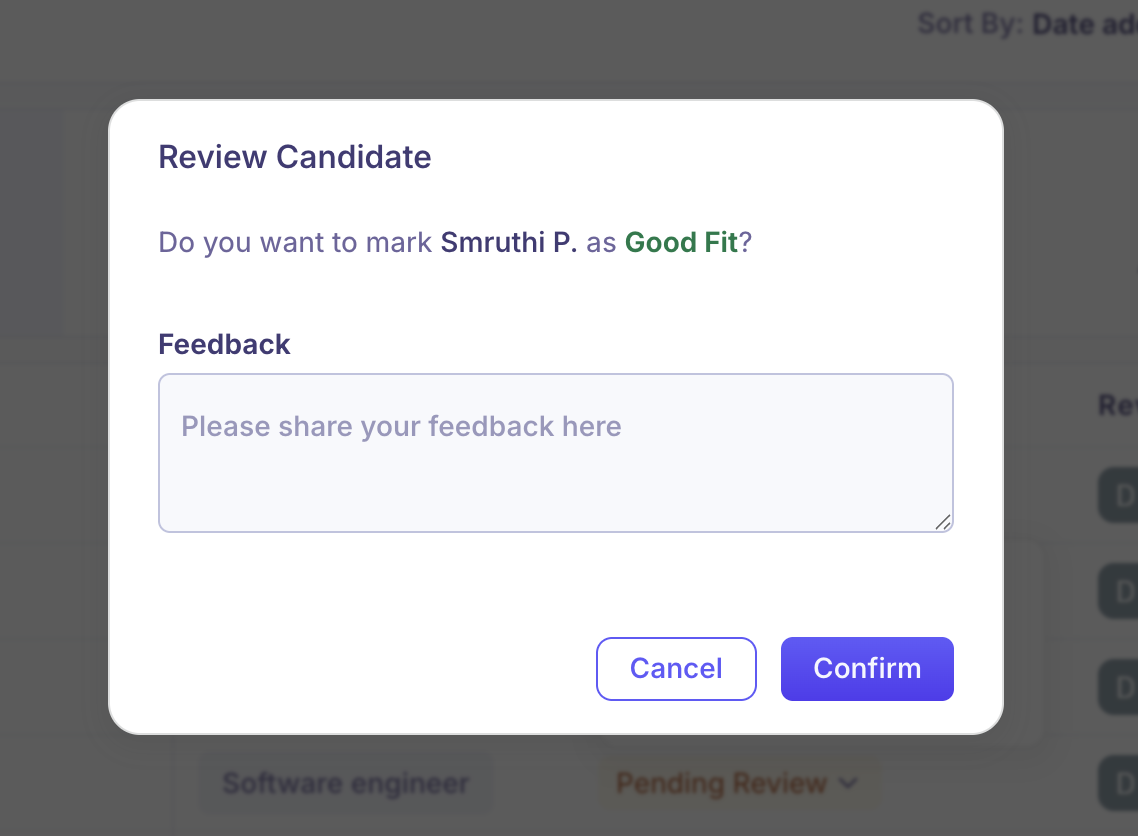
The status changes immediately, and the requester is notified. If the requester chose a job and stage when sending the review, a candidate you mark Good Fit is added to that job and stage automatically
Chasing or cancelling a request you sent
If you are the requester, the … menu at the end of each row offers two actions:
Action | What it does |
|---|---|
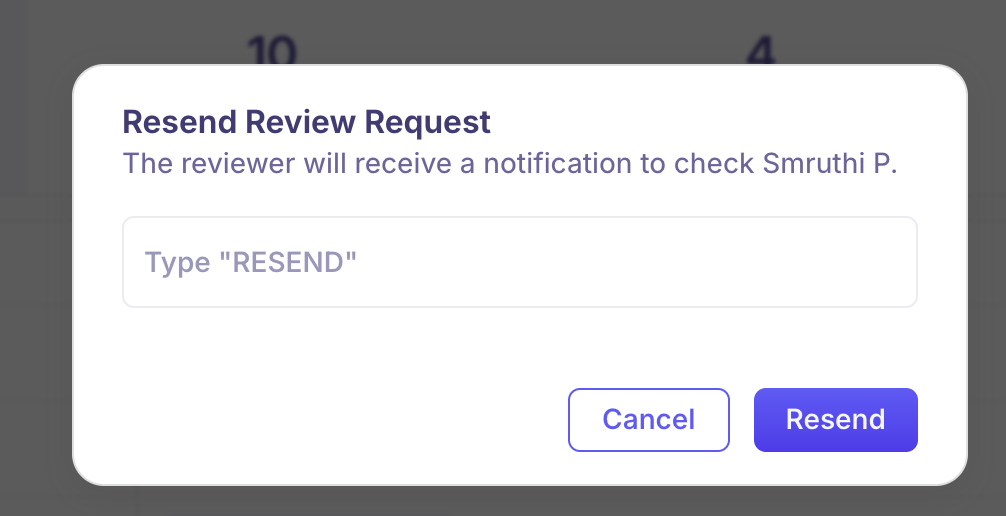
Resend request | Sends the reviewer another notification about the same candidate. You confirm by typing |
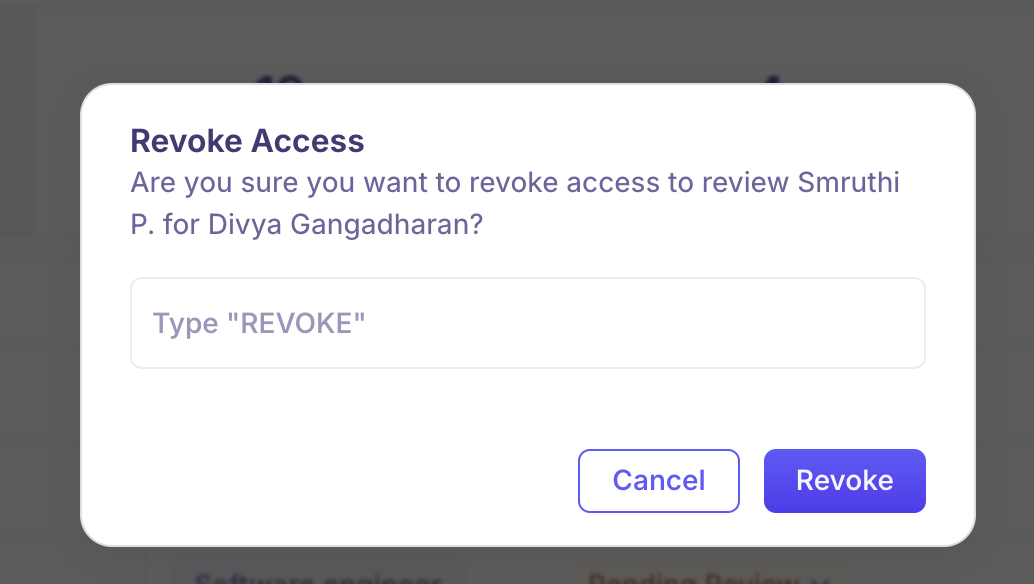
Revoke request | Cancels the request and removes the reviewer's access to that candidate. You confirm by typing |

Both are only available while the review is still Pending Review. Once the reviewer has answered, neither appears.
Both dialogs ask you to type the action word before the button will work — RESEND in the Resend Review Request box, REVOKE in the Revoke Access box. The field is required, and the dialog names the candidate and, for a revoke, the reviewer losing access.
Good to know
You cannot review candidates in an archived project. Kula returns "The project for this review has been archived" and the status stays as it was.
Reviewers get no automatic reminders. If someone does not respond, the only nudge is Resend request, done by hand.
Once a review is answered it cannot be revoked, resent, or reassigned. Revoke is only offered while the review is pending.
Resend and Revoke both need a typed confirmation —
RESENDandREVOKErespectively. Neither button works until the word is entered exactly.You can change your own verdict from Good Fit to Not a Good Fit and back, as long as the project is still active.
Reviewer feedback is only visible in the Reviews tab. It does not appear on the project's candidate list, and it is not included in any export.
FAQ
Where do I find the candidates I've been asked to review?
Go to Projects → Reviews and click Awaiting my review. The number on the Reviews tab is how many are waiting for you.
Can I change my verdict after confirming it?
Yes. You can switch between Good Fit and Not a Good Fit as long as the project is still active.
The reviewer hasn't responded. Will Kula remind them?
No. There are no automatic reminders. Open the row's … menu and choose Resend request.
Why can't I revoke a review request?
Revoke is only available while the review is Pending Review. Once the reviewer has answered, it can't be revoked, resent or reassigned.
Where can others see my feedback?
Only in the Reviews tab. It doesn't appear on the project's candidate list or in any export.
I get "The project for this review has been archived". What does that mean?
The project was archived, so its reviews can't be changed any more. Archiving is permanent.
Need help? If you have questions or need assistance, reach out to us at support@kula.ai or use the in-app chat.