Sharing a project and sending candidates for review
Last updated: September 26, 2026
Sharing a project gives colleagues access to it. Sending candidates for review is a separate action that asks one named person for a verdict on specific candidates. This article covers both, and what the reviewer receives.
Who can do this: Super Admin, Admin, Recruiter. Editors on a project can share it further and send candidates for review.
Where to find it: Projects → your project → Options: Edit project settings, and the Send for review action on the candidate list
Share the project with viewers and editors
Sharing happens on step 2 of the project form, whether you are creating the project or editing it later.
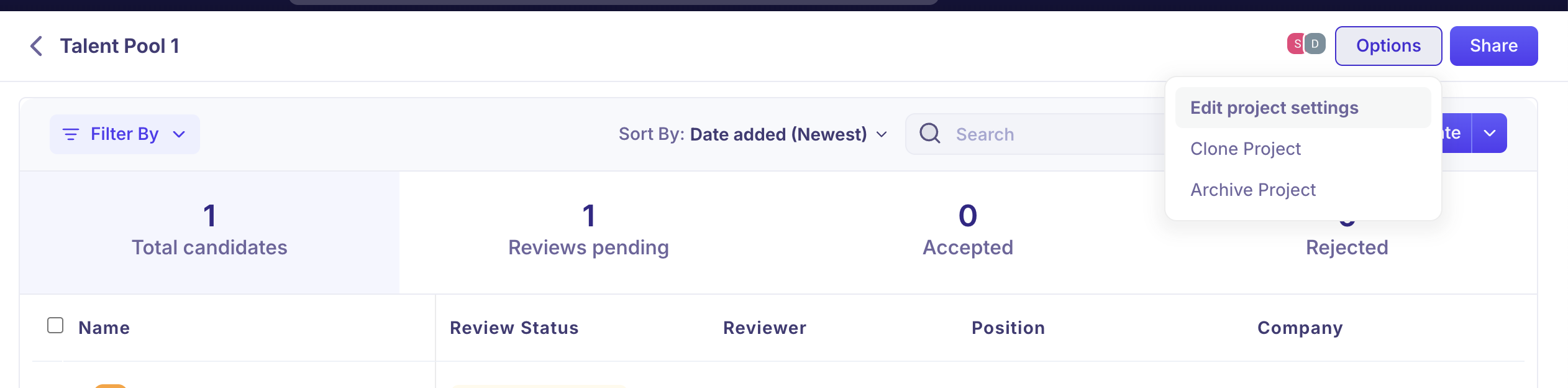
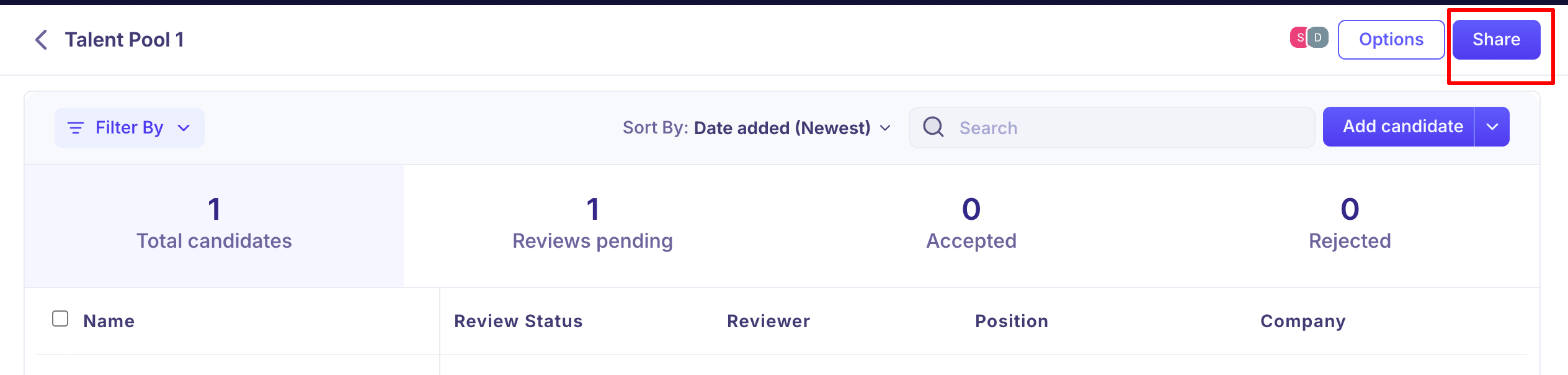
Open the project and click Options → Edit project settings. (From the projects list, the … menu on a row offers Edit Project instead.)
Go to Project Team.
Add people under Viewer(s) or Editor(s).
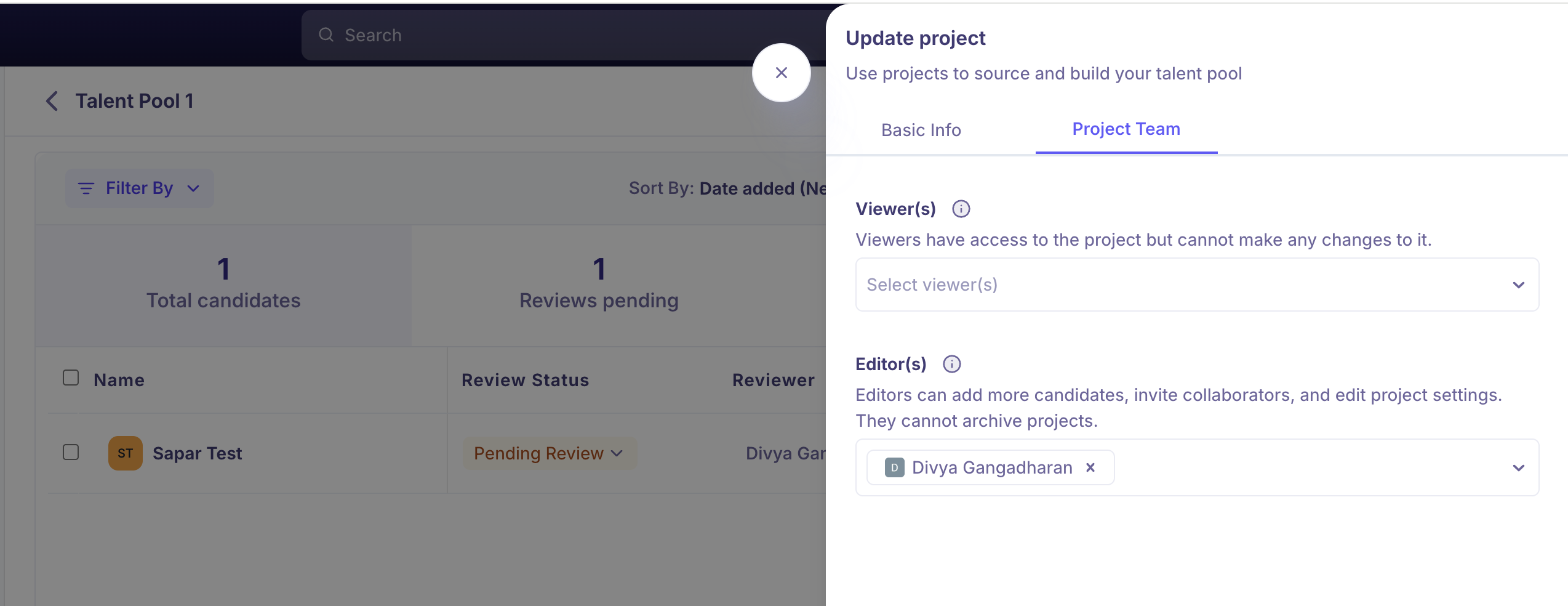
Click Save.
Everyone you add gets an invitation notification.
What viewers and editors can each do
Access | What they can do |
|---|---|
Viewer | See the project and its candidates. They cannot make any changes. |
Editor | Add more candidates, invite collaborators, and edit project settings. They cannot archive the project. |
Owner | Everything an editor can do, plus archiving and cloning. Each project has exactly one owner. |
Super Admins and Admins can fully manage any project even when they are added only as a viewer, because their role carries organisation-wide project access.
Send candidates for review
Sharing a project does not ask anyone for a decision. To do that, send candidates for review.
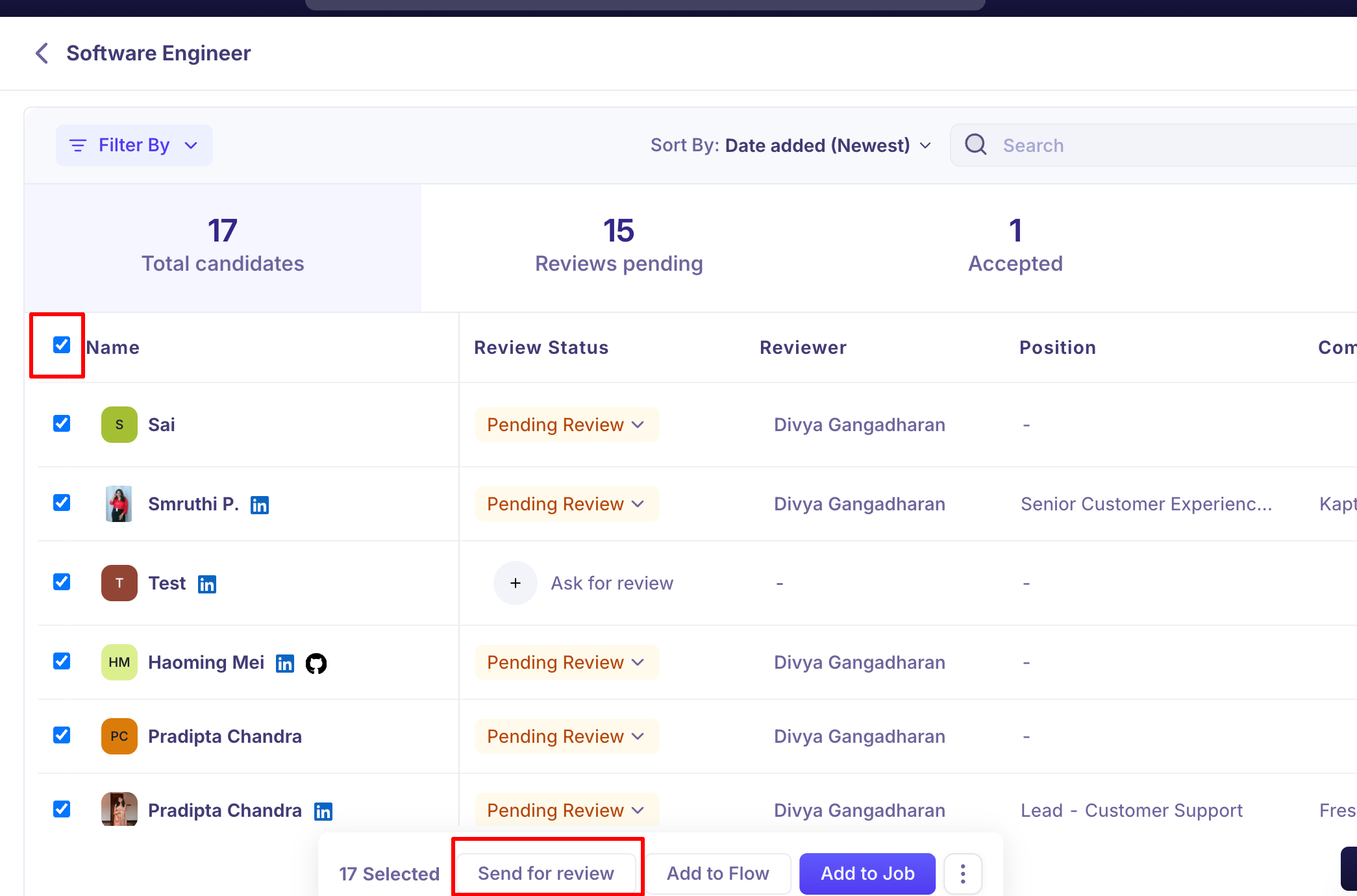
Tick the candidates you want reviewed. A bar appears at the bottom showing how many are selected.
Click Send for review.
On the Details step, choose the reviewer under Send to.
Edit Add your message if you want to. It is pre-filled with a default note.
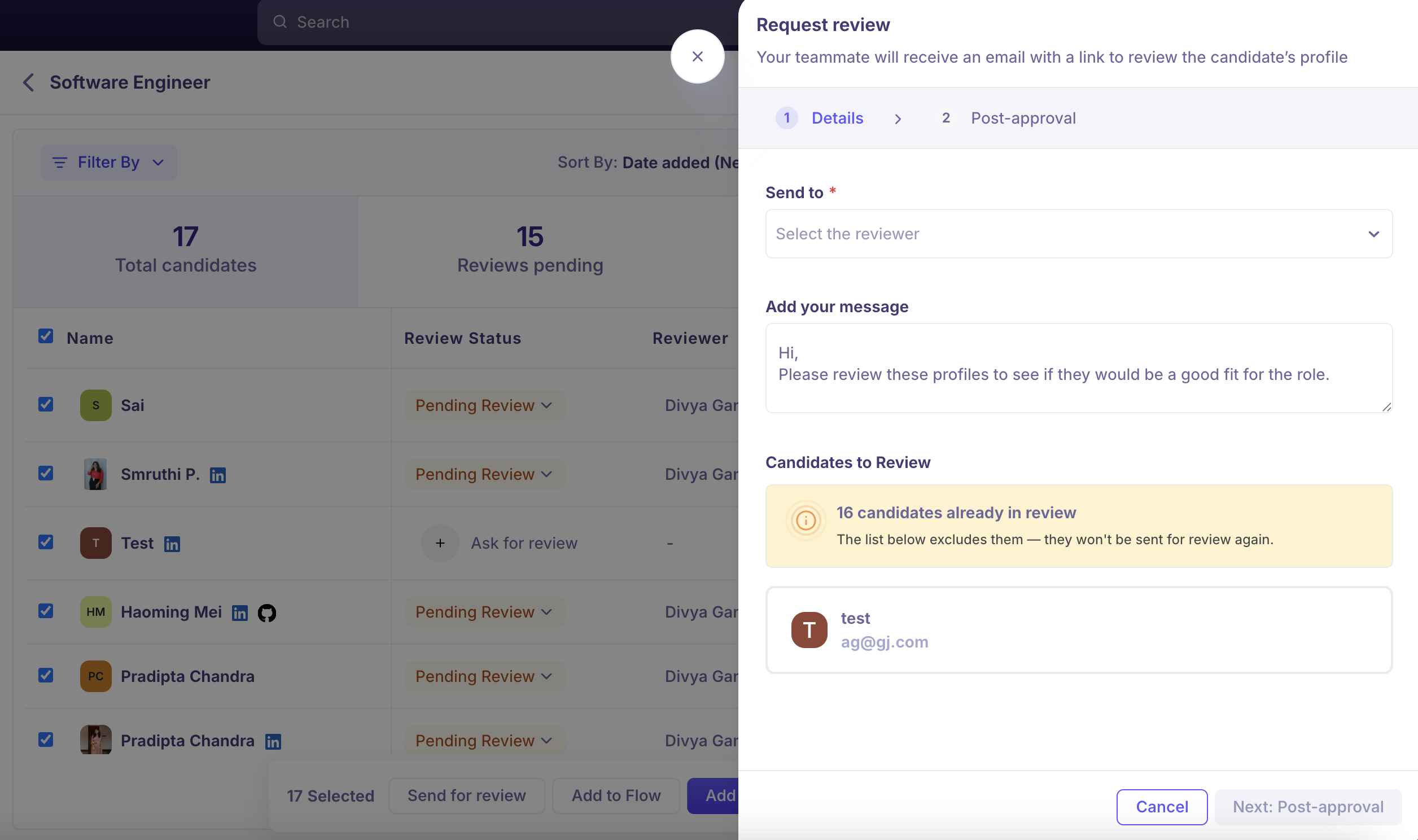
Check the candidate list underneath, and click Remove beside anyone who should not be included.
Click Next: Post-approval.
Optionally choose a job and an Interview Stage.
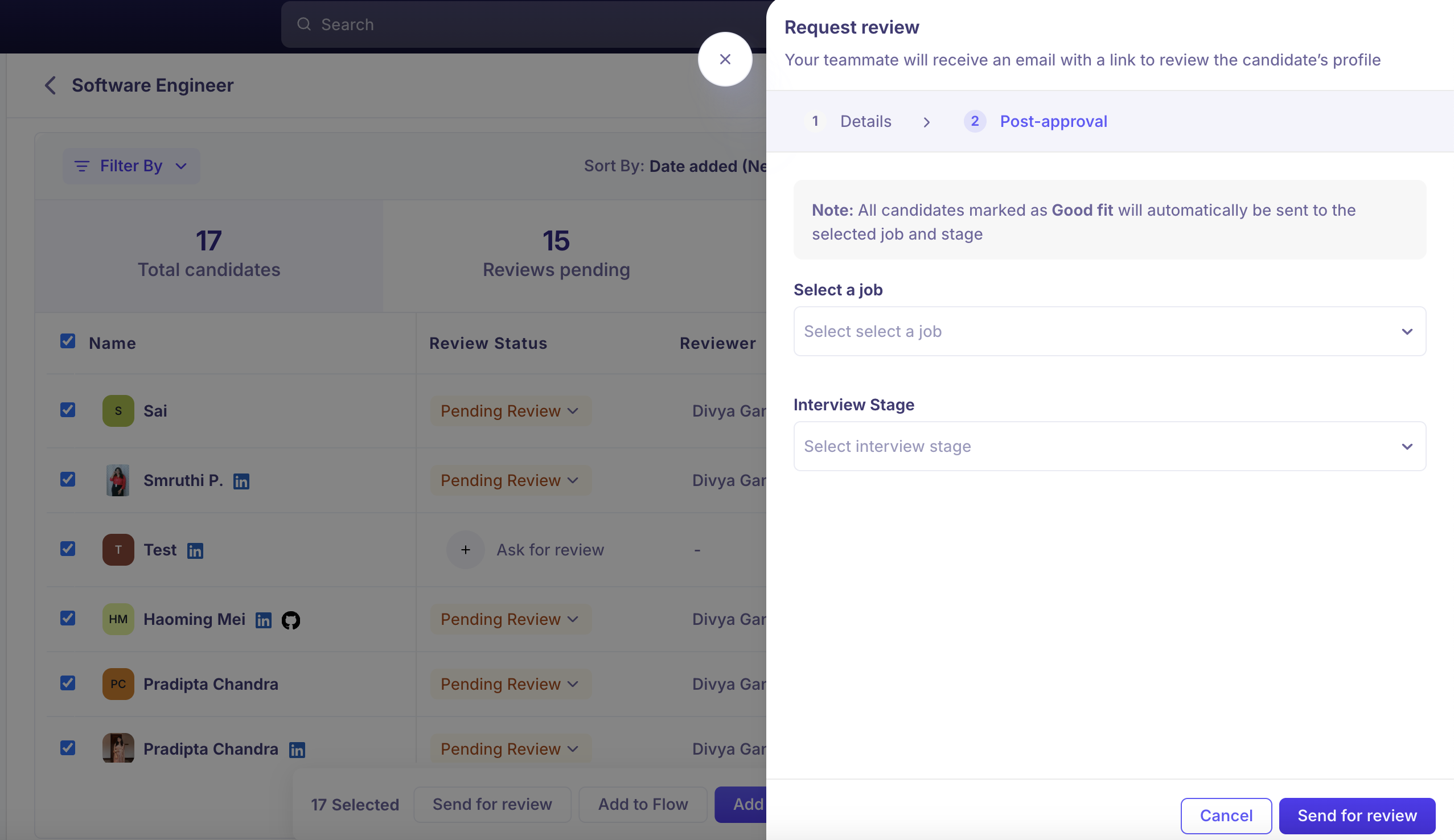
Click Send for review.
Any candidate the reviewer then marks Good Fit is sent to that job and stage automatically.
To ask for a review on a single candidate instead, click Ask for review in that candidate's Review Status column.
The post-approval step is optional but worth setting — it is what makes a Good Fit verdict move the candidate into a real pipeline.
What the reviewer receives
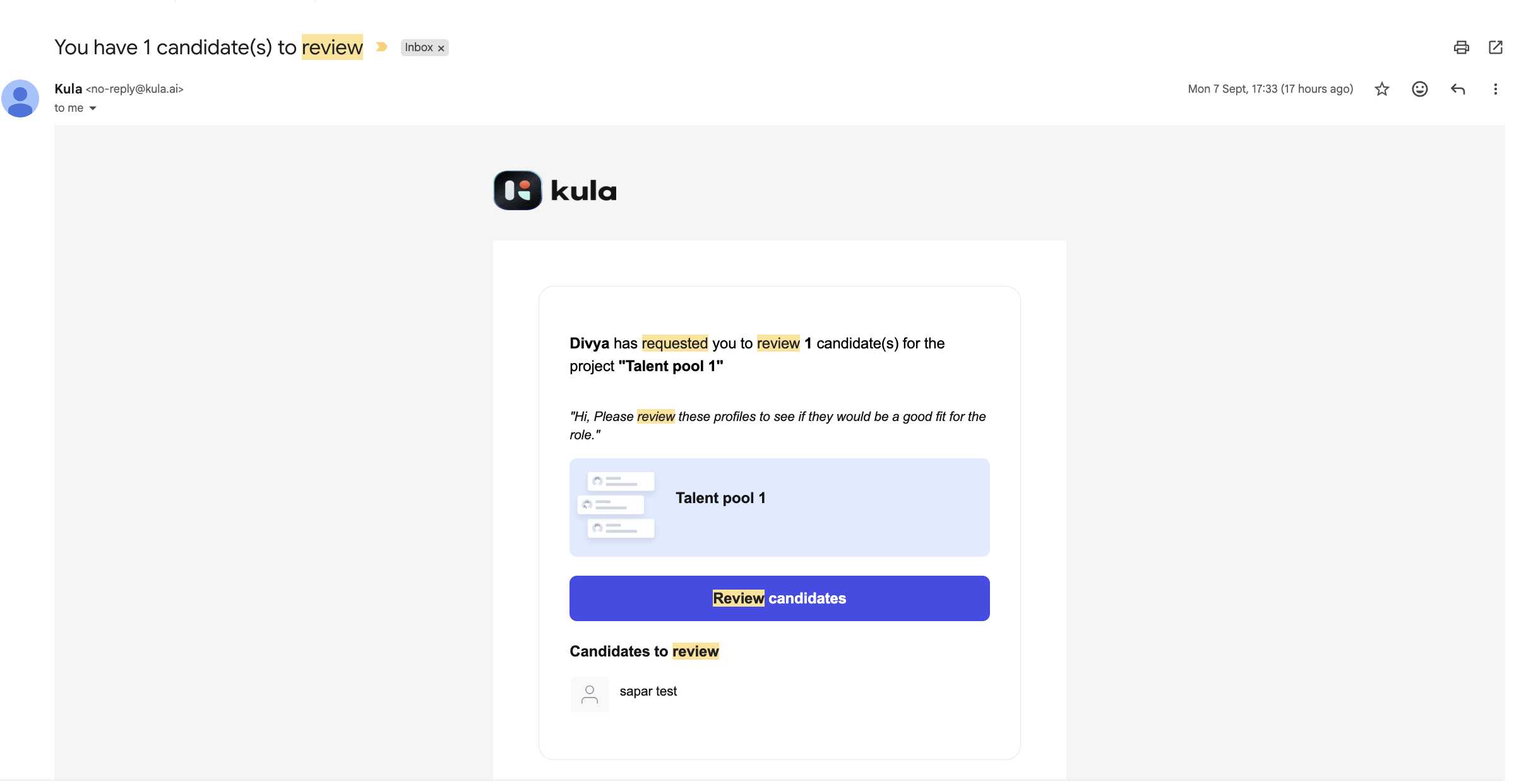
The reviewer gets an email from Kula with the subject "You have 1 candidate(s) to review". It names you as the requester, names the project, repeats your message, lists the candidates, and carries a Review candidates button that opens their review queue.
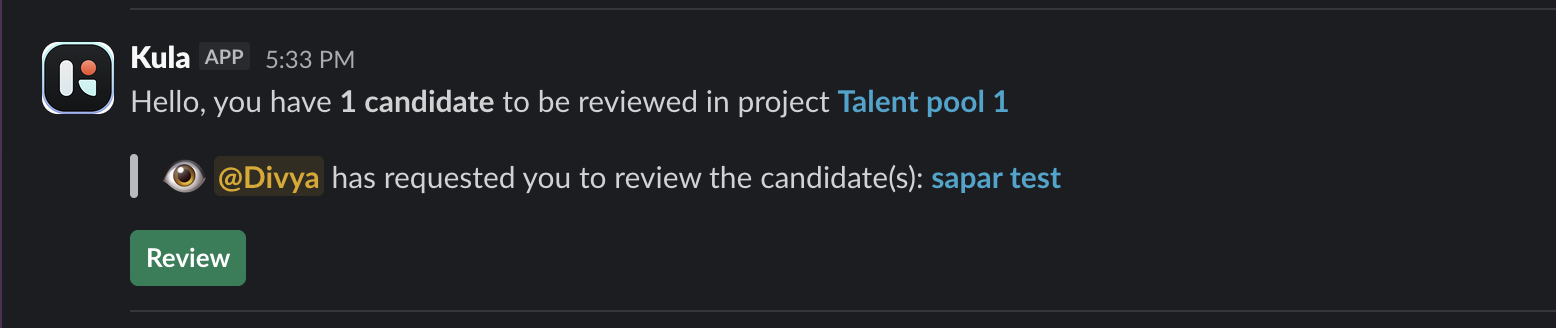
If the reviewer is already a Kula user, they also get an in-app notification, and a Slack message when the Slack integration is on. If you invited them by email as an external collaborator, the button takes them to a sign-up page first.
Good to know
A candidate can have only one active review at a time. If you select someone who is already in review, Kula excludes them and shows "N candidates already in review — the list below excludes them". That warning is the only signal, so check it before sending.
You can only send to one reviewer per review. Asking two people for an opinion on the same candidate is not supported.
The reviewer must be someone the project is shared with. The Send to dropdown lists project collaborators, so share the project first, or add the person as an external collaborator by email from the same screen.
Candidates without an email address are flagged "No email" in red in the review list. They can still be sent — the flag is about the candidate's record, not the reviewer's invitation.
Only published and scheduled jobs appear in the post-approval job list. Draft and closed jobs are not offered.
Editors cannot archive a project. Kula states this on the Editor field itself. Archiving is limited to the project owner, Super Admins and Admins.
FAQ
Can I ask two people to review the same candidate?
No. Each review goes to one reviewer, and a candidate can only be in one active review at a time.
Why isn't my colleague in the Send to list?
The list only shows people the project is shared with. Share the project with them first, or add them as an external collaborator by email from the same screen.
What happens when the reviewer marks a candidate Good Fit?
If you chose a job and interview stage on the Post-approval step, the candidate is added to that job and stage automatically. If you didn't, nothing moves — you add them to a job yourself. Why can't I find the job I want on the Post-approval step?
Only published and scheduled jobs are listed. Draft and closed jobs aren't offered.
Can a viewer change anything in the project?
No. Viewers can see the project and its candidates but can't make changes. Make them an editor if they need to add candidates or change settings.
For what the reviewer does next, see Reviewing candidates in a project.
Need help? If you have questions or need assistance, reach out to us at support@kula.ai or use the in-app chat.