Scheduling all interviews at once
Last updated: September 25, 2026
Schedule All has been rebuilt as a guided, step-by-step flow instead of a single recommendations screen — you now walk through the interview plan, pick a time, fill in details, and set up communications, with a full calendar view available at every point you need to see real availability.
Who can do this: Recruiter, Hiring Manager, Admin, Super Admin on jobs they have access to.
Where to find it: A stage with at least 2 unscheduled interviews shows the Schedule All button on the candidate's pipeline.
The four-step flow
Plan
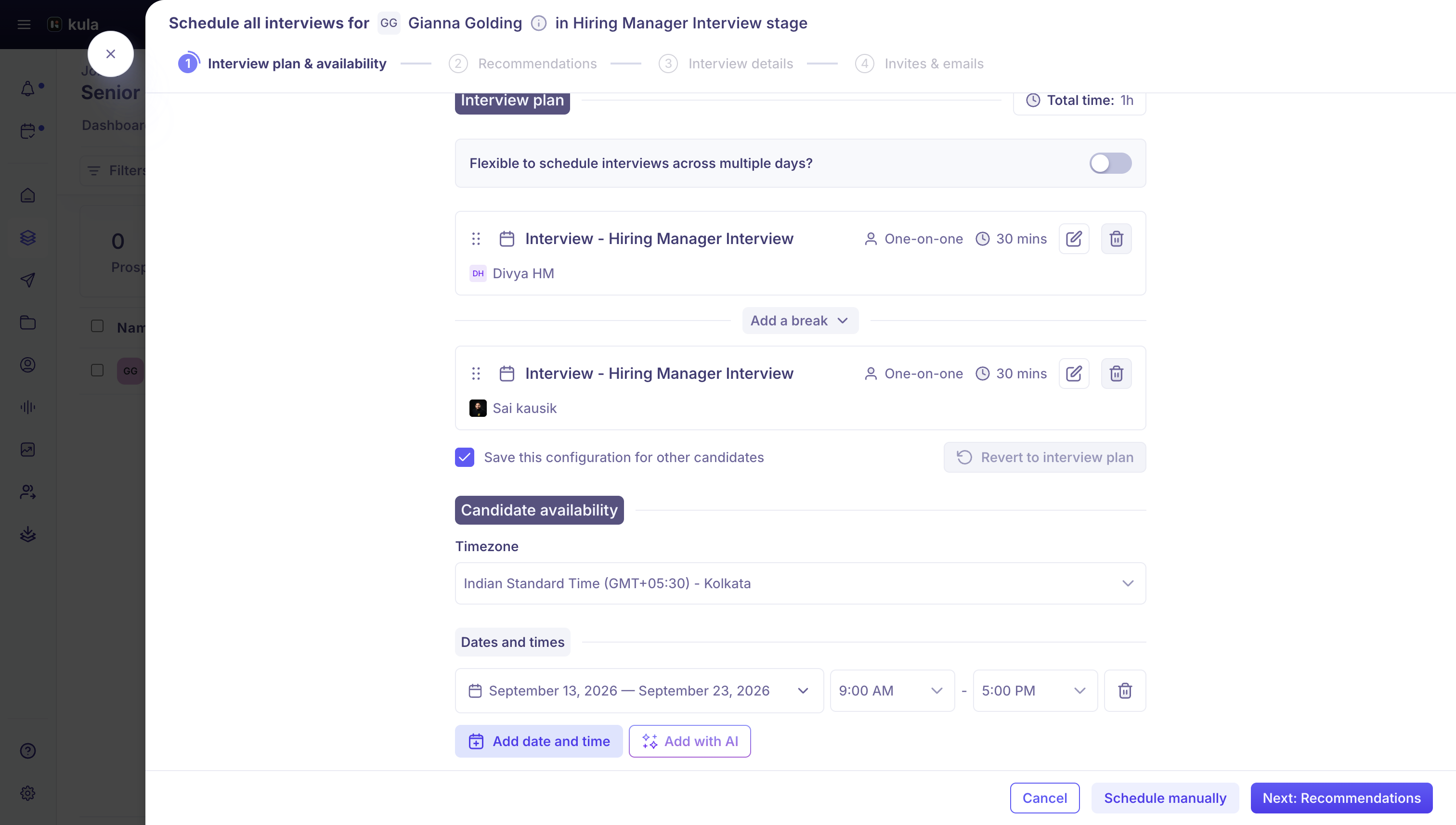
Review the interview plan for this candidate: reorder interviews by dragging, add or edit breaks between them, and edit any interview inline (interviewers, duration, kind). If candidate availability matters here, add it manually (Add date and time) or let Kula gather it (Add with AI).
Recommend
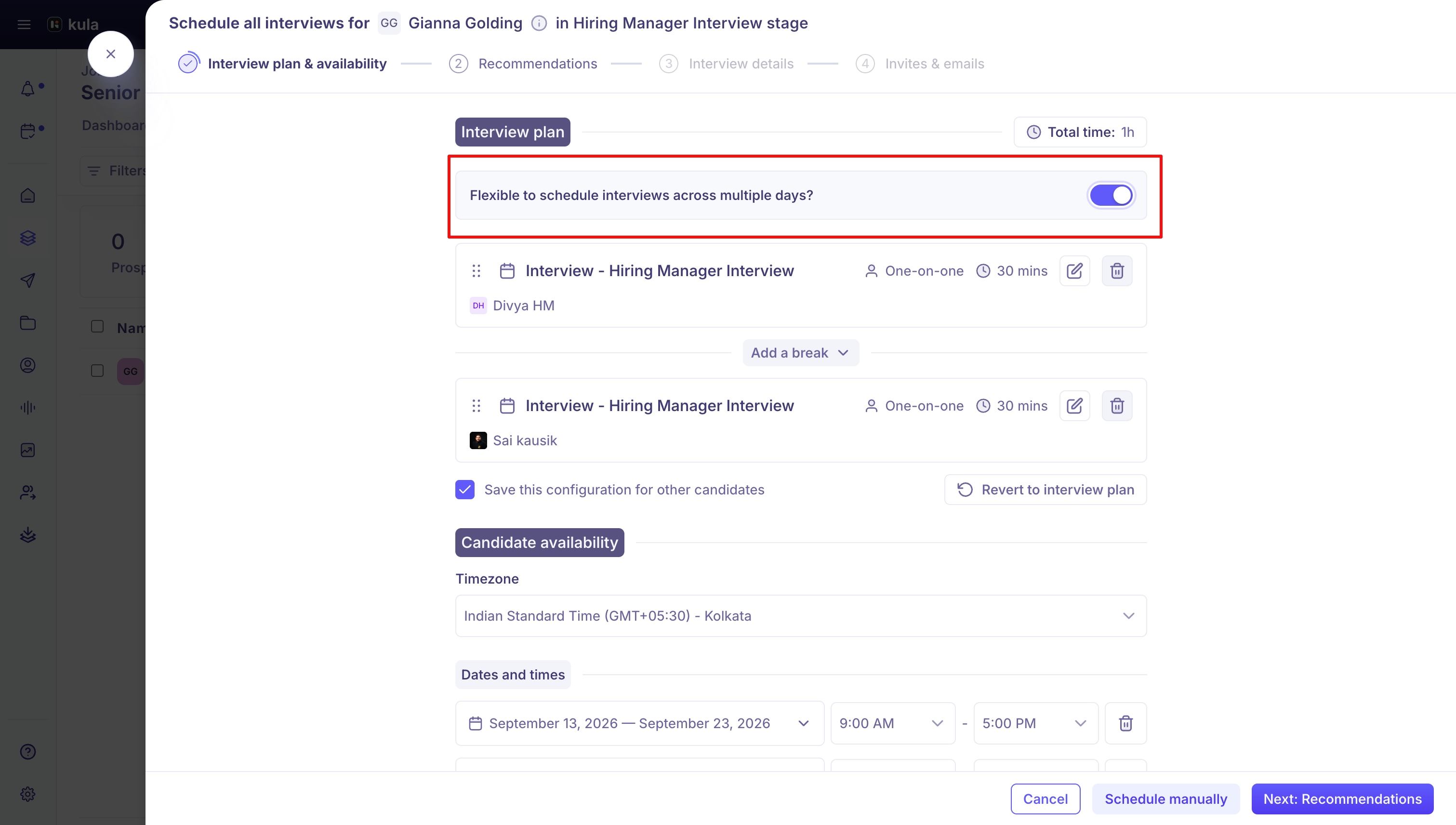
Choose Same day or Flexible (spread across multiple days), then either accept Kula's suggested plan or switch to the manual pane and pick times yourself on a calendar. Recommendations are ranked: the strongest option is badged as the top pick, and any "imperfect" option — an interviewer who's unavailable or overloaded at that time — is kept out of the way behind Show more rather than cluttering the main list. The calendar view greys out hours nobody in that column works (hover explains why: "Outside of working hours") and colour-codes each interviewer's existing events.
Details
Fill in what's left per interview: location or meeting room, and any other interview-specific fields.
Comm
Set up the invite and email for the Candidate and for Interviewers separately (each gets its own tab). This is where a multi-interview day-invite comes together — see below.
A final preview screen shows everything before you commit. The Schedule button reads Scheduling… (or Updating… if you're editing an existing batch) while it runs — expect it to take a few seconds, since Kula is creating every interview and calendar event in that group at once.
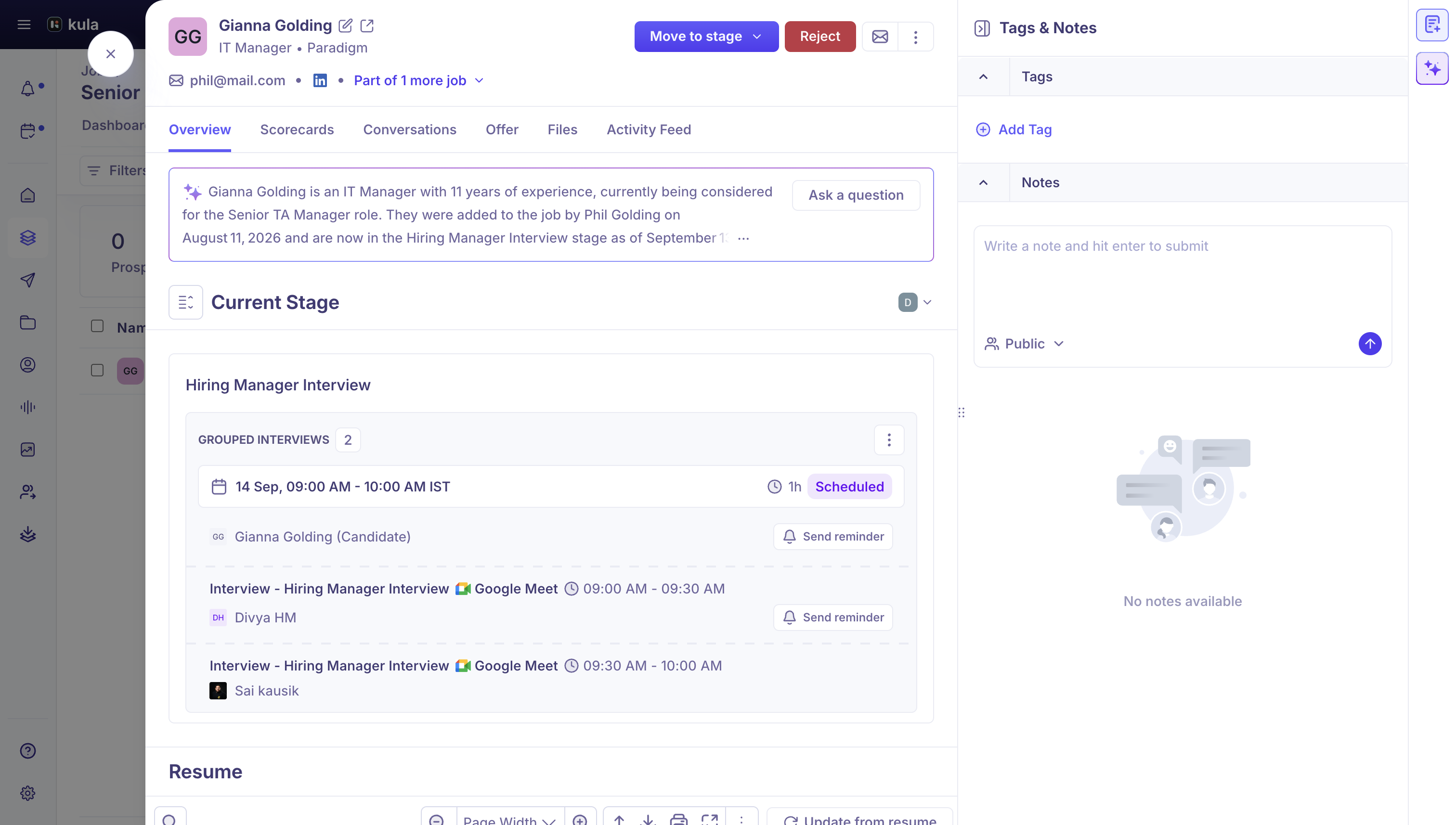
Sending one invite for a whole day of interviews
When an invite covers more than one interview, add the interview info merge variable so each interview's name, date, time, timezone, and interviewers are listed inside that single email — instead of sending a separate invite per interview. The usual per-interview variables (interview time, interview name) aren't supported once an invite spans multiple interviews; Kula flags them if you try to use them there instead.
Reusing a schedule for the next candidate
Check Save this configuration for other candidates before you finish, and Kula remembers the interviewers, interview kind, duration, breaks, order, the Same day/Flexible choice, and any renamed interview titles — against that stage, not just this one candidate. The next candidate scheduled into the same stage starts pre-filled with the same arrangement. If you don't want it, Revert to interview plan clears it back to the stage's original plan.
Good to know
A stage needs at least 2 unscheduled interviews to use Schedule All — this hasn't changed from before, just made explicit in the UI copy.
Editing an already-scheduled batch offers Edit manually, Edit with AI, or Cancel interviews (from the group's menu) — cancelling is all-or-nothing for that group: it cancels every interview in it and notifies everyone, with a confirmation step first.
Candidate availability date ranges have limits: presets exist for This week, Next week, Next 2 weeks, Next 3 weeks, and This month; ranges can't overlap each other, and there's a 60-day cap across everything you've added.
You can make the calendar events private with a toggle in the flow, same as manual scheduling.
FAQ
Can we send one consolidated email that shows all the scheduled interviews for an onsite loop, instead of a separate invite for each one?
Yes — in the Comm step, use one invite for the group and add the interview info variable, and it lists every interview's details inside that single email.
Need help?
If you have questions or need assistance, reach out to us at support@kula.ai or use the in-app chat.