Restricting Job Visibility by Team
Last updated: April 10, 2026
In Kula, not every job needs to be visible to everyone — internally or externally. Whether you're hiring for a sensitive leadership role, running a confidential backfill, or working with external agencies, Kula gives you layered controls to decide exactly who can see a job and what they can do with it.
This article explains the three main ways to restrict job visibility in Kula: job listing settings, confidential jobs, and hiring team access controls.
How Job Visibility Works in Kula
Job visibility in Kula operates at two levels:
External visibility — whether candidates outside your organisation can find and apply to the job
Internal visibility — which team members inside Kula can see and interact with the job
These two dimensions are independent of each other and can be configured separately for each job.
1. Job Listing Settings: Listed vs. Unlisted
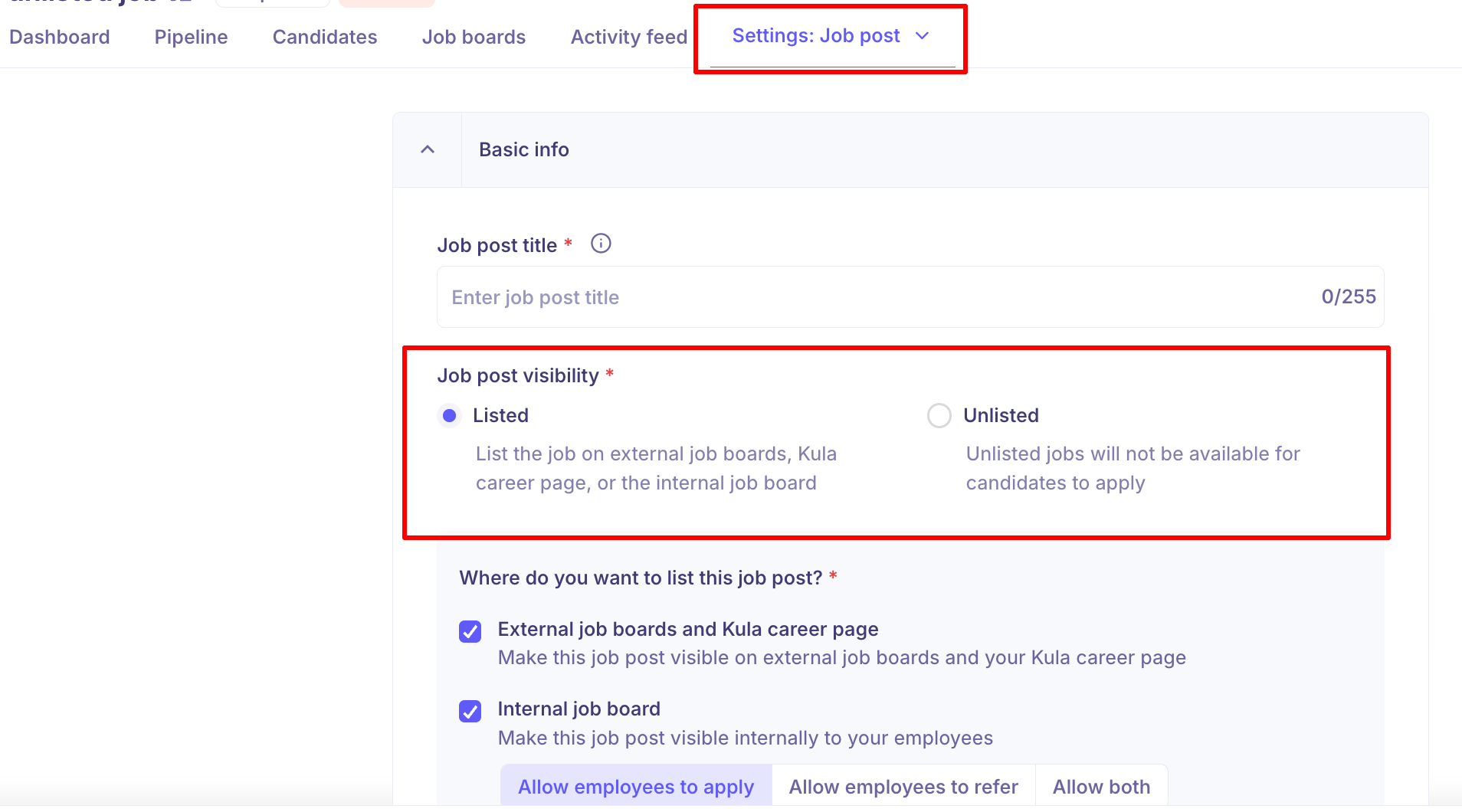
Listed
A Listed job is published on your Kula career page and visible to external candidates. When a job is listed, candidates can find it organically or via a shared link and apply directly.
Unlisted
An Unlisted job is not published on your career page. It will not appear in search results or on your public job board. However, the job still exists in Kula and can be shared via a direct link — useful for soft launches, referral-only roles, or roles you want to quietly test before going public.
Note: Setting a job as Unlisted removes it from the career page but does not prevent access if someone has the direct job URL. If you need stricter access control, use the Confidential job setting instead.
Internal vs. External Job Type
Separate from the Listed/Unlisted toggle, each job has an audience setting:
Setting | Who Can Apply |
Internal | Only employees (via the internal job board) |
External | Only external candidates (via career page or job boards) |
Both | Both internal employees and external candidates |
This setting controls who can apply, while the Listed/Unlisted setting controls whether the job appears on the public career page. These two settings work independently — for example, a job can be Unlisted but still set to External, meaning external candidates can apply via a direct link but won't find it through your career page.
How to Update Job Listing Settings
Navigate to the job and open Settings > Job Post.
Under the listing section, toggle the job between Listed and Unlisted.
Set the audience to Internal, External, or Both based on your hiring needs.
Save your changes.
2. Confidential Jobs
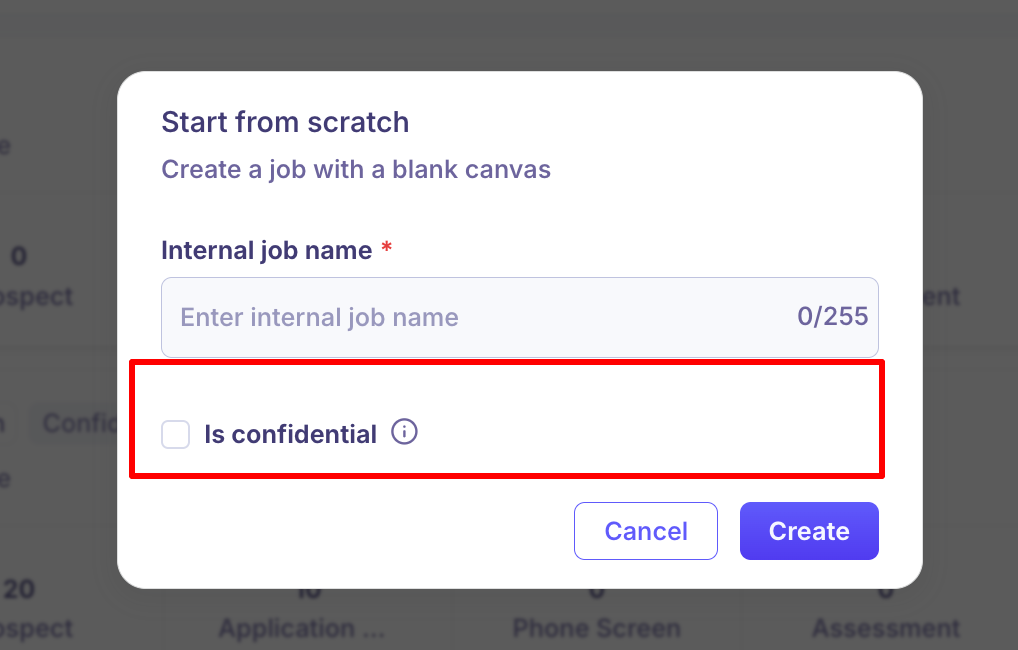
For sensitive roles — such as leadership replacements, restructuring hires, or executive searches — Kula offers a Confidential job setting. This restricts visibility to only those who have been explicitly granted access.
How Confidential Jobs Work
A confidential job does not appear on the career page, regardless of listing settings.
Internally, the job is only visible to users with the Manage All Confidential Jobs permission (Super Admins by default) and members of the job's hiring team.
Recruiters and Hiring Managers without this permission will not see the job in their jobs list unless they are added to the hiring team.
Kula generates a private application link for confidential jobs, which can be shared directly with shortlisted candidates without publishing the role publicly.
Who Can Manage Confidential Jobs
Role | Can See Confidential Jobs |
Super Admin | ✓ Always |
Admin | ✗ Not by default |
Recruiter | ✗ Only if added to the hiring team |
Hiring Manager | ✗ Only if added to the hiring team |
Organisation Member | ✗ No |
External Collaborator | ✗ Only if added to the hiring team |
To give an Admin access to confidential jobs, you can create a custom role with the Manage All Confidential Jobs permission enabled.
How to Mark a Job as Confidential
Navigate to the job and click "Create Job"
Enable the Is Confidential option.
Save the changes. The job will immediately be hidden from users without access.
To share the role with candidates, copy the private application link generated for the job.
3. Hiring Team Access: Controlling Who Sees What Inside a Job
Beyond whether a job is visible, Kula also controls what team members can do once they have access to a job. This is managed through the Hiring Team settings within each job.
Job-Level Roles in the Hiring Team
When a user is added to a job's hiring team, they are assigned one of four job-level roles. These are separate from their organisation-wide role and determine what they can see and do within that specific job.
Hiring Team Role | What They Can Do |
Recruiter | Full access to manage the job, pipeline, candidates, and interviews |
Hiring Manager | View pipeline and candidates, participate in interviews and feedback |
Coordinator | Schedule interviews and manage logistics; cannot see offers |
External Recruiter | Can only see and manage candidates they personally submitted |
Assigning someone as a Coordinator rather than a Recruiter or Hiring Manager is a practical way to give scheduling access without exposing offer details.
Who Can Be Added to a Hiring Team
Users must have a compatible organisation-wide role to be added to a hiring team:
Super Admins, Admins, Recruiters — can be added to hiring teams
Hiring Managers — can be added to hiring teams
External Collaborators — can be added as External Recruiters
Organisation Members — cannot be added to hiring teams; they must first be assigned at least the Hiring Manager role
What Happens Without Hiring Team Access
A Recruiter who is not added to a job's hiring team will not be able to:
View submitted scorecards for that job
Send scorecard reminders
View the hiring team composition of that job
This applies even if their organisation-wide role is Recruiter. Access is job-specific.
How to Add Someone to the Hiring Team
Navigate to the job and open the Hiring Team tab.
Click the relevant section — Recruiter, Hiring Manager, Coordinator, or External Recruiters.
Search for and select the user you want to add.
Save. The user will now have access to the job based on their assigned hiring team role.
4. External Agency Access
For organisations working with external recruiting agencies, Kula provides a structured way to give agency recruiters limited, scoped access to specific jobs.
How to Set Up Agency Access
Navigate to Settings > Users and add the agency recruiter as a new user with the External Collaborator role.
Send the invite. Once accepted, navigate to the relevant job.
Open Settings > Hiring Team > External Recruiters and add the agency recruiter.
Save.
Once added, the External Collaborator can submit candidates to that job and view only the candidates they personally added. They cannot see other candidates in the pipeline, access reports, or view any other jobs unless explicitly added.
If you need to give agency partners additional access — such as participating in feedback loops — you can create a custom role with the specific permissions required and assign it instead of the default External Collaborator role.
Quick Reference: Visibility Controls Summary
Control | Where to Configure | What It Restricts |
Listed / Unlisted | Job > Settings > Job Post | Whether the job appears on the career page |
Internal / External / Both | Job > Settings > Job Post | Who can apply (employees, external candidates, or both) |
Confidential | Job > Settings > Job Info | Internal visibility — only hiring team + Super Admins can see the job |
Hiring Team Role | Job > Hiring Team tab | What each team member can see and do within the job |
External Collaborator role | Settings > Users | Scopes agency access to only their submitted candidates |
Frequently Asked Questions
Can a user see a job without being on the hiring team? It depends on their role. Admins and Super Admins can see all jobs. Recruiters can see all non-confidential jobs but may not be able to interact with them (e.g., view scorecards) unless added to the hiring team. Hiring Managers can only see jobs they are added to.
Can an Organisation Member be added to a job? No. Organisation Members cannot be added to hiring teams. To include someone in the hiring process — for example, as an interviewer — they must first be assigned the Hiring Manager role or higher.
What is the difference between Unlisted and Confidential? An Unlisted job is simply hidden from the public career page but is otherwise accessible to all internal users. A Confidential job is restricted internally as well — only Super Admins and hiring team members can see it.
Can an External Recruiter see all candidates in a job? No. External Collaborators added as External Recruiters can only view and manage candidates they personally submitted to that job.
Need Help?
If you have questions or need assistance with setup, feel free to reach out to us at support@kula.ai or use the in-app chat for assistance.