Inviting Team Members
Last updated: April 10, 2026
Adding users to Kula is the first step to getting your recruitment team and broader organization involved in your hiring process. This guide explains how to invite users manually, via Google Workspace, and how to manage pending invitations.
Permission required: Only users with Admin or Super Admin access can invite new users. Before inviting users, we recommend reviewing the Roles and Permissions article so you can assign the right role to each person.
How to Access the Users Page
Go to Settings → Organization → Users.
Ways to Invite Users
There are two ways to add users to Kula. Both are accessible from Settings → Organization → Users by clicking Add user:
Add manually — for individual invitations or users outside your Google Workspace
Add via Google Workspace — invite users directly from your connected Google directory
Note: Google Workspace Provisioning is a separate setting that auto-syncs users in the background — it is not accessed from the Add user button. See Google Workspace Provisioning below.

Method 1: Add Manually
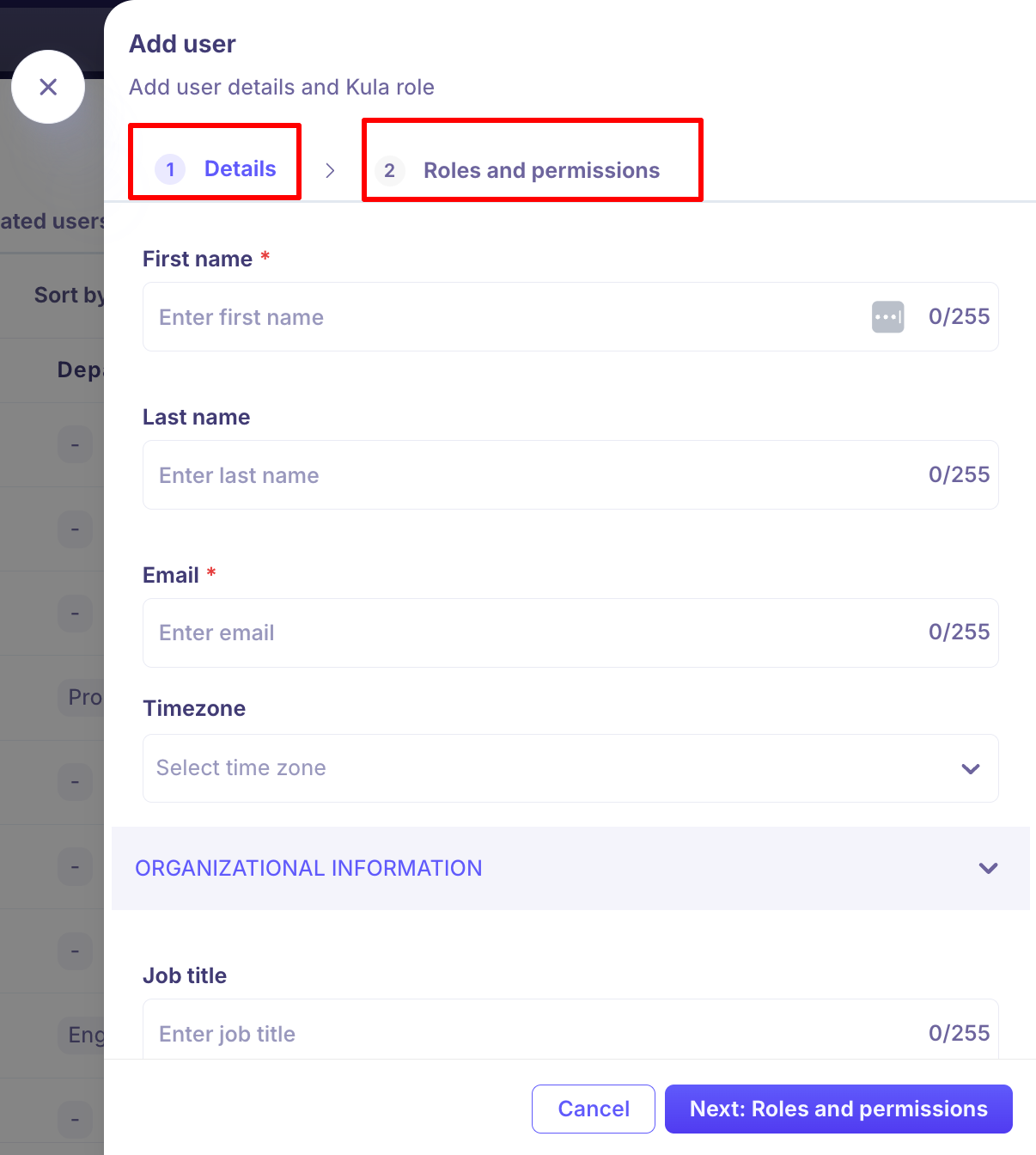
Go to Settings → Organization → Users.
Click Add User in the top right corner.
Under the Details section, fill in the required fields:
Basic Information:
Field | Required |
First Name | Yes |
Last Name | No |
Yes | |
Timezone | No |
Organizational Information (optional)
Job Title — the user's designation within the organization
Reporting Manager — assigns a manager for hierarchical mapping
Department — associates the user with a specific department
Office — maps the user to an office location
ATS Contact — enable this to prevent the user from accessing their own candidate or contact profile in Kula
Interviewer Pool — assigns the user to a predefined interviewer group (configure pools under Settings → Interviewer Pools)
Note: All mandatory fields must be completed before you can proceed to the next step.
Click Next: Roles and Permissions.
Assign a role. Every user must have a role before they can be added. The role controls access to:
Admin settings
Jobs
Requisitions
Flows
Circles
Projects
Contacts
Analytics
See the Roles and Permissions article for full role definitions.
Click Save.
An invitation email is sent to the user. Once invited, the user appears in the Pending Users section. Once they log in, they move to the Active Users section.
Method 2: Add via Google Workspace
If your Google Workspace integration is enabled, you can invite users directly from your Google directory without entering their details manually.
Prerequisites
Google Workspace must be connected. Go to Settings → Organization Integrations and confirm Google Workspace is enabled.
Steps
Go to Settings → Organization → Users.
Click Add User.
Select Google Workspace from the dropdown.
Kula fetches all users from your connected Workspace directory and displays them in a dedicated panel.
Select users to invite — individually or in bulk.
Status tags are shown next to each user so you know who is eligible:
Status | Meaning |
Pending | Invited but has not yet accepted |
Activated | Already an active user in Kula |
Deactivated | Previously removed or inactive |
Users with Pending, Activated, or Deactivated status cannot be selected for a new invite.
Invite limit: If your selections exceed your plan's allowed number of users, additional selections are disabled and a tooltip explains the issue. Contact support via the in-app widget to increase your limit.
Confirm the selection and send invites.
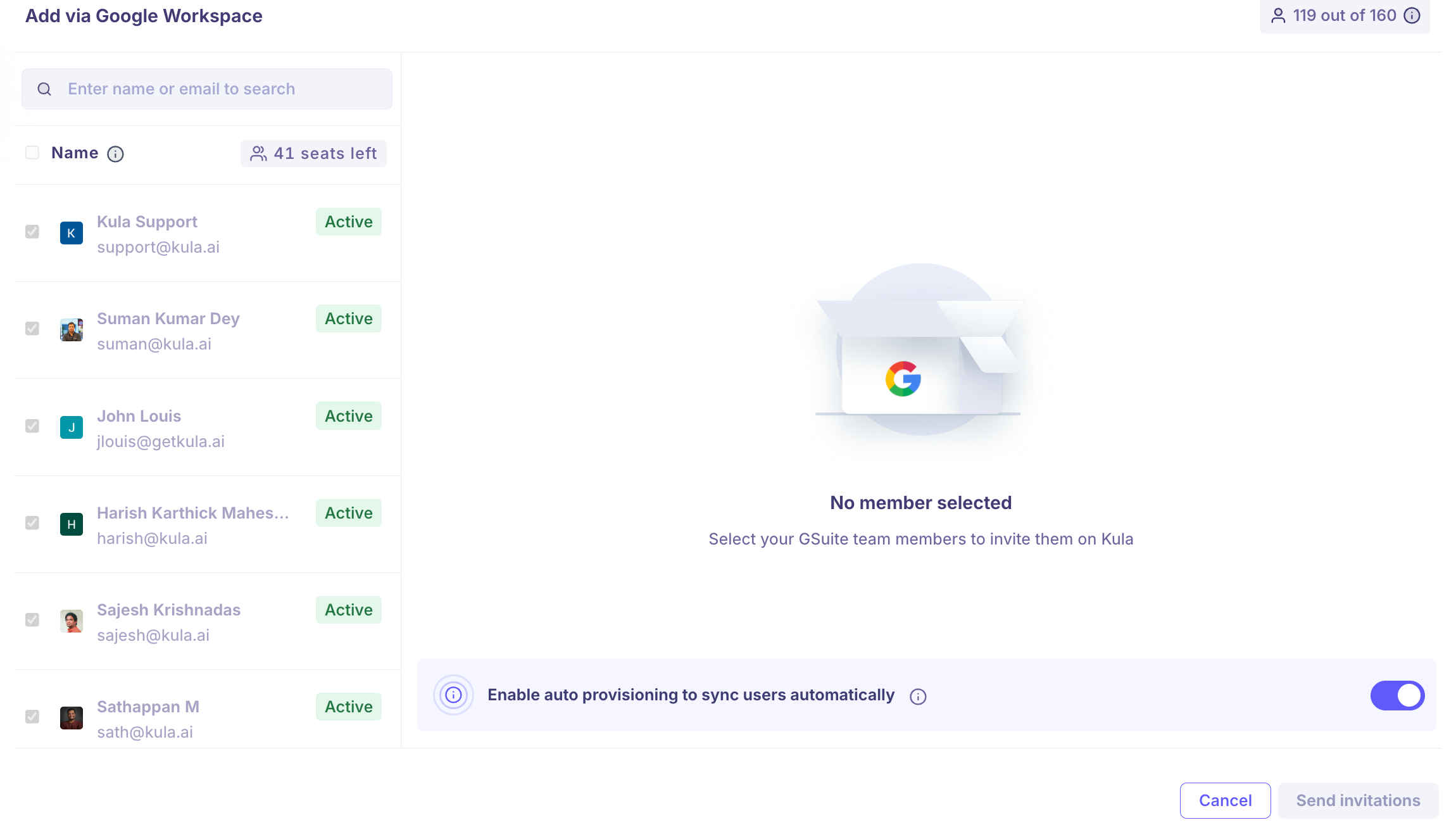
For full setup steps, see the How to Invite Users via Google Workspace Integration article.
Google Workspace Provisioning (Auto-Sync)
Provisioning is a separate setting from the Add user flow. It automatically syncs your Google Workspace users into Kula in the background — no manual invitations needed.
Enable provisioning
Go to Settings → Organization Integrations.
Click Edit on your Google Workspace connection.
Turn on Provisioning.
How it works
When enabled, a one-time full sync runs immediately — all active Workspace users are added to Kula as active users (including anyone previously listed as Deactivated, Pending, or Imported).
Re-enabling provisioning triggers a fresh full sync.
After the initial sync, Kula checks your Workspace every 10 minutes and applies:
New users → automatically provisioned in Kula
Removed users → automatically deprovisioned in Kula
Name or email changes → automatically updated in Kula
This means your Kula user list stays in sync with your Google directory at all times without any manual action.
Managing Pending Invitations
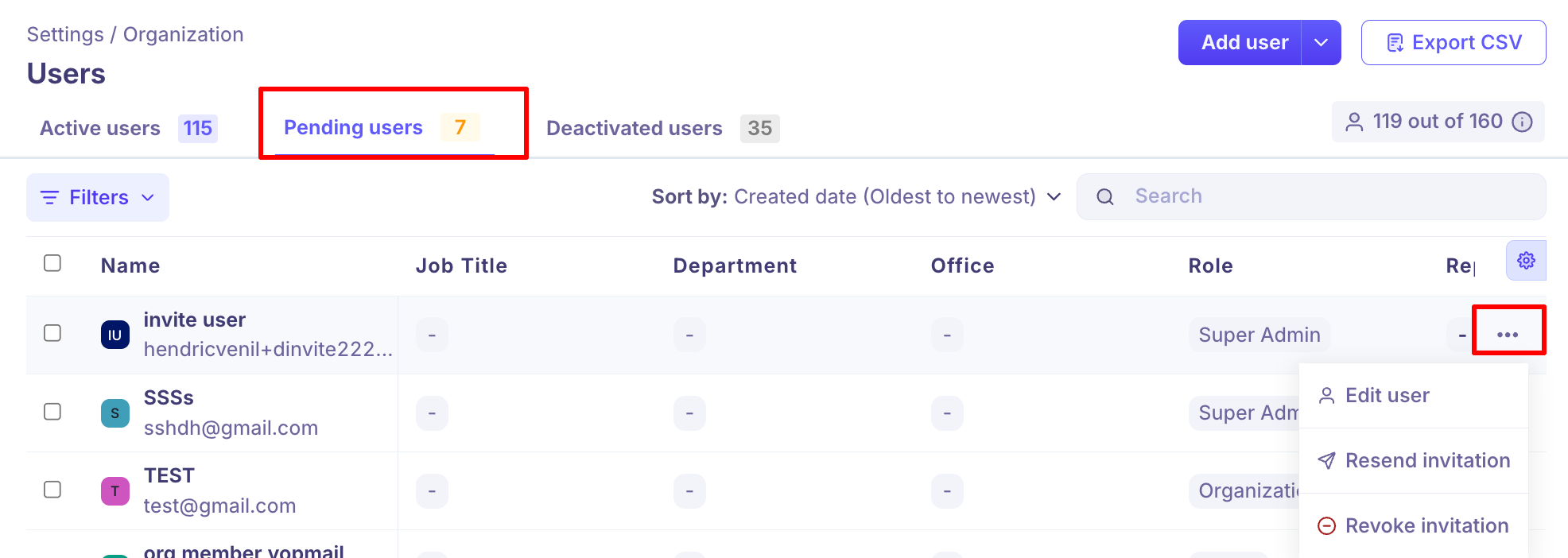
If an invited user has not logged in yet, they appear in the Pending Users section. You can resend or revoke their invitation from here.
Resend an invitation
Hover over the user's row and click the Ellipses (...) icon.
Click Resend Invitation.
Confirm by clicking Resend.
Revoke an invitation
Hover over the user's row and click the Ellipses (...) icon.
Click Revoke Invitation.
Finding Users on the Users Page
Once users are added, use the following tools to navigate and manage the list:
Search — find any user by name or email address
Filters — filter by Role, Department, Permissions, or Office
Sorting — sort by Created date (newest/oldest) or Name (A–Z / Z–A)
Customize columns — click the ⚙ icon in the table header to show, hide, or reorder columns
Bulk actions — select multiple users using checkboxes to update roles or deactivate in one action
Export CSV — download a CSV of all user details for audits, reporting, or access reviews

FAQs
What is the difference between inviting via Google Workspace and enabling provisioning? Inviting via Google Workspace is a manual action — you select specific users from your directory each time. Provisioning is automatic — Kula continuously syncs with your Workspace and adds, removes, or updates users without any manual steps.
Can I invite users in bulk manually? Bulk invites are supported via the Google Workspace method. For manual invites, users must be added one at a time.
What happens if I exceed my user invite limit? If your plan limit is reached, additional selections are disabled during the Google Workspace invite flow. Contact support via the in-app widget to request an increase.
Can I assign roles later after inviting a user? A role must be assigned at the time of invitation. You can update a user's role at any time afterward from the Users page. See Editing or Deactivating a User for steps.
Who can invite users? Only users with Admin or Super Admin access. If you do not see the Settings → Organization → Users section, contact your workspace admin.
Need Help?
If you have questions or need assistance with setup, feel free to reach out to us at support@kula.ai or use the in-ap