How to Use Tags
Last updated: June 4, 2025
Tags in Kula ATS help you organize, categorize, and collaborate better on candidates within a job pipeline. Think of tags as labels or sticky notes — flexible and searchable — that allow you to quickly identify candidates by status, skills, referrals, feedback, and more.
📌 Where You Can Add Tags to Candidates
You can apply tags directly from the Candidate page inside a job.
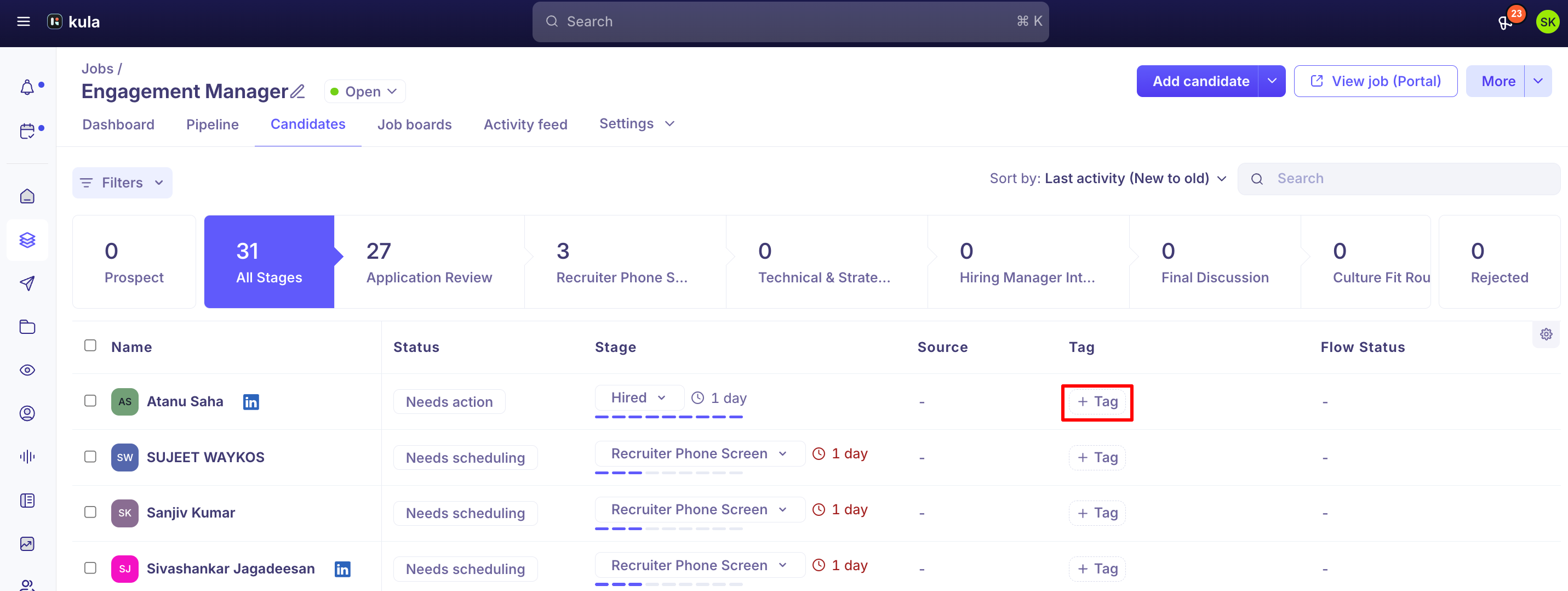
Steps:
Go to the Jobs tab and select the desired job.
Navigate to the Candidates section.
Click on any candidate profile to open the detailed view.
On the candidate section, you’ll see a "Tags" field in the table as shown in the image.
Click the field to:
Create new tags by typing and pressing Enter
Add existing tags from the dropdown by typing the keyword.
Tags will be instantly saved and visible to all users who access the Job > Candidate tab.
💡 Why Tags Are Useful
Tags can dramatically improve how you manage and collaborate on candidates across your hiring pipeline.
✅ Use Cases for Tags
Skill-specific tags:
Python,UX Design,Cloud CertifiedProcess tags:
Needs Tech Interview,Follow-up Later,OfferedFeedback summary:
Strong Communication,Needs GroomingCollaboration tags:
Referred by Sales,Hiring Manager FavoriteCustom campaigns or sourcing info:
Campus Drive,LinkedIn Sourced
🔍 Searching and Filtering Using Tags
You can filter candidates by tags within the job pipeline or from the Contacts tab, making it easier to:
Identify all candidates with a specific tag (e.g.,
React,Shortlisted)Shortlist or prioritize candidates for next stages
Run targeted actions like sending emails or bulk-moving candidates
👥 Tags Are Collaborative
Tags are visible across your team, which means:
Everyone stays aligned on candidate context
You reduce back-and-forth around candidate status or feedback
Tags serve as a shared language across recruiters, coordinators, and hiring managers
🛠 Pro Tips
Set a tagging convention (like lowercase or role-first:
developer-javascript)Reuse tags consistently to keep your pipeline clean
Clean up unused tags periodically from your Tags settings (if available)
❓ FAQs: Using Tags in Candidate Page (Kula ATS)
Q: Where can I add tags to a candidate?
A: You can add tags from the Candidate's profile inside the Job > Candidates section.Q: Can I create custom tags?
A: Yes, simply type a new tag and hit Enter to create it.Q: Are tags visible to everyone in the team?
A: Yes, all team members with access to the job can see and use tags.Q: Can I filter candidates by tags?
A: Absolutely, you can filter candidates by tags within jobs and from the Contacts tab.Q: What kind of tags should I use?
A: Tags likeFrontend,Needs Follow-up,Strong Profile, orReferredare commonly used to track skills, statuses, or sources.Q: Are tags case-sensitive?
A: No, tags are not case-sensitive.Q: Can I bulk tag multiple candidates?
A: Yes, you can select multiple candidates and apply tags in bulk from the list view.Q: How are tags different from stages or notes?
A: Tags are flexible labels, while stages track the hiring process and notes are for detailed comments or feedback.Q: Can I delete or edit tags?
A: You can remove tags from candidates, but editing tag names depends on your team’s tagging permissions.
📎 Need Help?
Have questions about tags or want to build custom workflows using them? Reach out to our support team via chat or email at support@kula.ai.