Ad Hoc Email Scheduling in Kula ATS
Last updated: June 11, 2025
With Ad Hoc Email Scheduling, you can draft and schedule personalized emails to candidates to be sent at a specific date and time — all from within Kula ATS. This feature helps recruiters stay organized, maintain timely follow-ups, and automate outreach even when you're offline.
🛠 How to Schedule an Ad Hoc Email
Step 1:
Navigate to Jobs > Candidates, or find the candidate through the Contacts tab.
Step 2:
Inside the candidate view, click the Email icon or the "Send Email" button.
Step 3:
Choose your sender address (if applicable), add a subject line, and write your email content.
You can also use dynamic fields like
{{candidate.first_name}}to personalize the message.
Step 4:
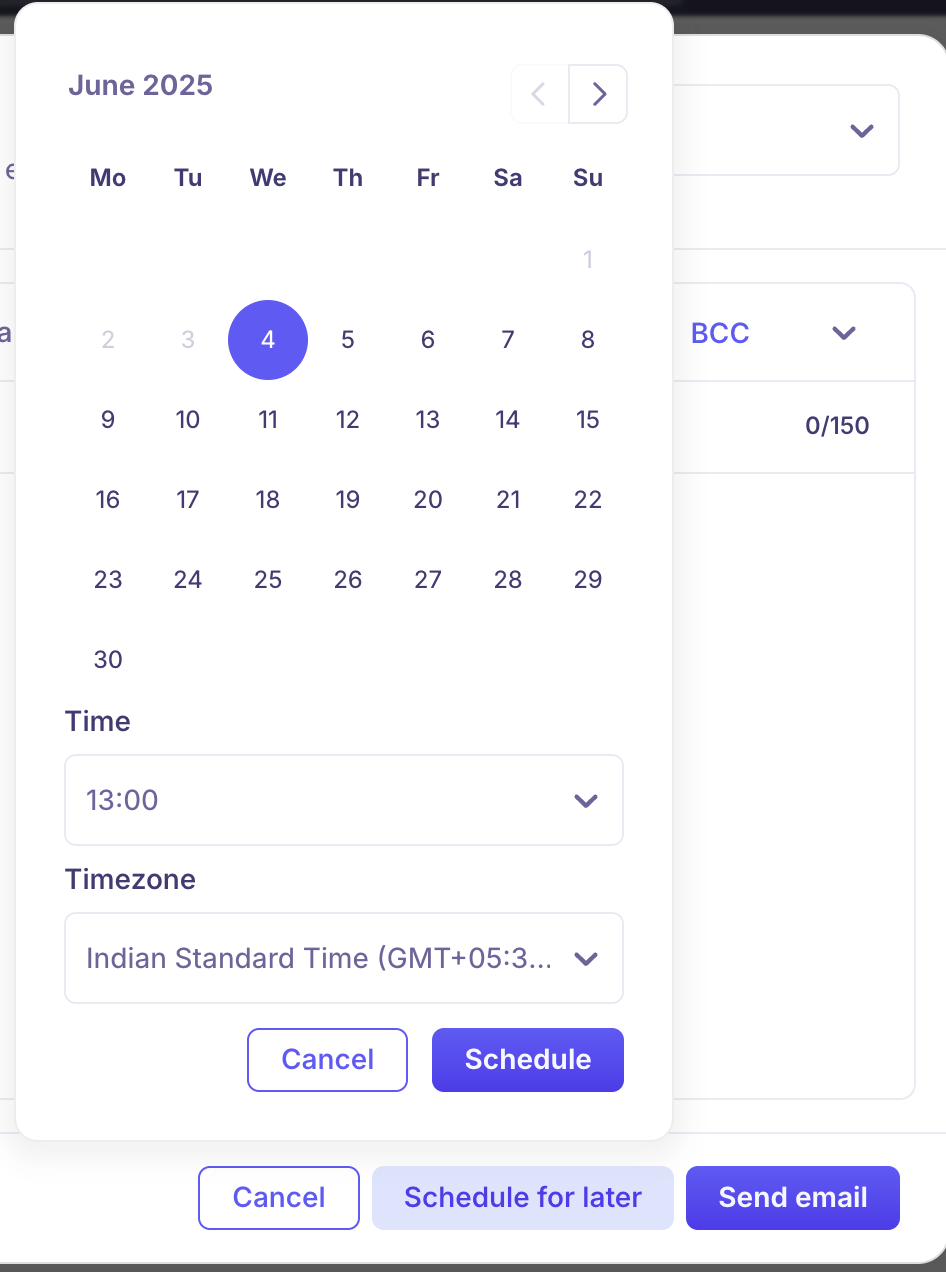
Instead of clicking "Send", click the dropdown arrow next to it and select "Schedule Later".
Step 5:
Pick the date and time (based on your profile’s time zone) when you want the email to be sent.
Step 6:
Click Schedule.
The email will now appear in the candidate’s activity timeline with a clock icon, indicating it is scheduled for later.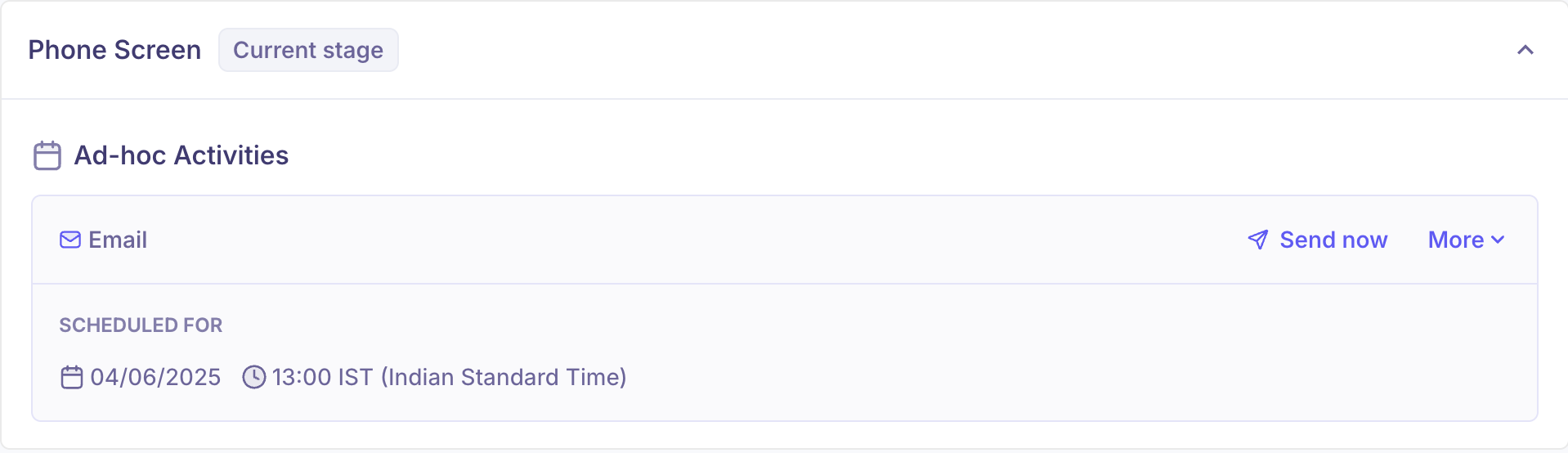
✉ Where to View Scheduled Emails
You can view and manage your scheduled emails from:
Candidate profile activity timeline
Your Email activity log (if enabled)
You can edit or cancel scheduled emails anytime before they’re sent.
🎯 Use Cases
Send reminders to candidates post-interview.
Time outreach to match a candidate's time zone.
Follow up after X days without needing to log in manually.
🙋♀ FAQs – Ad Hoc Email Scheduling
Q: Can I schedule an email to multiple candidates?
A: Currently, emails can be scheduled individually per candidate.Q: Will the email send if I’m logged out or offline?
A: Yes, once scheduled, emails will send automatically even if you're not online.Q: Can I cancel or reschedule a scheduled email?
A: Yes, just go to the candidate’s timeline and click "Edit" or "Cancel" on the scheduled email.Q: Will I get notified once the email is sent?
A: Not by default, but you can track delivery in the candidate's timeline or enable email logging if supported.Q: What time zone does the scheduling follow?
A: The schedule follows your profile time zone settings in Kula.Q: Can I use email templates in scheduled emails?
A: Yes, you can apply existing templates and then schedule them just like a normal message.Q: Is there a limit to how far in advance I can schedule?
A: No hard limit — you can schedule emails days or weeks in advance.