Setting up AI Notetaker
Last updated: November 4, 2026
The AI Notetaker joins your video interviews, records and transcribes them, and generates a structured summary of what was discussed — so interviewers can review scorecards and candidate claims without re-watching the call.
Who can do this: Admin, Super Admin can configure the notetaker's settings and summary templates. Recruiters can turn it on or off per interview wherever it hasn't been made mandatory.
Where to find it: Settings → AI teammates → AI notetaker.
Naming it and making it mandatory
Under the Details tab:
Give your notetaker a name under AI notetaker name.
Turn on Make the AI notetaker mandatory if you want it always on for certain interviews, rather than left to each recruiter's judgment.
If you turn mandatory on, scope it: All jobs, or Specific departments and offices, and optionally narrow further by Stages. Outside whatever scope you set, recruiters decide per interview as they do today.
Building summary templates
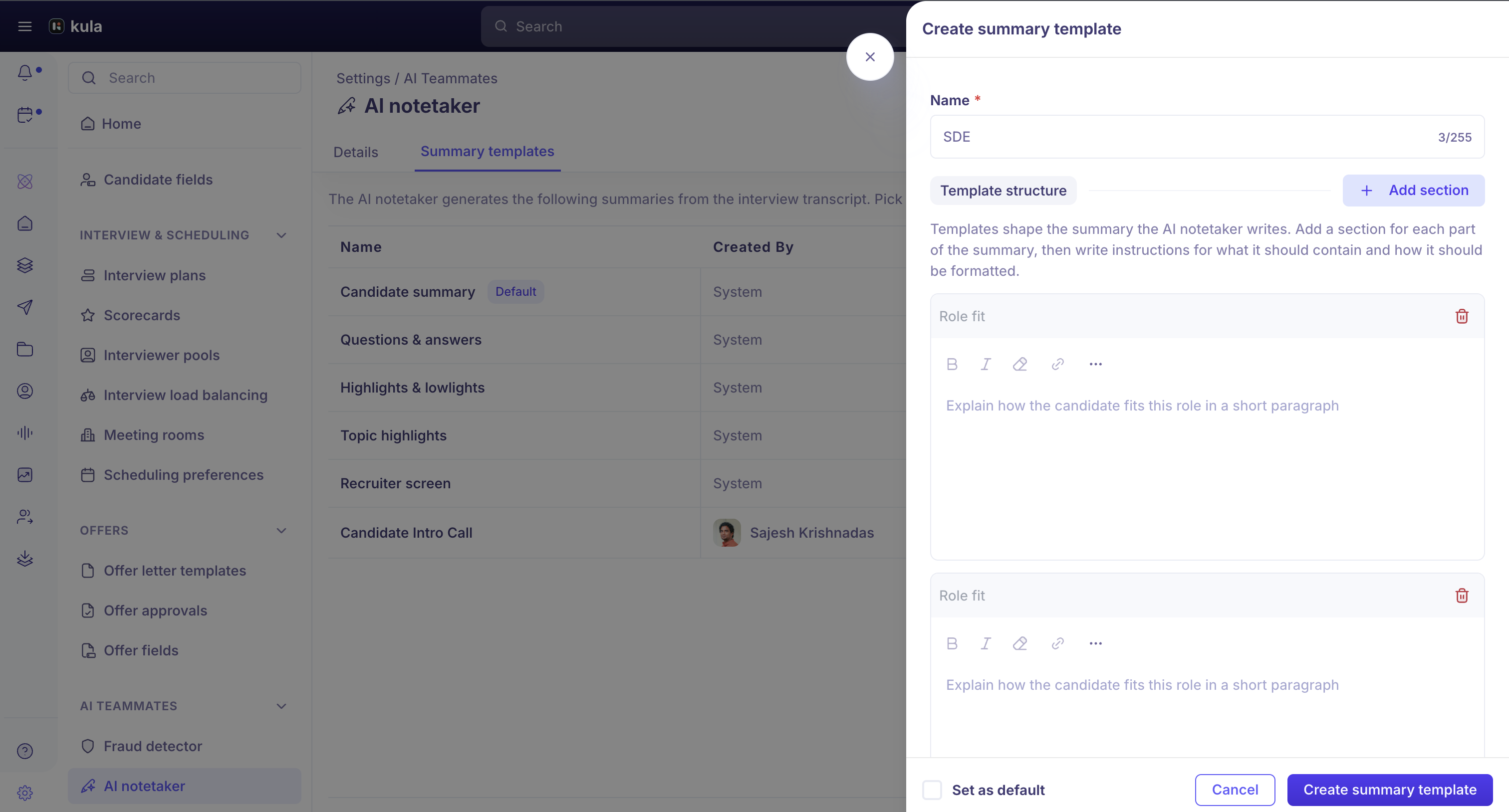
Beyond turning the notetaker on, you can control what its summary actually covers. Under the Summary templates tab:
Click Add summary template.
Name the template, then add one or more Sections — each with its own name and its own instructions telling the AI what that section should cover and how.
Clone an existing template as a starting point for a variant, rather than building every one from scratch.
Mark one template Set as default — the one used for interviews that don't have a more specific template assigned.
Every template can be edited, cloned, or deleted later from the Summary templates list.
What candidates are told
Kula discloses the recording automatically, so no recruiter has to remember to mention it:
A message appears in the meeting chat: "This meeting is being recorded and transcribed for note-taking." It's posted when the notetaker joins, and again for anyone who joins later, so late arrivals are informed too.
On Google Meet and Microsoft Teams, a short spoken announcement also plays once recording actually begins (not while the bot is waiting to be admitted). It plays once per meeting — later arrivals get the chat message instead, not a repeat announcement.
On Zoom, only the chat message appears — Zoom already plays its own recording announcement, so Kula doesn't add a second one.
Understanding a failed recording
If an interview shows an "AI recording failed" badge, hover over it for the specific reason — Kula now distinguishes 78 different outcomes reported by the underlying recording service, from "no participants joined the meeting" to an invalid meeting link or a sign-in issue. This only applies to interviews recorded after the feature shipped (August 2026) — older recordings won't have a tooltip.
Good to know
Most "AI recording failed" badges aren't real failures. The large majority are simply meetings nobody joined — hovering the badge tells you which case you're looking at before you assume something's broken.
AI Notetaker and AI Scorecard Assistance are two different, separately-controlled features. You can run the notetaker (recording and notes) while leaving AI scorecard assistance off, or vice versa — an account-level switch controls scorecard assistance for the whole organization, and recruiters can also toggle it per interview.
Switching the default summary template is retroactive. It changes the summary for all interviews, including already-completed ones — not just future interviews. Confirm before switching if you want to keep past summaries as they are.
FAQ
Why does almost every interview show "AI recording failed" even when nothing seems wrong?
In the large majority of cases, nothing did go wrong — the badge also covers simple cases like nobody joining the meeting. Hover over the badge for the specific reason Kula recorded; most of the time it's "no participants joined" rather than a genuine recording problem.
Need help?
If you have questions or need assistance, reach out to us at support@kula.ai or use the in-app chat.